From an equipment list to a working record.
A list can tell you which equipment you own. The harder questions come later: where is it, who is responsible for it, when does it need attention, and what happened the last time someone worked on it?
This case study looks at how Filesoft Asset Care connects those questions. We use the existing fictional Workshop extractor records to explain the relationship between an asset, its recurring maintenance plan, a work order and the records left behind.
This walkthrough uses fictional example records in Asset Care Standard on macOS. Dates and counts are those shown in the screenshots.
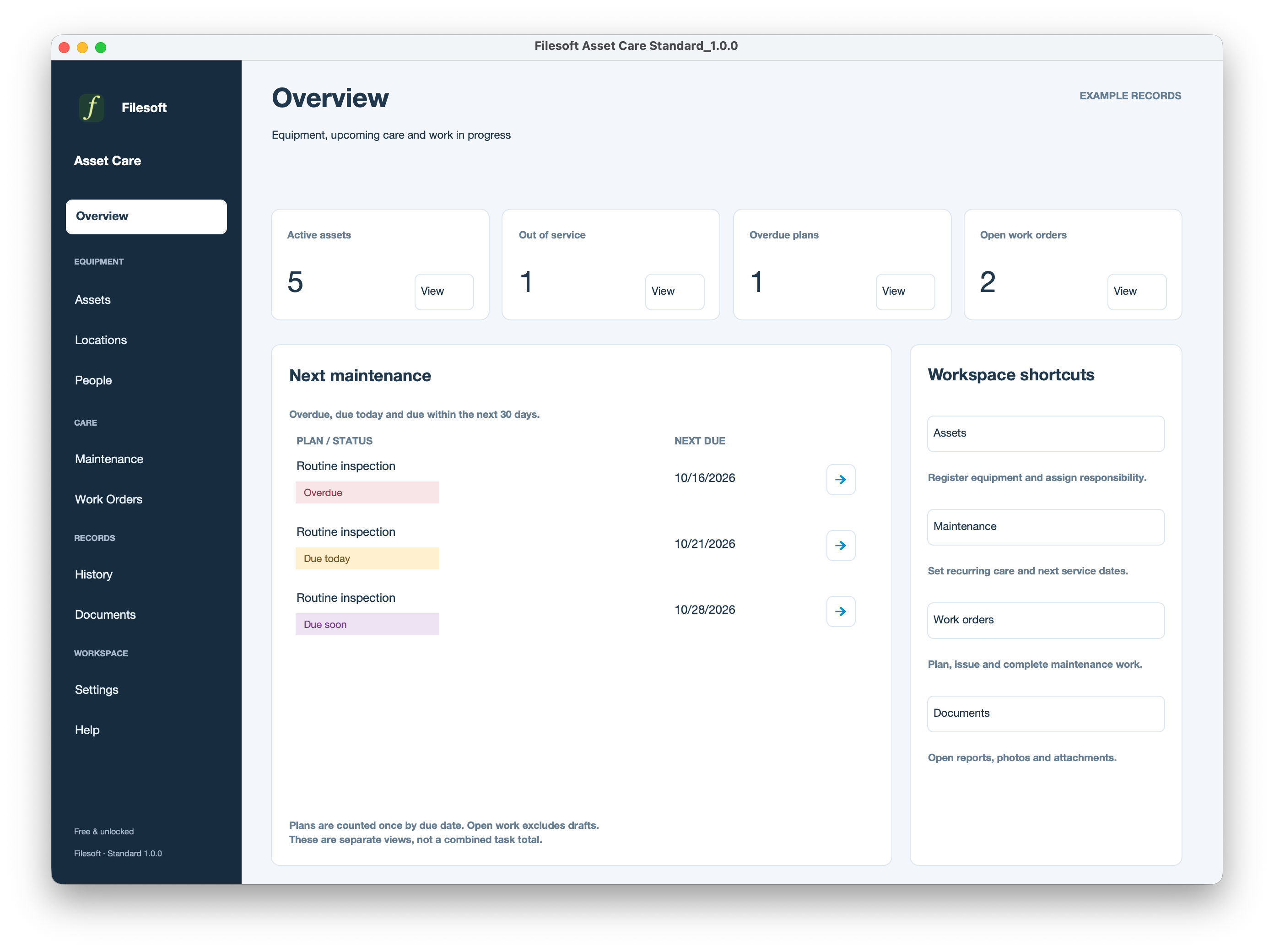
The Overview separates equipment availability from maintenance dates and open work. That distinction matters: an overdue plan and an open work order can concern the same piece of equipment. Adding the counters together would give a misleading task total.
01 / IDENTIFY THE EQUIPMENT
Give the work a clear home.
The selected asset is Workshop extractor, identified as SAMPLE-AST-000004. Its record brings together a location, a custodian, a serial number, condition, availability and a picture.
Keeping condition and availability separate makes the description more useful. “Good” describes condition; “In service” describes availability. The record also provides routes to this asset’s plans, work orders, service history and documents.
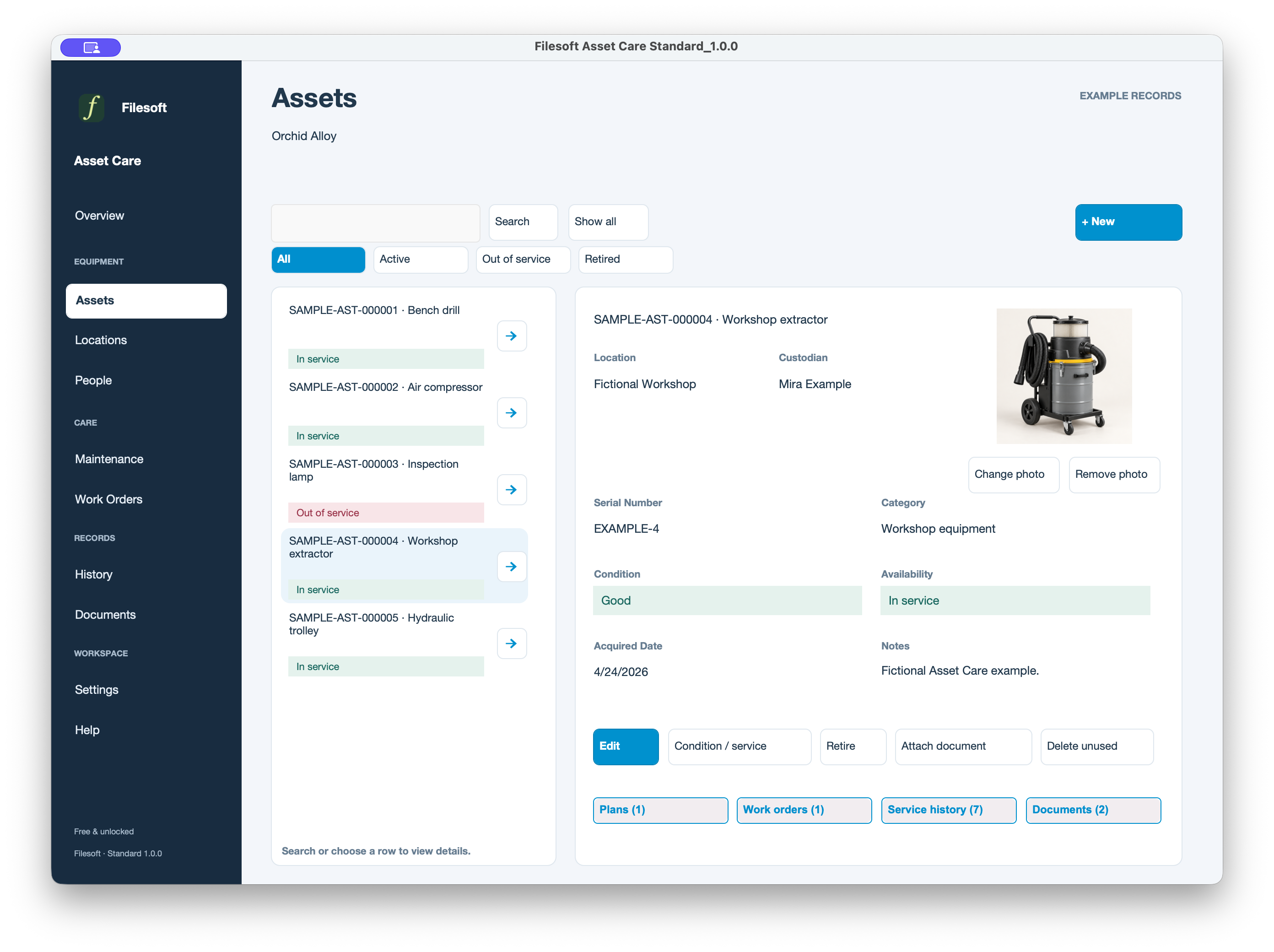
For your own equipment, begin with a consistent identifier and a clear name. A picture helps someone recognize the item, but the identifier is what keeps its related work connected when names or locations change.
02 / DEFINE THE RECURRING CARE
A plan describes work that will come around again.
The Workshop extractor has a Routine inspection plan. The visible interval is one month, the default assignee is Mira Example, and the next due date is 21 November 2026.
The instructions say to inspect, clean and record observations. This is fictional demonstration text; real instructions and intervals should come from the requirements for your equipment.
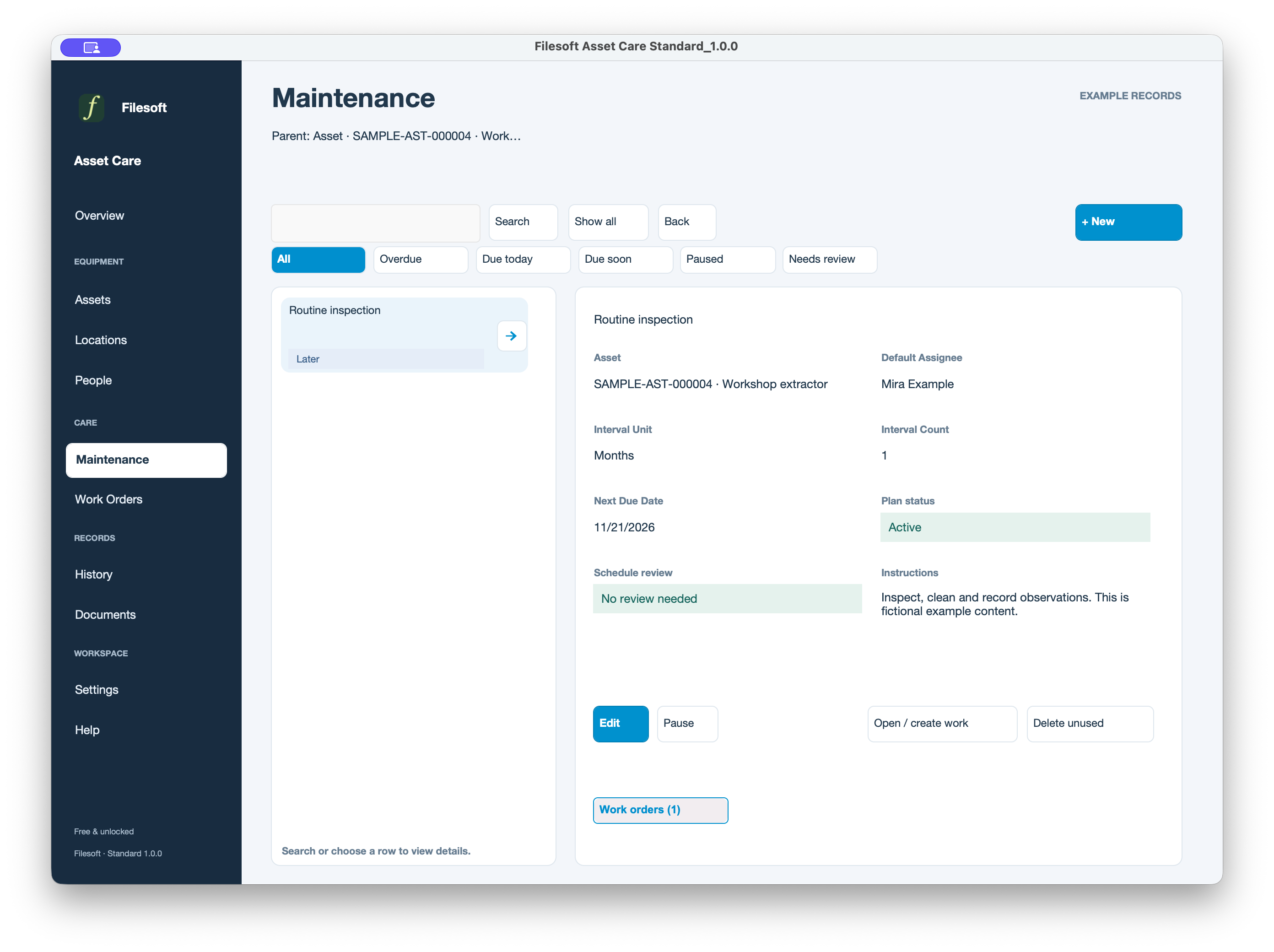
A maintenance plan answers “what needs to recur?” A work order answers “which instance of that work are we handling?” Keeping them separate lets the plan remain useful after an individual job is finished.
03 / RECORD AN INSTANCE OF THE WORK
The job has its own identity and status.
The related work order, SAMPLE-WO-000003, is also called Routine inspection. It refers to the same Workshop extractor and names Mira Example as the assignee. Its status is Completed.
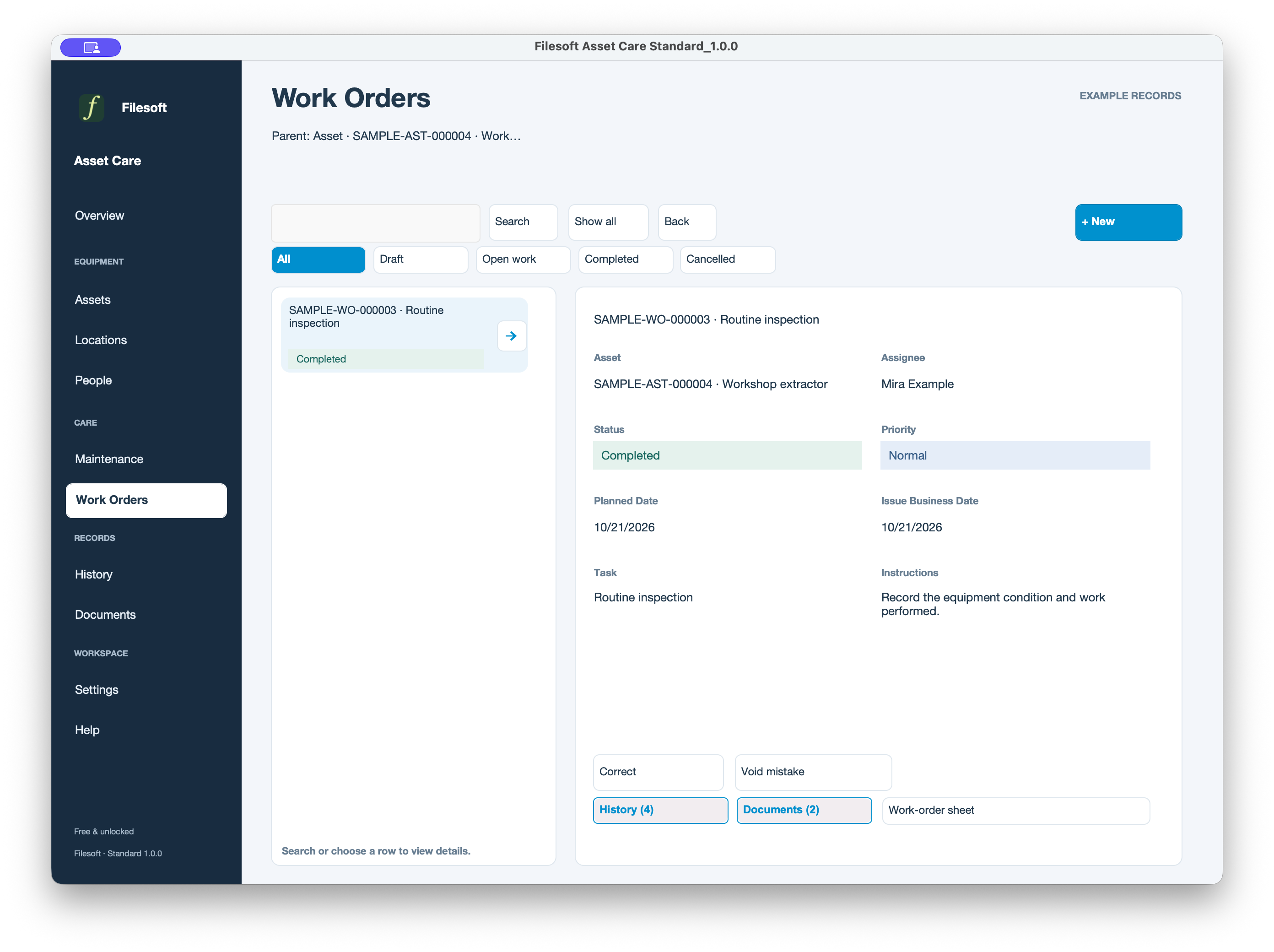
The visible planned date and issue business date are both 21 October 2026. Those labels should not be read as a completion timestamp. The screen also offers related History and Documents, and separate actions for correcting a completion or voiding a mistake.
The useful design pattern is a work record that remains identifiable after it is finished. A current status can answer “is this job complete?”; the related records can provide the detail needed for a later review.
04 / KEEP THE SUPPORTING RECORDS
History explains a change. Documents preserve a report.
The History list includes different kinds of activity: saving an asset, issuing work, completing service, correcting completion and changing the asset photo. Each entry describes a specific event rather than replacing the asset’s entire story with its latest status.
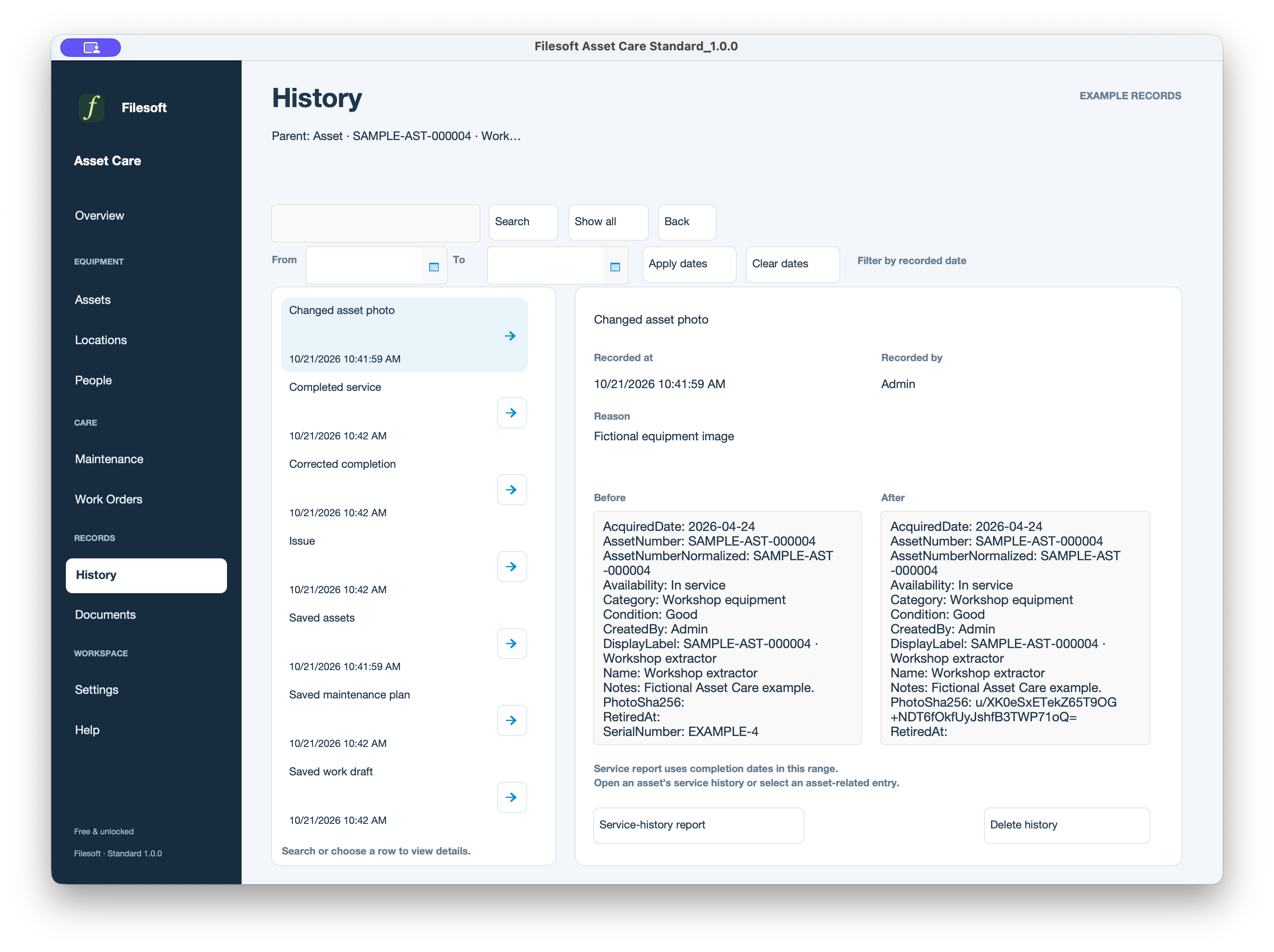
In this capture, the selected event is a photo change. Its reason and before-and-after values are visible. Selecting a different event lets you inspect that part of the record’s history.
A saved report entry is not yet an exported PDF.
Documents contains two service completion snapshots for the asset. Both show Pending. The interface separates the saved report entry from the action that renders its PDF, with an additional control to export the resulting file.
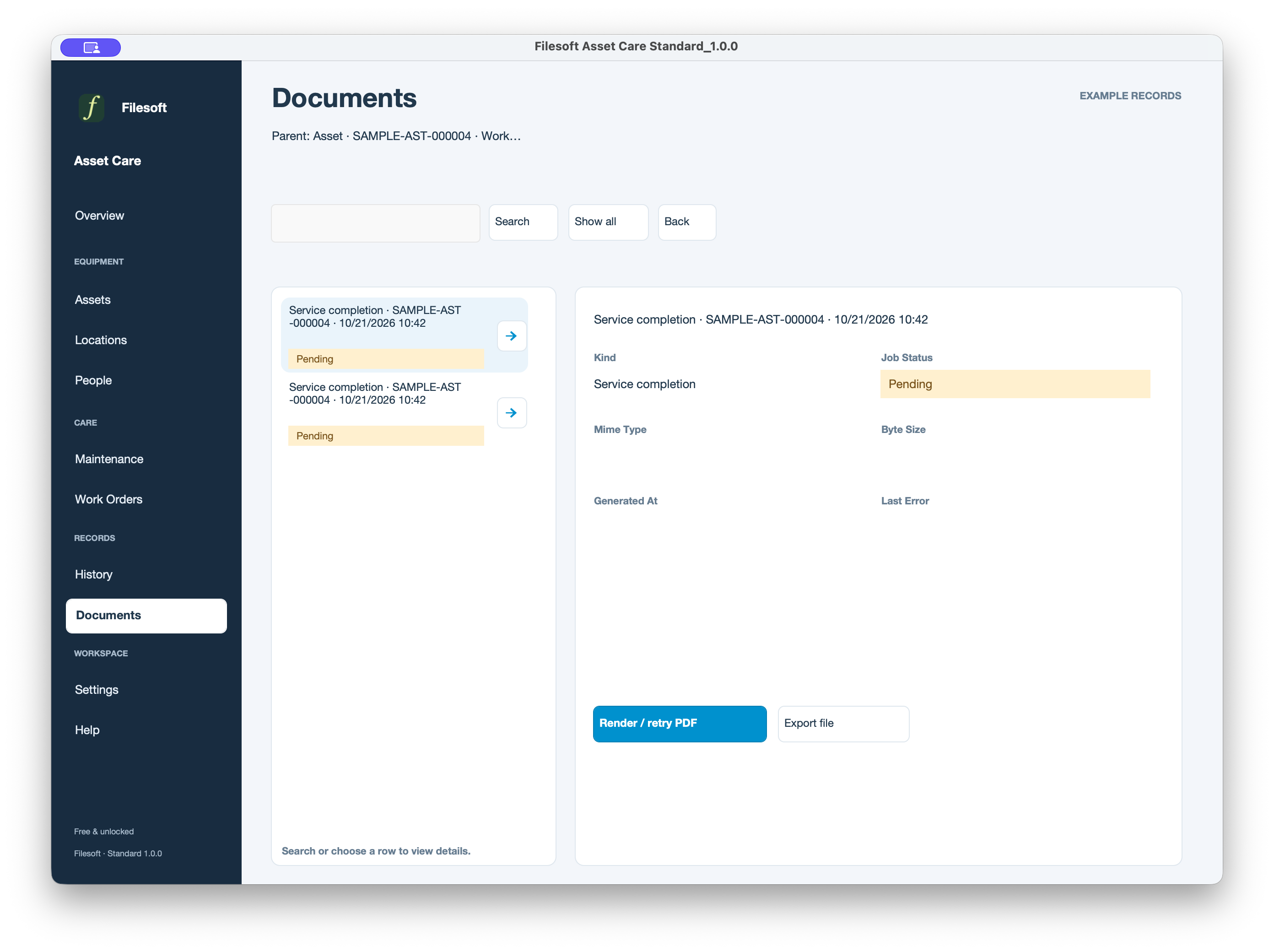
This is a useful distinction when reviewing the work: check the document’s status before treating it as ready to send or file. Here, the report entries are waiting for PDF rendering.
05 / TAKE THE PATTERN INTO YOUR OWN APP
Keep each record’s purpose clear.
| Record | Question it answers | Example here |
|---|---|---|
| Asset | Which piece of equipment? | Workshop extractor · SAMPLE-AST-000004 |
| Maintenance plan | What care should recur? | Routine inspection · every one month |
| Work order | Which job are we handling? | SAMPLE-WO-000003 · Completed |
| History | What changed, and why? | Separate photo, completion and correction entries |
| Document | Which report snapshot is available? | Service completion · Pending PDF rendering |
You can apply the same separation to a small FileMaker app without starting with a large dashboard. First make the equipment easy to identify, give the task a clear owner, and make it possible to return from the task to the equipment and its supporting records.
EXPLORE THE SOLUTION
Start with Asset Care Standard.
Standard is free and uses FileMaker’s built-in Apex Blue presentation. The screenshots in this article show that edition. Premium uses the Orchid Alloy presentation; the product page lets you compare the two.
Asset Care requires FileMaker Pro 19.6 or later, sold separately, and is intended for desktop use. This article does not demonstrate FileMaker Go or WebDirect.
The existing Standard download requires your name and email to receive a private download link, with no automatic marketing subscription.
For a first look, open a spare copy and use Help → Create examples to explore the fictional records. Your dates and counts may differ from these captures. Follow the product’s Read Me and keep your working records separate from experiments.