A monthly inspection is due on January 31. February has only 28 days. When the next inspection comes around in March, should it be due on March 31 or March 28?
Both dates can be correct. A calendar schedule keeps the original January 31 anchor. A completion-based schedule starts from the day the last inspection actually finished. The mistake is letting a shortened February date choose the rule for you.
1. Choose what “next” means.
Start with the question the schedule needs to answer. Is this work tied to a calendar, or should a fresh interval begin after each completion?
| Rule | Starting point | Effect of finishing late |
|---|---|---|
| Keep the calendar anchor | The original date and an occurrence number | The planned sequence stays the same. Missed dates remain a separate decision. |
| Schedule from completion | The actual completion date | The next due date moves with the completion date. |
Our teaching file, Filesoft Recurring Due Dates 0.1.0, shows both rules side by side. Its inputs are a calendar anchor, an actual completion date, a whole interval in months, and an occurrence number. Occurrence 0 means the anchor itself; occurrence 1 is one interval later. The calendar panel shows the next three occurrences after the selected occurrence.
The rule preserves a day number, clamping it to the last available day when necessary. It is not an “always use month end” rule: an April 30 anchor leads to May 30.
2. Keep January 31 as the anchor.
In example 02, the anchor is January 31, 2027, the interval is one month, and occurrence 1 falls on February 28. The actual completion is also February 28.
Using the original anchor, the next three dates are March 31, April 30 and May 31. Using actual completion, the next date is March 28.
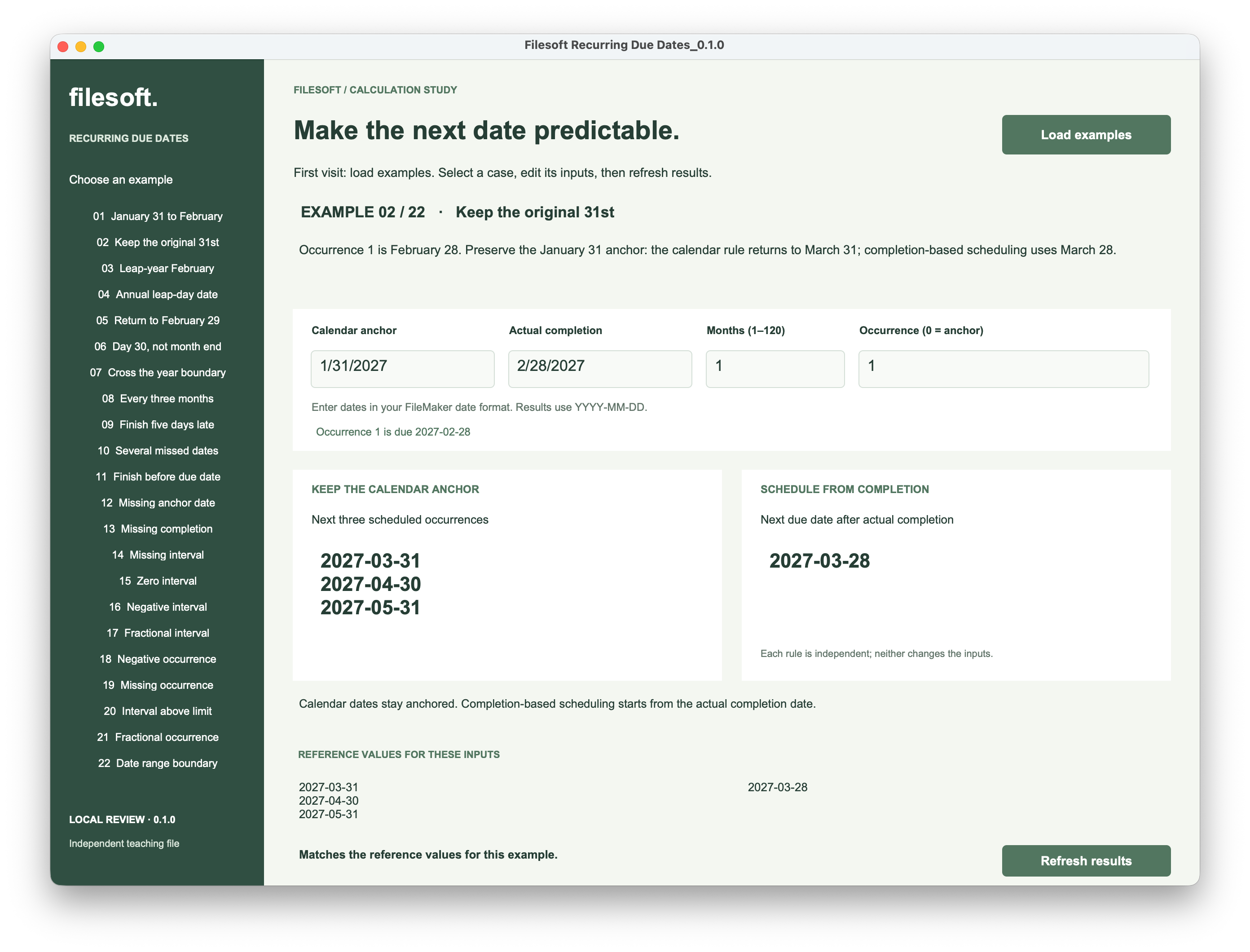
If you repeatedly add a month to the previously clamped date, February 28 can become the new reference for March and the following months. Keeping AnchorDate separate avoids that drift. Calculate each scheduled occurrence from the original anchor and its occurrence number.
Adding 30 days is a different policy again. It measures a fixed number of days, rather than a calendar month.
3. Calculate the target month, then choose the day.
FileMaker’s Date function accepts month, day and year in that order, regardless of the displayed date format. It also rolls excess months and days forward. A direct request for February 31 therefore does not clamp to February’s last day. See the Claris Date reference.
The calculation below is the example file’s CalendarNext1 expression. CalendarIssue is its validation calculation: it returns an explanation for invalid inputs, or empty text when they are acceptable. The outer Case returns an empty date result if there is an issue.
FileMaker calculation · CalendarNext1
Case ( not IsEmpty ( CalendarIssue ) ; "" ;
    Let ( [
        targetMonth = Month ( AnchorDate ) + ( Occurrence + 1 ) * IntervalMonths ;
        first = Date ( targetMonth ; 1 ; Year ( AnchorDate ) ) ;
        lastDay = Day ( Date ( Month ( first ) + 1 ; 0 ; Year ( first ) ) ) ;
        wantedDay = Min ( Day ( AnchorDate ) ; lastDay )
    ] ; Date ( Month ( first ) ; wantedDay ; Year ( first ) ) )
)
first establishes the first day of the target month, including any year rollover. Day zero of the following month gives that month’s last day. Min chooses the smaller of the original day number and the available last day.
For the second and third future occurrences, the file uses Occurrence + 2 and Occurrence + 3. It still uses AnchorDate each time.
For completion-based scheduling, change the starting point.
CompletionNext uses the same clamping approach with CompletionDate and one interval. It does not use the anchor or occurrence number.
FileMaker calculation · CompletionNext
Case ( not IsEmpty ( CompletionIssue ) ; "" ;
    Let ( [
        targetMonth = Month ( CompletionDate ) + IntervalMonths ;
        first = Date ( targetMonth ; 1 ; Year ( CompletionDate ) ) ;
        lastDay = Day ( Date ( Month ( first ) + 1 ; 0 ; Year ( first ) ) ) ;
        wantedDay = Min ( Day ( CompletionDate ) ; lastDay )
    ] ; Date ( Month ( first ) ; wantedDay ; Year ( first ) ) )
)
These are Date-result calculation fields. The screenshot panels format their results as YYYY-MM-DD; the input fields follow the file’s date format. Neither expression writes back to the input fields or advances the occurrence number.
See the input checks used by these calculations
Use Date fields for AnchorDate and CompletionDate, and Number fields for IntervalMonths and Occurrence. The three checks below return Text. The file uses CalendarIssue and CompletionIssue as visible messages when a Date result is empty. These are the example’s limits, not a complete scheduling policy for every app.
IntervalIssue
FileMaker calculation · IntervalIssue
Case ( IsEmpty ( IntervalMonths ) ; "Enter an interval in months." ; not IsValid ( IntervalMonths ) or IntervalMonths < 1 or IntervalMonths > 120 or Int ( IntervalMonths ) <> IntervalMonths ; "Use a whole interval from 1 to 120 months." ; "" )CalendarIssue
FileMaker calculation · CalendarIssue
Case (
    not IsEmpty ( IntervalIssue ) ; IntervalIssue ;
    IsEmpty ( AnchorDate ) ; "Enter an anchor date." ;
    not IsValid ( AnchorDate ) ; "Enter a valid anchor date." ;
    IsEmpty ( Occurrence ) ; "Enter the occurrence number (0 = anchor)." ;
    not IsValid ( Occurrence ) or Occurrence < 0 or Occurrence > 1200 or Int ( Occurrence ) <> Occurrence ; "Use a whole occurrence from 0 to 1200." ;
    Year ( AnchorDate ) + Int ( ( Month ( AnchorDate ) - 1 + ( Occurrence + 3 ) * IntervalMonths ) / 12 ) > 4000 ; "Calendar preview exceeds year 4000." ;
    ""
)
CompletionIssue
FileMaker calculation · CompletionIssue
Case (
    not IsEmpty ( IntervalIssue ) ; IntervalIssue ;
    IsEmpty ( CompletionDate ) ; "Enter a completion date." ;
    not IsValid ( CompletionDate ) ; "Enter a valid completion date." ;
    Year ( CompletionDate ) + Int ( ( Month ( CompletionDate ) - 1 + IntervalMonths ) / 12 ) > 4000 ; "Next completion date exceeds year 4000." ;
    ""
)
4. Preserve the leap-day anchor too.
Example 05 starts on February 29, 2028 and repeats every 12 months. Occurrence 3 is February 28, 2031; completion is that same day.
The original anchor brings the calendar schedule back to February 29, 2032, followed by February 28 in 2033 and 2034. Completion-based scheduling starts from February 28, 2031, so its next date is February 28, 2032.
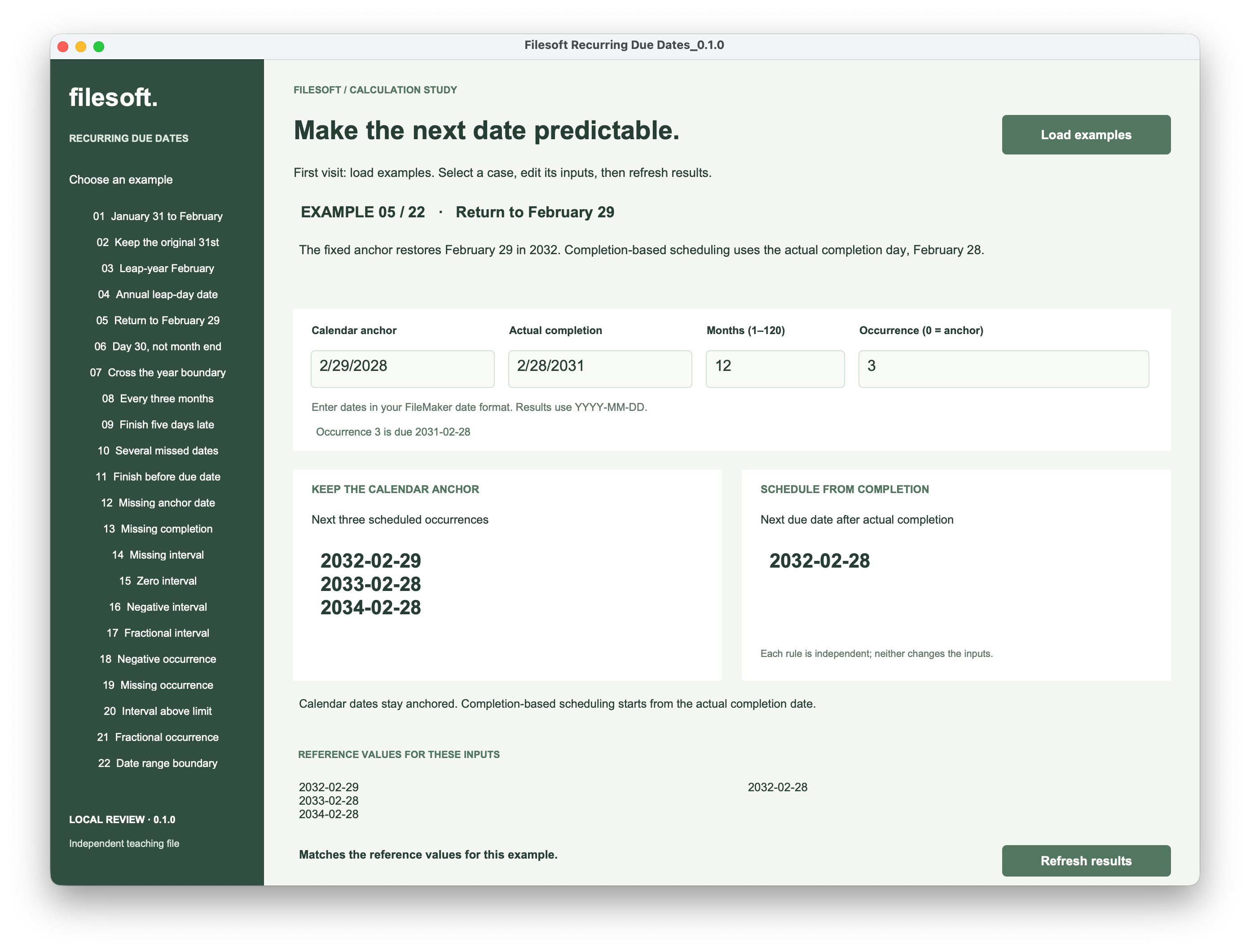
The leap day has not been forgotten. It remains part of the original anchor and becomes available again when the target year supports it.
5. Keep missed work visible.
Example 10 starts on January 31, 2027, with a monthly interval and occurrence 0. Completion is not recorded until May 10.
The calendar panel still shows February 28, March 31 and April 30. These dates are before completion, so the example explains that occurrences were missed. Completion-based scheduling instead returns June 10.
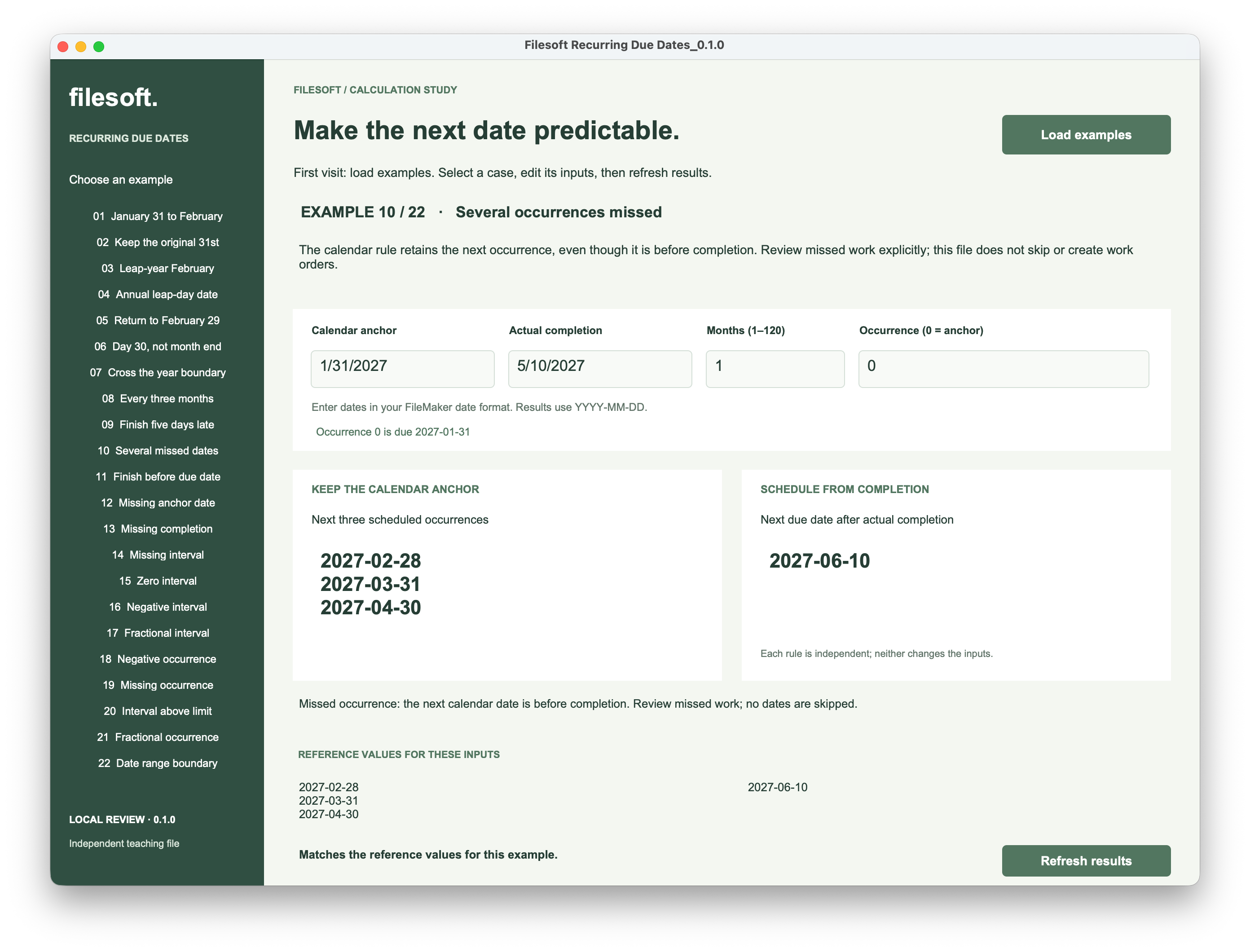
A calculation cannot decide whether missed work was performed, cancelled or should be rescheduled. Make that an explicit workflow decision. This example does not skip dates automatically or create work orders.
In a working app, keep the planned occurrence and actual completion as separate values. Decide when an occurrence is resolved before advancing it. A refresh or a second calculation should not quietly complete another task.
6. Check the boundaries before using the rule.
Start with dates that expose the policy. Check the expected result separately from the value your calculation produces.
| Case | Expected distinction | Evidence here |
|---|---|---|
| January 31 after February | Calendar: 2027-03-31. Completion: 2027-03-28. | Shown in example 02 |
| Return to a leap year | Calendar: 2032-02-29. Completion: 2032-02-28. | Shown in example 05 |
| Several missed occurrences | Retain calendar 2027-02-28. Completion: 2027-06-10. | Shown in example 10 |
| Missing or invalid inputs | Show an input message; do not substitute a guessed date. | Included in the file’s checks; not demonstrated by these captures |
| Refresh twice, then reopen | Inputs and occurrence stay unchanged; saved edits remain. | A separate interaction and persistence check |
The file allows whole intervals from 1 to 120 months and occurrence numbers from 0 to 1200. Its calendar preview checks that all three future dates fit within year 4000; completion scheduling checks its one next date. Blank, fractional, negative and out-of-range inputs receive an explanation.
Validate each rule independently. A missing completion date should not prevent a valid calendar calculation, and a missing calendar anchor should not prevent the separate completion-based result.
About the screenshots. These are unaltered captures of the local 0.1.0 teaching file on macOS. They demonstrate examples 02, 05 and 10. They do not establish that all 22 examples, repeated actions, reopening or other platforms have been tested. This file is a separate calculation study, not an Asset Care update.
Try the FileMaker example.
Explore the 22 fictional cases, change the inputs and inspect the calculations. The ZIP contains the editable Filesoft Recurring Due Dates 0.1.0 file and a short Read Me.
Free direct download · 181 KB · No name or email required.
Requires FileMaker Pro, which is not included. The example uses transaction steps introduced in FileMaker Pro 19.6.1. It was prepared for desktop macOS; the screenshots demonstrate the three cases discussed here, not compatibility testing across versions or platforms.
Put the dates into a useful workflow.
Once the recurrence rule is clear, make it easy to find due work and explain why it needs attention.
- Move recurring deadlines past weekends and holidays without shifting the schedule
- Find records between two dates in FileMaker
- Highlight overdue tasks
- Explore Asset Care’s equipment maintenance workflow
The Asset Care walkthrough shows how equipment, plans and work records connect. The calculation policies in this article belong to this teaching example; they do not describe a change to the released solution.
References
Need a deadline that skips nonworking days?
Count Monday to Friday and exclude listed holidays, with an explanation of each skipped date.