THE PRACTICAL PROBLEM
“Delivered” can hide unfinished work.
A single checkbox cannot explain a split delivery. If an order is marked complete after the first arrival, missing items can disappear from the follow-up list. If someone overwrites the first receipt with a new total, the separate deliveries become harder to trace.
Purchase Desk keeps the order and its receipts separate. The order answers “How much is still outstanding?” Each receipt answers “What arrived in this delivery?”
The starting order
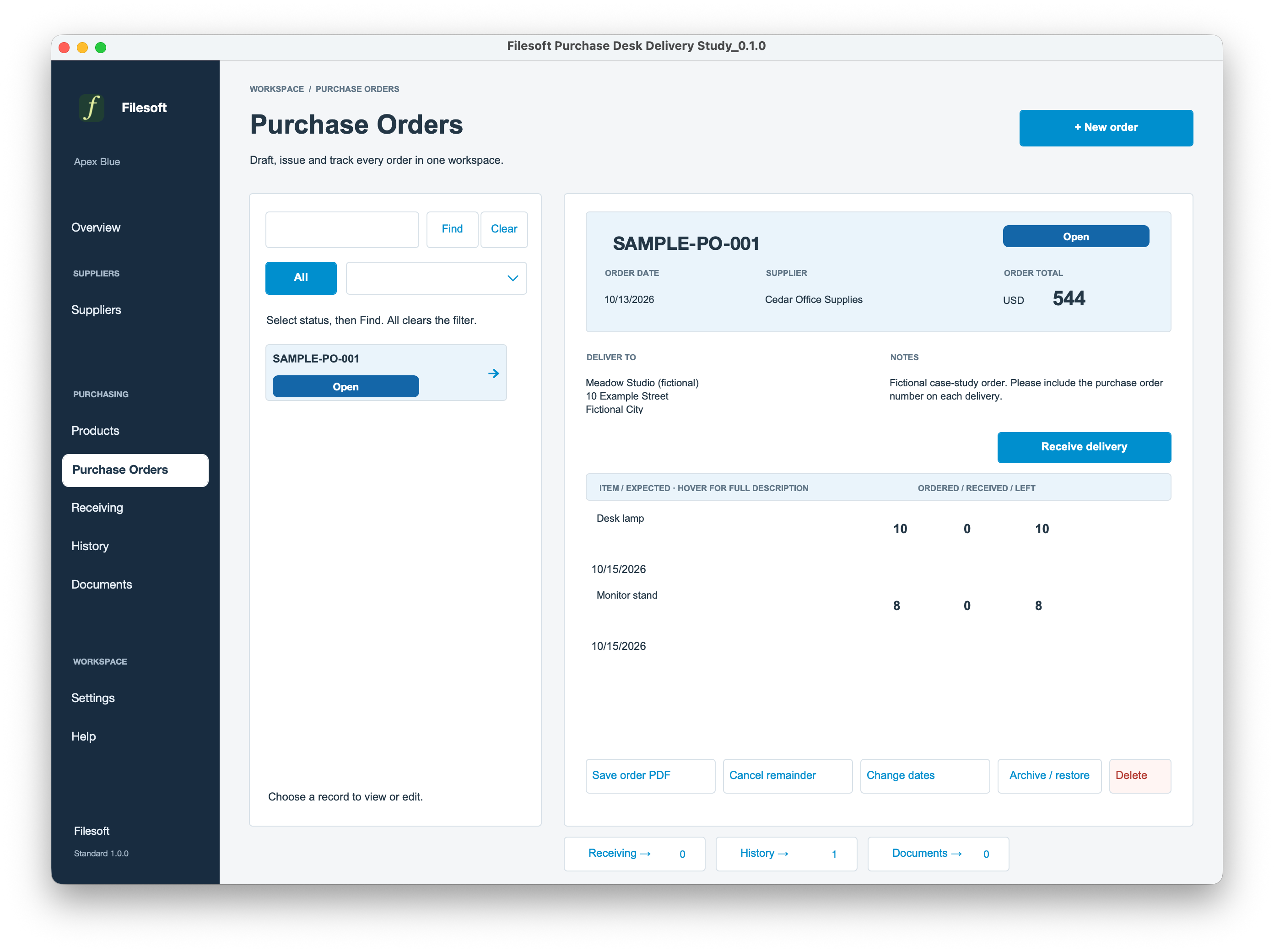
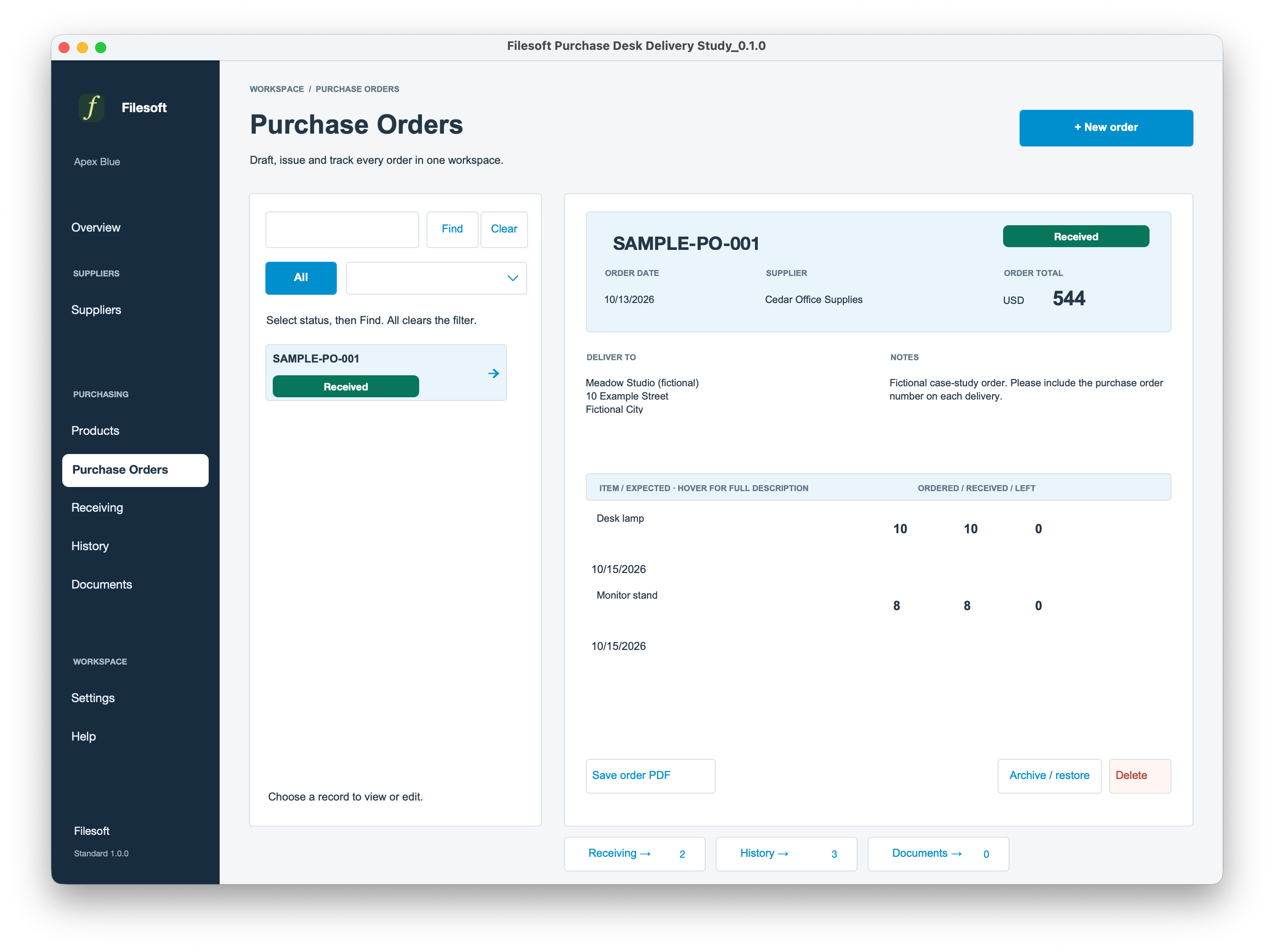
Meadow Studio orders from Cedar Office Supplies. Both names are fictional. The prepared order, SAMPLE-PO-001, is already issued, so the example begins at receiving.
| Item | Ordered | Unit price | Line value |
|---|---|---|---|
| Desk lamp | 10 | USD 32 | USD 320 |
| Monitor stand | 8 | USD 28 | USD 224 |
Total merchandise value: USD 544. This is an order-value example, not a tax invoice or a record of payment.
Try the workflow, step by step
Load the fictional order
Extract the example ZIP, open the FileMaker file, then go to Help → Explore / leave samples. Open Purchase Orders and select SAMPLE-PO-001. Check that the order is Open and received quantities are zero.
The file initially has no receiving records. They are created when you post a delivery; simply loading the samples does not create receipts.
Record the first delivery
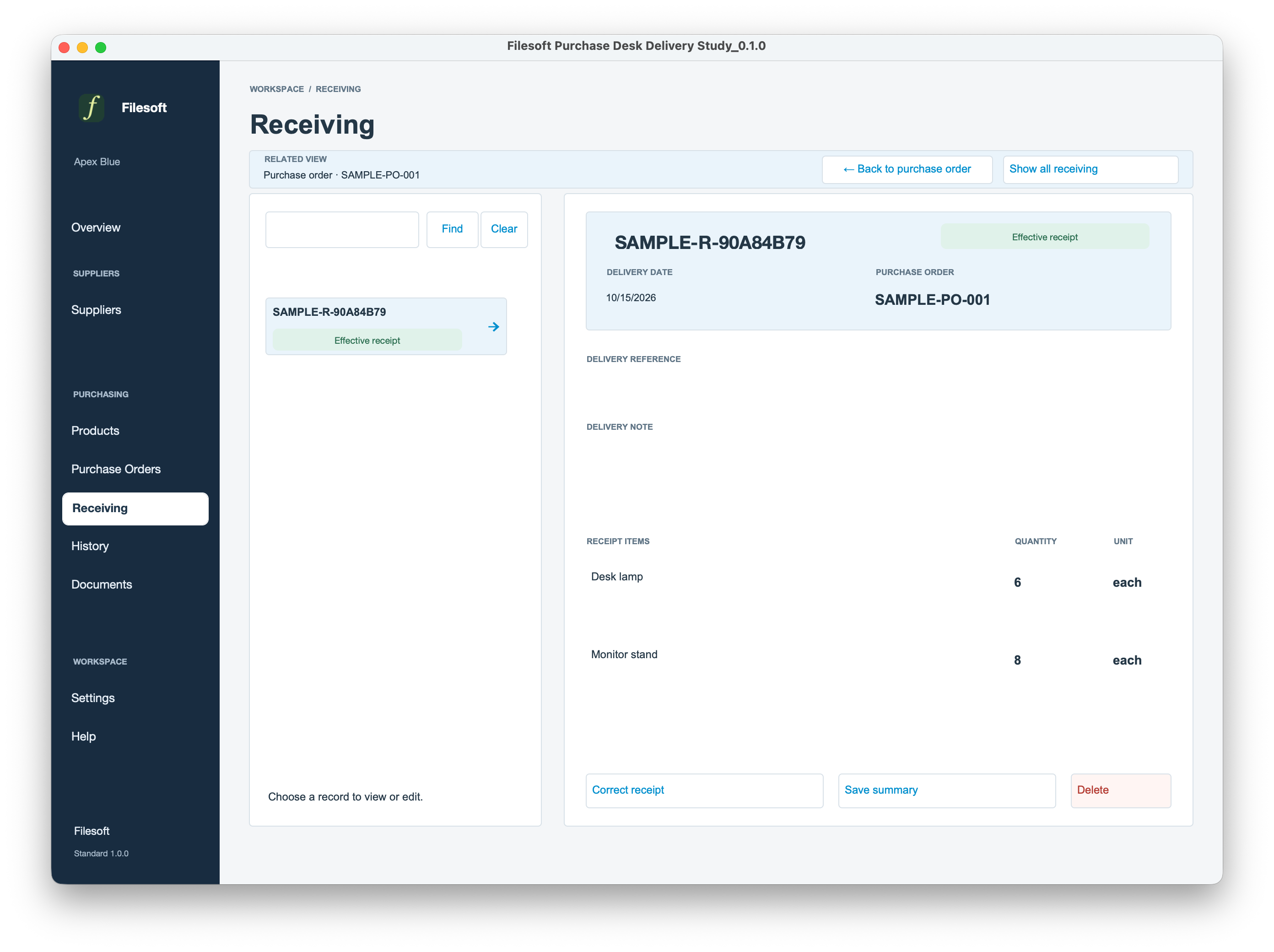
Choose Receive delivery. Enter 6 desk lamps and 8 monitor stands. Use a reference such as DEMO-DEL-001 and a note: “Four desk lamps to follow.” Check the delivery date, then post the delivery.
Enter the quantities arriving now, not the original ordered quantities. The receipt should contain 6 and 8.
Return to the order
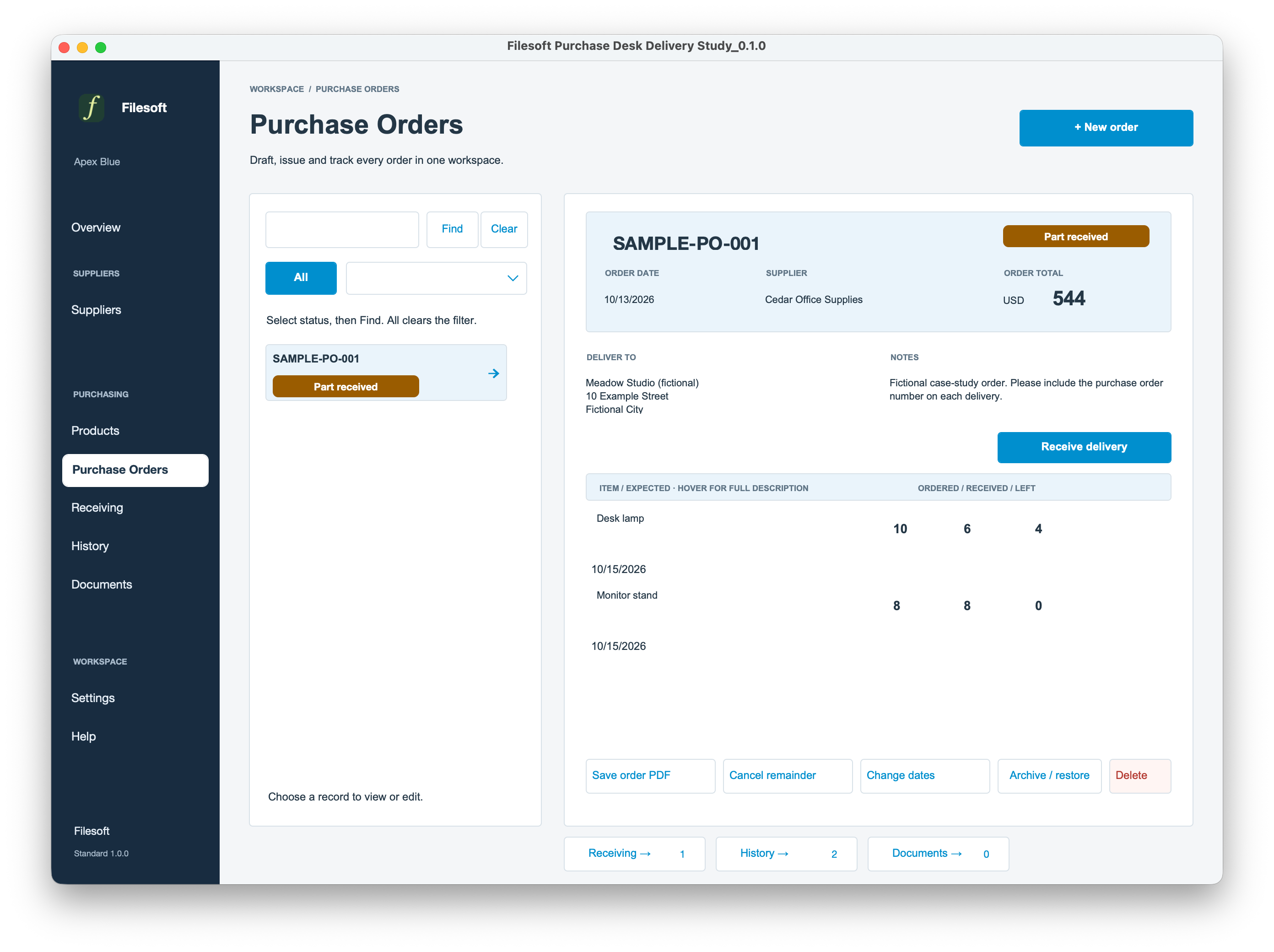
Use Back to purchase order. The order should read Part received. Lamps show 10 ordered, 6 received and 4 left; stands show 8 ordered, 8 received and 0 left. The original USD 544 order total remains unchanged.
If you want a PDF showing the four lamps outstanding at this point, open the first receipt and choose Save summary now, before recording the second delivery.
Record the final four lamps
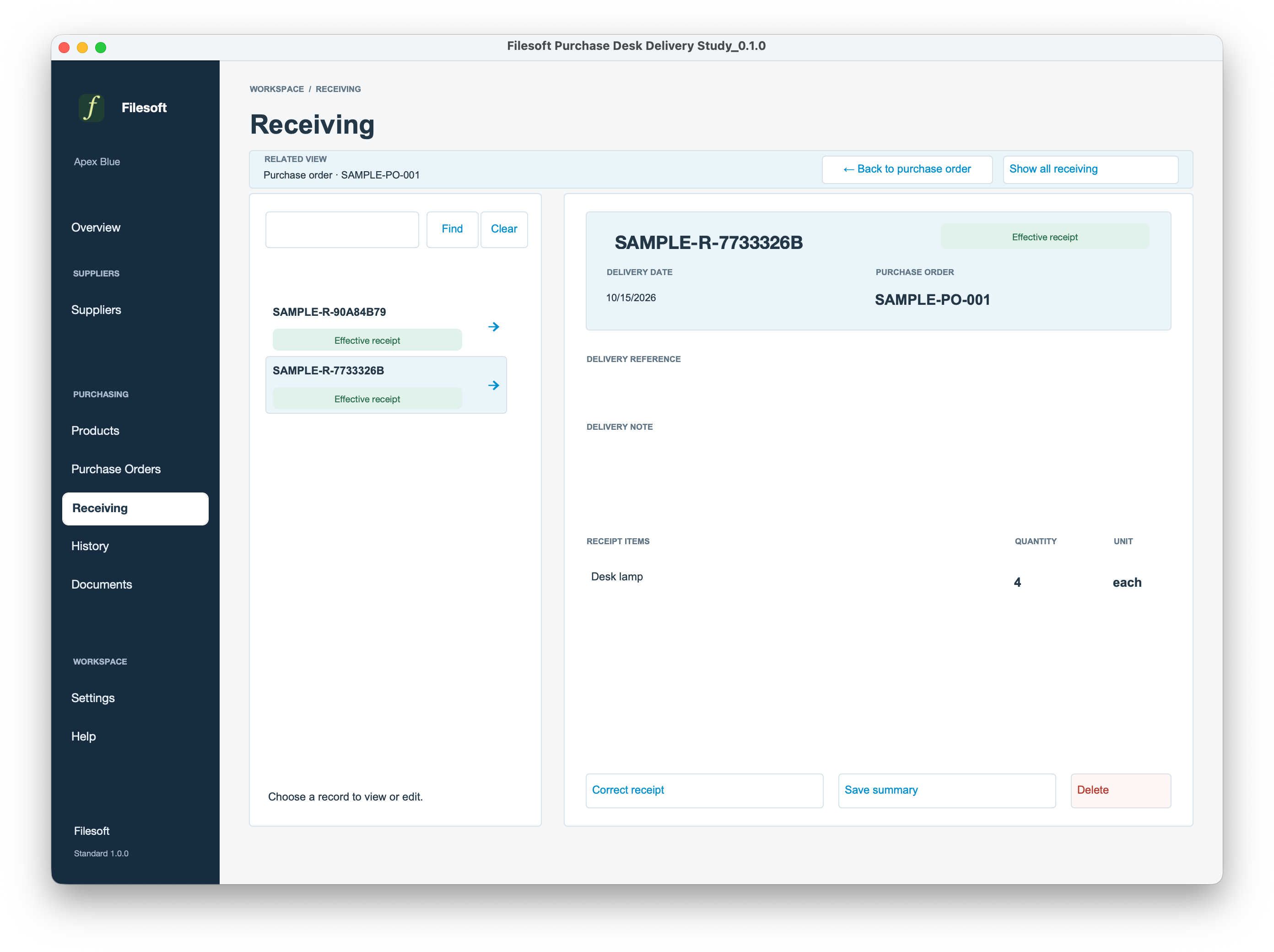
Return to the order and choose Receive delivery again. Enter 4 desk lamps, with a reference such as DEMO-DEL-002. Leave any other displayed quantities at zero. Do not enter 10: that is the cumulative total, not this delivery. Check the delivery date, then post the delivery.
Check completion and the receipt trail
The order should read Received, with zero left on both lines. Open its Receiving link: both receipts should remain available, one for 6 lamps and 8 stands, the other for 4 lamps. History records the workflow events; Documents contains summaries you chose to save.
| Checkpoint | Lamps received / left | Stands received / left | Order status |
|---|---|---|---|
| Before delivery | 0 / 10 | 0 / 8 | Open |
| First delivery | 6 / 4 | 8 / 0 | Part received |
| Second delivery | 10 / 0 | 8 / 0 | Received |
A saved summary has a point in time
The receiving summary shows that receipt’s quantities. Its Remaining column shows the order balance when the summary is saved, rather than a historical balance at the moment the receipt was posted.
For example, saving the first receipt’s PDF after both deliveries shows 6 lamps in that receipt and 0 remaining on the order. That does not mean the first delivery contained all 10 lamps. To capture the intermediate balance of 4, save the first summary before posting the second delivery.
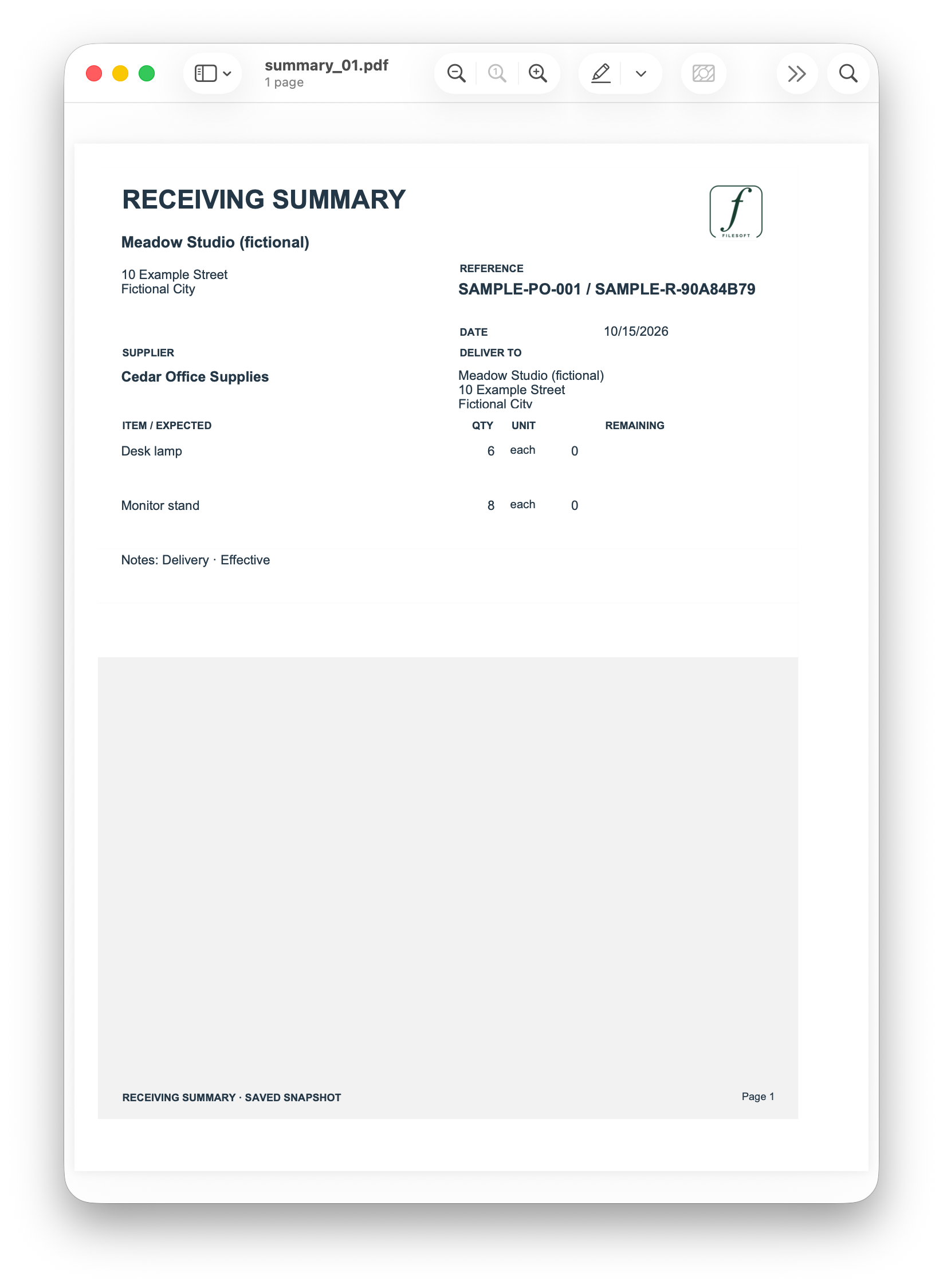
An already saved PDF is a snapshot. Later deliveries do not rewrite it. Use the individual receipts to understand each arrival and the order to check the current balance.
What to carry into your own FileMaker workflow
Separate an order from its events
Keep multiple receipts linked to one order. A later arrival should add a receipt rather than erase an earlier one.
Show quantities beside status
“Part received” is useful, but 10 ordered / 6 received / 4 left gives someone the information needed to follow up.
Make document timing explicit
Distinguish a saved snapshot from a live balance. Decide which point in time each exported value describes.
A focused example you can repeat
The download contains the editable FileMaker file and a Read Me. It uses Purchase Desk Standard 1.0.0 with a focused fictional sample collection. The receiving behavior and layouts are unchanged from the reviewed file.
Leaving and re-entering sample mode preserves your progress. To start over, close the file and extract a fresh copy into a different folder. Keep your completed copy if you want to compare results. The sample uses fixed October 2026 dates, so overdue indicators may differ depending on today’s date; the quantity exercise stays the same.
Use FileMaker Pro 26 on macOS for the reviewed setup; FileMaker is sold separately. Other versions, Windows, Go, WebDirect, hosting and concurrent use are unvalidated. This example is not inventory accounting, a stock-on-hand ledger or automatic supplier messaging. Test adaptations on a copy before using real business data.