ASSET CARE · GETTING STARTED
Set up your equipment workspace.
Start with an empty file, explore the examples in a practice copy, then register equipment and plan its care.
For Standard and Premium 1.0.0. Compare editions ↗
Your first session.
- Keep an empty original. Unzip the package. Keep the original download, and open a working copy in FileMaker Pro 19.6 or later. Close the database before making filesystem backups.
- Set up your business. In Settings, enter your business name, printing logo and numbering preferences before creating your records.
- Explore safely. In a separate practice copy, use Help → Create examples. The illustrated equipment is fictional. Back up before using Help → Remove examples; do not use it to clear real business records.
- Register equipment. Add Locations and People, then register equipment in Assets. Check the photo, condition, location and assigned person.
- Plan and complete work. Schedule Maintenance with a due date and assignee, create a Work Order, and record the completed work. Review its related history.
- Check your report. In Documents, use Render / Retry PDF for a generated report. Open and inspect the PDF before exporting or sharing it yourself. A Pending snapshot is not a finished PDF.
Check the result before moving on.
- Confirm the correct asset, location and person before assigning work.
- Review the maintenance due date and instructions before creating a work order.
- After completion, open the related history and check the asset and recorded details.
- Pending documents still need rendering. Use Render / Retry PDF, then inspect the PDF before exporting.
- Keep closed-file backups and previous versions. Do not overwrite your working records with a new empty download.
From snapshot to PDF.
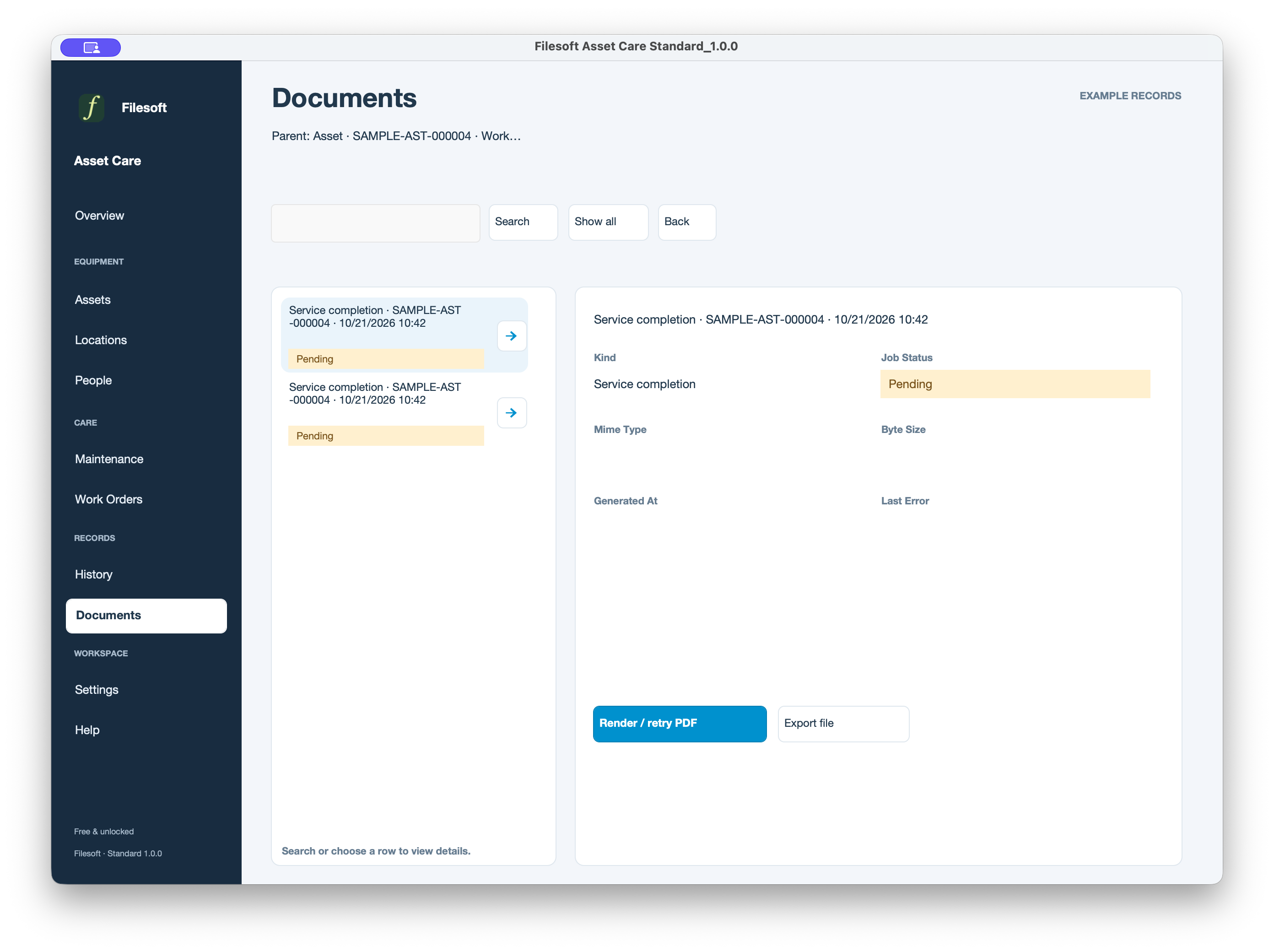
The screenshot shows Pending report snapshots. Rendering creates the PDF; exporting lets you save it for sharing. If rendering has not completed, review the document state and retry before treating it as ready.
See the example records.
Explore the equipment, maintenance and work records together in a screenshot walkthrough.
Requirements & scope.
Requires FileMaker Pro 19.6 or later, sold separately, for desktop use. Both editions were tested by Filesoft in FileMaker Pro 19 and 26 on macOS; exact point releases were not recorded and intermediate versions were not individually tested. Windows, FileMaker Go, WebDirect, hosting and multi-user use are not validated.
Styles are included in the solution. No separate theme installation is needed. Asset Care focuses on equipment, scheduled maintenance and service work; it is not an accounting or stock-control system.
Getting your file.
Standard is free: request a private seven-day link with your name and email. Premium Orchid Alloy costs US$99 one-time: after PayPal confirms payment, a private 30-day download link goes to your PayPal email address.
Check your spam folder if it is missing. Contact support@filesofttools.com for delivery help. Download messages do not subscribe you to marketing.
Usage and support.
Personal and internal-business use and customization are permitted. Resale or redistribution is not permitted. Support is best effort, without guaranteed response times or future updates. FileMaker licensing, hosting, implementation, migration and training are separate.
Premium includes the styled Asset Care solution, not a separate Orchid Alloy theme license. It is a new empty file: buying it does not transfer Standard records or merge customizations.
Discuss migration separately and keep using your existing file until a migrated copy is accepted. Never replace a file containing your records with an empty download.
Help and support
For download issues, visit Help & downloads. For product questions, email support@filesofttools.com with the product version, FileMaker version and a description of the issue. Use fictional examples if you include screenshots.
Return to the product page · Release notes · All product guides