01 / THE STARTING POINT
A useful form still needs a way to find the next task.
In our first form case study, we reorganized a project form while keeping the same Spring Garden Lite theme. That made room for project details, delivery fields and notes. It still left a different question: which project should someone open first?
This study adds a small review workflow around those existing records. Instead of checking each form for its status and deadline, a person can scan the exceptions, see a reason and open the relevant record. The original workflow remains available for comparison.
This is Filesoft’s own demonstration, not a customer case study. It shows an inspectable change in behavior; no time saving or business outcome has been measured.
02 / THE DECISION RULES
Define “needs attention” before building the list.
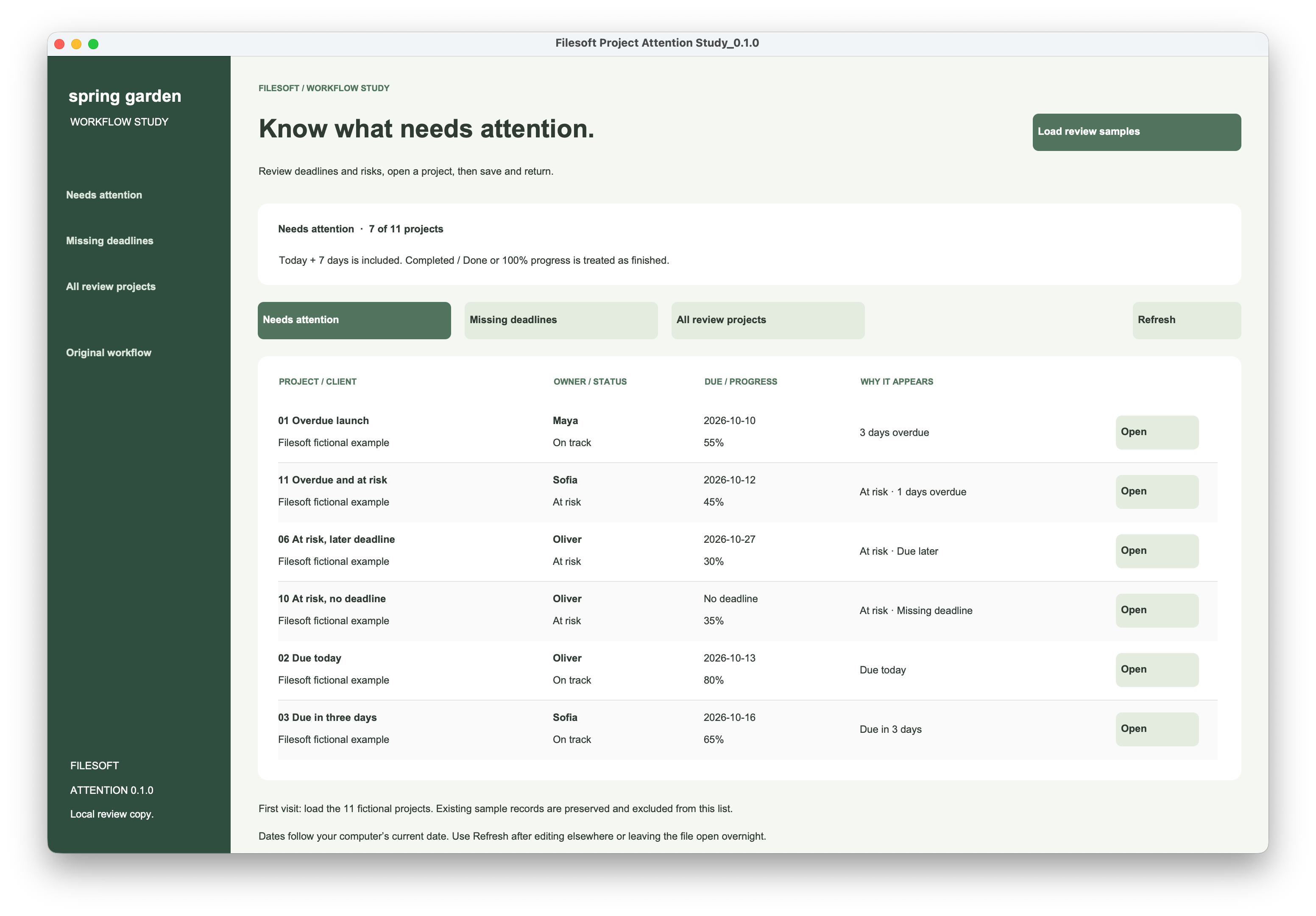
An unfinished project needs attention when it is marked At risk or has a deadline on or before today plus seven days. That includes all overdue work, today and the seventh day. An unfinished project due eight days from today stays out unless it is at risk.
| View | What it includes | Useful detail |
|---|---|---|
| Needs attention | Unfinished projects at risk or due by today + 7. | Overdue work comes first, followed by other at-risk work and upcoming deadlines. |
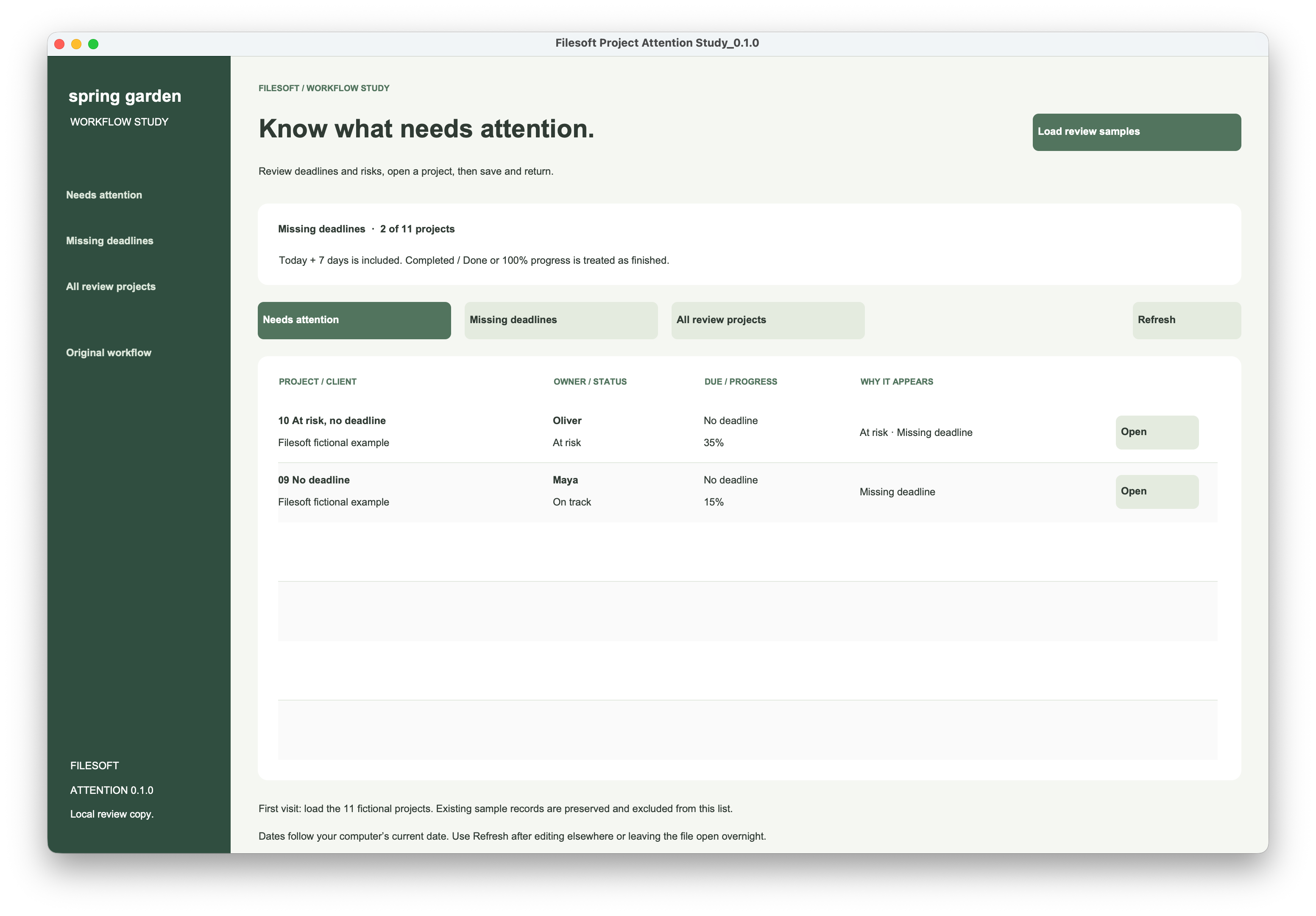
| Missing deadlines | Unfinished projects with no due date. | At-risk projects without a date appear in both warning views. |
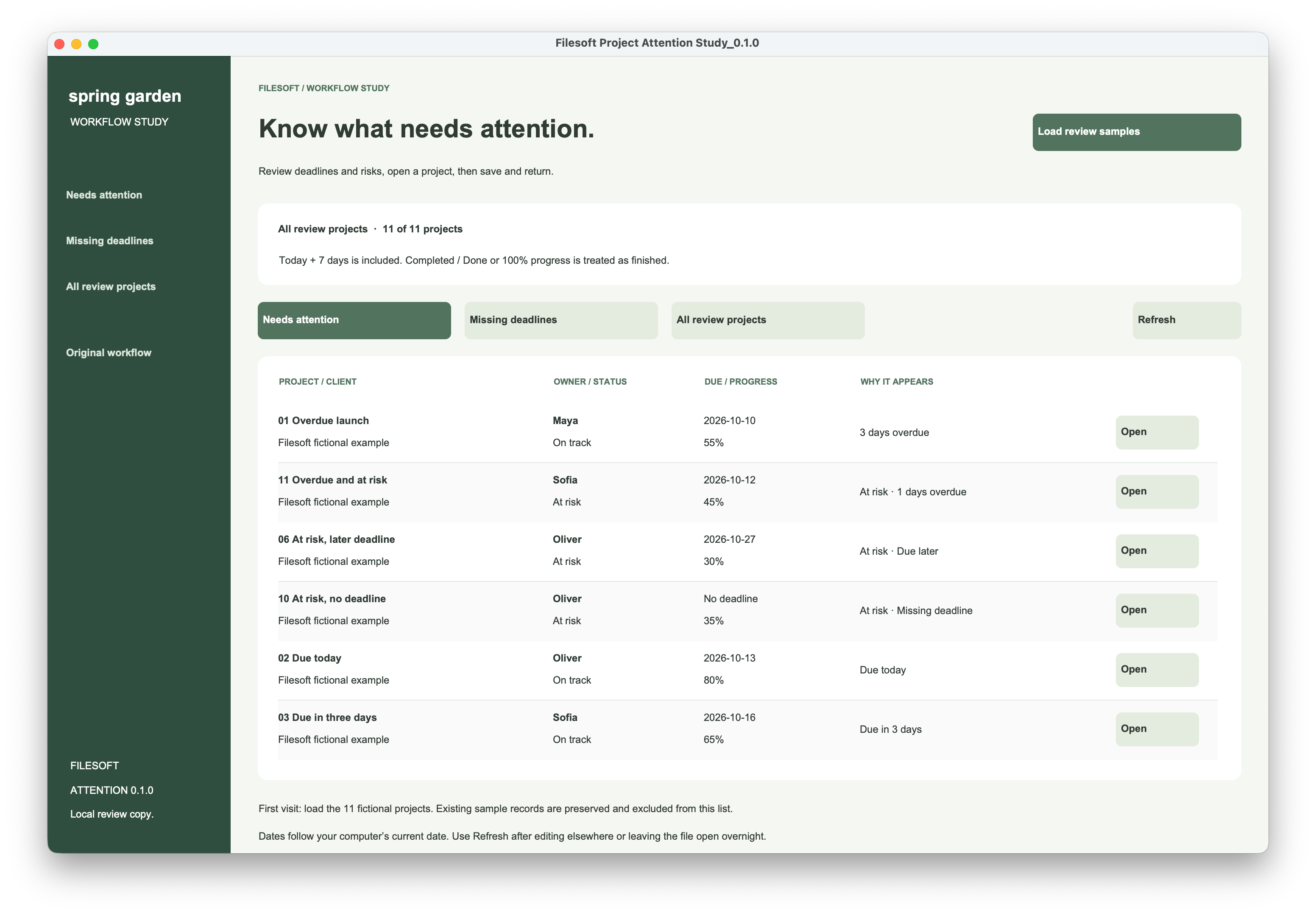
| All review projects | All 11 marked study records, including finished examples. | A way to inspect the records excluded from the warning views. |
Finished wins over a warning. A status of Completed, Complete or Done, or progress of 100% or more, counts as finished. Those projects are excluded from both warning views even if an old deadline or risk flag remains.
An overdue, at-risk project appears once, with both reasons in the same row. Keeping the explanation beside the record helps a reviewer decide what to do without opening it just to understand the warning.
03 / TRY THE WORKFLOW
Make one change and watch the list respond.
Download the example below and work on a spare copy. Open it in FileMaker Pro 26, then choose Attention Study • Review from the Layout menu. You can also use the Attention study link in the original dashboard or form.
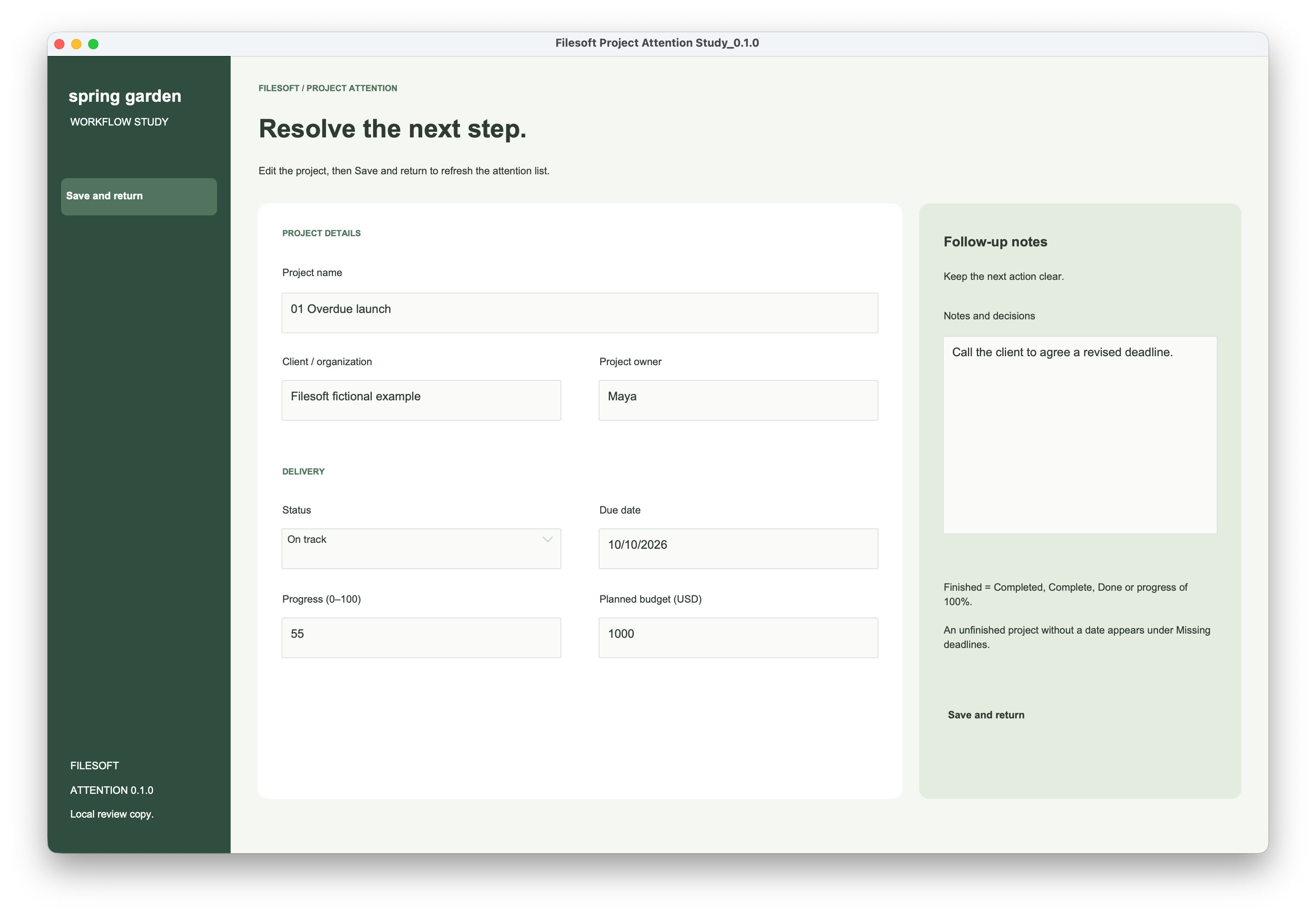
- Start with Needs attention. Find “01 Overdue launch” and read the reason beside it. Use Open on that row.
- Resolve the sample project. Change its status to Completed and enter a short follow-up note. Use Save and return. It should leave Needs attention because finished projects are excluded.
- Find it again. Choose All review projects. The record is still there; the warning view has filtered it out, not deleted it. Restore On track to bring it back while its deadline remains overdue.
- Check a missing date. In Missing deadlines, open “09 No deadline” and set its due date to today. After Save and return, it leaves Missing deadlines and appears in Needs attention. Clear the date again to reverse that change.
- Compare the original path. Use Original workflow to browse the same review records in the original form. Notice which decisions the attention list puts in front of you before opening a record.
The screenshots show 7 needing attention, 2 missing deadlines and 11 total when the fixtures were reviewed. The downloadable review copy contains saved sample dates, so your current counts can differ. Loading samples is a one-time operation; it does not reset existing dates or overwrite your edits.
04 / INSIDE THE FILE
Keep the rule separate from the screen.
The file calculates whether a record belongs to the study, whether it is finished and whether it needs attention. A portal then displays the selected subset. The following is the NeedsAttention calculation, formatted for reading; its helper fields already exist in the example.
FileMaker calculation
StudyRecord and not IsFinished and
(
    Status = "At risk" or
    (
        not IsEmpty ( DueDate ) and
        DueDate ≤ Get ( CurrentDate ) + 7
    )
)
StudyRecord identifies the marked fictional records. IsFinished implements the finished rule above. The date-dependent calculation is unstored. Get ( CurrentDate ) uses the computer’s current date, so Refresh is useful after leaving the file open overnight.
Save successfully before navigating away.
The Save and return controller commits the record, captures the error immediately and stops if the commit fails. On success it calls the controller that returns to the review layout and refreshes the named portal. The button’s UI script reports a returned error.
FileMaker script
# Save and return — controller body
Commit Records/Requests [ With dialog: Off ]
Set Variable [ $error ; Value: Get ( LastError ) ]
If [ $error ≠ 0 ]
    Exit Script [ Text Result:
        "Could not save this project (" & $error & ")" ]
End If
Perform Script [ "Show attention view" ; Parameter: "" ]
Exit Script [ Text Result: Get ( ScriptResult ) ]
This is a reading guide to the example’s controller, not a complete script that can be pasted as plain text into Script Workspace. Inspect Attention UI and Attention Controller in the native file for the full scripts and their dependencies.
Commit Records/Requests saves the current record; Refresh Portal reevaluates the related portal after the view changes. The Open button passes the row’s project ID before navigating, so the editor opens that project rather than relying on a row position.
This is direct record editing, not a separate edit buffer with a Cancel button. FileMaker can commit changes through other actions too. The example adds a checked return path; it does not add new field validation or an undo system.
05 / WHAT TO TAKE INTO YOUR APP
Start with one decision people repeat.
For an existing app, agree on the meaning of “finished,” the warning window and the order of priority with the people doing the work. Then show a short reason for each result and provide a direct path back after editing. Different teams may need different rules; seven days is a choice in this example.
The native review checklist was completed, including view switching, record edits, returning to the list, keyboard navigation, resizing and persistence after reopening. The screenshots show the macOS desktop file. Windows, FileMaker Go, WebDirect and older FileMaker versions have not been validated for this study.
The two added layouts use a 1440 × 940 canvas, so smaller windows may need scrolling. Only study-marked records appear in this workflow: original sample records are preserved, and new records made in the original form do not automatically join the review list. No email, online service or visitor tracking is built into the native example.