Four records are enough to see the difference.
Continue your lesson 3 file
Continue your completed lesson 3 file. You do not need to download another file for this lesson; the optional example below provides a fallback if you need the same four practice contacts. The native screenshot below shows the two sorted Alex matches.
You will finish able to explain a found set, use Find mode, sort matching contacts and restore all records. This lesson uses the existing Contacts table and layouts with a built-in theme. No new fields, theme purchase or script is required.
- Finish editing, close your practice file and make a clearly named backup. Reopen your working file.
- Choose View → Browse Mode, select Contacts from the Layout pop-up menu, then choose View → View as Table.
- Choose Records → Show All Records. Confirm Linh Nguyen, Alex Rivera, Alex Morgan and Sam Patel are present. Sam’s email should be sam.patel@example.com.
Optional fallback: Example 0.1.0 contains the same four fictional contacts, eight fields and two layouts as the lesson 3 example. It is a separate file for this lesson, not new database functionality. Start by showing all records; saved found sets can vary after you use the file. The ZIP includes a Read Me and retains the lesson 3 developer automation privileges.
My file has only three contacts
Complete lesson 2’s Sam activity first, or use this lesson’s four-contact example. Extra practice contacts can change the expected counts below; keep your work and use the separate example for an exact comparison.
STEP 1
Find both people named Alex.
- Choose View → Find Mode. The fields become a find request. Confirm the toolbar offers Perform Find before typing.
- In FirstName, enter ==Alex. Leave LastName and Email blank.
- Click Perform Find. Expect Alex Morgan and Alex Rivera, in whichever order they currently appear.
The two equal signs ask for an entire-field text match. A plain Alex search can also match words beginning with Alex, such as Alexander; our four-record sample does not include that name. These text finds are normally case-insensitive.
In Find mode, typing ==Alex creates a criterion. In Browse mode, typing it into a contact’s editable FirstName field would change that person’s stored name. Use the Find mode toolbar as your checkpoint.
This exercise uses a particular field. The Quick Find box in Browse mode searches across fields enabled for Quick Find on the layout and may produce different results.
STEP 2
Two found does not mean two exist.
The found set is the group of records currently available for browsing. After this find, two records match out of four total. Linh and Sam remain in Contacts; they are simply outside this found set.
Found: 2
Alex Morgan and Alex Rivera match FirstName ==Alex.
Total: 4
Linh Nguyen and Sam Patel still exist alongside the two Alex records.
Teaching illustration of the expected counts, not a native screenshot.
- Read the found and total counts in the status toolbar. The current record number is your position within the found set, not a contact ID.
- Choose Records → Show All Records in Browse mode. Confirm all four contacts appear.
- Repeat Step 1 to find the two Alex records again before sorting.
A normal new find searches the table and replaces the previous found set. You do not need Show All Records before every find; we use it here to make the change visible. Constraining an existing found set is a separate operation.
STEP 3
Put Morgan before Rivera.
- With the two Alex records found and Browse mode active, click Sort in the toolbar.
- In Sort Records, remove any existing fields from the Sort Order list by double-clicking them. This clears sort instructions, not database fields.
- Choose Current Table (Contacts) in the table list. Select LastName, choose ascending order and click Move. Add FirstName ascending after it.
- Check LastName is first and FirstName second in Sort Order, then click Sort.
- Expect Alex Morgan followed by Alex Rivera. The found count is still two.
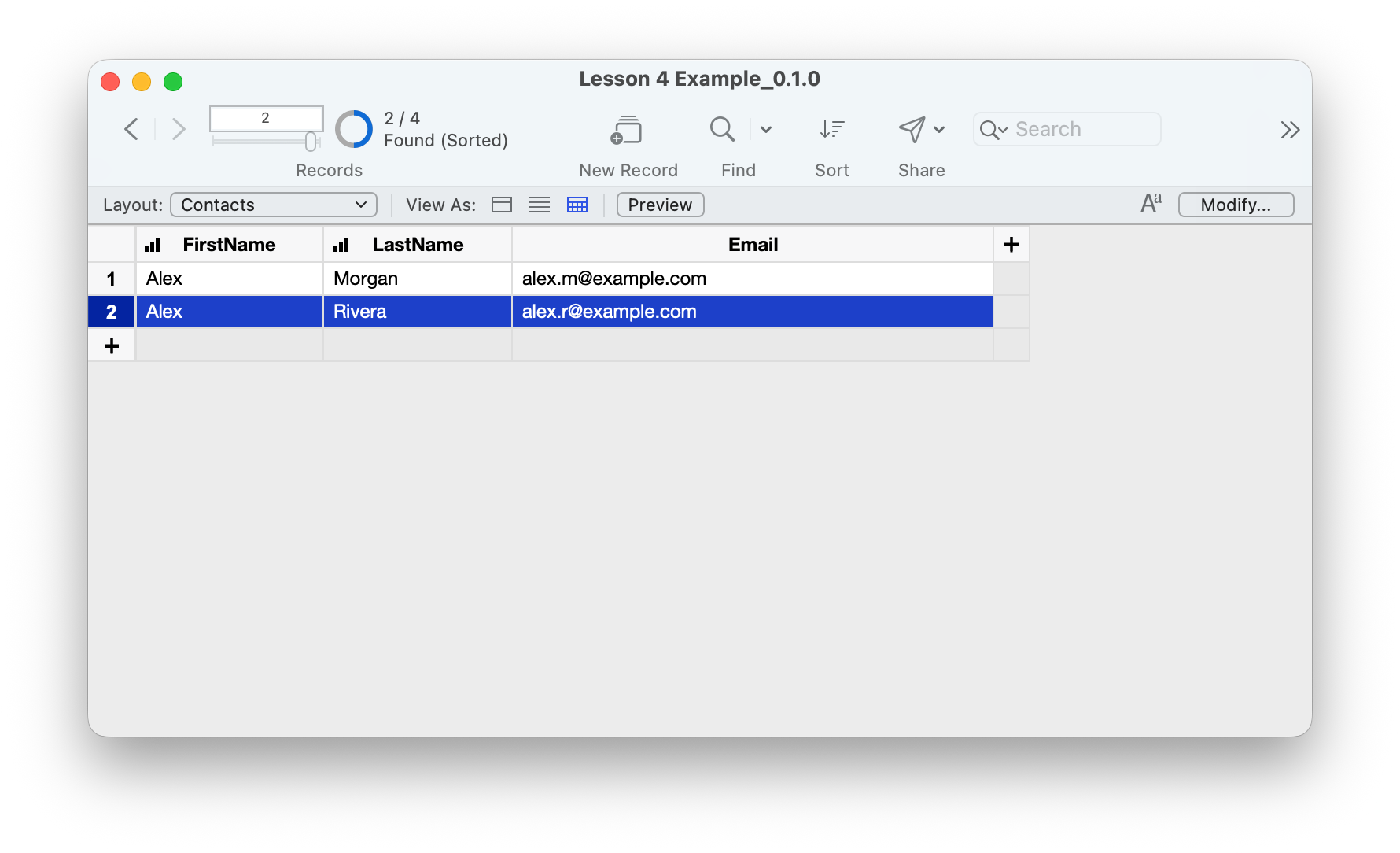
The first sort field controls the main order; the second resolves ties. Sorting changes the sequence of the found set, not the values stored in the contacts. It does not bring omitted records back.
To remove the ordering later, use Records → Unsort. To bring contacts back, use Show All Records. These commands solve different problems.
STEP 4
Ask a more specific question.
Try “Alex whose last name is Morgan.” Enter Find mode again, put ==Alex in FirstName and ==Morgan in LastName in the same request, and click Perform Find. Expect one contact: Alex Morgan.
Two criteria in one request mean AND: both must match. To ask “Alex or Sam,” use separate requests:
- Start a new find with ==Alex in FirstName only.
- While still in Find mode, choose Requests → New Request. Enter ==Sam in FirstName in that new request. Leave other fields blank.
- Click Perform Find. Expect three contacts: Alex Morgan, Alex Rivera and Sam Patel.
Separate include requests mean OR. New Request adds another search alternative; it does not add a contact record.
No records match
Read the message rather than creating a replacement contact. If offered, choose Modify Find to review your criteria. Check spelling, the chosen field and any extra criteria. To start over, dismiss the message, choose Browse mode and Records → Show All Records, then enter Find mode for a fresh request.
YOUR TURN / ABOUT FIVE MINUTES
Predict the result before you search.
- Make a fresh find for LastName ==Patel. Predict the count, then confirm Sam is the only match.
- Make a fresh find for FirstName ==Linh AND LastName ==Morgan in one request. Expect no match. Recover with Show All Records.
- Show all four records and sort by LastName ascending, then FirstName ascending.
- Write down the order and confirm the names and emails themselves are unchanged.
- Finish with all four records visible. Explain why sorting alone would not have restored the full set.
Compare your result
The Patel find returns Sam. The Linh/Morgan request matches nobody because those values belong to different contacts. The final order is Alex Morgan, Linh Nguyen, Sam Patel, Alex Rivera. You still have four records and the same IDs and field definitions.
A QUICK REVIEW
Check your understanding.
Choose one answer per question. Read the explanations and try again whenever you want.
Answers stay in this page’s memory. No account is needed. We count quiz submissions without collecting answers or scores.
Make a repeated action easier.
You can now find a group, explain its count and sort it. In lesson 5, we will make a button that creates a contact and takes you to its entry layout.
Keep your working file and continue to lesson 5 ↗.
Return to the course outline ↗Further reading
Steps checked against current Claris Help on 5 October 2026.