You create three monthly inspection tasks. Later, you need two more. Running the script again should add those two tasks without making another copy of the first three.
The important decision is how to recognize an occurrence that already exists. In this example, that identity comes from the schedule and its occurrence number. The due date can move past a weekend or holiday without changing which task it represents.
This walkthrough uses Filesoft Recurring Tasks 0.1.1. It builds on moving deadlines while keeping the recurring calendar anchor. Here, the next step is saving those occurrences as task records.
1. Give each occurrence a stable key.
The Schedules table holds the fixed definition: a schedule ID, calendar anchor, month interval and listed closures. The Tasks table holds one record per created occurrence, including its scheduled date and adjusted deadline.
For the monthly inspection, the schedule ID is MAINT-A. Occurrence 0 is the January 31, 2027 anchor. Occurrence 1 is February’s date, and occurrence 2 is March’s date. The candidate calculation combines those two identity values:
FileMaker calculation · Occurrence key fragment
ScheduleID & ":" & occurrenceoccurrence is a local variable in the file’s CandidateJSON calculation. It is the first requested occurrence plus the current loop index. The expression above is a fragment from that context.
| Task key | Scheduled date | Adjusted deadline |
|---|---|---|
| MAINT-A:0 | 2027-01-31 | 2027-02-02 |
| MAINT-A:1 | 2027-02-28 | 2027-03-01 |
| MAINT-A:2 | 2027-03-31 | 2027-03-31 |
February 1 is a fictional closure, so the first deadline moves to February 2. The key remains MAINT-A:0. The following scheduled dates still come from January 31.
A separate schedule can also have a February 2 deadline. It needs its own task, so the deadline alone cannot be the unique key. The file includes a Same deadline example with a different schedule ID for exploring that distinction.
Use a stable internal schedule ID in your own app. Keep the key format unambiguous, and validate the occurrence as an integer. In this teaching file the schedule IDs are fixed; renaming or revising schedules is outside its workflow.
2. Preview before creating records.
Select Monthly inspection, enter a first occurrence and count, then click Preview range. A range starting at 0 with a count of 3 contains occurrences 0, 1 and 2.
The preview calculates each scheduled date, adjusts its deadline, and checks whether its key is already saved. It shows Will create or Already present beside each row. Previewing does not create task records.
The preview also records a signature of the selected schedule, first occurrence and count. Changing the range makes that preview ineligible for creation until you preview again. The file checks this with PreviewReady:
FileMaker calculation · PreviewReady
not IsEmpty ( PreviewJSON ) and PreviewSignature = InputSignature and IsEmpty ( JSONGetElement ( PreviewJSON ; "issue" ) ) and IsEmpty ( InputIssue )The schedule definitions are fixed in this example, which is why the signature covers only the selectable schedule and range. An app that allows schedule or holiday edits needs a revision policy and a signature that accounts for those changes.
The range count accepts 1–12 whole numbers, and the first occurrence accepts 0–1200. If any candidate date is invalid, the entire requested range is rejected before task creation. The preview does not quietly omit a failed row.
3. Run the same range again, then extend it.
Once occurrences 0–2 have been created, running Create missing again should leave three saved tasks. In the screenshot, the result is 0 created · 3 skipped.
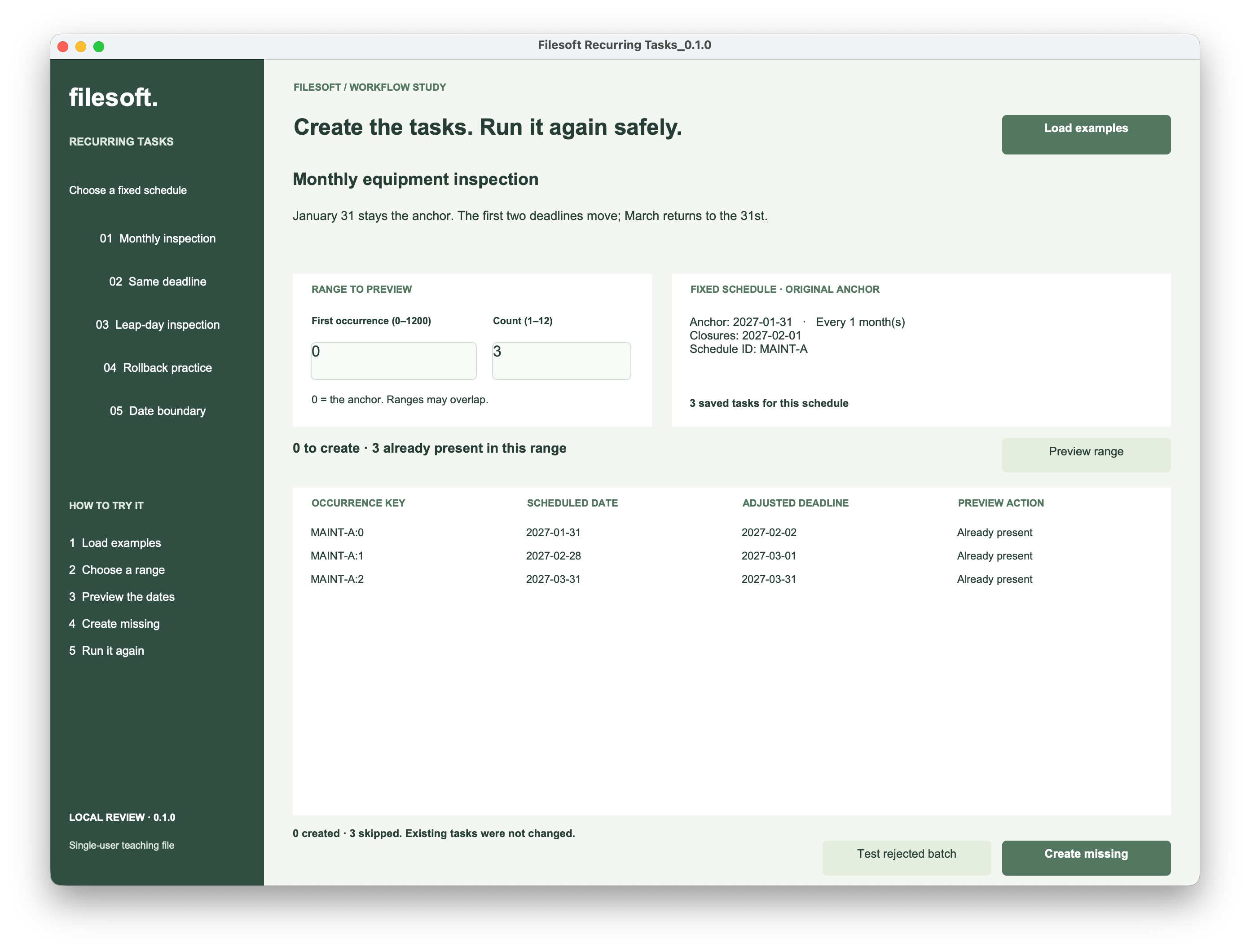
Now keep the first occurrence at 0 and increase the count to 5. Preview the range again. Three keys already exist; only occurrences 3 and 4 are missing. Creating them produces 2 created · 3 skipped, bringing the saved total to five.
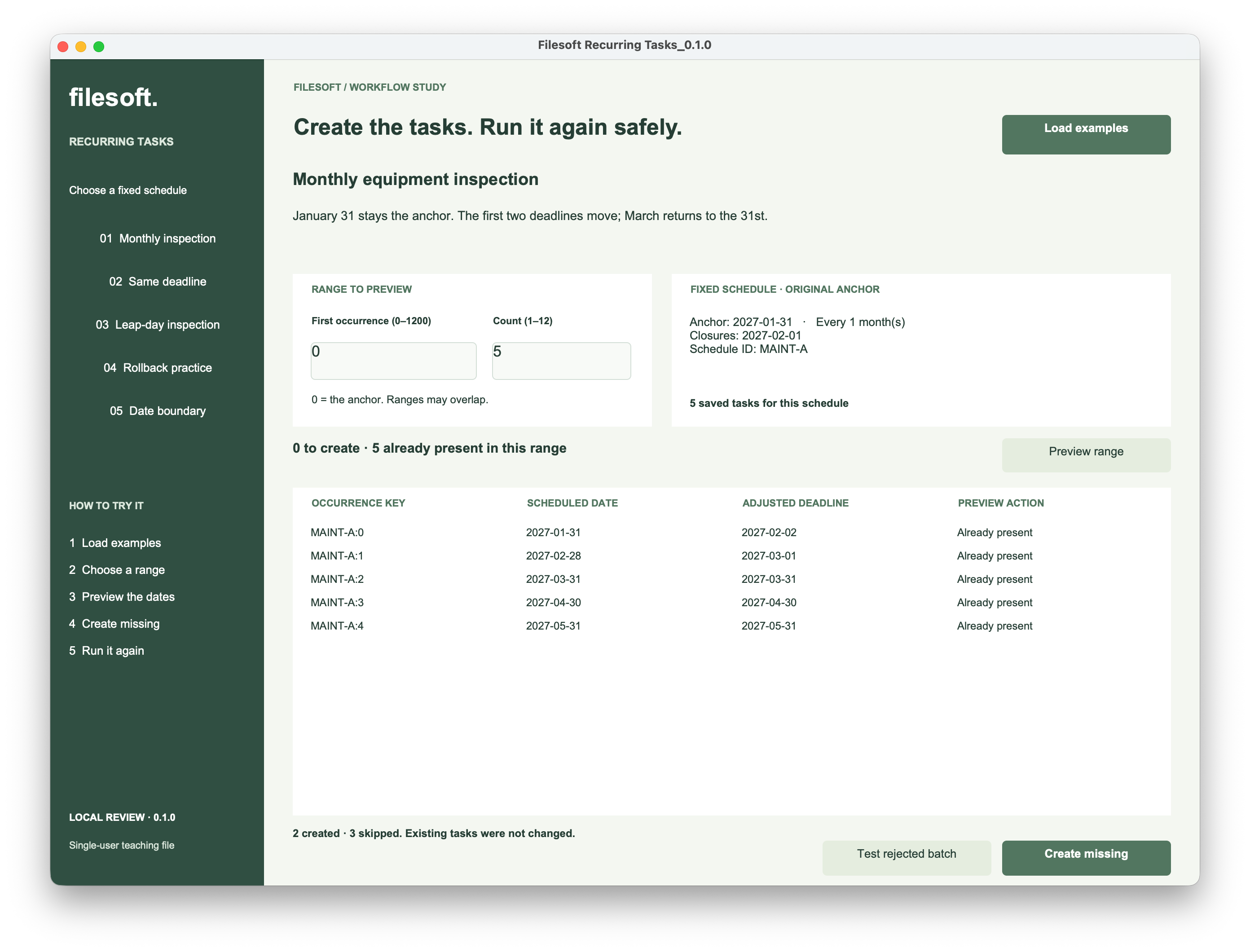
The same reasoning applies to overlapping ranges. A request for occurrences 2–6 must recognize keys 2, 3 and 4 if they already exist, even though the new range starts in a different place.
The two counts answer different questions. Already present in this range concerns only the current preview. Saved tasks for this schedule includes every saved task belonging to that schedule, including occurrences outside the displayed range.
4. Check the key again when saving.
The creation controller recalculates the candidates and checks every key again before deciding whether to insert a record. It does not treat an earlier preview as permission to create every displayed row.
This is the lookup expression used by the controller. $key contains the current occurrence key:
FileMaker calculation · Existing-task lookup
ExecuteSQL ( "SELECT COUNT(*) FROM \"Tasks\" WHERE \"TaskKey\" = ?" ; "" ; "" ; $key )The question mark inside the SQL is a bound parameter. A returned ? means the query failed; it must not be converted into a zero count. The controller stops on a query error or on more than one matching key. See the Claris ExecuteSQL reference.
For zero matches, the controller creates a task and stores its key, schedule ID, occurrence number, scheduled date, adjusted deadline, title and creation timestamp. For one match, it skips the task. It does not update that existing record’s dates or title.
The TaskKey field also has required and unique validation set to Always, with no user override. The lookup provides the expected workflow; field validation provides another check on the stored data.
Local scope. This is a single-user example. A read-before-create check is not a lock. Do not treat these screenshots as evidence that two hosted sessions can create the same range safely at the same time; that requires a separate concurrency design and test.
5. Treat a rejected batch as a failed batch.
The controller groups new task records in a transaction. It checks errors after record operations and at commit, and reports success only after the batch is saved. A failure should leave previously saved tasks intact and save none of the new tasks from that batch.
Open Transaction starts that group of changes in the current window. Commit Transaction saves the group or reverts it if validation fails. The script also uses Revert Transaction for explicit failure paths. This is why the complete file requires FileMaker Pro 19.6.1 or later.
Try the rejected-batch exercise
- Select Rollback practice and preview a range containing at least one missing occurrence.
- Note the current saved-task count, then click Test rejected batch.
- The exercise deliberately leaves a required task key empty. Check that the batch reports failure and the saved count has not increased.
- Preview again, then use Create missing for a normal retry. Verify the missing tasks are created once.
If every key already exists, choose a range with a missing occurrence. The rejection exercise cannot demonstrate rollback when there is nothing new to create.
This is a validation-failure exercise. It does not test recovery from an application crash, lost connection or power failure.
The supplied screenshots demonstrate repeat and extension behavior. They do not document this rollback exercise, the separate-schedule case or every invalid-input and date-boundary path. Check those cases in your working copy before adapting the workflow.
6. Make the message reflect the action just completed.
A correct result is harder to trust when the footer still shows an older instruction. During review, the preview updated while its status message could remain stale. Version 0.1.1 adds an explicit refresh of the named notice object after each button handler sets the new message.
FileMaker script · UI status excerpt
Set Variable [ $result ; Value: Get ( ScriptResult ) ]
Set Variable [ $$Notice ; Value: JSONGetElement ( $result ; "message" ) ]
Go to Layout [ "Recurring tasks" ]
Refresh Object [ Object Name: "notice" ; Repetition: 1 ]
Exit Script [ Text Result: $result ]
This excerpt follows the controller’s Perform Script step in the UI handler. It is a reading guide to the saved script, not a complete script to paste as plain text. The Refresh Object step updates the displayed footer after the message variable changes.
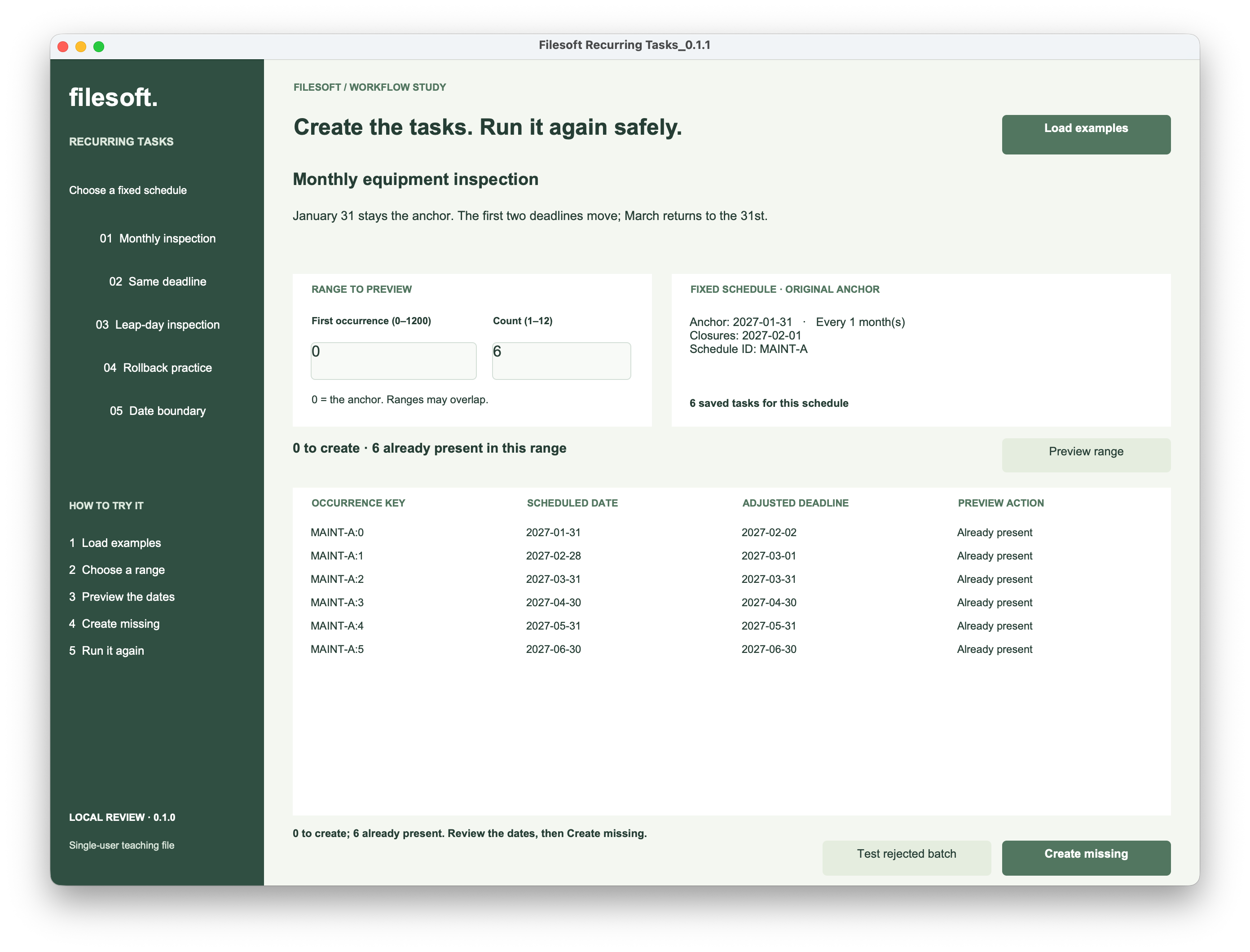
Here, six tasks are saved and the preview says zero to create. The footer now agrees: six occurrences are already present. A later action should replace this message with its own outcome.
Try the recurring tasks example.
The ZIP contains the editable Filesoft Recurring Tasks 0.1.1 file and a Read Me. It preserves the walkthrough copy, so sample tasks may already be saved. Load examples preserves existing records; it is not a reset button.
Free direct download · 148 KB · No name or email required.
- Open the file in FileMaker Pro on macOS. If no schedules are present, click Load examples.
- Select Monthly inspection and preview first occurrence 0, count 6. Read the preview before creating anything.
- If those six keys are already saved, Create missing should report 0 created and 6 skipped.
- Increase the count to 7 and preview again. If only occurrences 0–5 exist, expect one new task. Create it, then repeat to check it is skipped on the next run.
Keep a closed backup before experimenting. Inspect the UI and Controller folders under App → Recurring tasks in Script Workspace. The file is designed for FileMaker Pro 19.6.1+; FileMaker Pro is not included. Owner screenshots show macOS use, not minimum-version or cross-platform compatibility. Windows, Go, WebDirect and hosted operation have not been tested.
The earlier workflow screenshots show version 0.1.0; the final screenshot shows 0.1.1 with the footer correction. The on-layout review label remains 0.1.0. This is an independent teaching file with fixed schedules, not a task-management product or an update to Asset Care. It does not send reminders, run in the background, track completion or revise existing schedules.