The February equipment inspection cannot go ahead because the equipment is unavailable. You still need March’s inspection, and you need the system to remember what happened to February.
In a workflow that creates missing occurrences, deleting February’s task removes the record that tells the generator it already exists. The next run may create it again. This example keeps that record and changes its status to Skipped.
It builds on creating recurring tasks without duplicates. The new step is a small lifecycle for each saved task: Open → Skipped → Open. The four screenshots follow that lifecycle in Filesoft Skipped Recurring Tasks 0.1.0.
1. Keep the occurrence’s identity.
The monthly inspection uses schedule ID MAINT-A and a January 31, 2027 calendar anchor. Occurrence 0 belongs to January; occurrence 1 belongs to February. The saved February task has key MAINT-A:1.
| Value | February occurrence | After Skip or Restore |
|---|---|---|
| Task key | MAINT-A:1 | Unchanged |
| Scheduled date | 2027-02-28 | Unchanged |
| Adjusted deadline | 2027-03-01 | Unchanged |
| Status | Open | Skipped, then Open on Restore |
February 28 falls on Sunday, so the deadline moves to Monday, March 1. That adjustment does not turn it into March’s occurrence. March remains MAINT-A:2, scheduled for March 31. The calendar anchor and working-day adjustment stay separate from the task’s status.
2. Skip with a reason.
Preview the monthly schedule and click Review beside MAINT-A:1. Enter Equipment unavailable this month, then click Skip task.
Typing fills a draft field; it does not change the saved task. Skip validates the reason, saves the status and records the action. A blank reason is rejected. The example allows up to 240 characters after cleaning up whitespace.
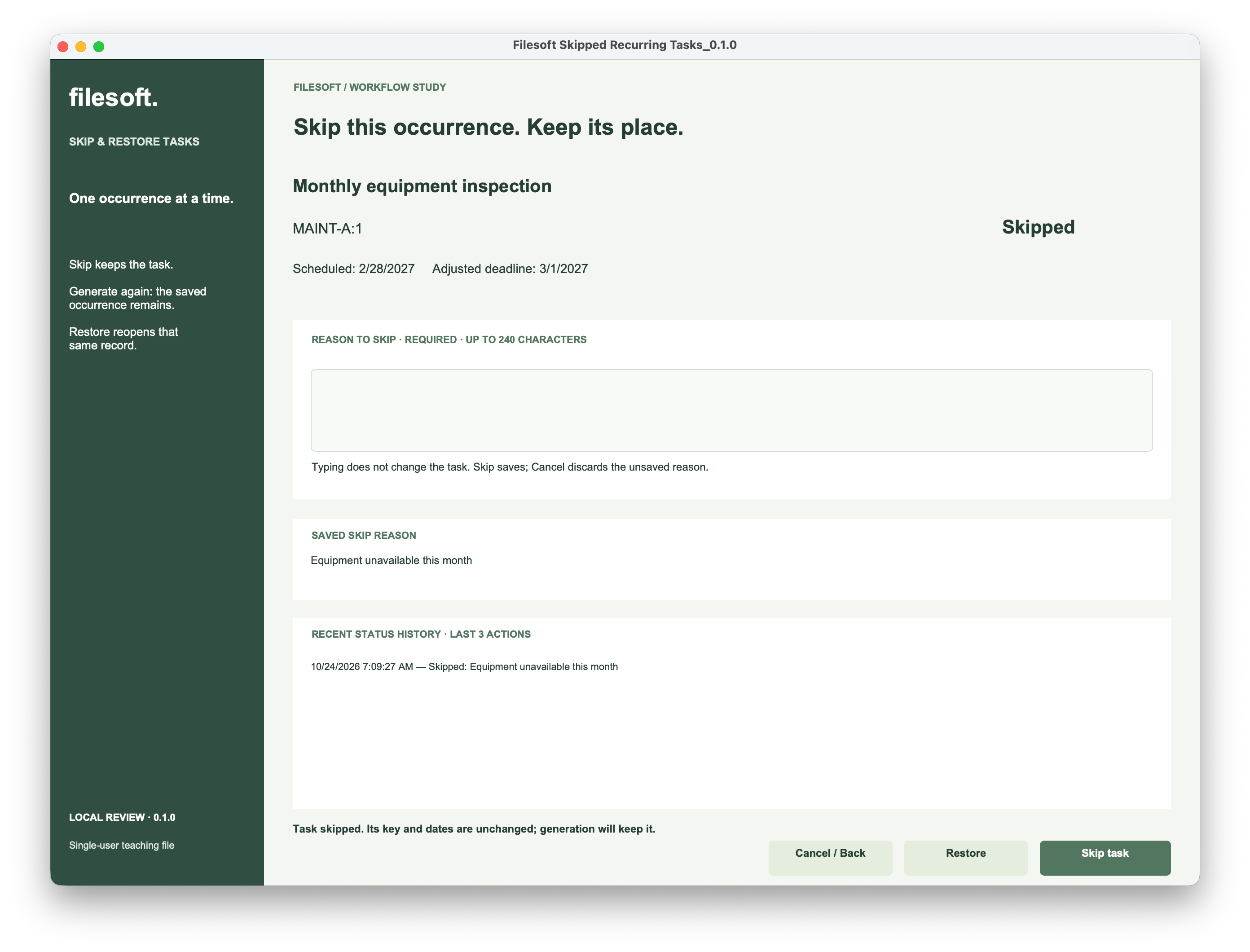
The detail now shows Skipped, the saved reason and a timestamped history entry. Its two dates are unchanged. The empty input above the saved reason is ready for a new draft; it does not mean the saved reason has disappeared.
3. Generate the same range again.
Return to the schedule with Cancel / Back. Keep First occurrence 0 and Count 6, preview the range and click Create missing.
The generator must look for every occurrence key, including keys belonging to Skipped tasks. It should not limit its lookup to Open tasks. In this walkthrough, all six keys already exist.
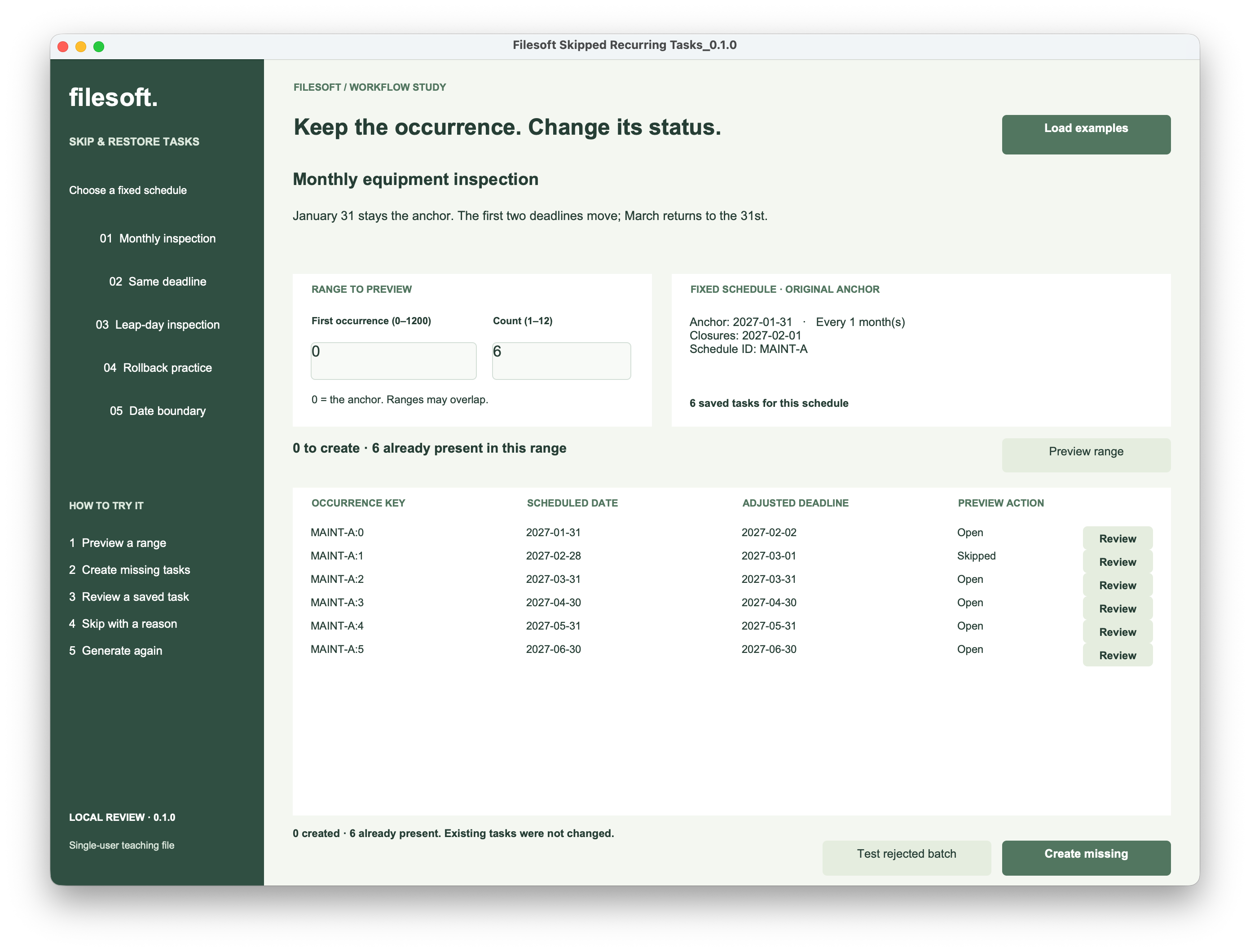
The result is 0 created · 6 already present. February is still Skipped. “Already present” describes what the generator found; “Skipped” describes the decision recorded on February’s task. Those are different facts, so the interface uses different words.
Repeated generation neither reopens February nor overwrites its reason. A matching saved task is left alone.
4. Add later occurrences.
Change Count from 6 to 8 and preview again. Occurrences 0–5 already exist. The only missing keys are MAINT-A:6 and MAINT-A:7, for July and August.
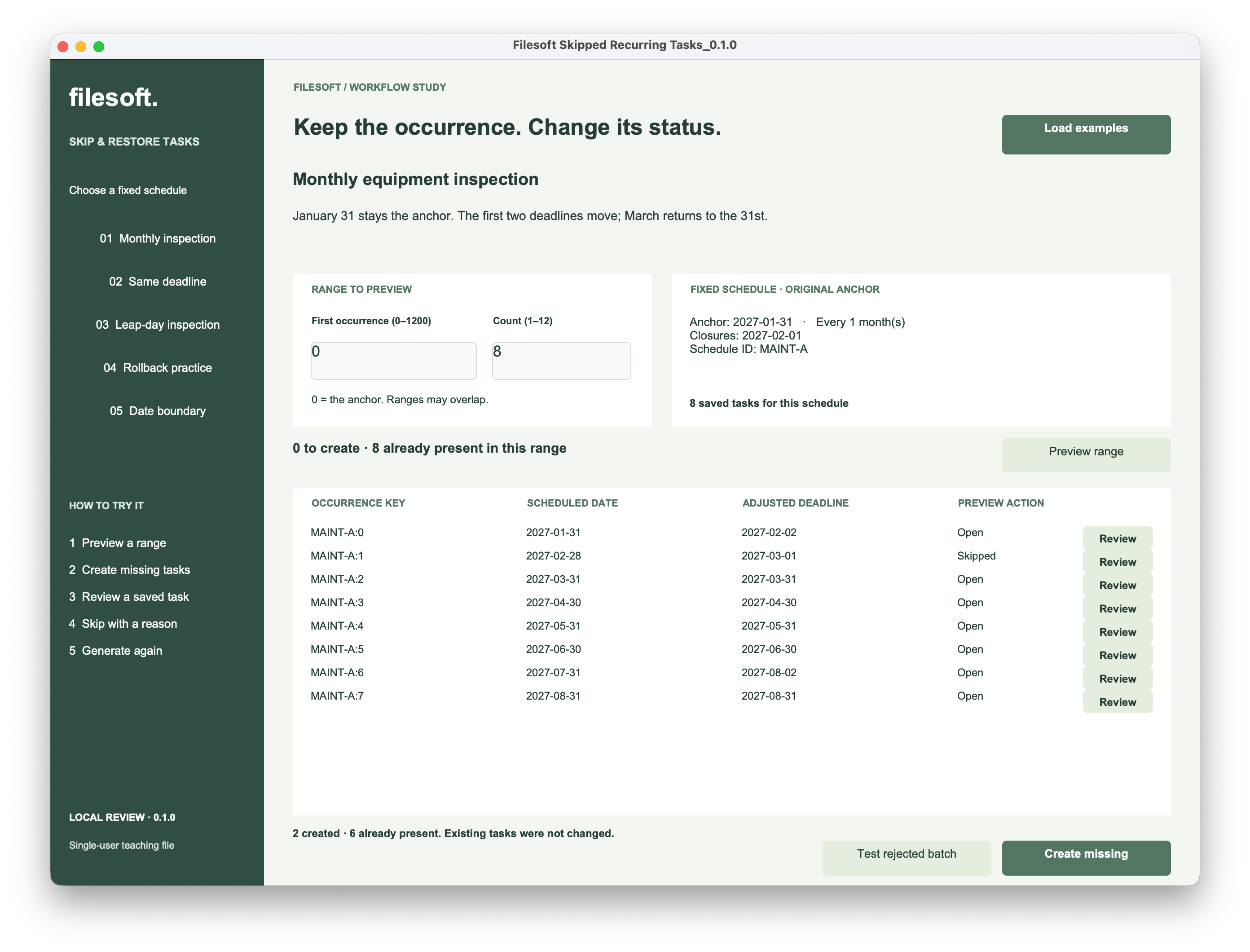
After creation, the footer reports 2 created · 6 already present, and the saved total is eight. February remains Skipped. July’s Saturday date moves to Monday, August 2, while August keeps its August 31 deadline.
The extension adds future work without changing the earlier decision. Running the same eight-occurrence range again should create zero new tasks.
5. Restore the same task.
If the inspection can proceed after all, review MAINT-A:1 and click Restore. The example changes its status back to Open. It clears the current skip reason and adds a history entry that retains the earlier reason.
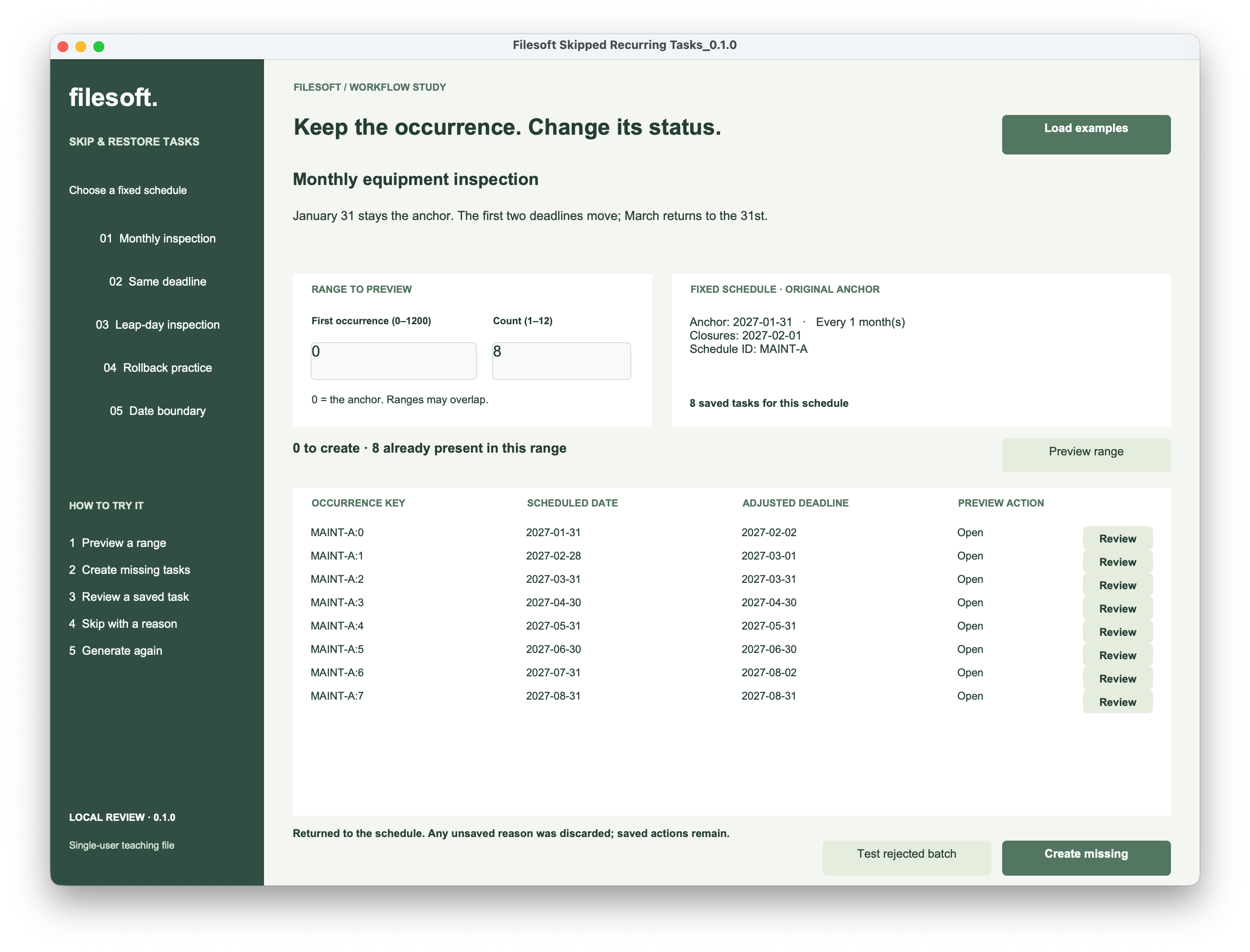
This screenshot shows the schedule after returning from Restore: February is Open, the saved total is still eight, and its dates have not moved. The detail’s history is a separate view; it is not shown in this final screenshot.
Restore reopens the existing occurrence. It does not create a replacement, advance the schedule or recalculate the deadline from today. An old deadline may therefore still need attention. Repeated Restore on an already Open task leaves it unchanged and adds no extra history entry.
6. Separate the draft from the saved decision.
The Tasks table holds the stable identity and dates alongside Status, SkipReason and StatusHistory. A separate global DraftReason field holds the text being typed. Cancel discards that draft while preserving saved actions.
For tasks inherited from the earlier teaching file, an empty stored status displays as Open. The saved DisplayStatus calculation is:
FileMaker calculation
Case ( IsEmpty ( Status ) ; "Open" ; Status )The status controller verifies that the detail is showing the requested task, validates the action and reason, and saves the status, reason, timestamp and history together in a transaction. It checks record and commit errors before reporting success. See Claris’s Open Transaction and Commit Transaction references.
The UI then refreshes the status and feedback objects so the visible result matches the action just completed. FileMaker’s Refresh Object step supports that explicit update. Returning to the schedule rebuilds its preview.
The detail displays the last three history actions; earlier entries remain in the history field. This is an editable teaching history, not a tamper-resistant audit trail.
Try the skip-and-restore example.
The ZIP contains Filesoft Skipped Recurring Tasks 0.1.0 and a Read Me. It preserves the walkthrough copy, including saved sample tasks and history. Load examples adds missing examples; it does not reset existing tasks.
Free direct download · 172 KB · No name or email required.
- Open the file in FileMaker Pro on macOS. Select Monthly inspection, set first occurrence 0 and count 6, then Preview range.
- Create any missing tasks, then review February. If it is already Skipped, restore it before practicing a new skip.
- Skip February with a reason, return and generate again. Confirm that its key remains present and its status stays Skipped.
- Extend the count to 8. Read the preview: if all eight tasks are already saved in your copy, zero new tasks is the expected result.
- Restore February, then check its status, dates and history. Keep a closed backup before experimenting.
A few useful checks
- Try a blank or whitespace-only reason. The saved task should remain unchanged.
- Type a reason and use Cancel / Back. Reopen the task and confirm the unsaved draft was discarded.
- Repeat Skip or Restore after that state is already saved. It should not add another history entry.
- Close normally and reopen the file to check that saved status and history persist.
Native checks in an isolated copy used FileMaker Pro 26.0.3 on macOS and covered these actions, repeated generation, overlapping ranges, separate schedules, rejected batches and normal close/reopen persistence. The file is designed for FileMaker Pro 19.6.1+ because it uses transaction steps; the minimum version, Windows, Go, WebDirect and concurrent hosted use have not been tested. FileMaker Pro is not included.
This is a single-user teaching file with fixed schedules. It does not provide completion tracking, reminders, background generation or schedule revisions, and it is not an Asset Care update.