You quote two desk lamps at $40 each and a desk mat at $20. The total is $100. Tomorrow, the catalogue lamp price becomes $45. A new quote should use the new price, but the quote you already issued should still show $100.
If the old quote displays the product’s current price through a relationship, opening it again can show a different amount. Give each quote line its own saved description, quantity and unit price. The product record supplies a starting value; the saved quote records what you offered.
This walkthrough uses Filesoft Quote Price History 0.1.0, a small editable example with two products and two lines per quote. The original screenshots show a $100 issued quote, a separate $110 draft, and a later revision issued at $104.
1. Decide where each value belongs.
A product ID tells you which item a line refers to. It does not have to determine the price forever. Keep the ID for the relationship, and store the quoted values on the line itself.
| Record | What it owns | When it changes |
|---|---|---|
| Product | Current description, catalogue price and availability | When you save catalogue edits |
| Quote line | Product ID, copied description, quantity and quoted unit price | When you deliberately save an editable draft |
| Quote version | Its own ID, reference, revision number, status, issue time and previous-version link | Through the document’s creation and issue actions |
The total comes from the saved line quantities and prices. It does not multiply each quantity by the catalogue’s current price.
Original quote:  2 × $40 + 1 × $20 = $100
New quote:       2 × $45 + 1 × $20 = $110
Revised offer:   2 × $42 + 1 × $20 = $104
Claris describes the same copied-value principle in its lookup documentation: a lookup stores a copy in the destination field, and later source edits do not automatically update that copy. This example uses explicit scripts to copy values. Neither approach alone makes an issued document read-only.
2. Create the original $100 quote.
Open a fresh extracted copy of the example and choose Load example → Load. The starting catalogue contains LAMP at $40 and MAT at $20, both available. Choose New quote → Create.
The example saves Q-001 / r1 as a Draft with two lamps and one mat. Review the lower quote-line area, then choose Issue quote. The status becomes Issued, the total stays $100, and an issue timestamp appears.
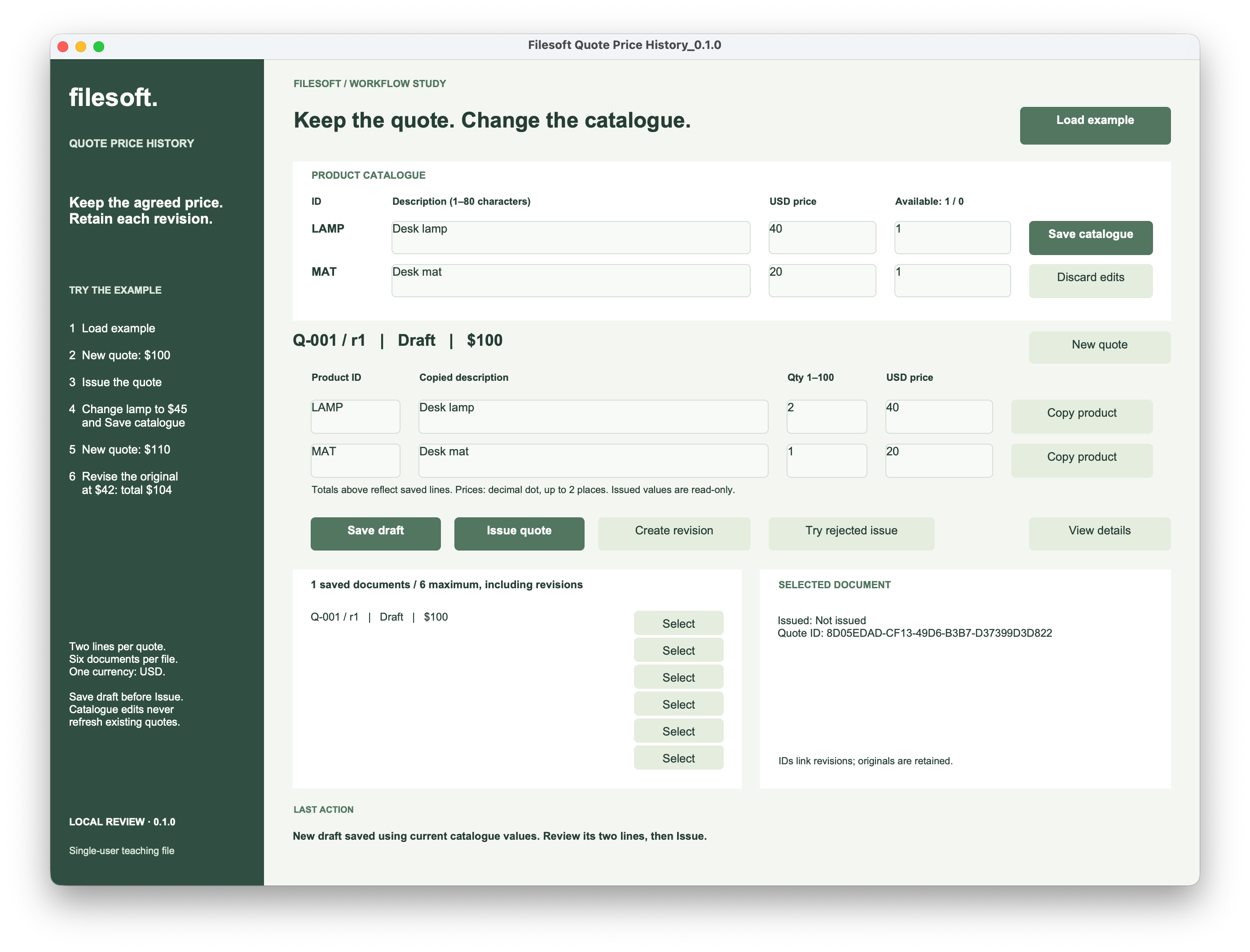
Issuing uses the saved draft values. If you edit a quote line first, click Save draft before issuing. The displayed total reflects saved lines, so an unsaved price entry is not yet part of the quoted total.
3. Change the catalogue and create a $110 draft.
In the upper Product catalogue area, change the lamp price from 40 to 45 and click Save catalogue. Q-001 / r1 remains Issued at $100. Its lamp line still says 40.
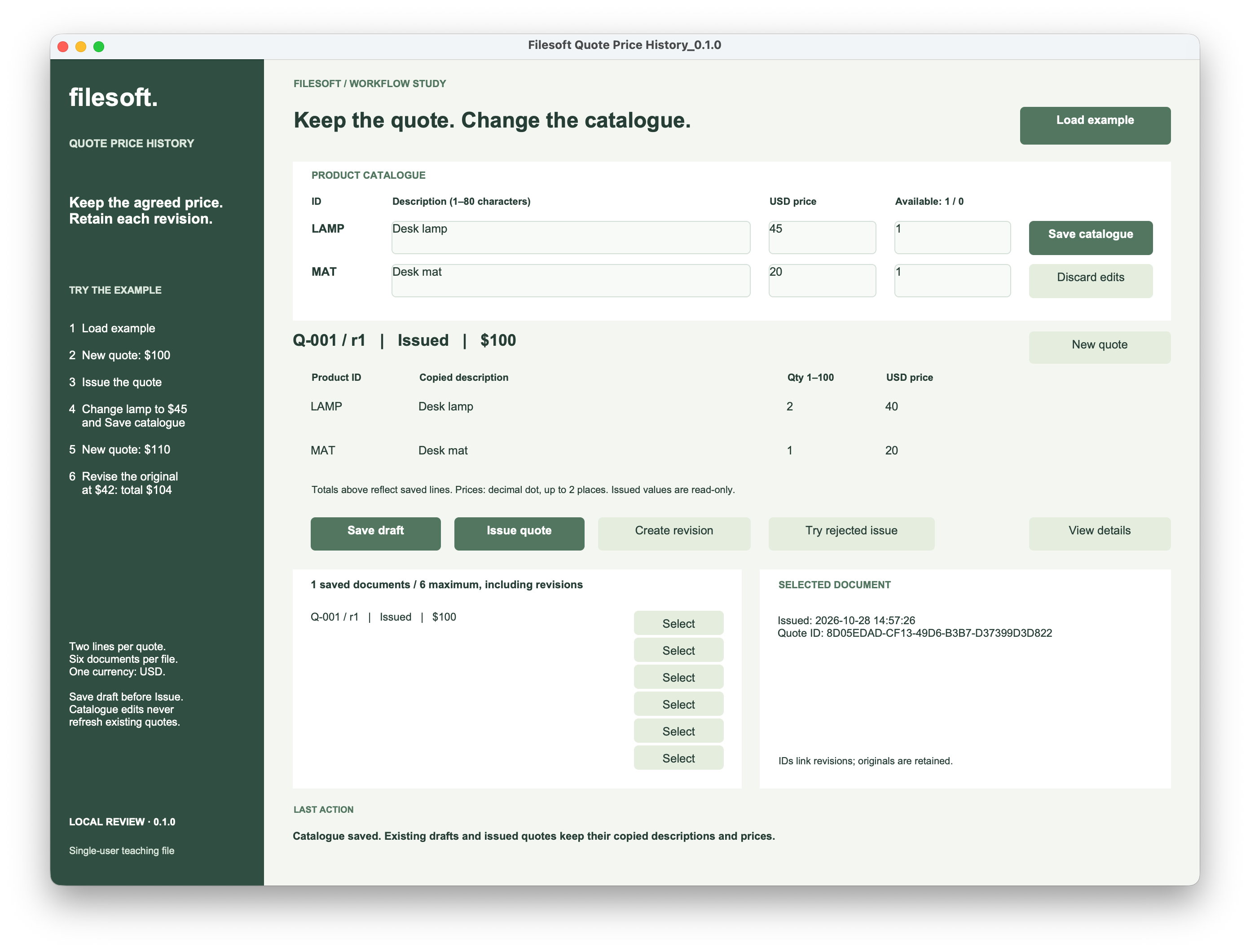
Now choose New quote → Create. Q-002 / r1 is a separate draft. It copies the saved catalogue price of $45, producing a $110 total. The earlier $100 quote remains in the history list.
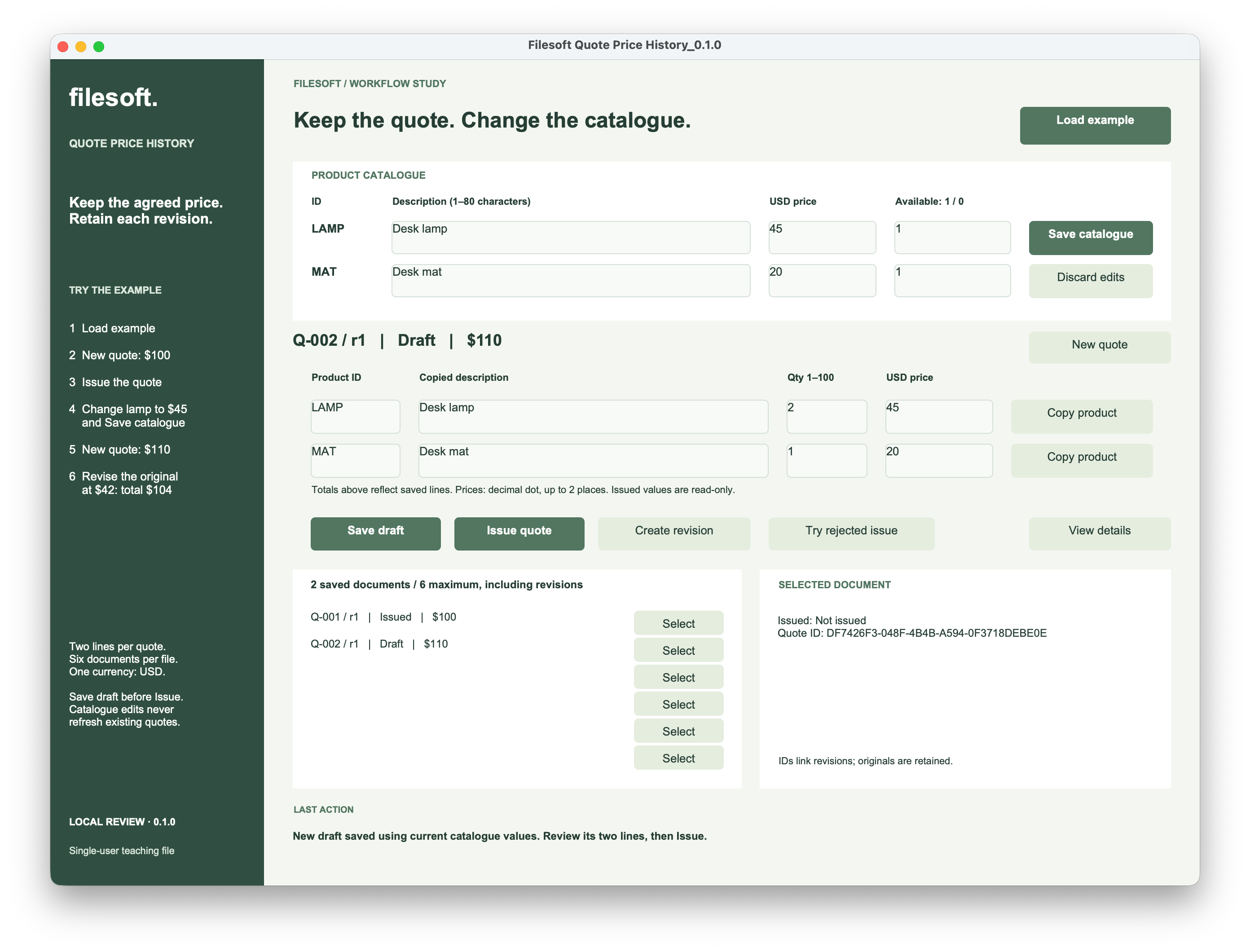
Saved drafts keep their prices too.
This example also keeps an existing draft’s copied values when the catalogue changes. In the next screenshot, the catalogue lamp price has been saved as $42, while Q-002 still contains $45 and totals $110.
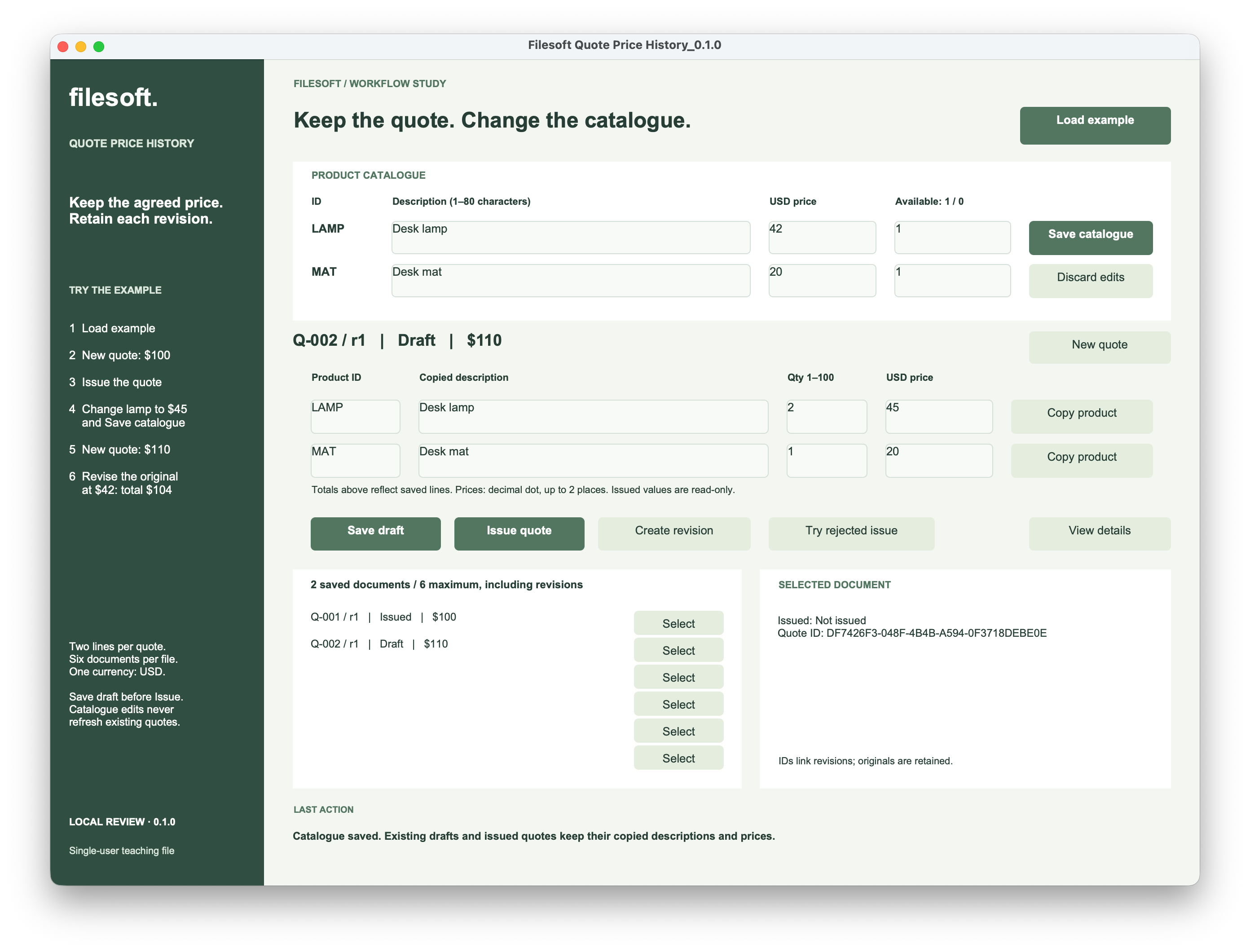
That policy avoids silently replacing a price someone is already preparing or negotiating. To change a draft, edit its lower quote-line fields deliberately and save them. Copy product is a different action: it replaces that line’s entry description and price with current catalogue values, even when the product ID has not changed. Review the result before saving; it can replace a negotiated price.
4. Revise the agreed price to $104.
An issued quote’s lines are read-only through this interface. Select Q-001 / r1 in the history list, then choose Create revision → Continue. The new version has its own quote ID and a link to the previous version. It starts with the previous quote’s saved values, not today’s catalogue price.
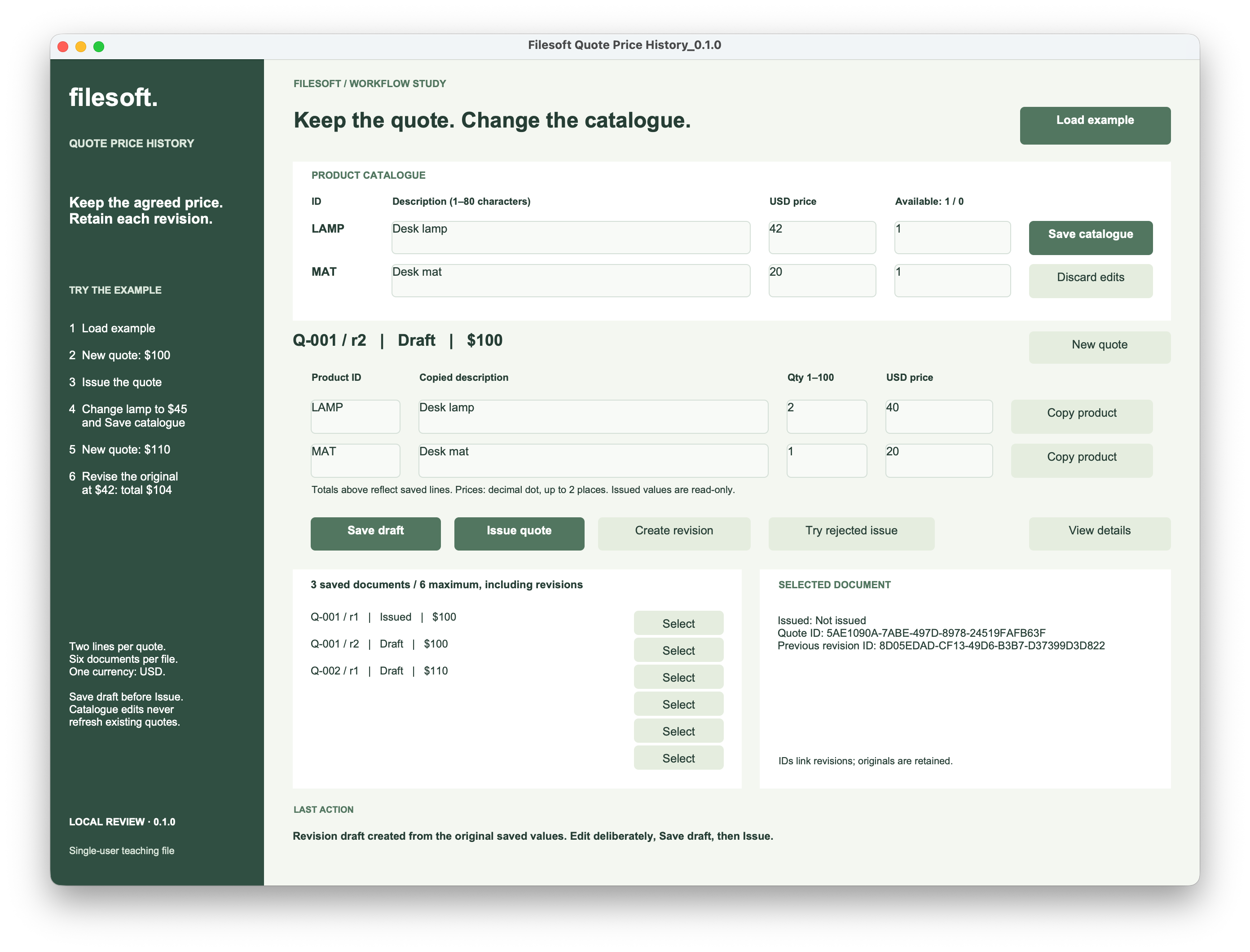
Edit the lower price field. The upper price belongs to the product catalogue. The lower price belongs to the selected quote line. For the revised offer, change the lower LAMP price from 40 to 42, keeping quantity 2 and the mat at $20. Click Save draft, confirm the heading shows Draft · $104, then click Issue quote.
In a fresh walkthrough, that can be r2. In the screenshots, r2 was first issued with its copied $40 lamp price, leaving it at $100. A further revision was then created from r2 and changed to $42. The final result is therefore Q-001 / r3 — Issued — $104. Both earlier $100 versions remain visible.
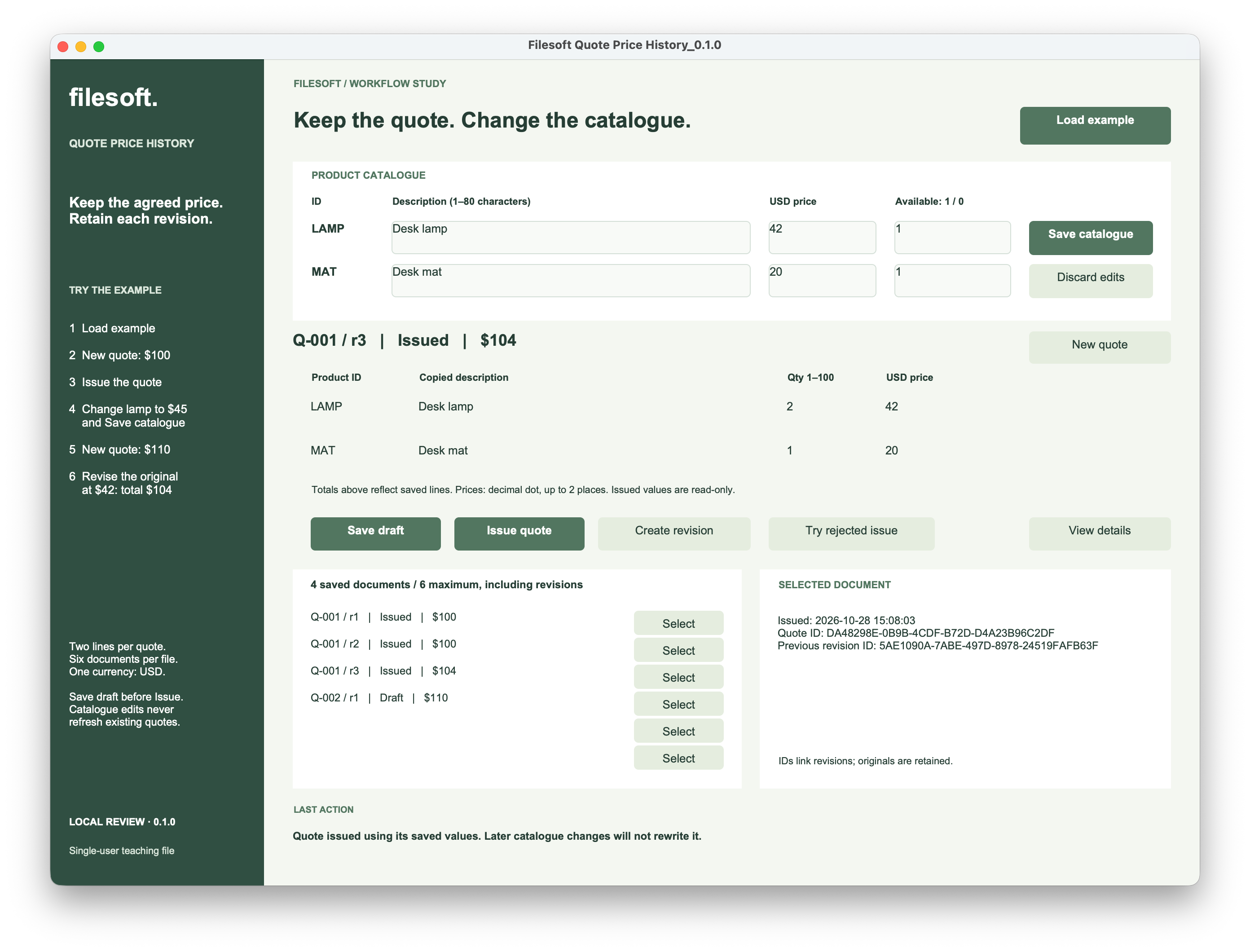
The separate Q-002 draft is still $110. Three different amounts can coexist because they belong to different saved documents. Changing one offer does not rewrite another.
If you issue a version before making the intended change, create a revision from that issued version. Preserve the earlier version rather than changing its saved history. In this example, asking again for a revision of a version that already has a successor selects that successor instead of creating another branch.
5. Apply the pattern in FileMaker.
The example separates Products, Quotes and Lines. A Workspace table holds entry fields for the interface. Each line belongs to a quote through QuoteID; each quote version has a separate ID. The readable reference, such as Q-001, stays the same across its revisions.
- New quote copies saved catalogue values into a new quote and its two lines.
- Save catalogue writes product records without refreshing saved quote lines.
- Save draft validates and saves both draft lines together. It rejects an issued version.
- Issue quote checks saved lines and writes the issued state and timestamp. Repeating it on an issued version returns an “Already issued” result.
- Create revision copies an issued version into a linked draft, retaining the previous document and its lines.
The write operations use Open Transaction and Commit Transaction, with validation and error checks. This lets related changes be saved together or reverted when the transaction fails. Inspect the editable scripts for the full implementation; the list above describes their responsibilities.
Keep the two decisions separate when adapting the pattern: where the historical values are stored, and who may change them at each document state. A copied price preserves the first value. State checks and an appropriate access model govern later edits.
This is a single-user teaching file. It is unlocked for inspection, so Full Access tools can alter its data and schema. Its issued-state protection applies to the supplied interface; it is not a tamper-proof audit trail. A hosted adaptation needs coordinated record locking, conflict handling and simultaneous-client tests. Using transactions alone does not establish that behavior.
Try the quote-price history example.
The ZIP contains Filesoft Quote Price History 0.1.0 and its original Read Me. No name or email is required. It is a separate teaching example, not an update to Sales Starter.
- Extract the ZIP into a writable local folder. Open the file in FileMaker Pro 26 on macOS. The example requires version 26.0 or later; FileMaker Pro is sold separately.
- If a sign-in appears, use Admin with an empty password. Use fictional data in this editable learning file.
- Click Load example → Load, then work through the $100 original, $110 new quote and $104 revision above.
- Close normally, reopen, click Load example and select each saved row to check persistence in your environment. Loading again preserves saved history; it is not a reset.
More practice and limits
The original Read Me includes validation, repeat-action, cancellation and rejected-transaction exercises. Its review-status wording is retained from the original package; the ZIP has not been rebuilt for this article.
Try cancelling New quote or Create revision, and verify that no document is added. Repeat Issue quote and compare the saved ID and timestamp. On an editable draft, try an invalid quantity or price, correct it, and save again. The Try rejected issue exercise is intended to leave the document Draft with no issue timestamp; follow the Read Me and check the saved result before relying on it.
The file supports two products, exactly two lines per quote, six saved documents including revisions, and one currency labelled USD. Prices use a decimal dot. There is no customer, tax, discount, invoice, payment or PDF workflow. To start again, extract a fresh copy into a separate folder; do not overwrite an open or edited database.
The screenshots are original captures from the owner’s 28 October walkthrough. They show the selected states and amounts described here, not complete coverage of validation, rollback or close/reopen behavior. Other FileMaker versions, Windows, Go, WebDirect and hosted use have not been verified for this example.
Continue with related workflows.
Keep the generated document too.
Preserve the original PDF when your quote changes: save a $100 original, issue a $104 revision and retrieve both documents.