1. Set up a practice workspace
A useful sales workflow keeps the customer, quote, invoice and payment history connected. This exercise uses Filesoft Sales Starter Standard. Premium has the same core workflow with a different design; it is not required to follow along.
Open a separate practice copy and keep the original download. Review Settings: business identity, currency, document numbering and printing logo. FileMaker Pro is sold separately. Both editions were tested by Filesoft in FileMaker 19 and 26 on macOS; Windows compatibility is not yet verified. This article is a draft walkthrough, not evidence of a new native test.
You can explore fictional examples with Help → Create sample records. Use a separate empty practice copy to enter the example below so it is easy to distinguish your records from the supplied samples.
2. Create one customer and one clear offer
Our fictional customer is Cedar Workshop. Their contact is Maya Chen at maya@example.com. They want a half-day planning workshop and a short written summary. Add the company and contact, then keep the sales opportunity and any follow-up activity connected to that customer.
Before quoting, write one sentence describing the work: “A planning session and a written summary of agreed next steps.” This prevents a neat-looking document from hiding an unclear scope. Add product or service descriptions that a customer can understand without knowing your internal shorthand.
3. Prepare and check the quote
| Line | Quantity | Unit price | Line total |
|---|---|---|---|
| Planning workshop | 1 | 400.00 | 400.00 |
| Written summary | 1 | 100.00 | 100.00 |
| Practice total, with zero tax | 500.00 |
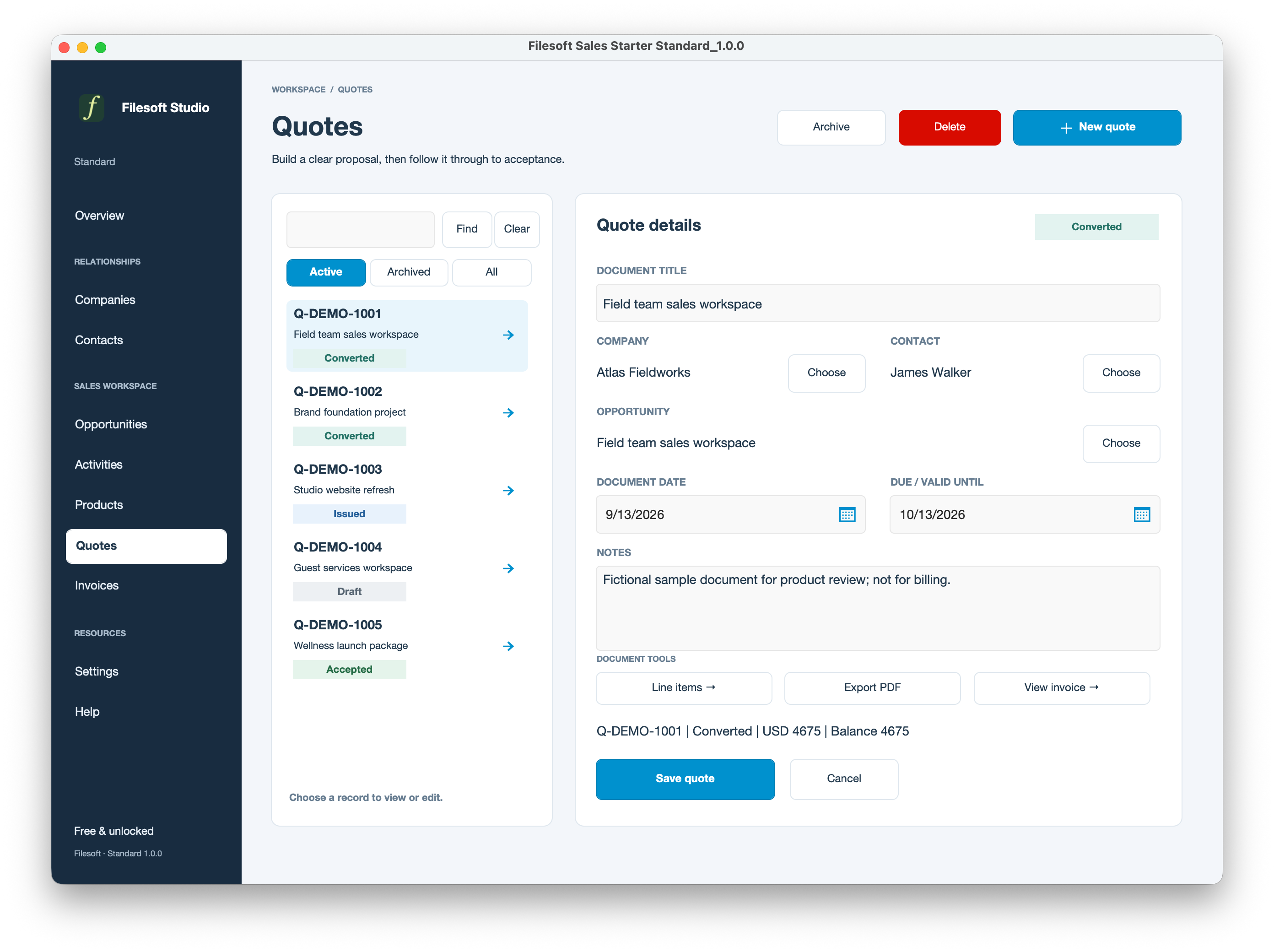
Use one business currency and zero tax for this fictional arithmetic exercise. That is not tax guidance for a real sale. Create the quote for Cedar Workshop, enter the two lines, and check the customer, quantities, prices and document total.
Export the quote PDF using the solution’s own export action. Open the exported file and inspect its logo, customer name, descriptions and total. A correct on-screen quote is not enough: the PDF is what the customer would receive. Do not send the practice document to anyone.
4. Follow the quote into its invoice
When a real customer accepts a quote, keep their confirmation in your agreed business process. In the practice file, use the quote-to-invoice action once. Open the linked invoice and confirm it belongs to Cedar Workshop and carries the expected lines and total.
Avoid creating a second unrelated invoice just because you cannot immediately see the first one. Check the quote’s linked invoice and the invoice list first. Similarly, after conversion, do not assume a later change to a quote automatically revises an existing invoice. Review the invoice itself and follow your document-correction process.
The article intentionally follows the existing product workflow. It does not add an approval system, accounting integration or payment gateway.
5. Record a partial payment and reconcile it
For practice, imagine receiving 200.00 by bank transfer. Record it against the 500.00 invoice, with a useful reference. The expected balance is 300.00. Review the payment history to confirm that the amount was entered once against the correct invoice.
| Checkpoint | Expected value |
|---|---|
| Invoice total | 500.00 |
| First payment | 200.00 |
| Balance after first payment | 300.00 |
| Second payment | 300.00 |
| Balance after both payments | 0.00 |
Recording a payment does not charge a card or move money. In real use, confirm the receipt in your payment or banking system before recording it. Sales Starter is not a complete accounting or tax-compliance system.
6. Finish by checking the whole trail
- Can you identify the customer from both the quote and invoice?
- Does the PDF match the document you intended to export?
- Do the two recorded payments total 500.00, with no duplicate entry?
- Does the invoice show a zero balance after the second payment?
- Can you return to the overview and identify any remaining follow-up?
If a balance is wrong, inspect the line totals and payment history before changing a status label. A status cannot explain an arithmetic difference. Keep the practice file separate from your live business file, and use the product’s setup guide before entering real work.
References
Use a practice copy and verify the result in your FileMaker version. Menu wording and platform behavior may differ.
Filesoft counts page loads and selected resource and practice-download clicks in aggregate. These counts contain no practice data or visitor identifiers. Browser privacy signals and the site’s analytics-off preference disable these counts.