You ordered ten desk lamps. The delivery contained four, but someone recorded six. Changing the saved quantity to four would fix the total while hiding what happened. Deleting the receipt would lose the original record altogether.
Keep the original receipt, add a full reversal with a reason, and record the correct four as a new receipt. The current total becomes correct, and the mistake remains explainable.
Filesoft Receipt Corrections 0.1.0 is a small, editable teaching example for one fixed order: PO-001, Cedar Office Supplies, ten desk lamps. It is separate from Purchase Desk. This walkthrough continues the idea of recording partial deliveries by showing how to correct one.
1. Keep receipts and reversals separate.
A saved receipt holds its own ID, reference, quantity and timestamp. A reversal is a separate record linked to the original receipt ID. It stores the full quantity, a reason and its own ID and timestamp.
The original quantity stays six. The receipt is shown as Reversed because a linked reversal exists. The correction uses a new receipt, R002, for four lamps. It does not overwrite R001.
Active received = total receipt quantity − total reversed quantity
Outstanding     = ordered quantity − active received
In the final example, ten were entered across two receipts, six were reversed, and four remain active. That leaves six outstanding. The ten in the history heading is the gross entered quantity; it does not mean ten lamps are currently received.
2. Work through the correction.
Start with a fresh extracted copy and click Load example. This initializes the workspace; it does not erase saved history on later openings.
- Enter reference R001, quantity 6, and click Post receipt.
- Click Review beside R001. Enter a reason such as “Entered 6 by mistake; the delivery contained 4 lamps.” Click Reverse receipt.
- Enter a new reference, R002, quantity 4, and click Post receipt.
| Saved action | Active received | Outstanding |
|---|---|---|
| Post R001: 6 | 6 | 4 |
| Reverse R001: 6 | 0 | 10 |
| Post R002: 4 | 4 | 6 |
Reversal and replacement are two separate saved actions. If you stop after reversing, the original is retained and the outstanding total is ten. Post the corrected receipt when you are ready; there is no automatic replacement.
3. Make repeated actions safe.
A second click should not receive the same lamps twice. With R002 and 4 still entered, click Post receipt again. The example finds the existing active receipt with that reference and quantity and returns “Already saved.”
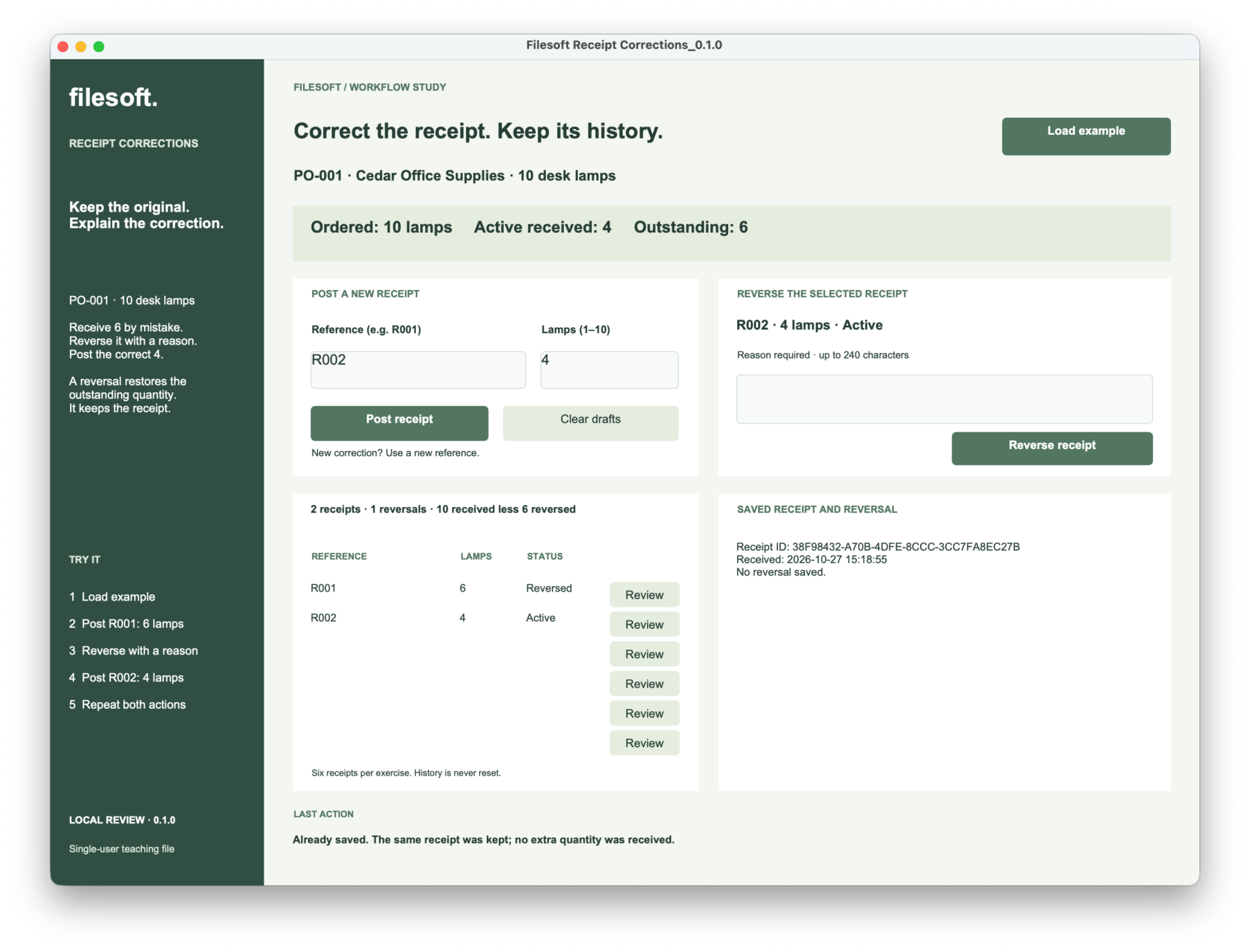
Repeating a reversal must also leave the saved history alone. Select R001 using its Review button, inspect its saved details, then click Reverse receipt again.
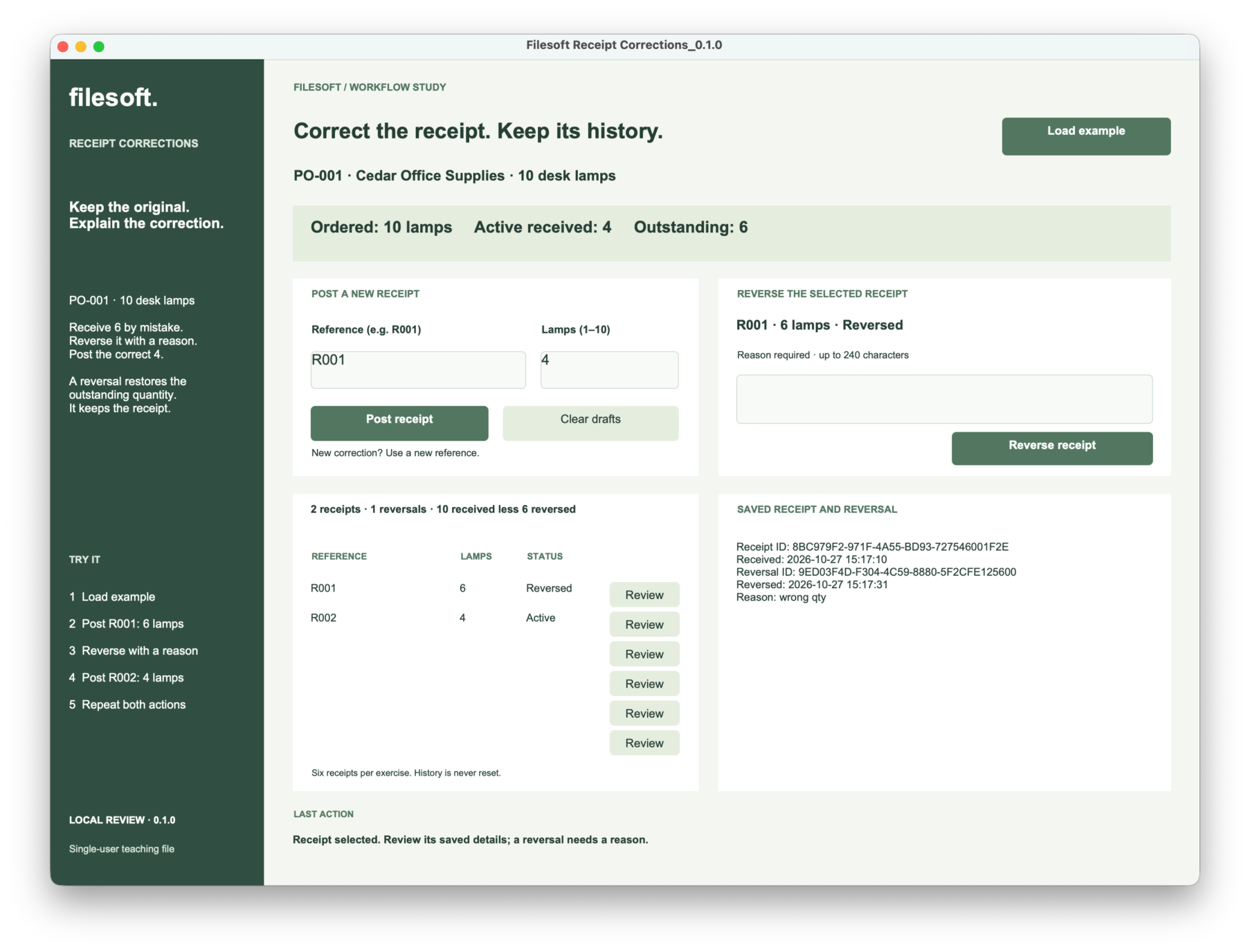
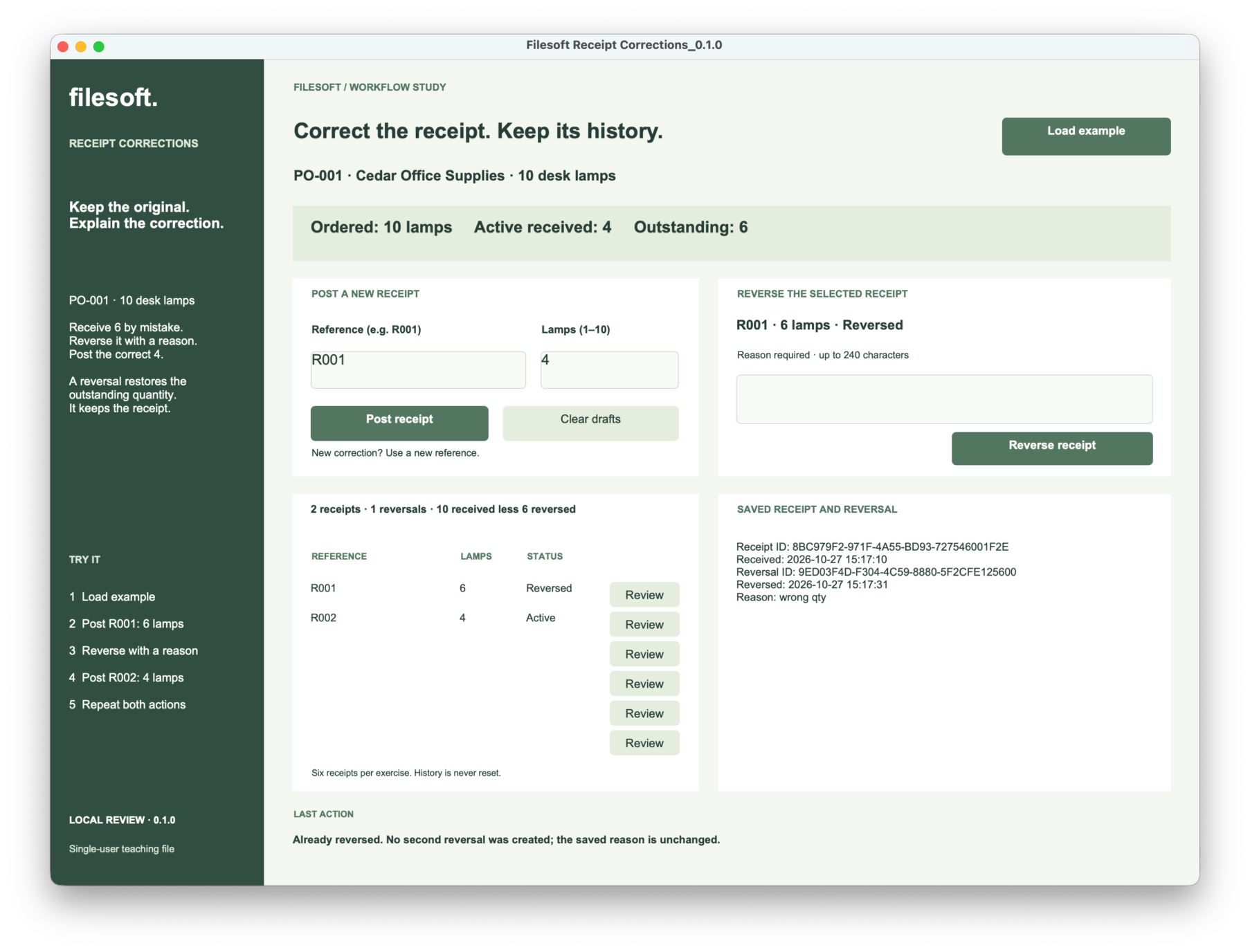
Compare the two R001 screenshots: the receipt ID, reversal ID, both timestamps and the saved reason “wrong qty” are unchanged. There are still two receipts, one reversal, four active lamps and six outstanding.
Drafts are not saved history. The left entry fields show R001 and 4 during these later checks. Those are unsaved inputs. The saved list still shows R001 with 6 lamps, Reversed, and R002 with 4 lamps, Active. The separate Review selection determines which receipt the reversal action targets.
Using an existing reference with a different quantity is rejected. Reusing a reversed reference is also rejected; the corrected receipt needs a new reference.
4. Require a reason for an active receipt.
Click Review beside active R002 and leave the reason blank. Clicking Reverse receipt should refuse the change and leave the totals intact.
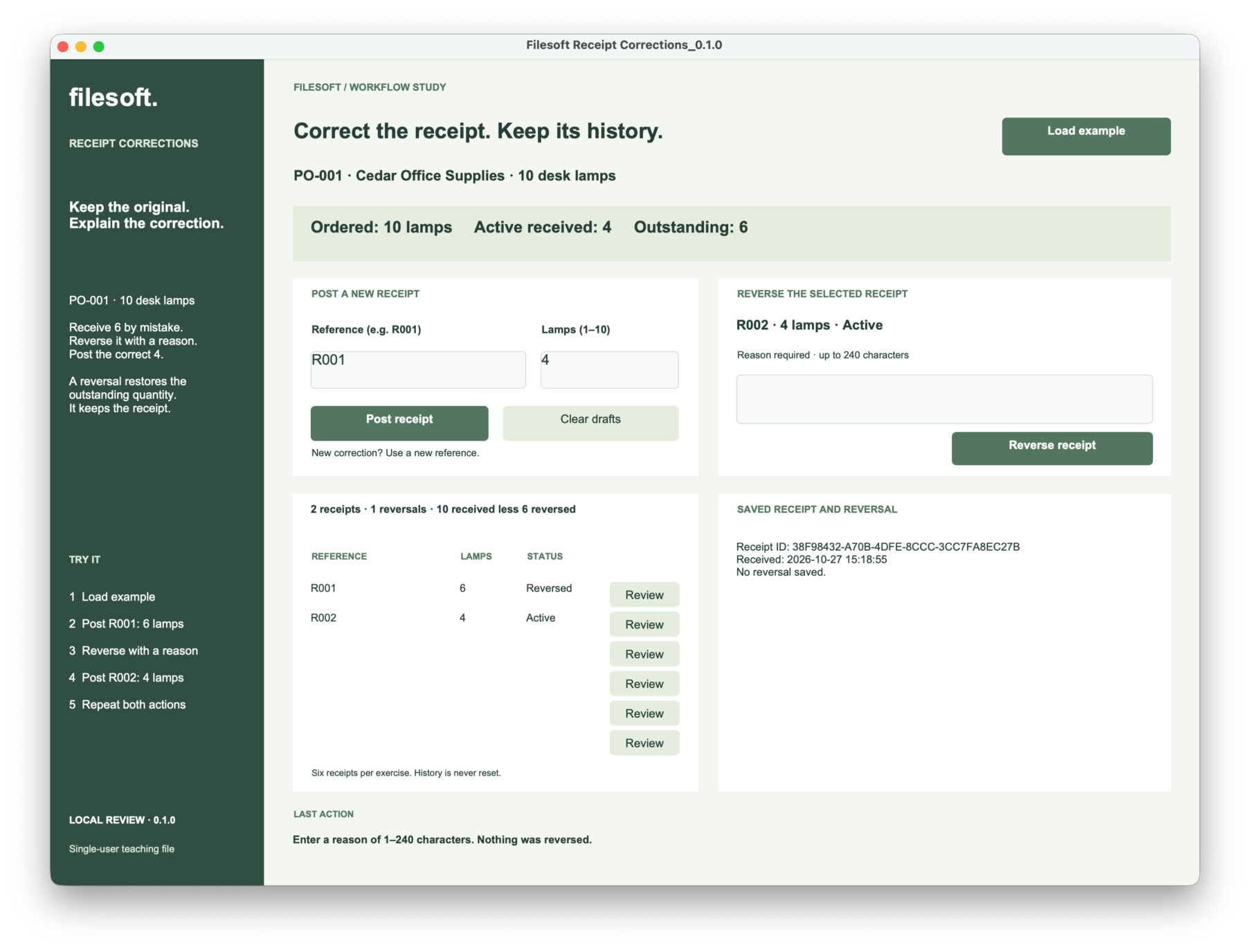
A reason needs 1–240 characters after whitespace normalization and trimming. Reviewing a different row clears an unsaved reason, so check the selected receipt before writing one. Clear drafts clears entry fields, not saved receipts or reversals.
An already reversed receipt takes a different path: the example recognizes its saved reversal first and returns “Already reversed,” even when the draft reason is empty. It does not create a new reversal or replace the saved explanation.
5. How the example applies the rules.
The interface uses a committed snapshot of receipt and reversal history. Read snapshot checks saved quantities, reversal links and totals before building the display. Query failures or inconsistent history produce an error instead of a plausible-looking zero.
Post receipt normalizes the reference to uppercase, checks the whole-number quantity, detects an existing reference and checks the outstanding amount. A new reference accepts 1–24 letters, digits or hyphens. Quantities must be whole numbers from 1 to 10 and cannot exceed what remains outstanding.
Reverse receipt uses the selected immutable receipt ID, checks for an existing reversal, and requires a reason before adding one full reversal. Unique field validation protects receipt references and the reversal’s receipt link. There is no partial reversal in this exercise.
Each new receipt or reversal is saved through Open Transaction and Commit Transaction, with validation and error checks. The interface refreshes from committed history after the action. Inspect the editable scripts for the complete flow.
Single-user scope matters. Transactional saving does not, by itself, prevent two hosted clients from passing the same outstanding-quantity check. A multiuser adaptation needs coordinated checks and writes, conflict handling and simultaneous-client testing. This file does not establish that behavior.
Try the receipt-corrections example.
The ZIP contains Filesoft Receipt Corrections 0.1.0 and its original Read Me. This article uses the original example ZIP unchanged, including the historical review-status wording in its Read Me.
Free direct download · 134 KB · No name or email required.
- Extract into a writable local folder and open the file in FileMaker Pro 26, the version requested by the example’s review notes. FileMaker Pro is not included.
- If prompted for an account, use Admin with an empty password. Use fictional data only; the file is editable for learning.
- Click Load example and follow the correction sequence above. Repeat Post for R002 and Reverse for R001, comparing saved IDs and totals.
- Close normally and reopen, then click Load example to check saved history in your environment. This article’s selected screenshots do not establish reopen persistence.
More checks and starting again
While six remain outstanding, try receiving seven. Also try a blank reference, zero, a negative or fractional quantity, R002 with a different quantity, and reuse of reversed R001. Each should refuse the save and leave the history intact. Correct the draft and retry with a valid new reference and a quantity within the outstanding amount.
The exercise holds at most six saved receipts. Reversal retains a receipt, so it does not free a slot. To start again, extract another copy of the original ZIP into a separate folder. Do not overwrite an open or edited file.
Claris lists 19.6.1 as the version that introduced the transaction steps used here. That is a feature prerequisite, not a tested minimum for this file. Other FileMaker versions, Windows, Go, WebDirect, resizing and hosted use are not verified.
The four unchanged owner-provided screenshots show specific native states from the 27 October walkthrough. They are not evidence of complete test coverage. No new native testing or rebuild was performed for this article.
This is a workflow demonstration, separate from Purchase Desk. It does not implement supplier returns, accounting entries, inventory valuation or a tamper-proof audit trail. No plug-ins or network connection are required by the teaching file.