A sidebar gives people a consistent way to move between layouts. Filesoft Navigation Sidebar adds expandable sections, editable destinations and icons to an existing FileMaker file. It is a free add-on; it needs a small relationship setup in your app.
This guide uses Navigation Sidebar 1.0.2. It is for FileMaker Pro 19.6.3–26 on macOS, with owner testing in 19.6.3 and 26; intermediate versions were not individually tested. Windows, Go, WebDirect and multiple windows are outside this release’s supported scope. FileMaker Pro is required and sold separately.
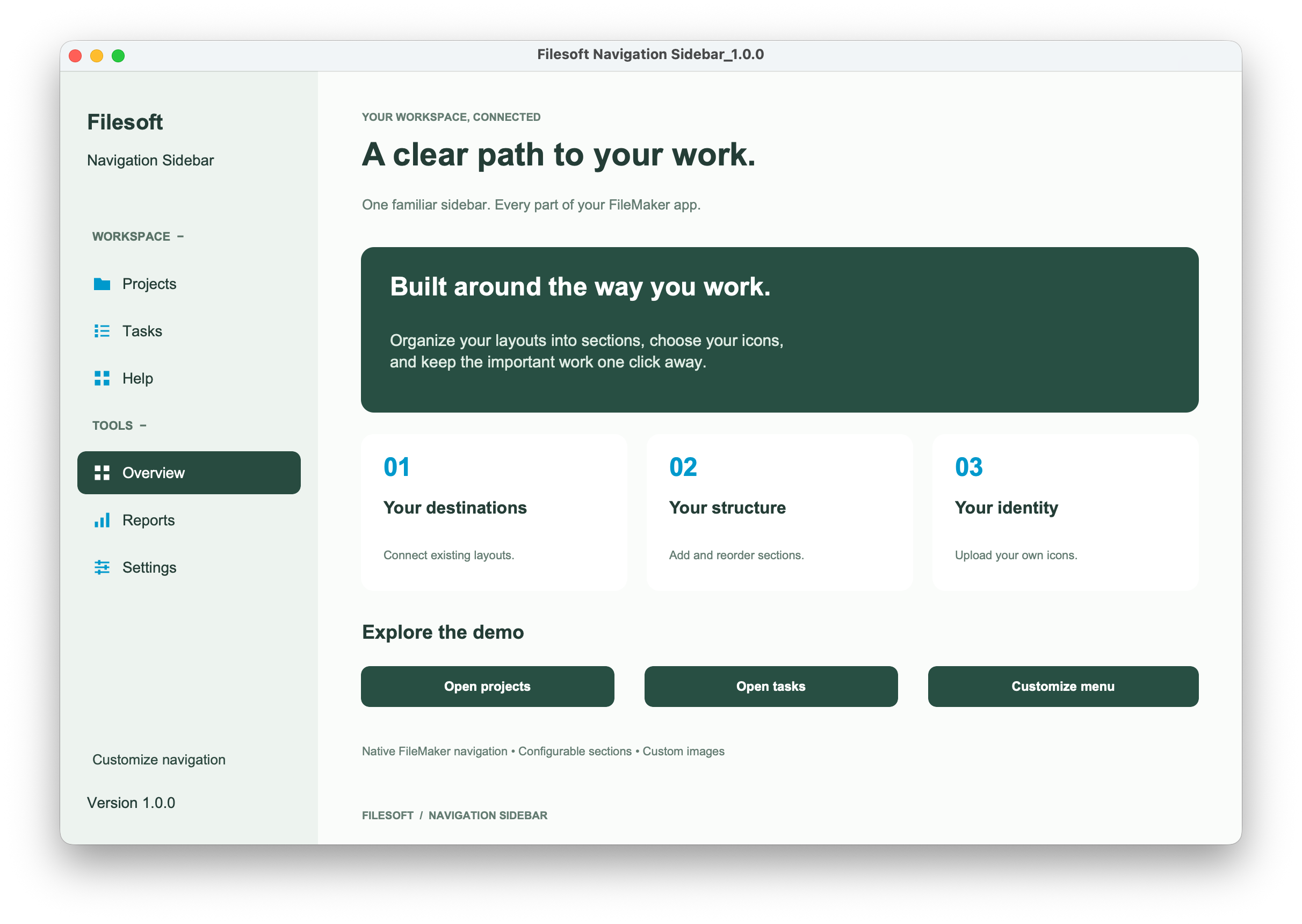
1. Get the package and make a backup.
Request the free Navigation Sidebar with your name and email. Your email link delivers the add-on, editable reference demo, Read Me and narrated tutorials. The request does not subscribe you to marketing.
Work in a backup copy of your own file. You need development access to edit its layouts and relationships. Read the included setup guide before changing the file.
2. Install and place the sidebar.
Unzip the package and open its .fmaddon file. In your own FileMaker file, enter Layout mode, open the Add-ons tab and choose Install Add-on. Select Filesoft Navigation Sidebar. Make space beside your existing content, then drag the sidebar onto the layout.
3. Connect the layout’s table occurrence.
Open Manage Database → Relationships and connect the table occurrence used by this layout to FSNAV_Rows. In the supplied tutorial, Tasks Primary Key connects to FSNAV_Rows ID with the X operator. Leave related-record creation and deletion unchecked. Repeat the setup for other layout table occurrences where you place the sidebar.
This relationship is specific to Navigation Sidebar. Checklist Lite and Loan Desk add-ons have different integration requirements; follow their own guides.
4. Set your destinations.
Return to Browse mode and open Customize navigation. Set a menu item’s destination to the exact name of a layout in your file, then save. Edit the section labels, display order, visibility and icons to fit the app.
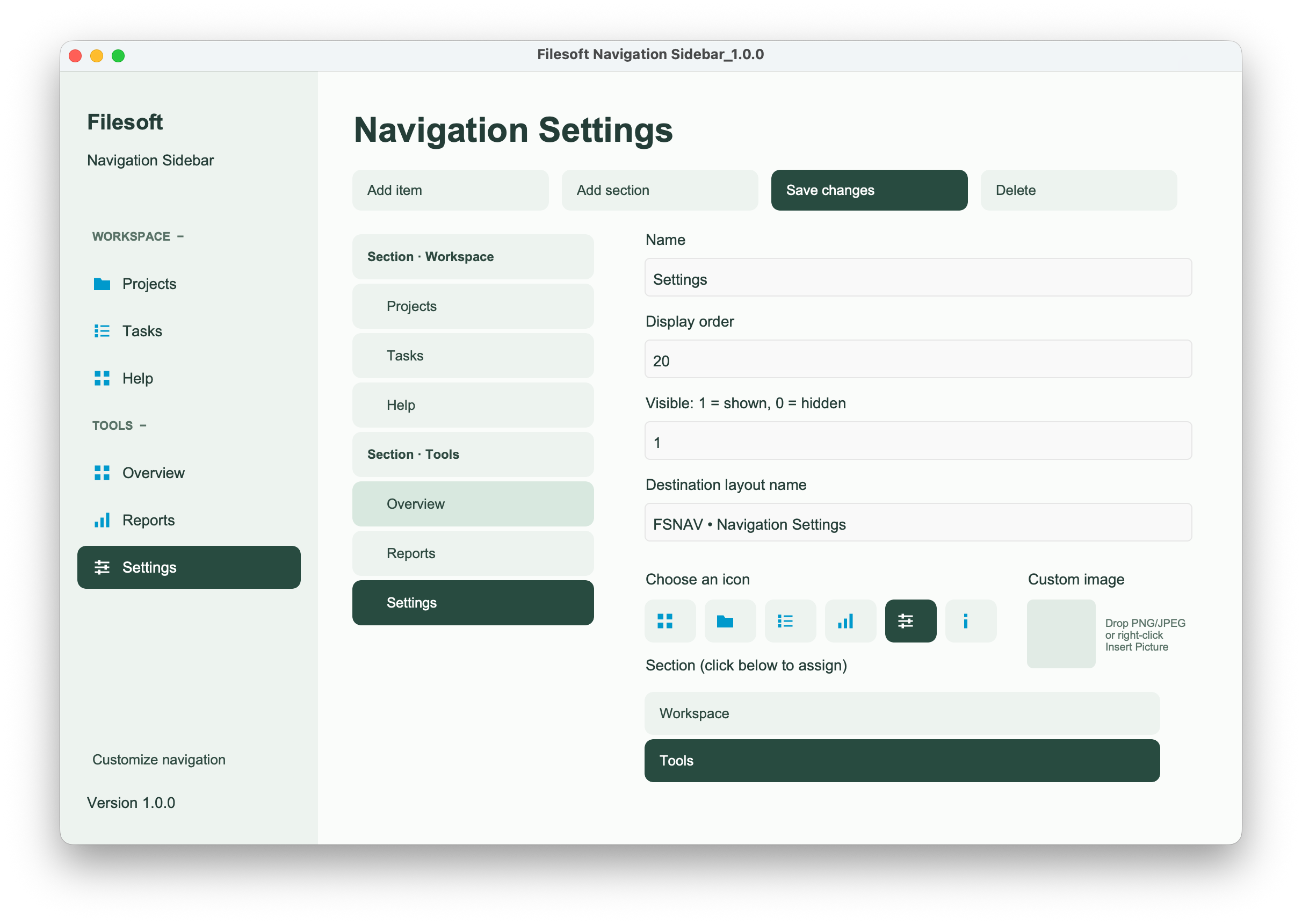
5. Check the journey through your app.
Click each destination, expand and collapse sections, and move between the layouts where you installed the sidebar. Check spacing with realistic content and confirm that the intended users can access the destination layouts. A sidebar does not grant them new access privileges.
Watch the full installation.
Read the installation transcript ↗
If a menu item opens the wrong place
Check the saved destination layout name first, then confirm the relationship uses the table occurrence assigned to the layout. Compare your setup with the reference demo and video. Keep your original file available while reviewing changes.