Use the tasks you already entered.
Close and back up your Lesson 2 working file, then reopen your working copy. You need the three practice tasks: Rivera’s Send meeting summary (Done), Rivera’s Confirm next meeting (Open), and Morgan’s Send project outline (Open).
The starting download contains the saved Lesson 2 project and its entered tasks. The completed example adds the Follow-up List layout. It does not pre-run the finds or include a saved find; you’ll practice those yourself.
Your outcome
A task-based search layout, three finds you can explain, a list ordered by due date and a saved Open follow-ups request.
1. Search the right kind of record.
The Contact Follow-ups layout is based on Contacts. Its toolbar counts contacts, even when it shows several task rows. For a task work list, use a layout based on FollowUps, where one result is one task.
- Choose File → Manage → Layouts, then create a new layout/report named Follow-up List. Set Show records from → FollowUps.
- Choose a Computer layout in Table form and add Task, DueDate and Status. Also include the related Contacts::FirstName and Contacts::LastName fields so you can identify the contact.
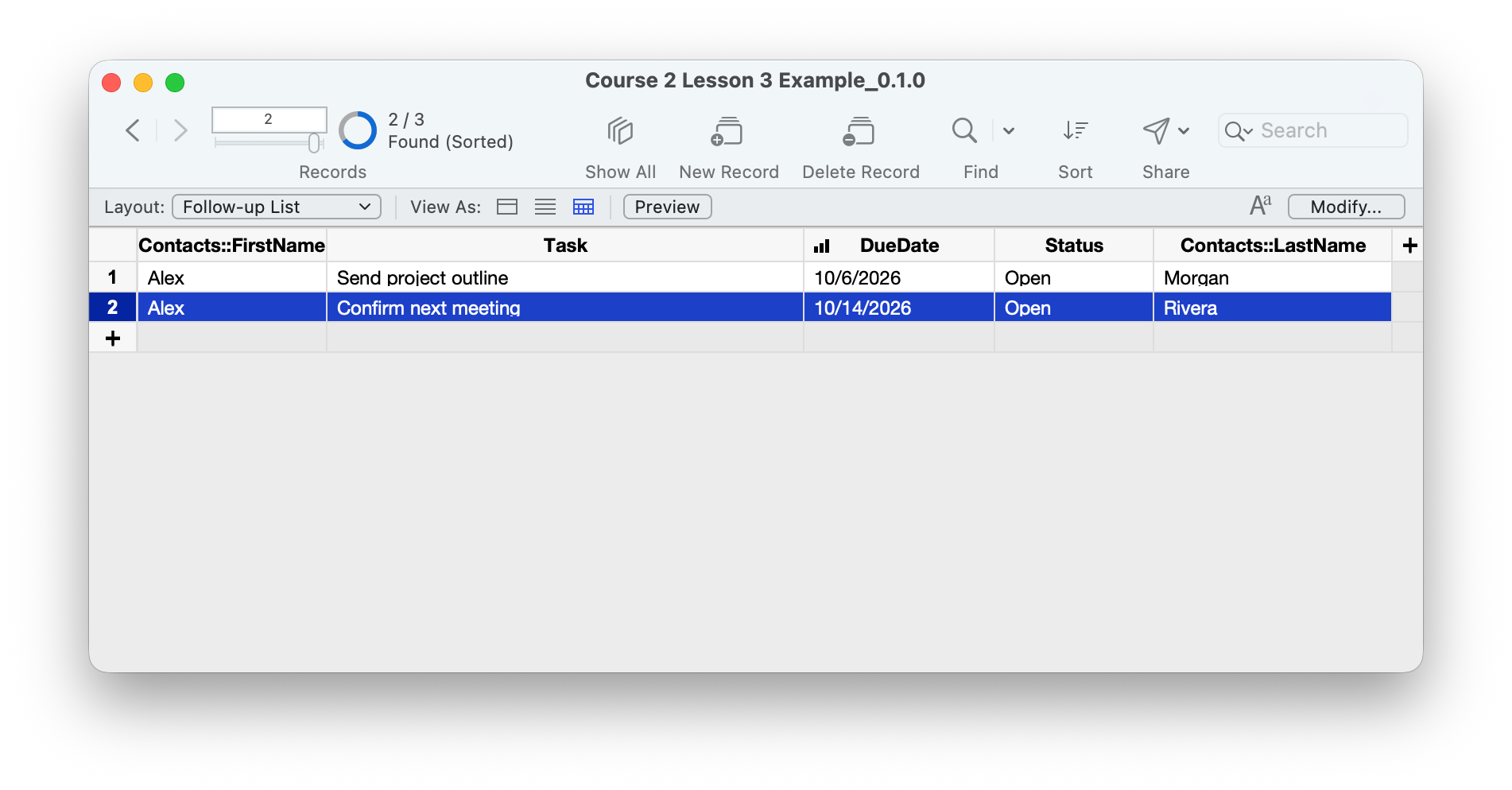
- Finish the layout and enter Browse mode. Choose View → View as Table. Use Modify if needed to show those five fields. Arrange the columns so tasks, dates and statuses are easy to scan alongside the names.
- Widen Task enough to read the full descriptions. Show complete four-digit-year dates and both name columns.
- Choose Records → Show All Records. With only the practice tasks, the total should be three.
The related names come from the existing relationship. They are not extra copies of the contact data. Use this layout for finding and sorting; create new tasks through the contact portal so ContactID is supplied. The toolbar’s New Record here would create a task without choosing its parent contact.
2. Find unfinished work.
- On Follow-up List, choose View → Find Mode. The empty fields now accept search criteria, not new record values.
- Enter Open in Status. Leave the other fields empty.
- Click Perform Find. You should see Confirm next meeting and Send project outline: two tasks out of three.
The Done task still exists. It is outside this found set. Show All Records to see it again. Avoid typing search words into fields in Browse mode, where you would edit stored data.
3. Combine status and due date.
Enter both criteria in the same find request. This means Status must match and DueDate must match. A separate request would broaden the search with another alternative.
For this worked example, use 7 October 2026 as the reference date. The examples below use month/day/year; translate the dates to your file’s format if needed.
| Find | Status | DueDate criterion | Expected result |
|---|---|---|---|
| All unfinished tasks | Open | Leave blank | Two tasks |
| Overdue at the reference date | Open | <10/7/2026 | Send project outline |
| Due from 7 through 14 October, inclusive | Open | 10/7/2026...10/14/2026 | Confirm next meeting |
- Start a fresh Find Mode request for each row of the table. Check that no criteria remain in Task or the name fields.
- Enter Open and the listed date condition in the same request, then perform the find.
- Compare the result with the table. Use Show All Records between exercises to recheck the total.
Overdue means unfinished and due before the reference date. A task due on that date is due today, not overdue. The range includes both endpoints; its Done task is excluded by Status.
When using your own dates, replace the fixed reference date with today’s date and choose your intended range end. Results will change as time and task statuses change. In a date-field find, // finds today’s date. Do not type a formula such as Get(CurrentDate) into a find field.
If nothing matches
Check the date format, Status spelling and the layout’s base table. Confirm you entered criteria in Find mode and used one request. Use Modify Find to correct the criteria, or return to Browse mode and choose Show All Records. No matches does not mean records were deleted.
4. Put the list in order and reuse a find.
- Run the Open-only find again. Choose Records → Sort Records.
- Select DueDate in ascending order. Add Task ascending as a second sort field to make equal dates easier to scan, then sort.
- Send project outline should appear before Confirm next meeting in the dated example.
- Choose Records → Save Current Find. Name it Open follow-ups and save.
- Show All Records, then choose Records → Saved Finds → Open follow-ups to run it again. Apply the due-date sort if necessary.
A saved find remembers criteria, not a frozen set of rows or a backup. If a task changes to Done, the Open find should exclude it next time. A saved find containing literal October dates keeps those dates; do not label it “this week” and assume it advances automatically.
Try it yourself.
- Run each of the three finds and write down the matching task names and found/total counts.
- Explain why the Done task is absent from the date-range result even though its date is inside the range.
- Run the Open-only find and sort by DueDate ascending. Confirm each task shows the correct contact’s last name.
- In your practice copy, change Confirm next meeting to Done. Run the saved Open follow-ups find again; it should now return only Send project outline. Restore Confirm next meeting to Open and rerun the find.
- Close and reopen your working file. Run the saved find and confirm the two Open tasks are present. Check that the original contact portal still shows each task under the right contact.
Compare your result
With the three supplied dated tasks and the 7 October reference date: all records = three; Open = two; overdue Open = one for Morgan; Open in the inclusive 7–14 October range = one for Rivera. Sorting changes their order, not which records match.
Check your understanding.
Choose one answer for every question. Answers and scores stay in this page.
Next: make common actions easier.
Lesson 4 adds scripted actions for creating and completing follow-ups, with clear feedback. Keep your working file and its tasks for the next lesson.
Return to the course outline ↗