A participant asks to join a workshop. You choose their name and the session, then click Register. Later, you click again because you are not sure the first click worked. The system should confirm the existing registration.
The rule is simple: one saved registration for each participant–session pair. One person can join several sessions, and several people can join the same session. Cancelling a registration keeps that pair’s record so it can be restored explicitly.
This walkthrough uses Filesoft Session Registration 0.1.2. The five screenshots show a first registration, a repeated click, another session, cancellation and restoration. The free teaching file lets you inspect both the interface and the scripts behind those actions.
1. Choose names, store IDs.
The two pop-up menus show readable participant and session labels. Behind those labels, they store ParticipantID and SessionID.
The sample deliberately includes two people named Alex Morgan: P01 in Operations and P02 in Finance. Matching on the name alone would treat two different people as one. Their IDs keep them separate; the team and ID in each menu label help you choose the right person.
FileMaker value lists can display a second field while storing the first field’s value. Here, the stored value is the ID and the displayed value is the descriptive label. See Claris’s value list documentation.
2. Register once, then repeat.
Choose Alex Morgan (Finance) · P02 and FileMaker foundations · S01. For a pair with no saved registration, click Register.
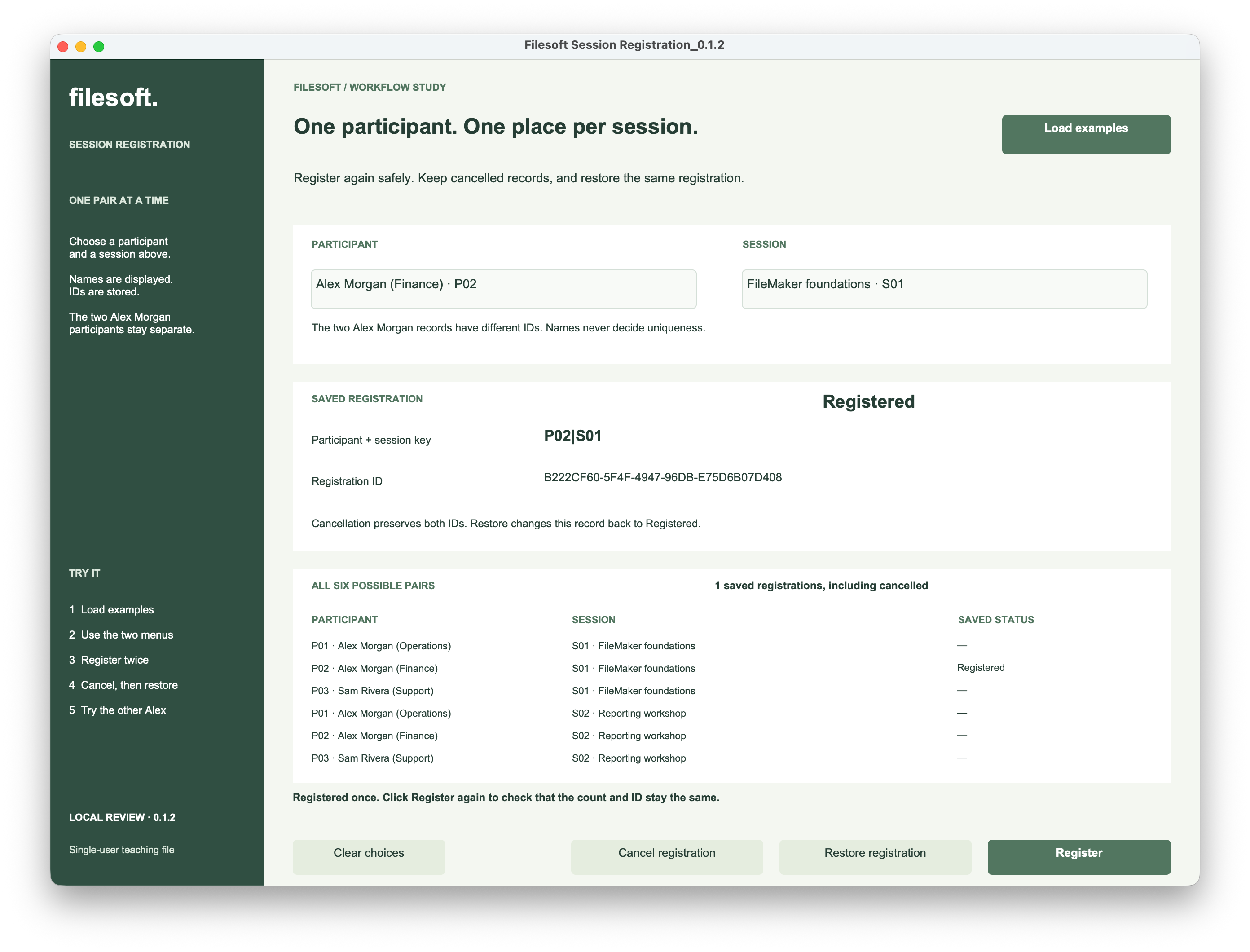
The saved registration shows two identifiers. P02|S01 identifies the participant–session pair. The longer Registration ID identifies this particular saved record. The example generates that record ID as a UUID.
Now click Register again with the same choices.
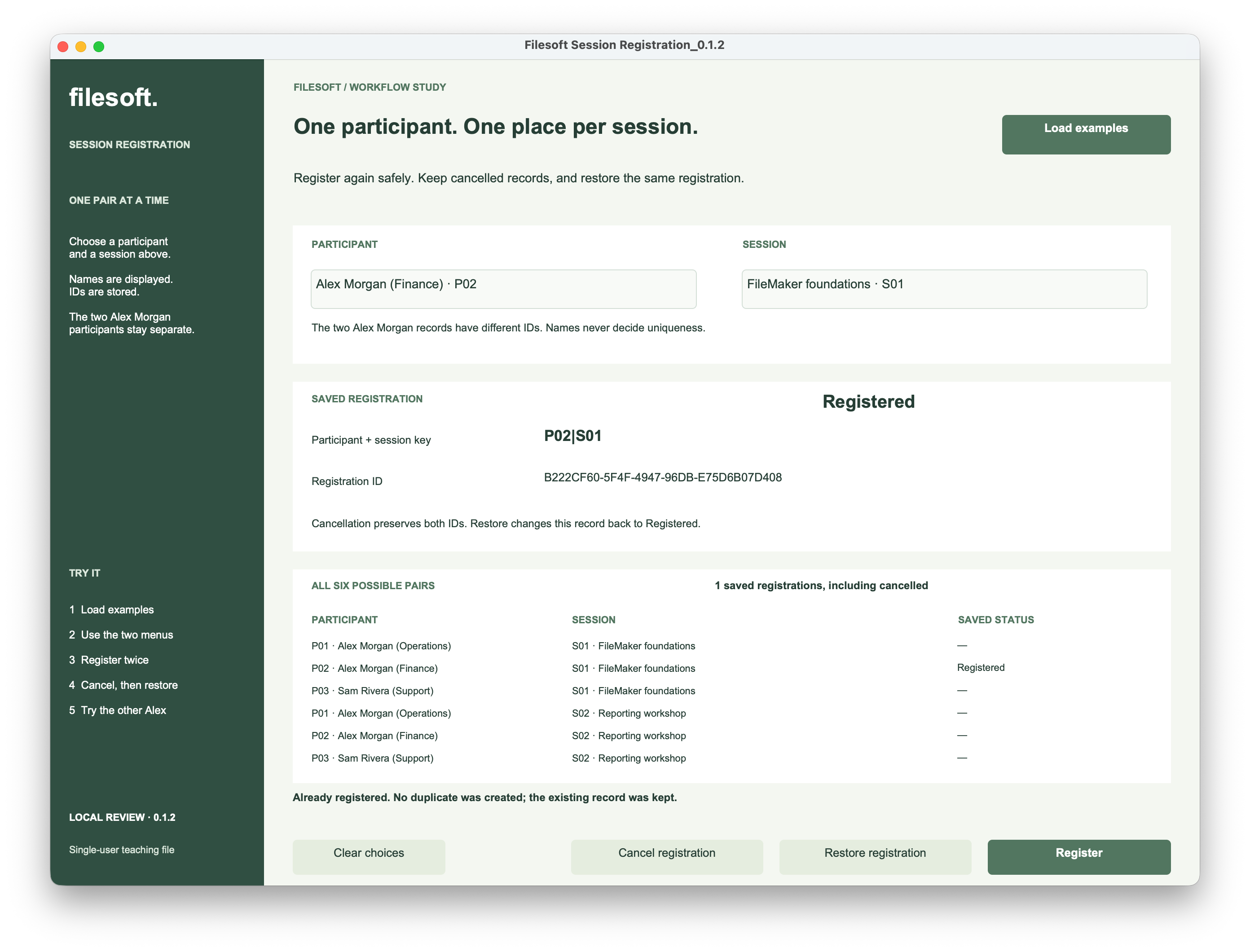
The message says Already registered. The saved count stays at one, and the registration ID is identical. Those two checks matter together: the second click has found the existing record instead of creating a replacement or a duplicate.
The count shown by this example is the total number of saved registrations, including cancelled ones. It is not a count of available seats or active attendees.
3. Register for another session.
Keep participant P02 and change the session to Reporting workshop · S02. Click Register.
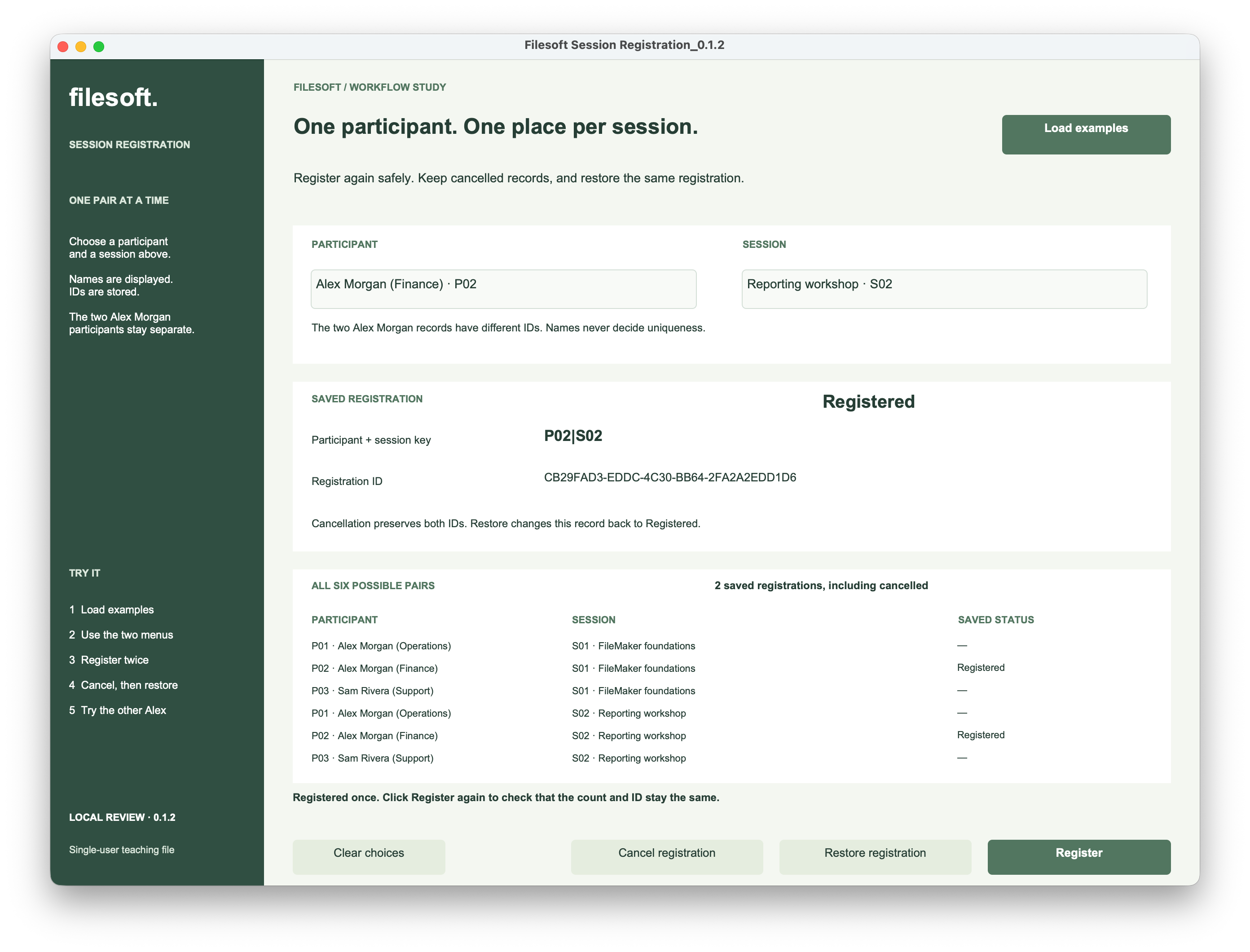
This time, creating a new record is correct. P02|S02 is a different pair from P02|S01. The total becomes two, and the workshop registration has its own UUID.
The same rule also lets P01 and P02 register for the same session. Their shared name does not make their registrations duplicates. You can try that separately with the two Alex Morgan menu choices.
4. Cancel and restore the same record.
With P02 and S02 selected, click Cancel registration. The example changes the saved status to Cancelled.
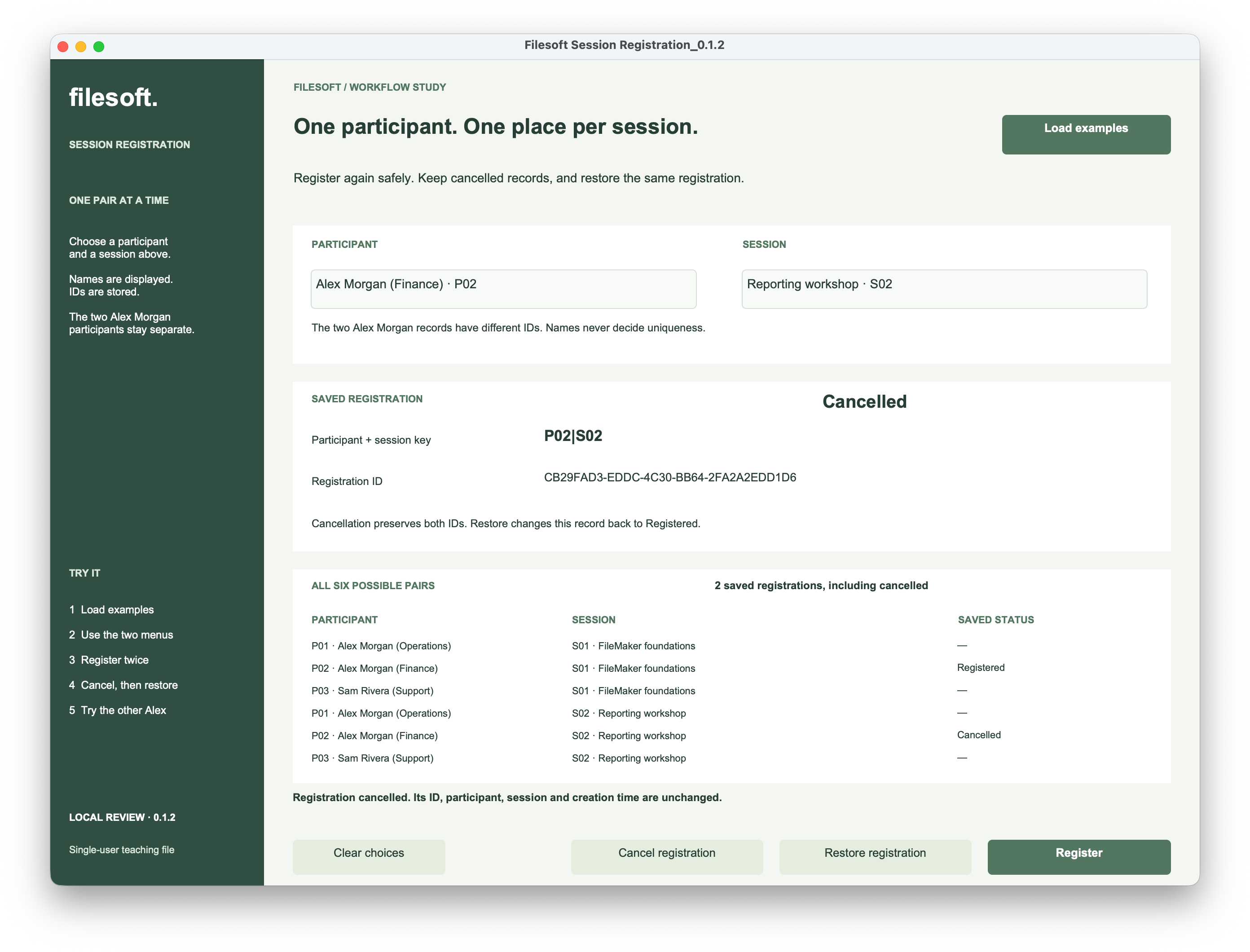
The pair key and registration ID remain unchanged. The total remains two because cancellation keeps the record. Its creation time is also retained; a separate change timestamp records the status update.
Clicking Register on this cancelled pair does not create a new record or silently reactivate it. The message directs you to Restore registration. That makes the decision to reopen a registration explicit.
Click Restore registration to return the same record to Registered.
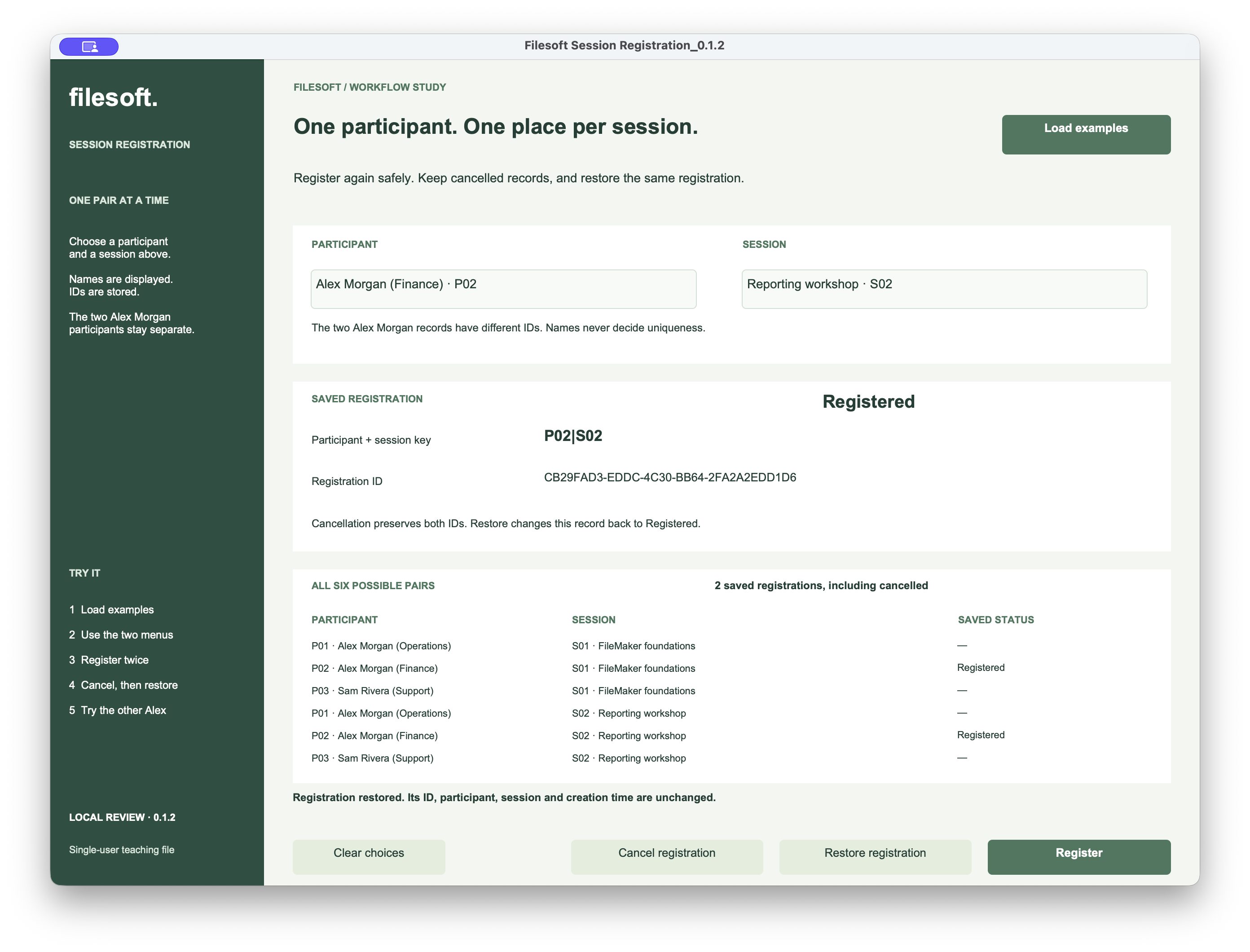
The restored record has the same UUID shown before cancellation. The saved count is still two. Status changes the meaning of the record, not the participant and session it belongs to.
This is the same principle used in skipping and restoring recurring tasks: keep the identity that prevents recreation, then change the status when the decision changes.
5. Build the pair key and check the save.
The file has Participants, Sessions and Registrations tables, plus a Workspace table for the interface. Each registration stores its two parent IDs. Its PairKey is a stored text field with an auto-enter calculation using this expression:
FileMaker calculation
Case (
    not IsEmpty ( ParticipantID ) and not IsEmpty ( SessionID ) ;
    ParticipantID & "|" & SessionID ;
    ""
)
For these fixed example IDs, the separator makes the result easy to read: P02|S01. If you adapt this expression, ensure that neither ID can contain |, or use an unambiguous encoding. Do not substitute participant names or session titles.
Keep the stored participant and session IDs fixed after registration. If your application allows changing either ID, recompute and revalidate PairKey as part of that change; otherwise the stored key could describe the wrong pair.
Status is deliberately absent from the key. If Cancelled changed the key, the same participant–session pair could appear missing during a later registration attempt.
The example combines a friendly lookup with field validation and checked saves:
- Validate the choices. Both IDs must be present and refer to the expected participant and session records.
- Look for the pair. If one registration already exists, report its state. A failed lookup or multiple matching records produces an error instead of guessing.
- Protect the stored key. PairKey has Always, Not empty and Unique value validation, with no user override. Its auto-enter value is derived from the IDs.
- Check the write. For a missing pair, create the record in a transaction, check field and record errors, then check the transaction result before showing success.
The lookup gives useful feedback during normal use. The validation protects the stored data when a duplicate reaches a save. Claris documents these options under field validation. The Commit Transaction reference explains how the transaction is committed or reverted.
For a hosted system: two clients can both look for a pair before either one saves. A lookup by itself is not a concurrency guarantee. Keep the unique validation, handle a failed commit and test simultaneous registration attempts before adapting this single-user example to hosted use.
Cancel and Restore find the same saved pair and update its status and change time. They leave its registration ID, participant ID, session ID and creation time alone. Repeating an action when the record already has that status leaves it unchanged.
Try the registration example.
The ZIP contains Filesoft Session Registration 0.1.2 and a Read Me. It preserves the owner’s walkthrough copy, including saved fictional registrations. Your first click may therefore report an existing registration instead of creating one.
Free direct download · 142 KB · No name or email required.
- Open the file in FileMaker Pro on macOS. Use Load examples if needed; it adds missing fictional participants and sessions without resetting registrations.
- Choose a pair using the two pop-up menus. Read its current status and the saved count.
- For a pair that is not registered, click Register twice. Expect one new record on the first click and no new record on the second. For an already Registered pair, expect no new record.
- Cancel the registration, then try Register. Confirm that it asks you to restore the same record. Use Restore registration and compare the UUID and count.
- Try the other session or the other Alex Morgan. Each different ID pair can have its own registration.
Additional checks to try
- Use Clear choices, then Register. Missing choices should be rejected without saving a registration.
- Repeat Cancel or Restore when the record already has that status. Its ID and count should stay unchanged.
- Close normally and reopen the file. Check that the saved registrations and their statuses remain.
Clear choices clears only the selections. Load examples does not reset registrations. Keep a closed backup before experimenting; the teaching interface has no reset or delete button.
Focused native checks used FileMaker Pro 26.0.3 on macOS and covered registration, repeated clicks, cancellation, restoration, distinct participants and sessions, missing choices and normal close/reopen persistence. The owner screenshots illustrate the main workflow.
The file is designed for FileMaker Pro 19.6.1+ because it uses transaction steps. The minimum version, Windows, Go, WebDirect, responsive layout behavior and concurrent hosted use have not been tested. FileMaker Pro is not included.
This is an independent single-user teaching file, separate from Session Desk. It does not provide capacity limits, waiting lists, online booking, payments, email or attendance tracking. No plug-ins, external connections or analytics are included in the example file.