Your workshop has two places. Two people register, so a third registration must be refused. Then one participant cancels and someone else takes the available seat. What should happen if the first participant asks to return?
Restore must check capacity just as Register does. Keeping the cancelled record preserves its identity; it does not reserve a seat.
The previous guide covered preventing duplicate participant–session registrations. This example adds a different rule: only a limited number of registrations can be active in one session. It uses the same readable pop-up menus and stable IDs, including two different people named Alex Morgan.
1. Define what uses a seat.
Filesoft Session Capacity 0.1.0 has two fixed examples: S01 has two seats; S02 has zero capacity. Zero means closed to new registrations and restores. It never means unlimited.
Three values describe the selected session:
- Capacity: the session’s limit.
- Registered: the number of its saved registrations whose status is Registered.
- Seats available: capacity minus that active count.
The separate saved registrations total includes cancelled records across both sessions. It answers how many records exist, not how many seats are occupied. Keeping those two counts separate avoids treating a retained cancelled record as an attendee.
2. Fill the session and refuse the next person.
Load the examples. Choose FileMaker foundations · S01, then register P02, Alex Morgan in Finance, and P01, Alex Morgan in Operations. Their names match, but their participant IDs are different.
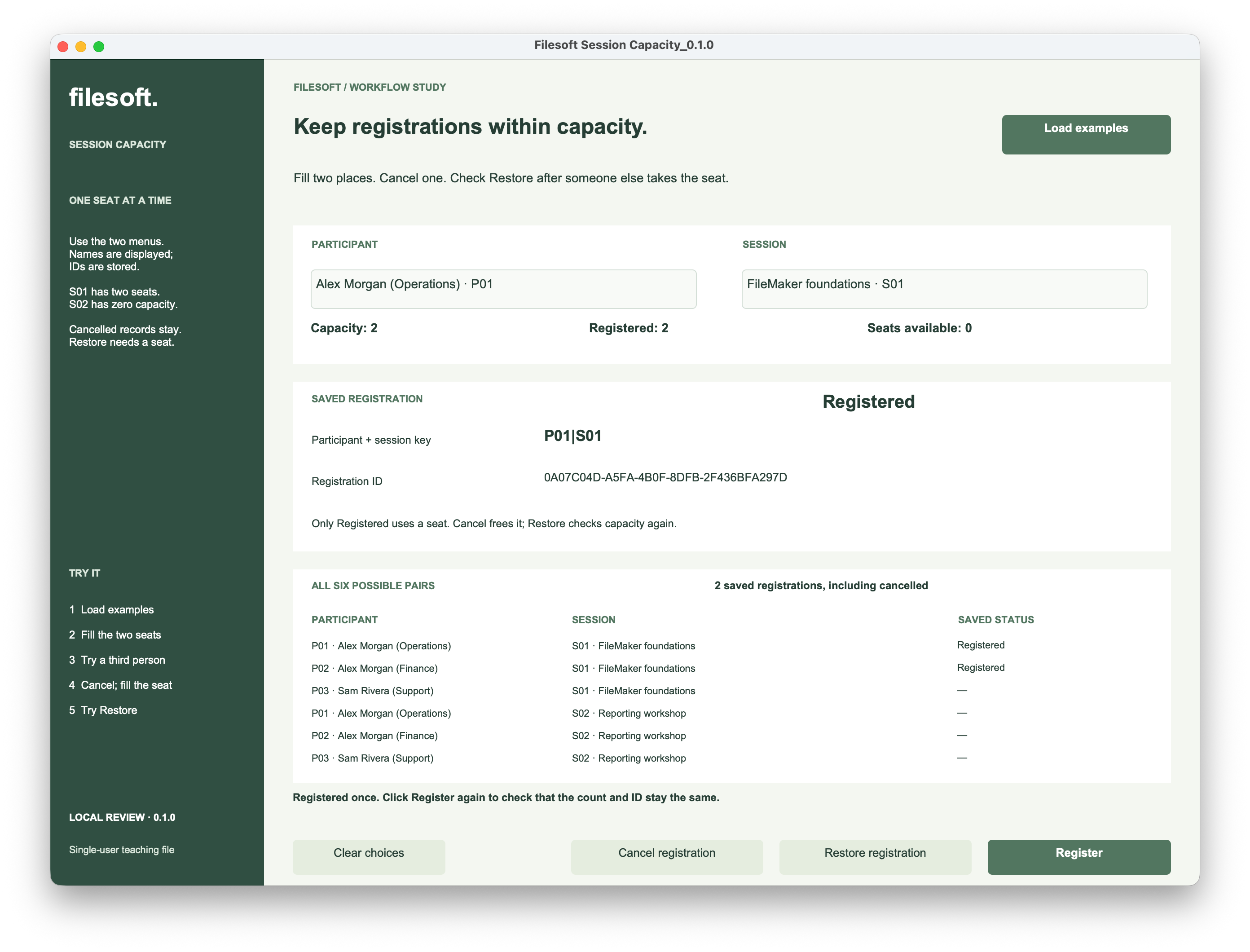
Both seats are now occupied. Select Sam Rivera · P03 and click Register.
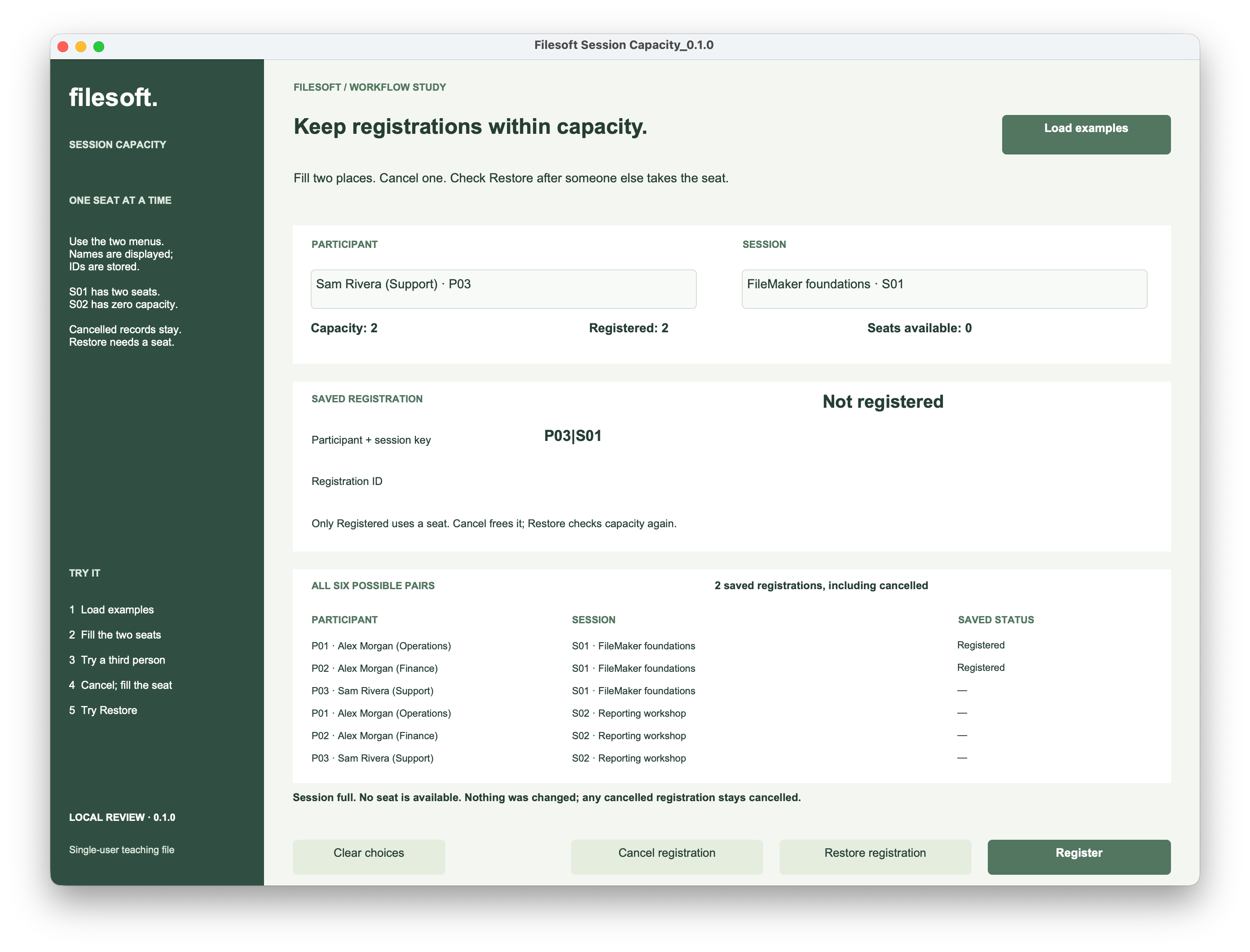
The refusal leaves P03 without a registration ID. Both existing registrations remain, and the saved total stays at two. A full session should produce a useful explanation without leaving a partial record behind.
An already Registered participant is a different case. Repeating Register for P01 or P02 should report the existing registration, even when the session is full. That click is not asking for an additional seat. The script checks the pair’s current state before checking capacity.
3. Cancel and use the released seat.
Select P01 and S01, then click Cancel registration.
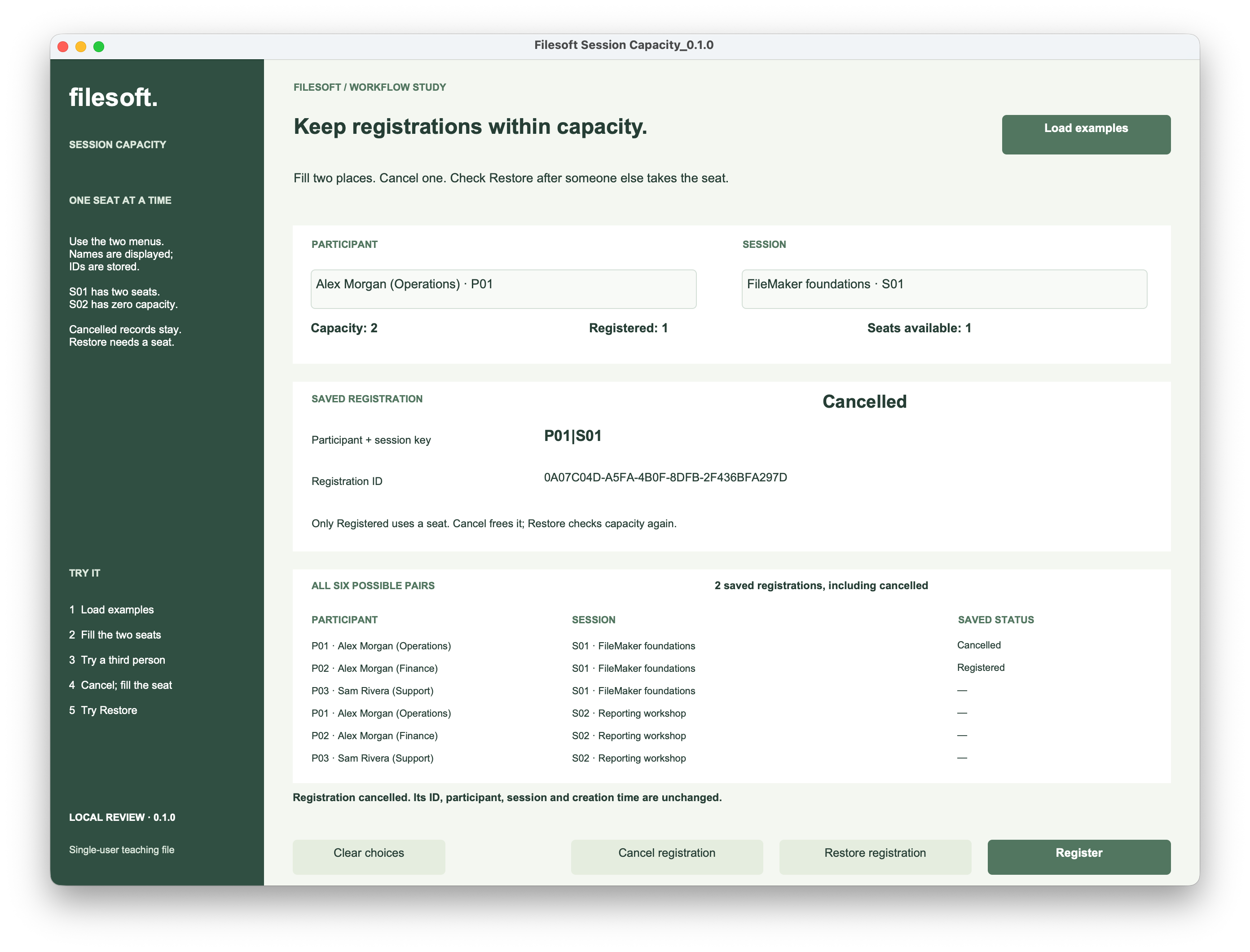
P01’s status becomes Cancelled. Its pair key and registration ID stay the same. Only one registration now has the status Registered, so one seat becomes available.
There is no separate counter to decrement. Availability follows the saved statuses. Repeating Cancel on an already Cancelled registration should therefore leave the count alone.
Now select P03 and register for S01.
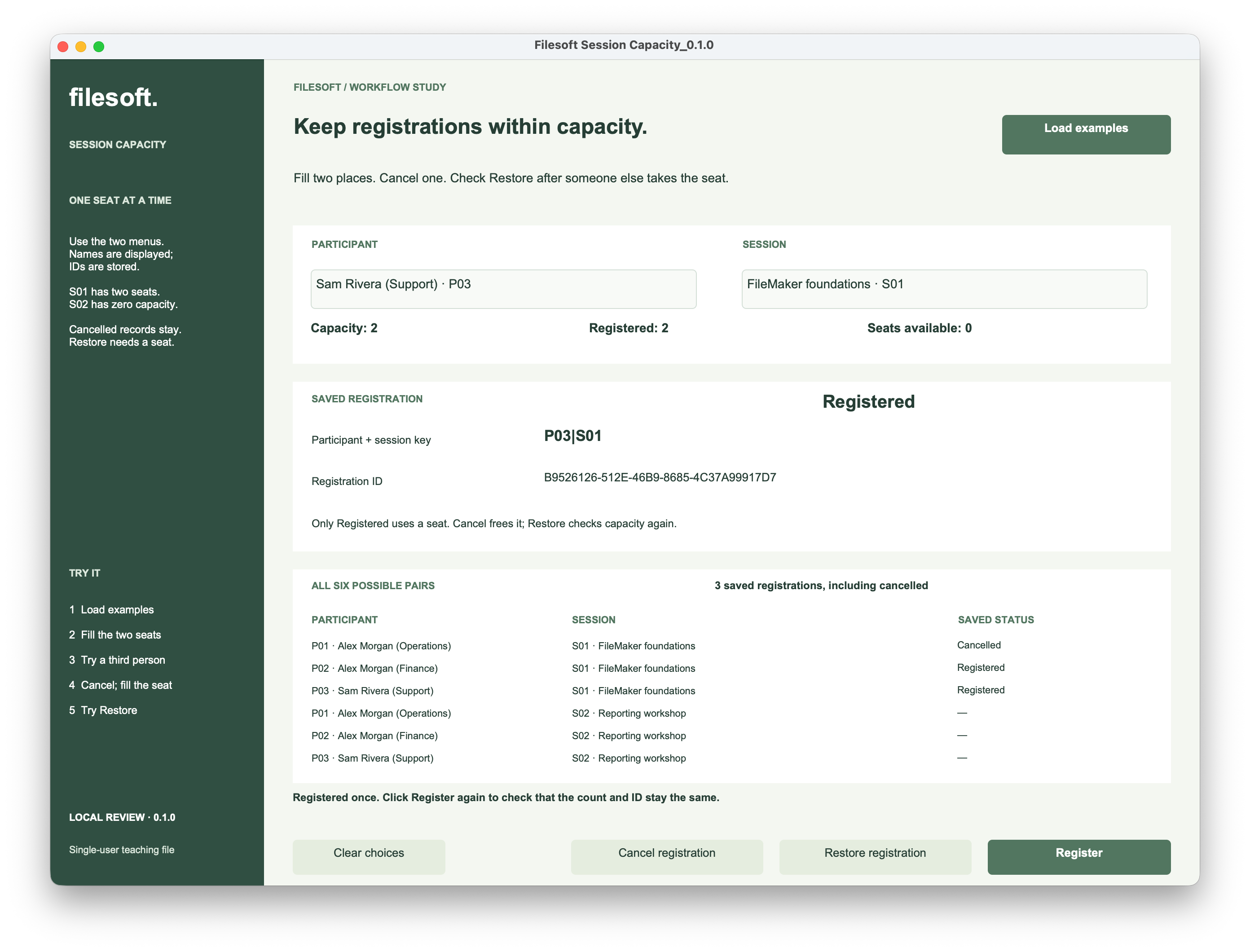
Three saved records are correct here: P01 is Cancelled, while P02 and P03 are Registered. Only those last two use seats.
4. Check capacity before restoring.
Select P01 again and click Restore registration. The seat released by P01 has already been taken.
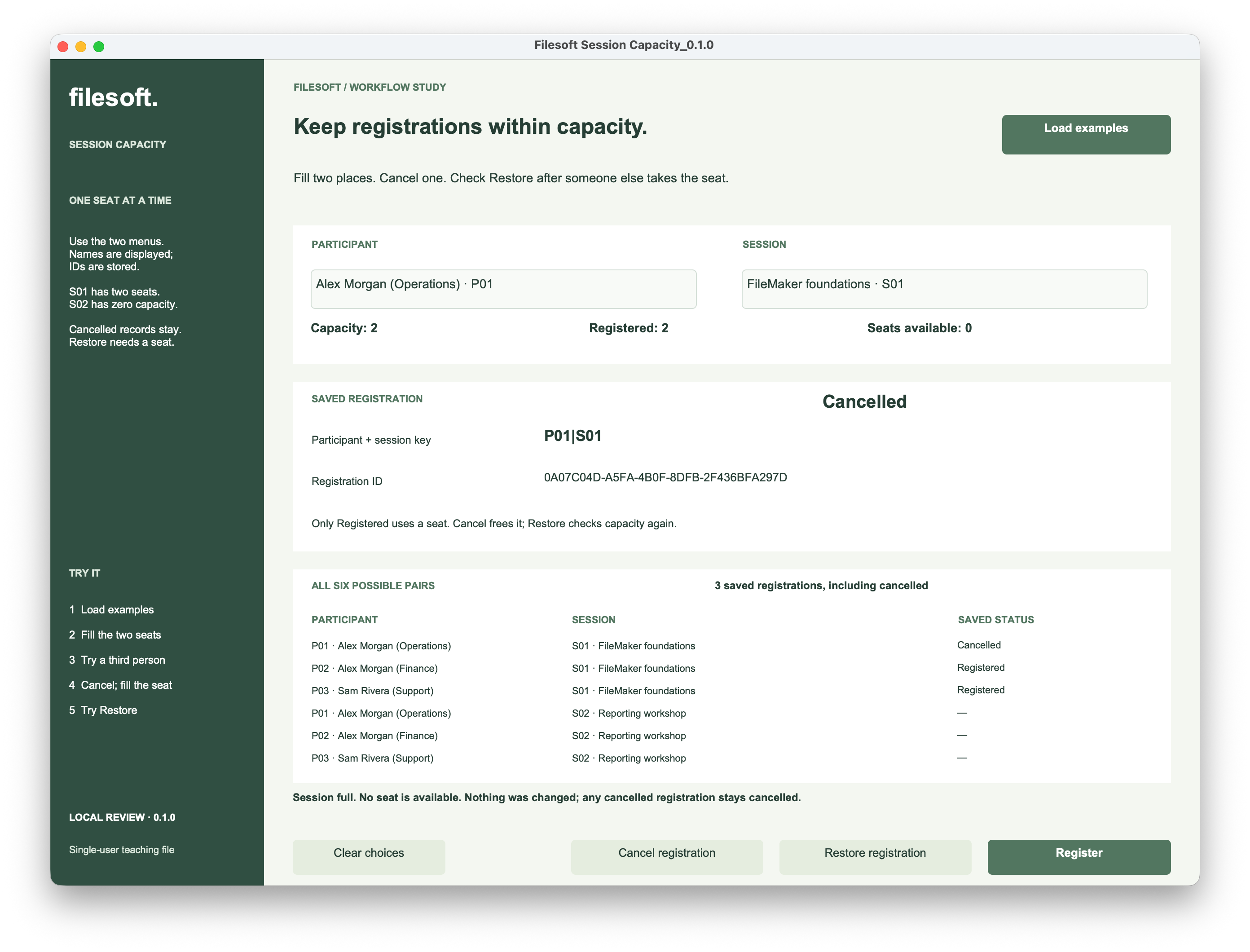
P01 remains Cancelled with the original registration ID. Restoring the status without checking capacity would produce three active registrations in a two-seat session.
To allow P01 back, cancel P03 first, then restore P01. The same P01 record can return to Registered when a seat is available. Repeating Restore after that should be a no-op. Clicking Register on a Cancelled pair directs you to the explicit Restore action; it does not create another record or silently reopen the old one.
S02 demonstrates the boundary case. Select any participant with Reporting workshop · S02 and click Register.
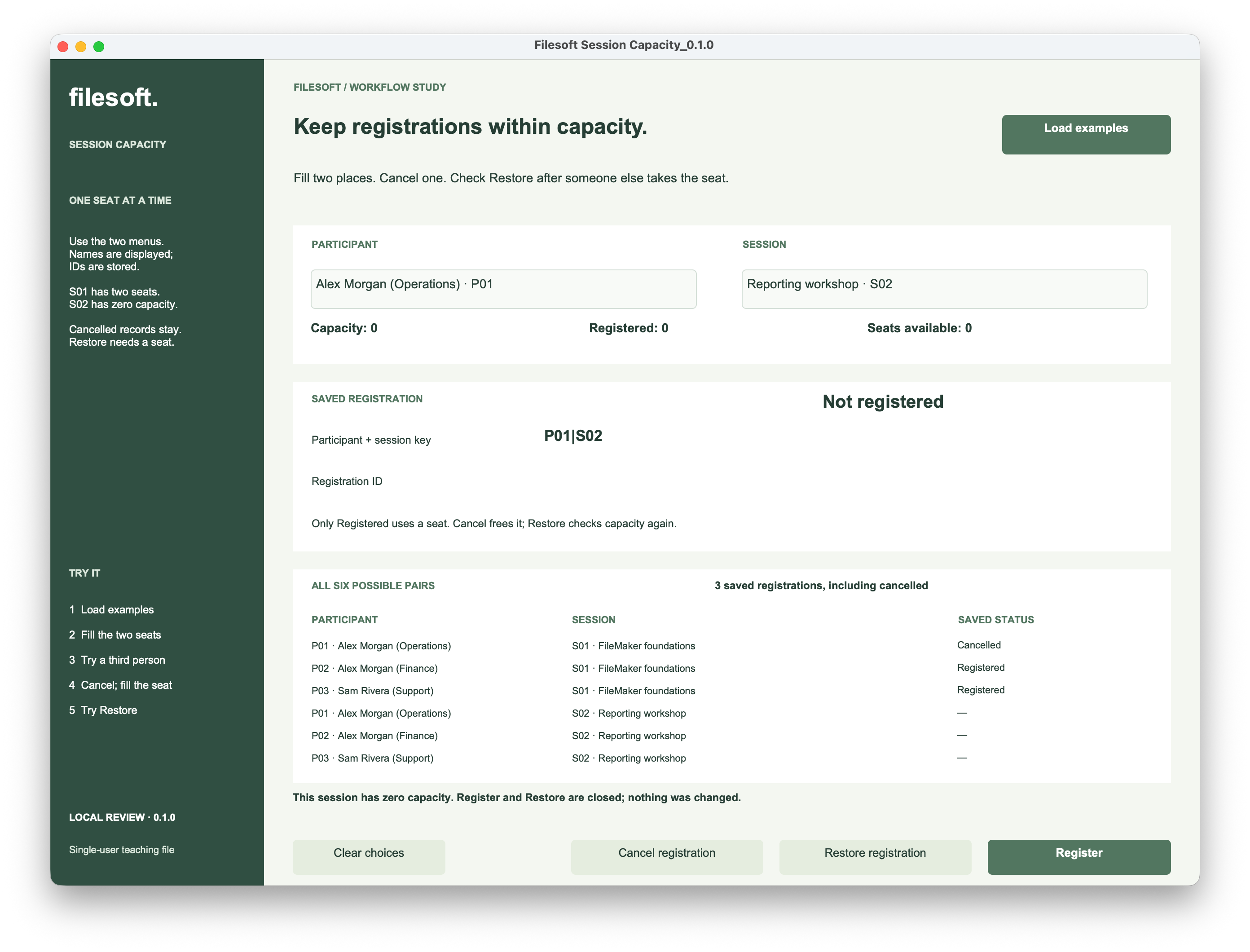
The zero-capacity explanation is distinct from a missing selection or an invalid limit. No new registration is saved, and the existing S01 records remain unchanged.
5. Share the eligibility check.
In the example’s Script Workspace, Register and Restore both call Check session capacity. This helper takes a session ID and returns a result; it does not write records, change layouts or acquire a lock.
- Resolve the pair and its state. Validate the participant and session. Return the existing result for an action that would change nothing.
- Validate the limit. Find exactly one session and require a whole-number limit. The helper accepts digit text from 0 to 999; the supplied screen exposes only fixed limits of two and zero.
- Count active registrations for that session. Count Registered rows. A failed query or an unexpected stored status stops the action rather than being treated as zero.
- Compare before writing. If the active count is at least the limit, return a refusal. Register and Restore both use this decision.
- Check the save. Make the intended change in a transaction, check write and commit errors, and refresh the display with the actual outcome.
The count uses a parameterized query shaped like this SQL fragment. It is a reading guide for the helper, not a complete registration script:
SELECT COUNT(*) FROM "Registrations"
WHERE "SessionID" = ? AND "Status" = ?
The parameters are the selected session ID and Registered. Check the ExecuteSQL result for failure before converting it to a number. The example separately checks for unknown or missing statuses, so damaged data does not silently free seats.
Keep the existing stored unique participant–session key as well. Pair uniqueness and session capacity protect different things: one stops the same person registering twice; the other limits how many different people can register.
The transaction groups the writes; a successful Commit Transaction is the point at which the change is saved. A message saying “Registered” must follow a checked result, not merely an attempted write.
This is a single-user example. Its capacity check runs before the write transaction. Two hosted clients could both see one available seat before either saves. A transaction alone does not close that gap. A hosted adaptation needs all seat-changing paths to coordinate on the same session, recount while that coordination is held, handle contention and commit errors, and pass simultaneous-client tests. Claris’s Open Record/Request documentation describes record locking; designing that hosted workflow is outside this example.
Try the session-capacity example.
The ZIP contains Filesoft Session Capacity 0.1.0 and a Read Me. The native file is unchanged from the empty example supplied for owner testing. Click Load examples to add the fictional participants and sessions, then use the two pop-up menus.
Free direct download · 143 KB · No name or email required.
- Fill S01 with P01 and P02. Repeat Register for an existing participant, then try P03.
- Cancel P01, register P03, and try restoring P01 while the session is full.
- Cancel P03, restore P01, and compare its original registration ID.
- Try Register for a participant in S02. Expect the zero-capacity refusal.
More checks and starting again
Try missing choices and repeat Cancel or Restore. Close the file normally and reopen it to check persistence in your environment. Load examples adds missing fixtures without resetting registrations; Clear choices clears only the selections. To start empty again, close the file and extract another copy of the original ZIP. Keep your worked copy separately.
The owner’s macOS screenshots demonstrate successful registration, full-session refusal, cancellation, a replacement registration, blocked restoration, successful restoration while space exists, and zero-capacity refusal. They do not establish minimum-version, concurrent-client or close/reopen coverage for this file. The screen retains its original LOCAL REVIEW 0.1.0 label.
Transaction steps require FileMaker Pro 19.6.1 or later. The minimum version, Windows, Go, WebDirect and resizing behavior have not been tested. FileMaker Pro is not included. Use your current FileMaker Pro on macOS for this desktop teaching example.
This is an independent teaching file, separate from Session Desk. There is no capacity editor, waiting list, automatic promotion, online booking, payment, email or attendance workflow. The file uses no plug-ins, external connections or analytics.