A workshop is full. Sam joins the waiting list, followed by Taylor. When someone cancels, there is a free seat—but it should not go to whichever person happens to click Register next.
The waiting list needs its own saved order, and every route into a seat must respect it. That includes restoring a cancelled registration.
This fictional worked example builds on checking session capacity and preventing duplicate registrations. Filesoft Session Waitlist 0.1.0 adds an explicit Join waitlist action and a Promote next action. The screenshots follow the owner’s walkthrough of the native teaching file.
1. Separate seats, records and queue order.
The file has four fictional participants and two sessions. S01, FileMaker foundations, has two seats. S02, Reporting workshop, has zero capacity and is closed. The participant and session pop-up menus display readable names while storing IDs.
A participant–session pair has one persistent registration record. For example, P03|S01 identifies Sam’s registration for S01. The separate registration UUID identifies that saved record through status changes. Two participants named Alex Morgan have different participant IDs, so their registrations remain separate.
- Registered occupies one seat.
- Waitlisted occupies no seat and has a saved queue sequence.
- Cancelled occupies no seat. The registration record remains.
The screen’s saved-record total includes all three statuses across both sessions. It is different from the selected session’s Registered and Waiting counts. Cancelling someone should reduce the relevant active count without deleting their record.
The queue sequence records joining order. It is not a display position that must be renumbered whenever someone leaves. The next person is the Waitlisted registration with the lowest sequence in the selected session.
2. Fill two seats and queue two people.
Load examples, choose S01, and register P01 and P02—the two Alex Morgan participants. Then select P03, Sam Rivera, and click Join waitlist. Do the same for P04, Taylor Chen.
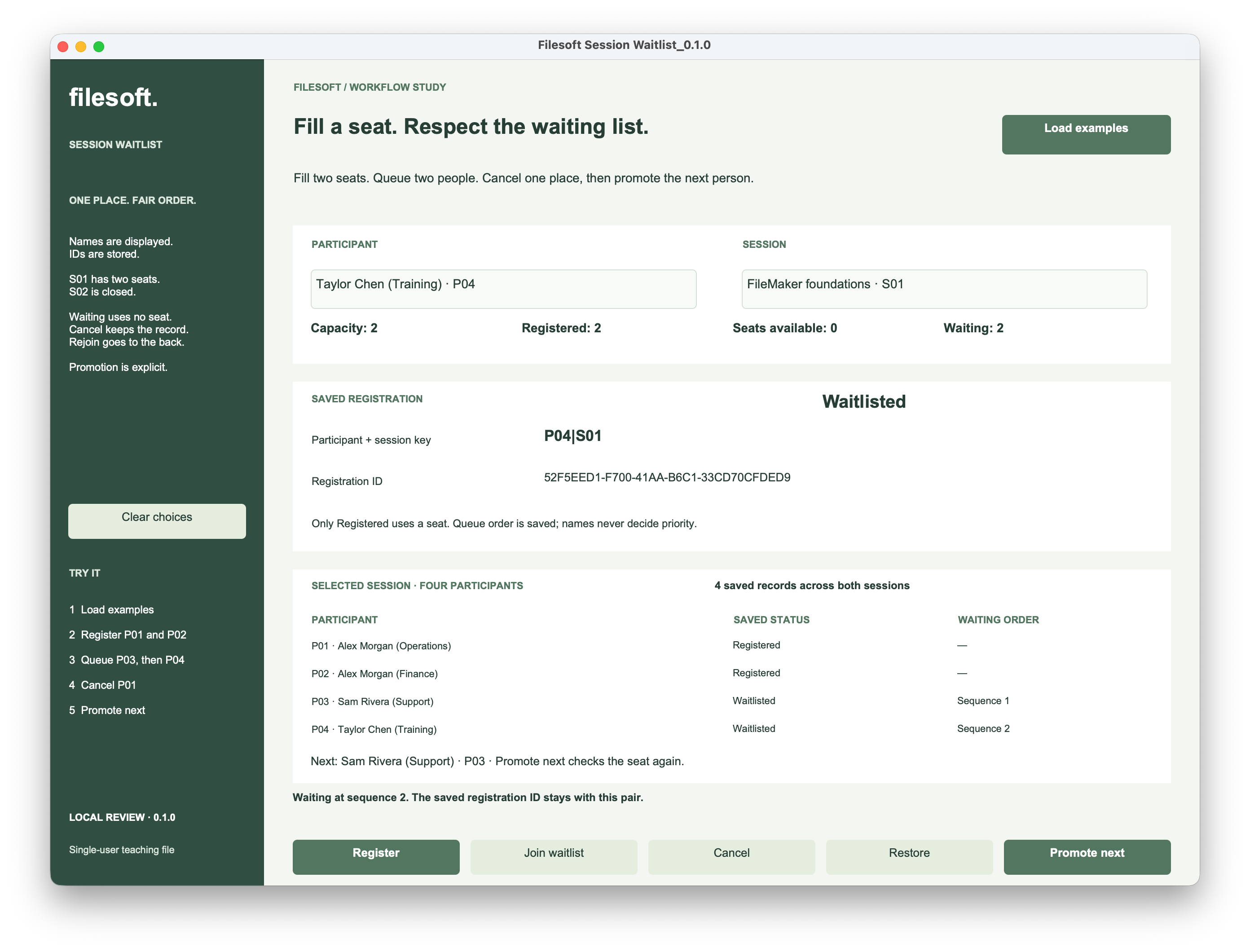
Sam receives sequence 1 and Taylor receives sequence 2. The session still has only two Registered participants. Four saved records are correct: two have seats and two are waiting.
Repeating Join waitlist for someone already waiting leaves their registration ID and sequence unchanged. A repeated click must not create another record or move that person to the back. Try this in the example: note Taylor’s ID and sequence, click Join waitlist again, and compare both values.
The overview lists participants in its fixed display order. Read the saved sequence and the Next line to understand priority; row position and alphabetical names do not decide who gets the seat.
3. Cancel a place, then promote the next person.
Select P01 and click Cancel. One seat becomes available, but neither waiting participant moves automatically.
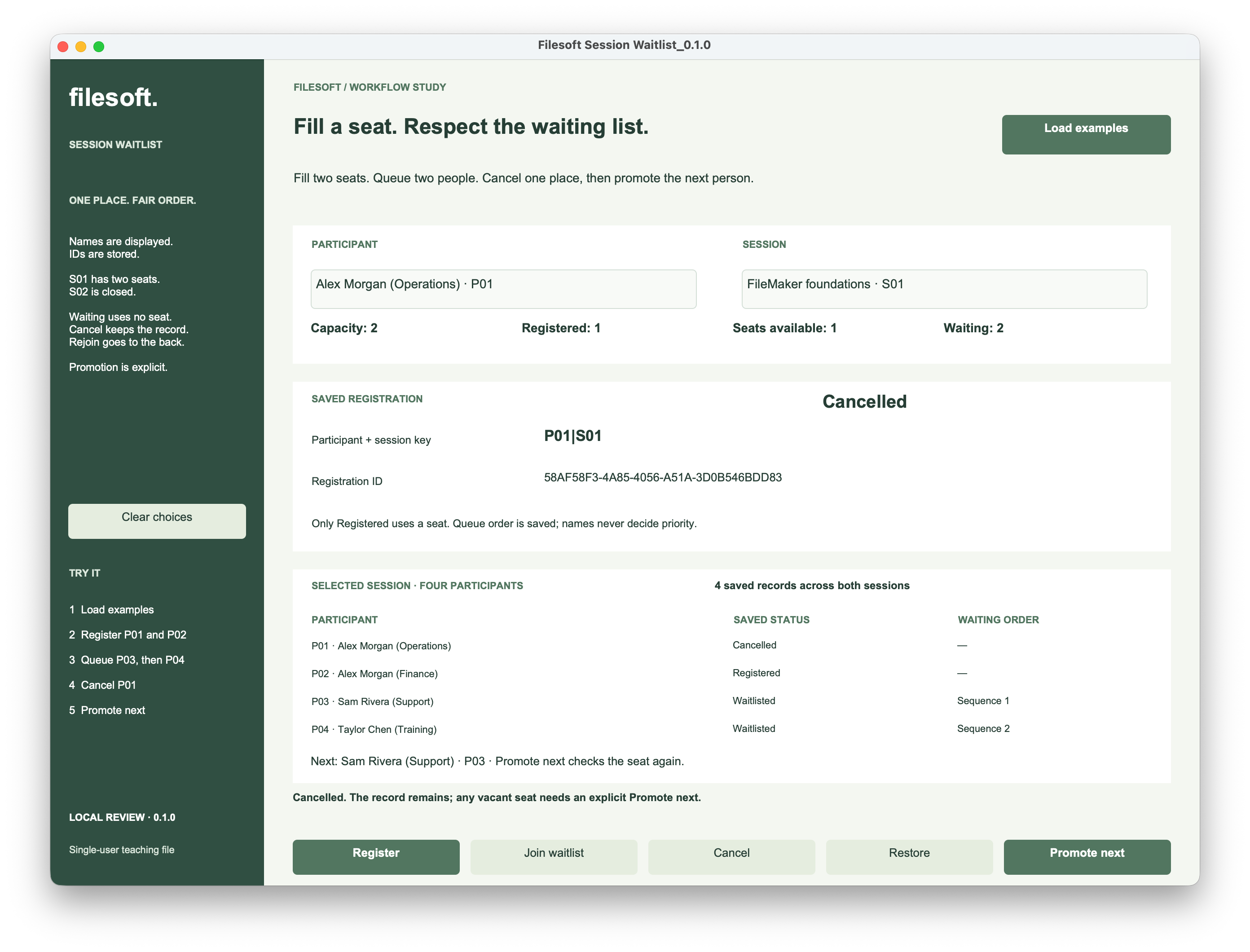
Cancellation saves one decision: P01 no longer occupies a seat. Promotion is a separate decision, made with Promote next. Keeping it explicit makes the change visible and easy to check.
Click Promote next. It uses the selected session’s queue, regardless of the participant currently selected. The action checks that a seat is available and promotes one person from the front. Here that person is Sam, P03.
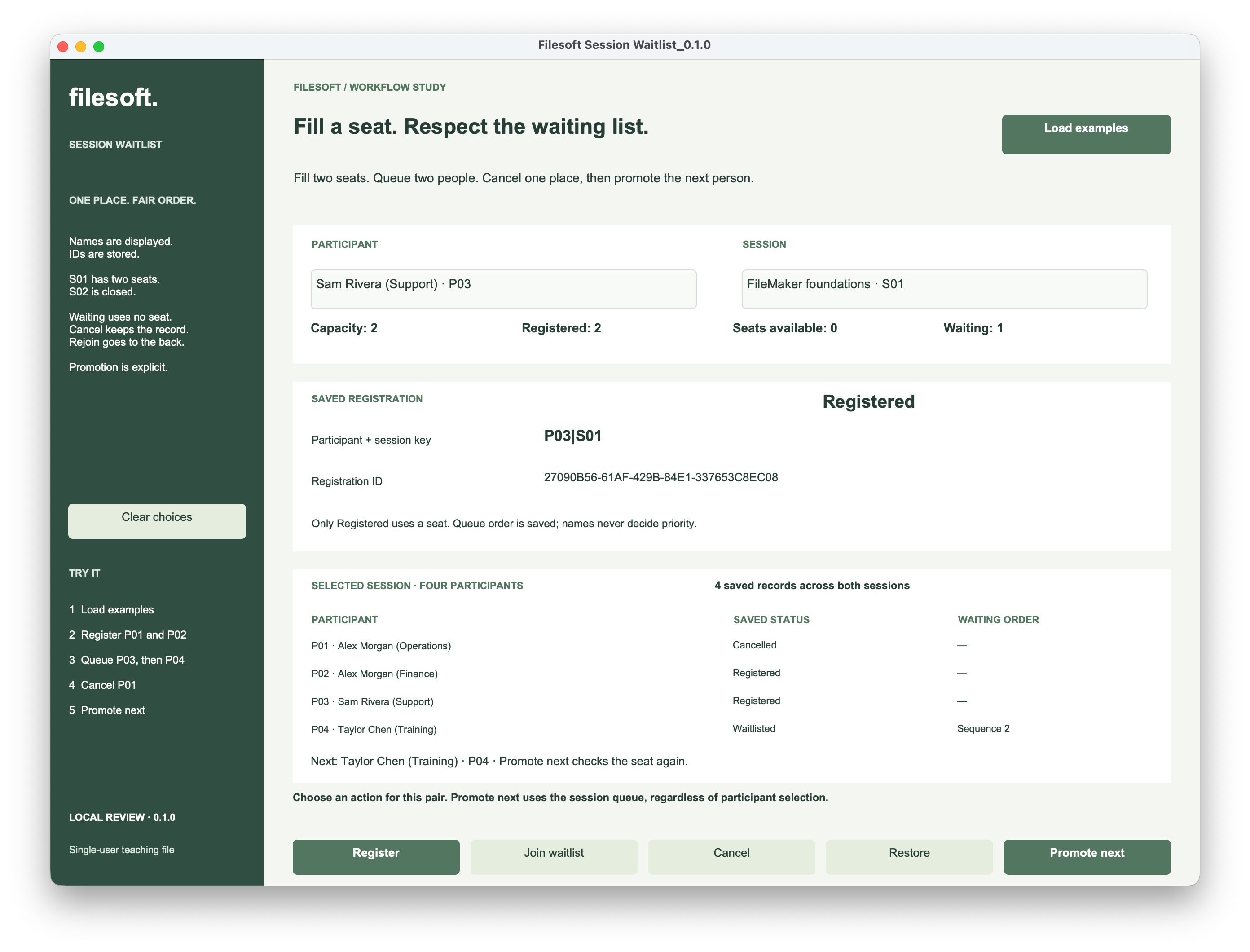
The screenshot above selects Sam after promotion. To check record preservation yourself, note his registration ID before promotion and compare it afterward. Registered returns to two, Waiting falls to one, and Taylor becomes next. The total remains four saved registrations.
The participant menu does not automatically switch to the promoted person. The result message names the participant who moved. Selecting that person afterward lets you inspect their saved status and ID.
4. Protect priority when someone returns.
Next, cancel P02. There is now one available seat, while Taylor is still waiting. Select the already Cancelled P01 and try Restore.
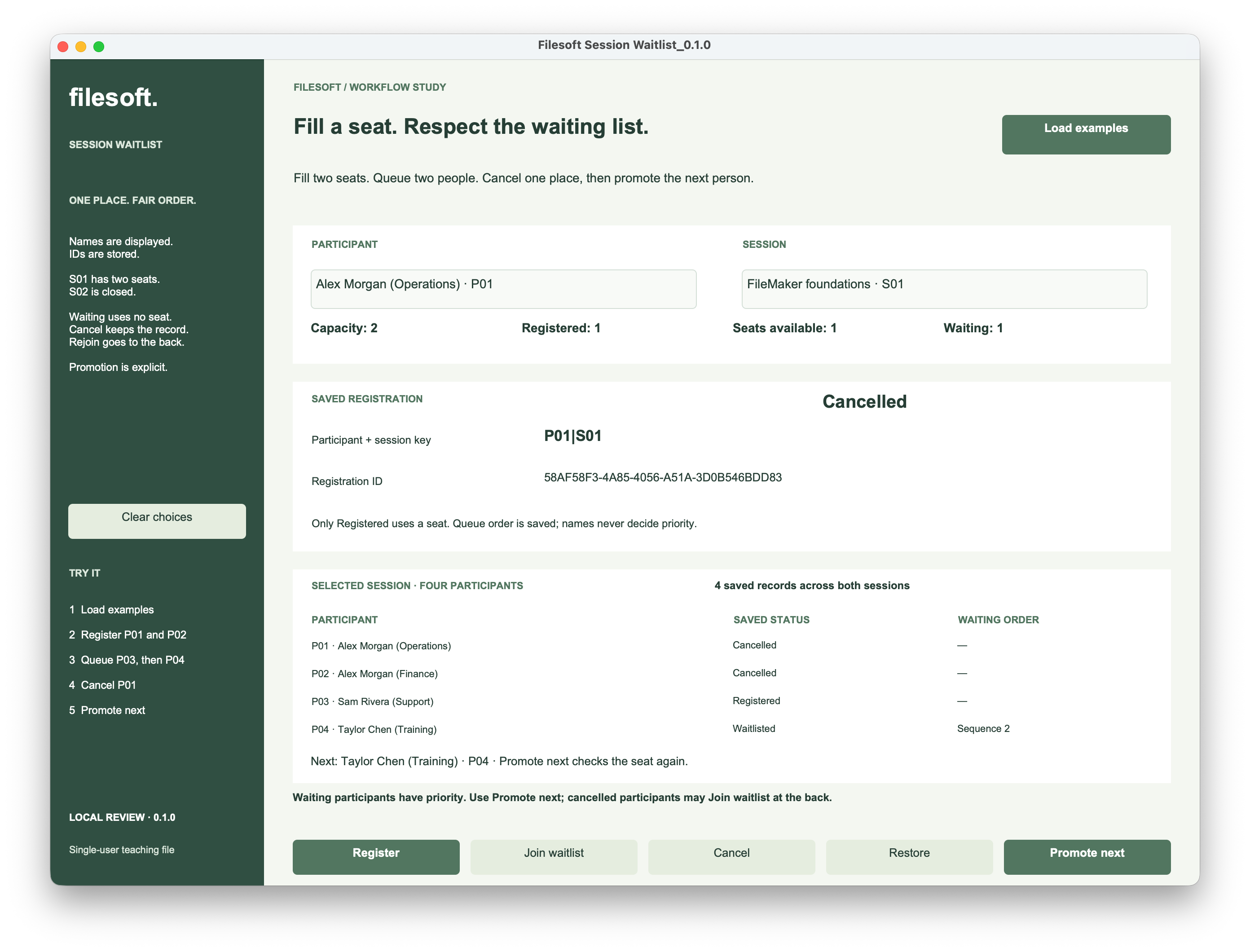
Restore is refused because Taylor has priority. A vacant seat alone is not enough: Register and Restore must also check whether anyone is waiting. Otherwise either button could become a shortcut around the queue.
P01 can use Join waitlist to return at the back. The original registration UUID stays with the pair, but the new join receives a later sequence. Cancelling a waiting entry removes it from the active queue; rejoining is a new request for priority.
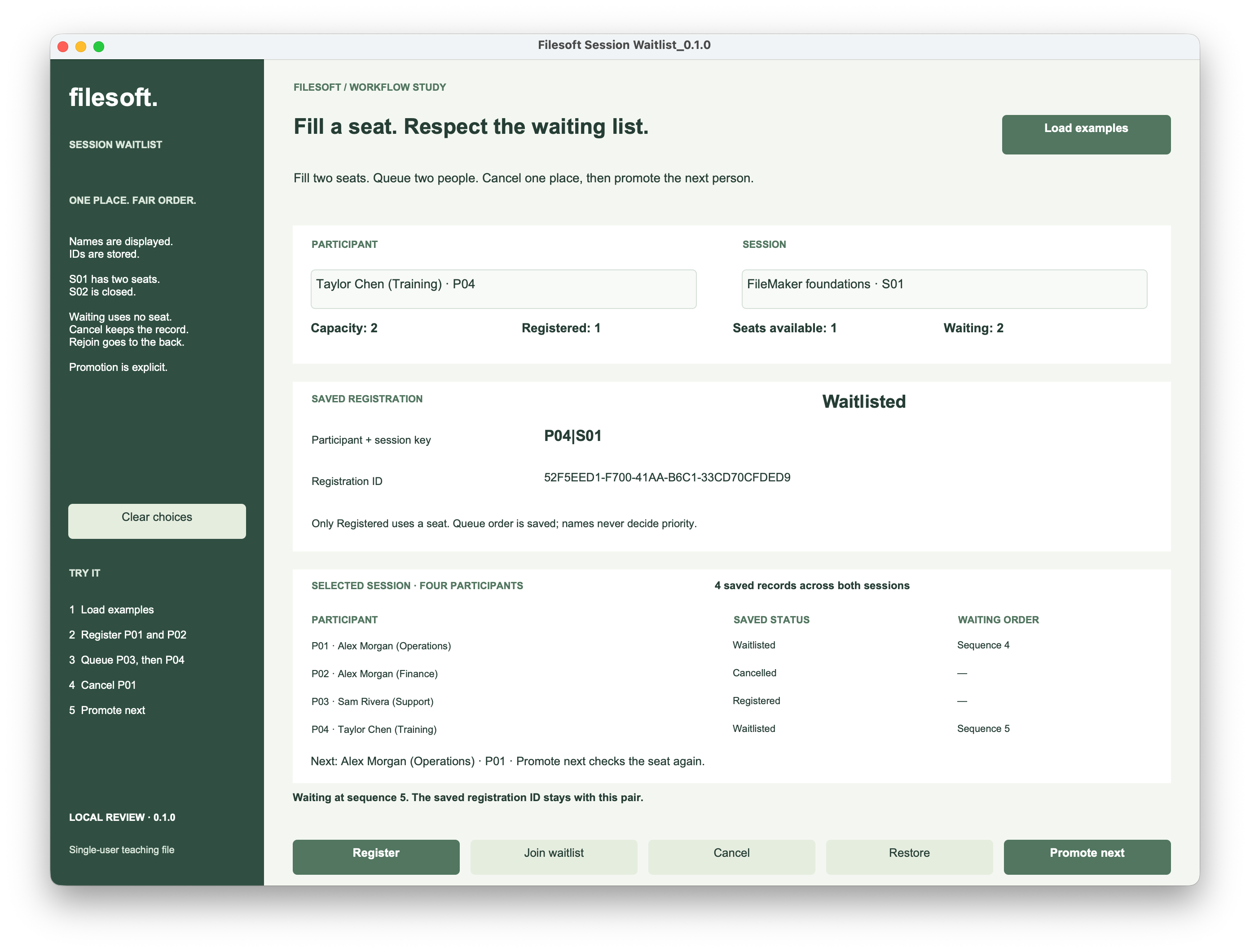
This later screenshot follows additional cancel-and-rejoin checks. P01 is waiting at sequence 4. Taylor has cancelled and rejoined at sequence 5, so P01 is now next. Taylor’s UUID still matches the earlier sequence-2 record, and the saved total is still four.
Gaps in sequence numbers are expected. The numbers preserve joining order rather than promising consecutive positions. A fresh run with fewer cancellations will produce different sequence numbers while following the same ordering rule.
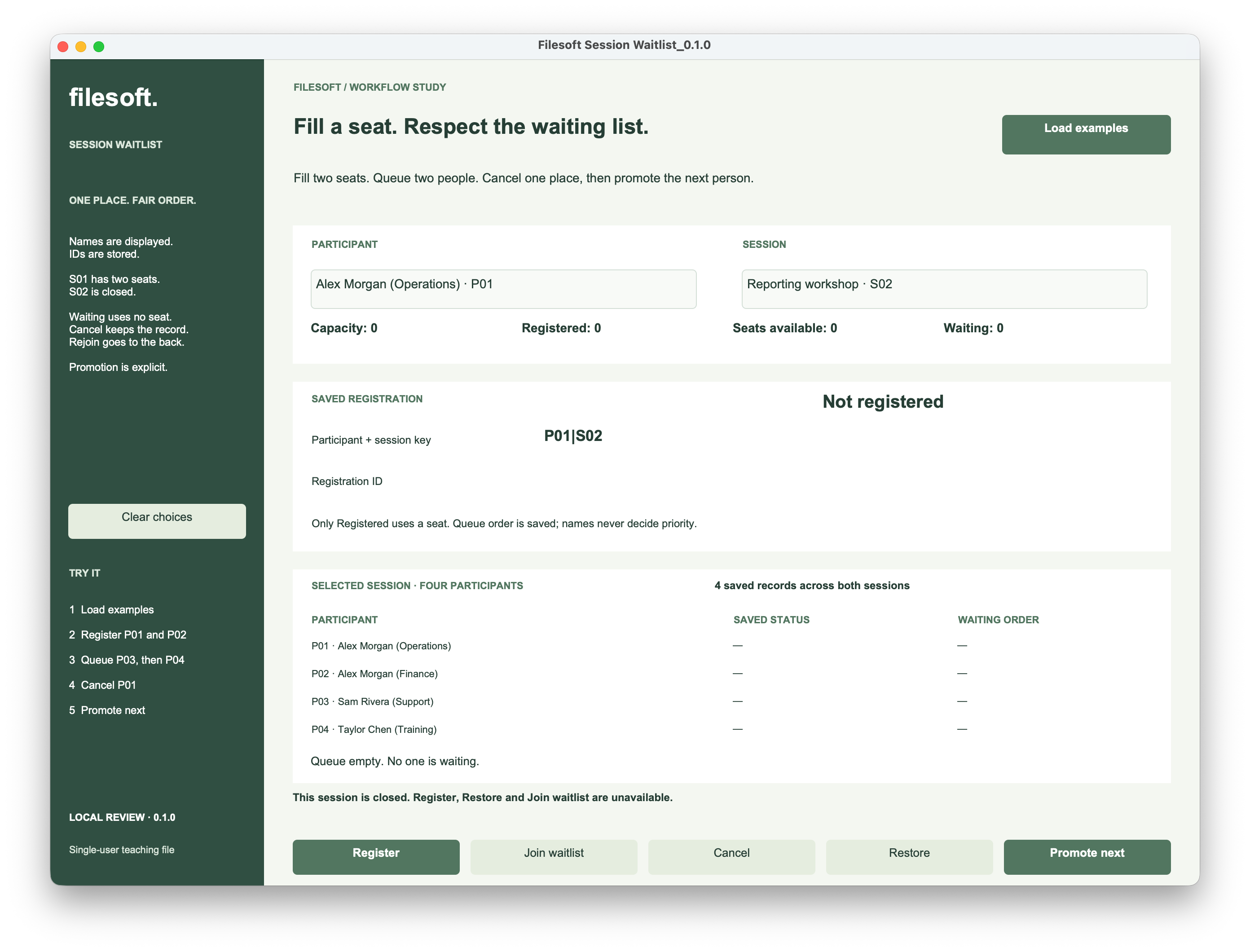
S02 provides a separate closed-session check. Its zero capacity closes Register, Restore and Join waitlist; there is no queue to join.
5. Put the rules behind every action.
The example keeps the policy in a read-only helper, Check session queue, and routes Register, Join, Cancel, Restore and Promote through a shared worker, Apply waiting-list action. A button chooses an action; the worker checks the selected IDs and the saved state before changing anything.
The helper checks capacity, known statuses, active registrations and waiting sequences. Invalid data produces an error instead of being treated as an empty queue or a spare seat. A repeated action that already has its intended result returns without another write.
Queue selection filters by session and Waitlisted status, then sorts by the numeric sequence. The registration ID provides a stable tie-breaker:
WHERE "SessionID" = ? AND "Status" = ?
ORDER BY "QueueSequence", "RegistrationID"
This is the selection rule, not a complete paste-in script. The worker also checks query failures and record identity. Inspect the editable file for its full context and error handling.
A new join uses the highest saved sequence for that session plus one, including historical sequences retained on cancelled or promoted records. It does not use the current number of people waiting. Cancel and Promote preserve the historical sequence; only a new join assigns a later value.
Before writing, the worker checks seat and queue eligibility. It checks again inside its transaction and verifies that a promotion still targets the expected queue head. It then changes the existing record—or creates one only when that pair has no record—and checks the save result. Errors revert the attempted transaction and return an explanation.
A successful Commit Transaction saves the grouped changes. The interface reports success after that checked result, then refreshes the counts and selected registration.
This is a single-user teaching example. Transactions and repeated checks do not establish safe simultaneous registration on a hosted file. Two clients can still compete for the same seat or queue sequence. A hosted adaptation needs every relevant action to coordinate on the same session, recount and allocate sequences while that coordination is held, handle lock and commit failures, and pass simultaneous-client tests. Claris documents record locking under Open Record/Request; a complete hosted design is outside this example.
Try the session-waitlist example.
The ZIP contains Filesoft Session Waitlist 0.1.0 and a Read Me. The native database bytes are unchanged from the original empty review archive. Your saved walkthrough copy is separate.
Free direct download · 148 KB · No name or email required.
- Load examples. Register P01 and P02 in S01.
- Join the waiting list as P03, then P04. Repeat Join for P04 and compare the ID and sequence.
- Cancel P01. Confirm one available seat and two people still waiting. Click Promote next; P03 should become Registered.
- Cancel P02. Try restoring P01 while P04 is waiting. Expect a priority refusal.
- Join as P01, then cancel and rejoin P04. In this fresh sequence, expect P01 at 3 and P04 at 4, with P01 next.
- Try Join waitlist for a participant in S02. Expect a closed-session refusal with no new record.
More checks and starting again
Try missing choices, repeated Register and Cancel, promotion when full, and promotion with an empty queue. Close normally and reopen to check persistence in your environment. Load examples adds missing fixtures without resetting registrations; Clear choices clears only the selections. To start empty again, close the file and extract another copy from the ZIP.
The selected owner screenshots show the queue, promotion, priority, rejoining and closed-session states. Repeat Join and before-and-after promotion ID comparisons are checks to perform in your own walkthrough. They do not establish complete checklist, close/reopen, minimum-version or concurrent-client coverage. The original LOCAL REVIEW 0.1.0 screen label remains.
Transaction steps require FileMaker Pro 19.6.1 or later. Minimum-version, Windows, Go, WebDirect and resizing behavior have not been tested. FileMaker Pro is not included. Use your current FileMaker Pro on macOS for this desktop teaching example.
This independent example is separate from Session Desk. It has no automatic promotion, email, payments, booking portal, priority tiers or queue expiry. It uses no plug-ins, external connections or analytics.