A workshop occupies Room A from 09:00 to 10:00. Another booking from 09:30 to 10:30 overlaps it. A booking starting at exactly 10:00 does not. Getting that boundary right lets one customer follow another without accepting two bookings for the same space at the same time.
There is a second question: is the space still available when you confirm? A preview describes the saved bookings at the moment you check. It does not reserve the slot. This article follows both decisions in Filesoft Booking Overlap 0.1.0, an editable teaching example using fictional rooms and bookings.
1. Define what counts as an overlap.
First restrict the comparison to the same room and the same date. Then compare the time intervals:
proposedStart < existingEnd
and
proposedEnd > existingStart
Both comparisons must be true. Use strict less-than and greater-than operators: when one booking ends exactly as another begins, one comparison is false. This admits adjacent bookings in either direction.
| Proposed time | Result | Reason |
|---|---|---|
| 09:30–10:30 | Overlap | Shares 09:30–10:00 |
| 09:15–09:45 | Overlap | Fits inside the existing interval |
| 08:30–10:30 | Overlap | Contains the existing interval |
| 09:00–10:00 | Overlap | Identical interval |
| 08:00–09:00 | Allowed | Ends at the existing start |
| 10:00–11:00 | Allowed | Starts at the existing end |
Checking only whether the proposed start falls inside another booking misses an interval that starts earlier and finishes later. The two-comparison rule covers partial overlaps, containment and identical intervals.
Choose which states occupy the room.
In this example, Confirmed and Completed bookings block the same room and date. Draft and Cancelled bookings do not. Completed bookings remain blockers so a past occupied interval cannot be booked again in this teaching workflow. That is an explicit policy of this file; choose the policy your own application needs.
Exclude the selected booking’s own ID from the search. Otherwise a saved booking can appear to conflict with itself. Validate that the end is later than the start before applying the overlap rule; equal, reversed and overnight times are rejected here.
2. Allow a booking at the boundary.
Extract the download and open it in FileMaker Pro 26 on macOS. Choose Load example → Load. This initializes five fictional bookings. B001 is Confirmed in Room A on 2026-11-02, 09:00–10:00. Other rows demonstrate Draft, Cancelled, Completed and a different date.
Choose New draft → Create. The new B006 starts at 09:30–10:30. For this first exercise, change its times to 10:00–11:00, click Save draft, then Preview availability. The preview reports no blocker.
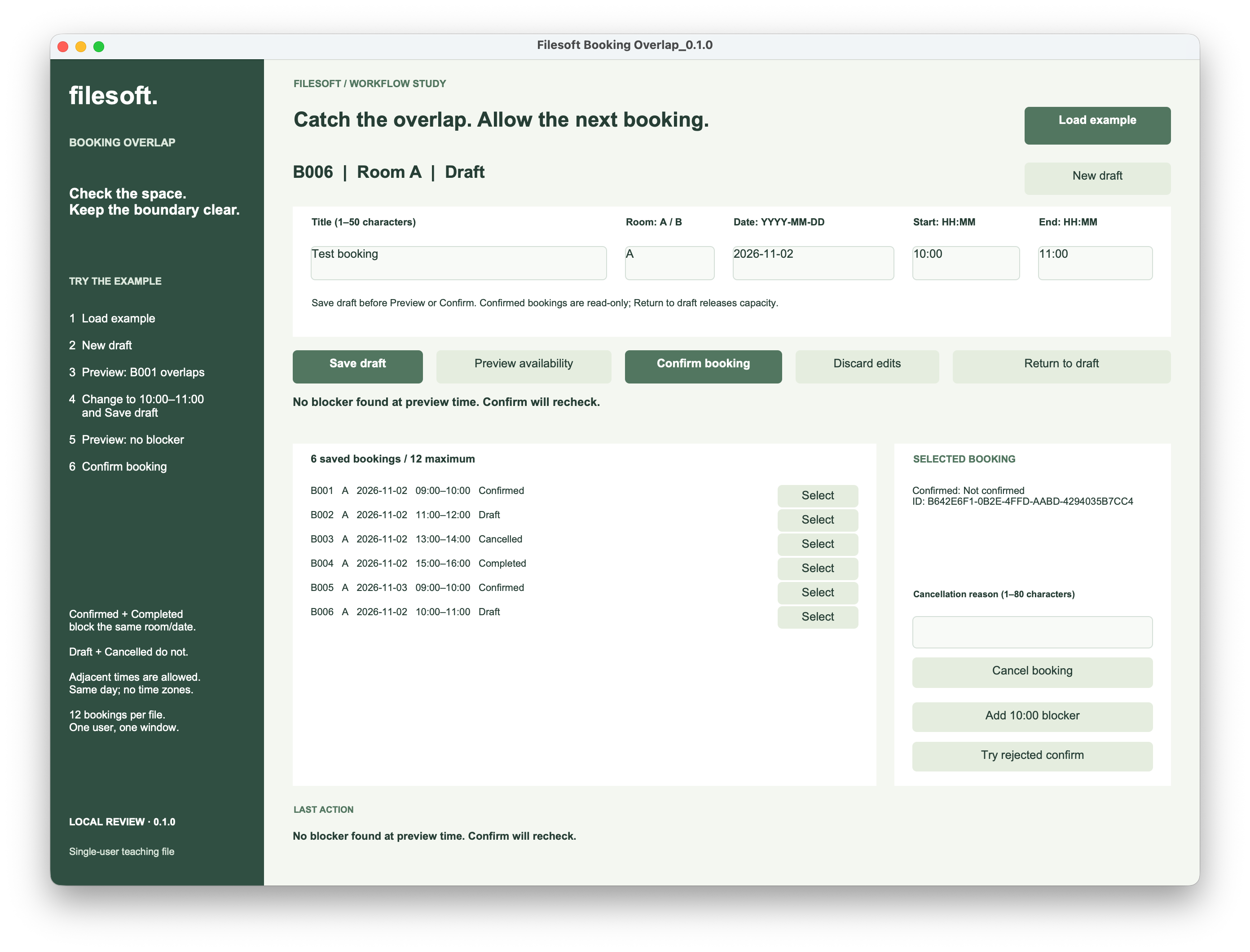
Click Confirm booking. B006 becomes Confirmed with a timestamp, and its values become read-only through the interface. B001 still ends at 10:00; B006 begins at 10:00. The shared endpoint is allowed.
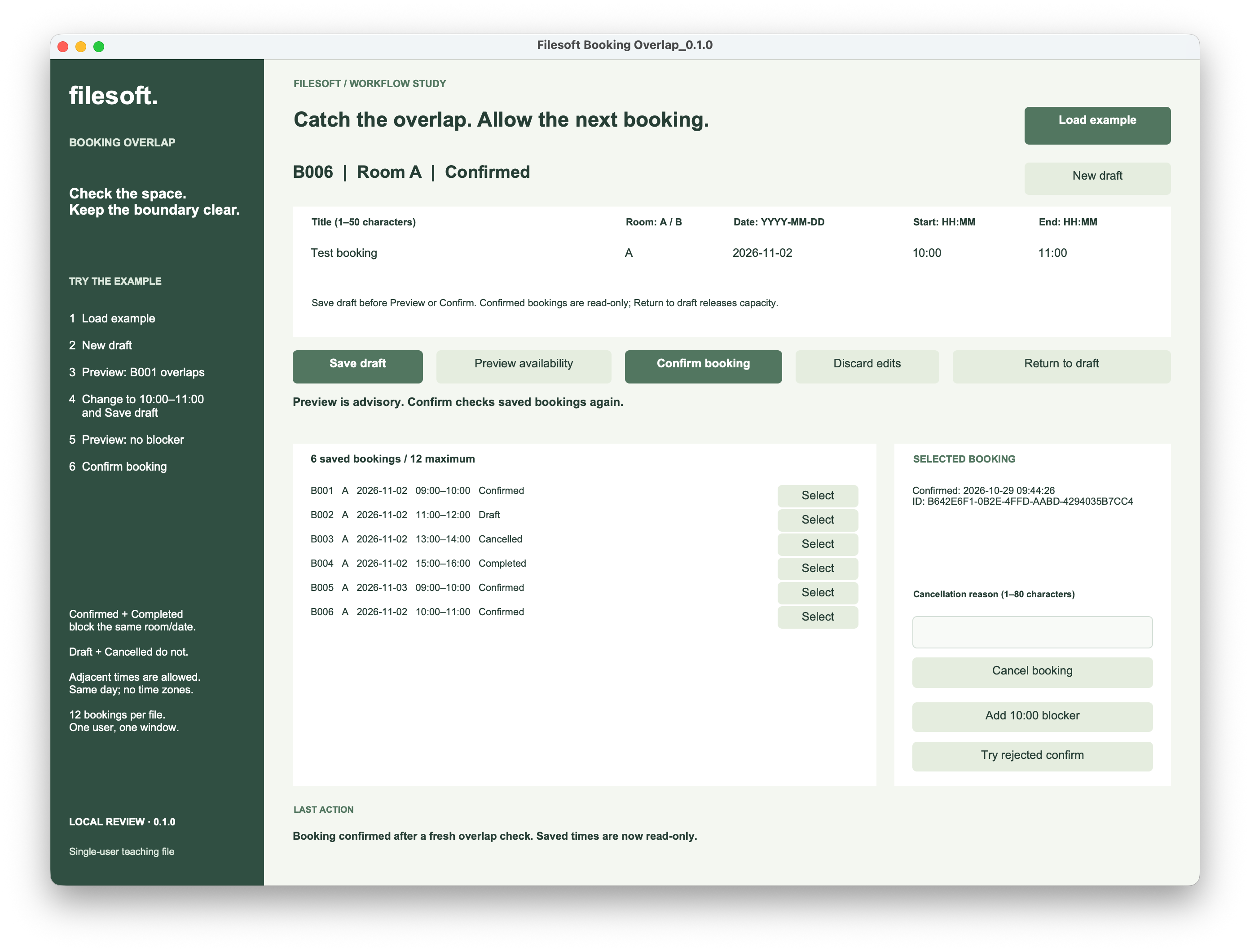
Save before previewing or confirming. The example checks saved values and refuses to proceed while entry fields contain unsaved changes. A draft can be saved even when its times overlap; confirmation is the action that must refuse the conflict.
3. Detect and refuse an overlap.
Keep B006 Confirmed and choose New draft → Create again. B007 starts in Room A on the same date at 09:30–10:30. Click Preview availability.
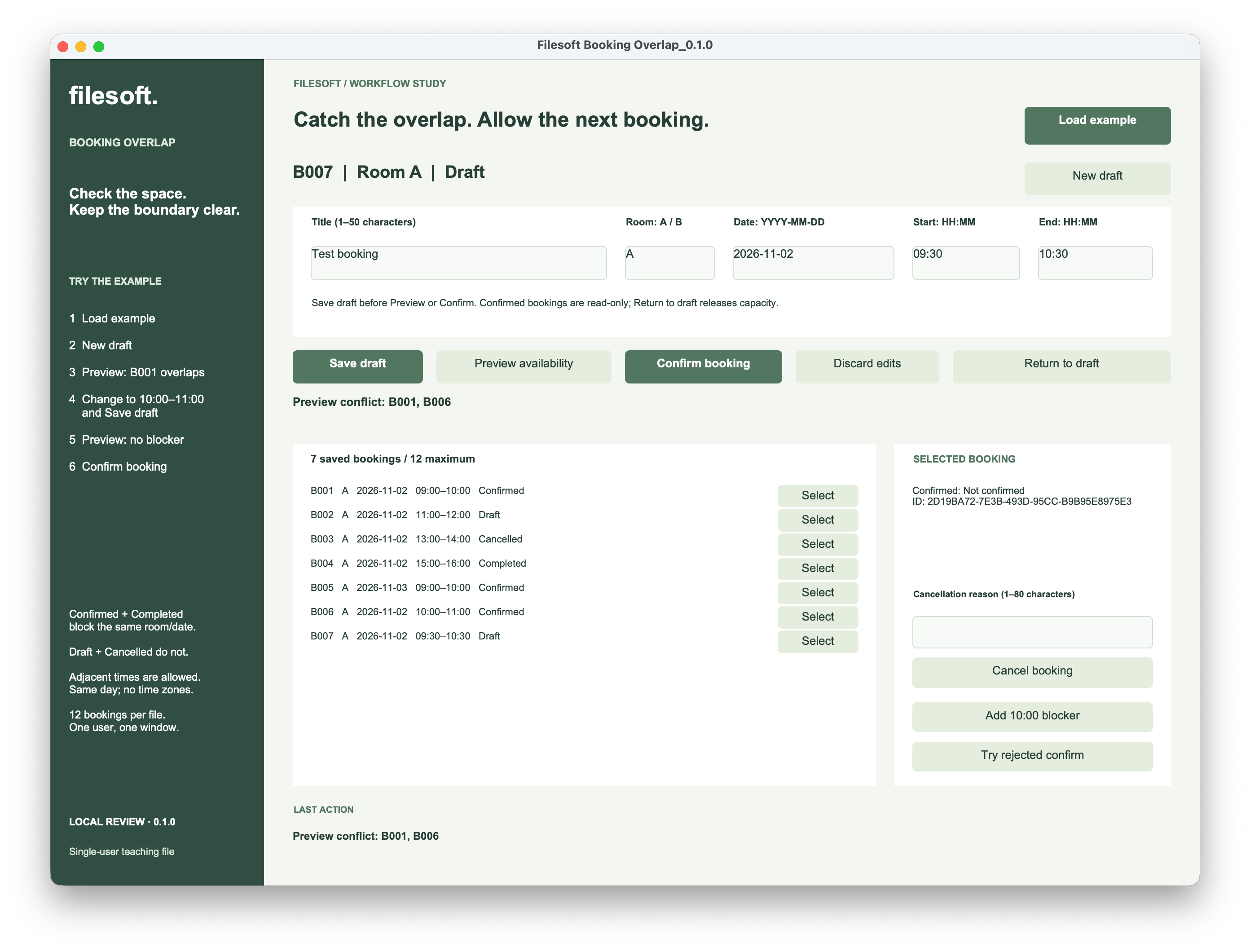
The preview names B001 and B006. The draft overlaps the final half hour of B001 and the first half hour of B006. Both are real blockers; reporting both helps explain what must change.
Click Confirm booking. The last-action message reports the overlap, while B007 remains Draft with no confirmation timestamp. The saved row is retained so you can choose another time or room.
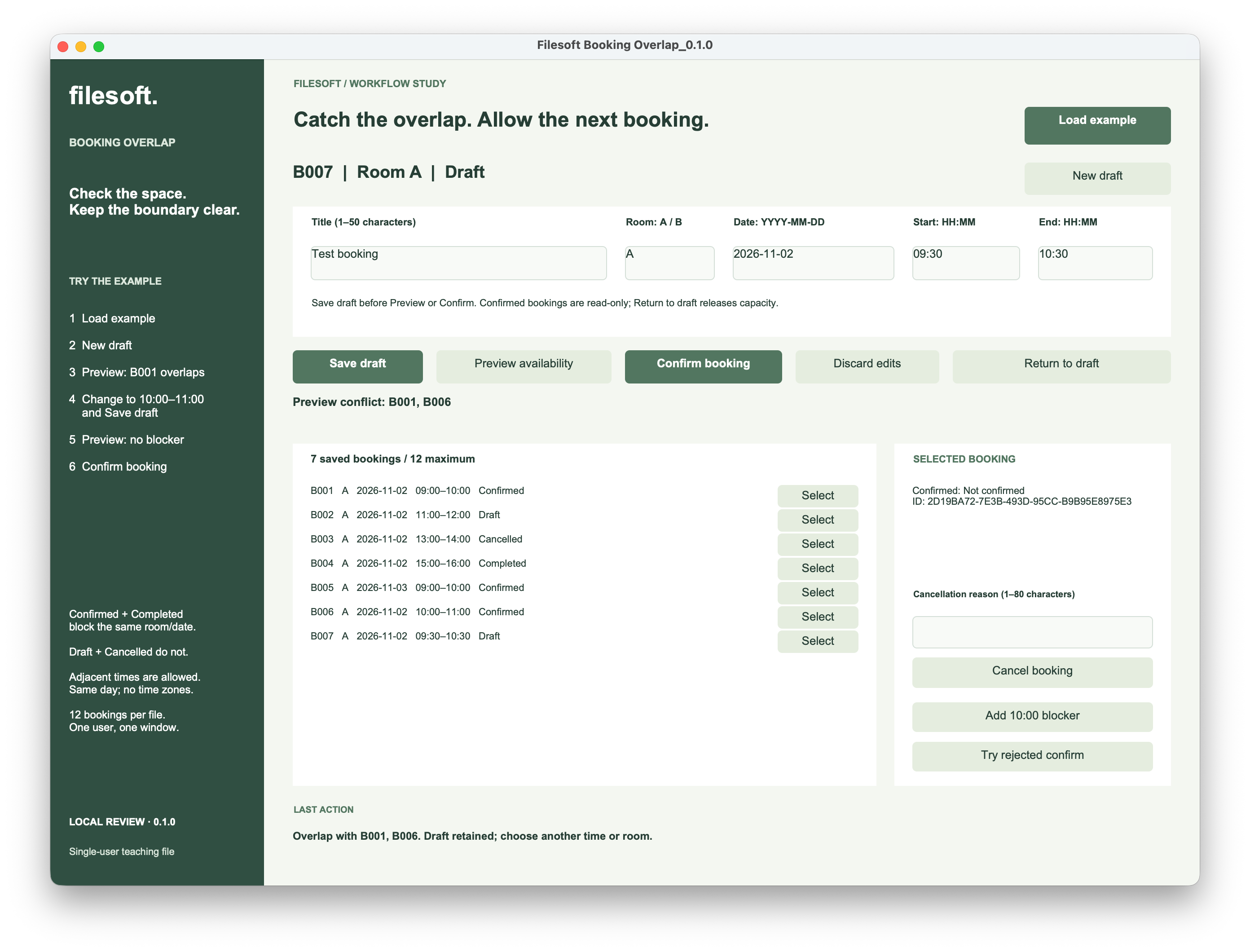
Refusal should leave a useful, correctable draft. It should not create a second booking, mark the draft Confirmed, or leave a confirmation timestamp behind.
4. Keep each room independent.
Create another draft, change its room to B, and keep 2026-11-02, 09:30–10:30. Click Save draft, preview availability, then confirm it.
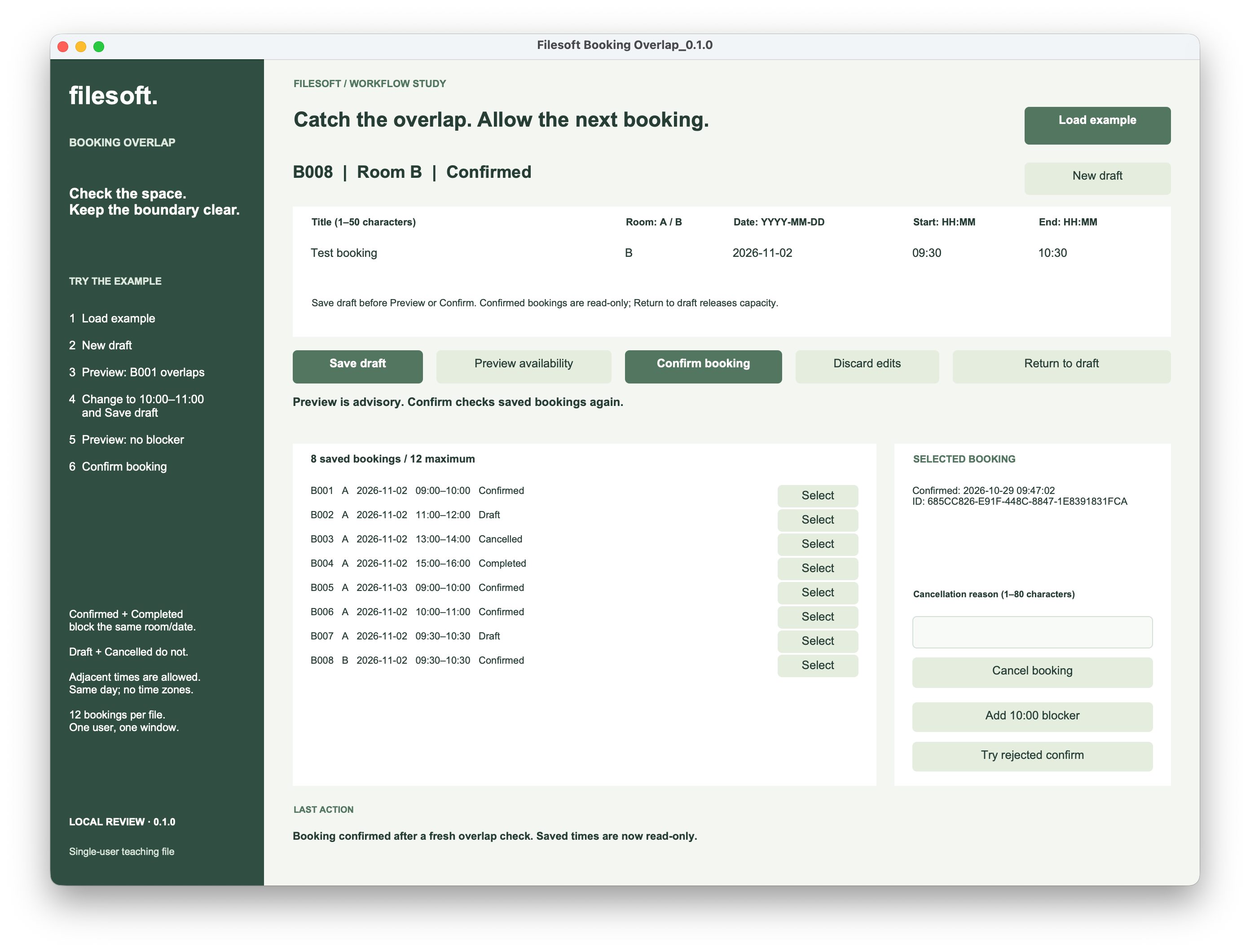
The screenshot shows B008 / Room B / Confirmed. The overlapping Room A bookings do not occupy Room B. The same separation applies to dates: a booking on 2026-11-03 does not block 2026-11-02.
5. Recheck a clear preview at confirmation.
Now demonstrate how a correct preview can become out of date. You can continue in the same file:
- Select B006, choose Return to draft → Return. This deliberately releases its 10:00–11:00 slot and clears its confirmation timestamp.
- Select B007, change its times to 10:00–11:00 and click Save draft.
- Click Preview availability. There is no blocker: B001 ends at 10:00, and both B006 and B007 are Draft.
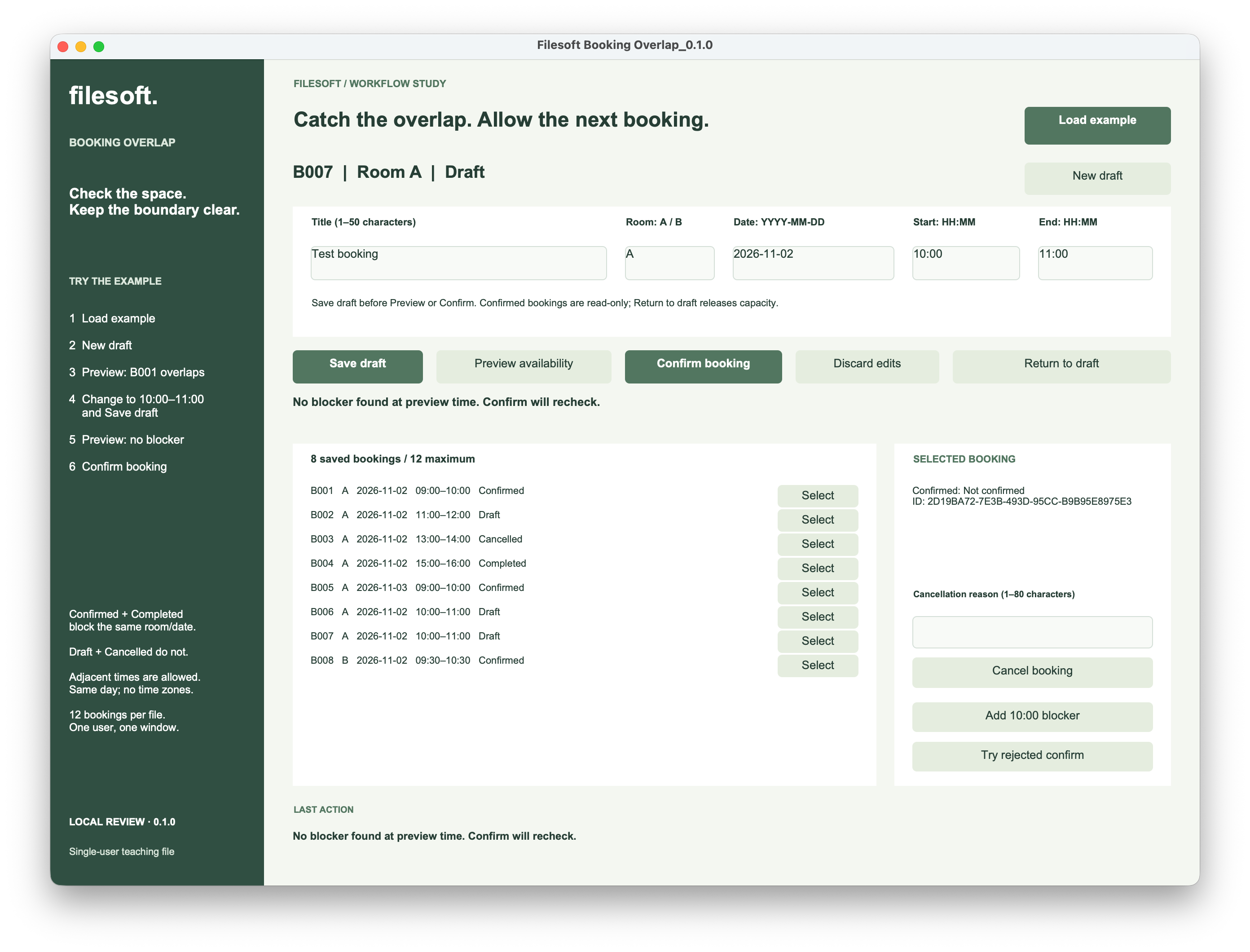
Click Add 10:00 blocker → Add blocker. This teaching control adds a Confirmed Room A booking at 10:00–11:00 while leaving B007 selected. In this sequence the new row is B009. The earlier preview text is deliberately retained so its age is visible.
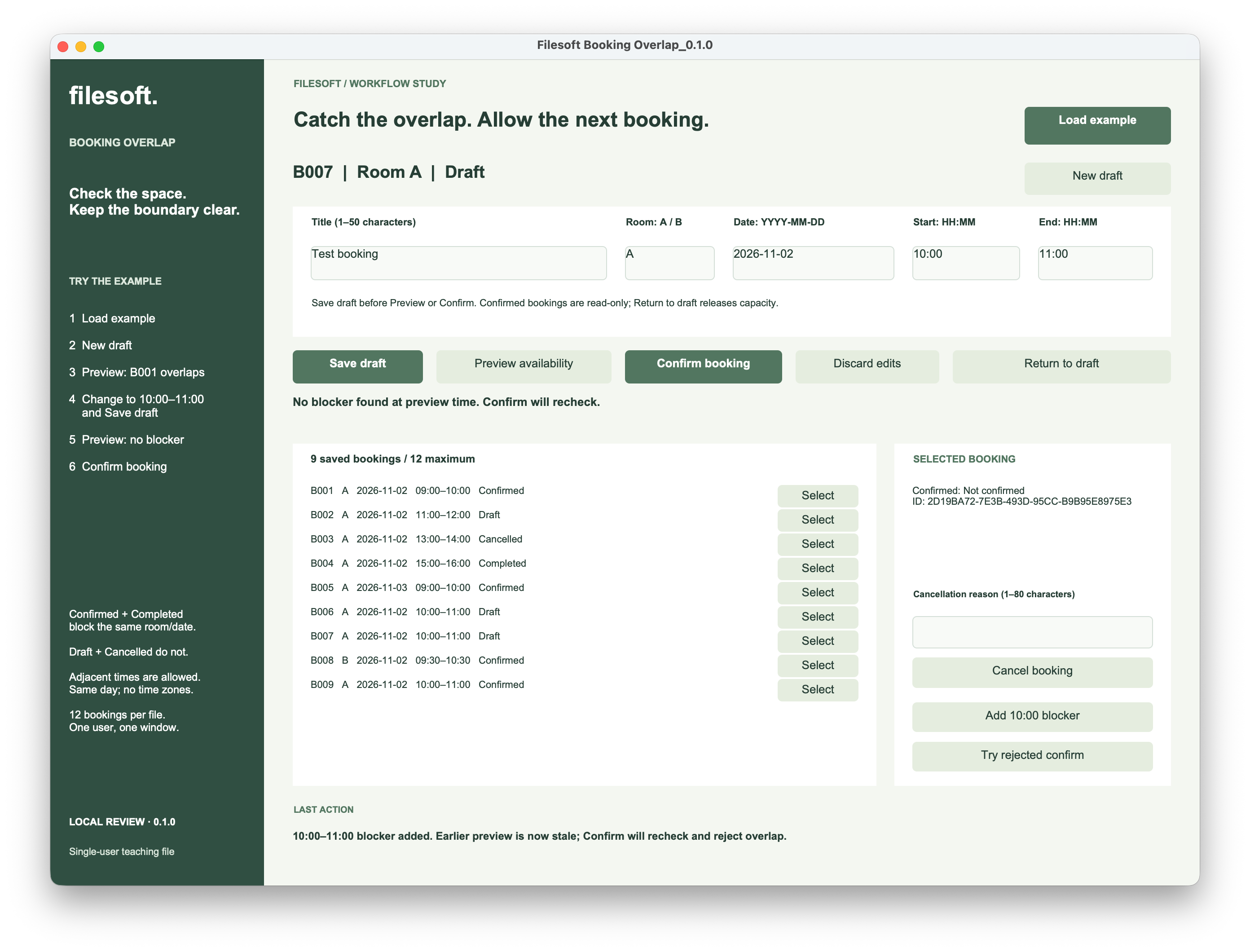
Without previewing again, click Confirm booking. The confirmation action reads the current saved bookings and finds B009. It refuses the overlap and keeps B007 in Draft.
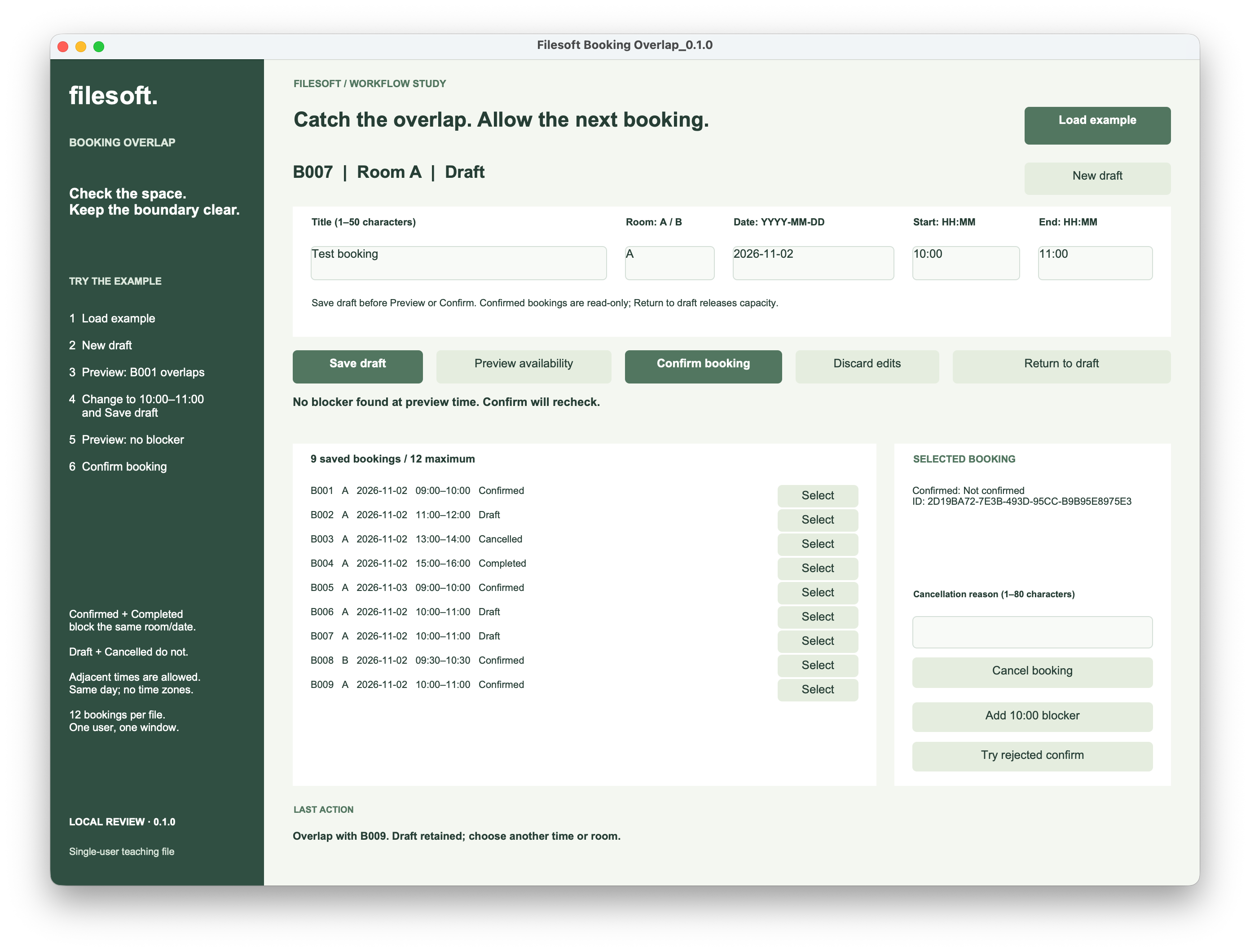
The “No blocker found at preview time” line is the old advisory result. The lower Last action message is the newer confirmation result. The apparent disagreement is the point of the exercise: a preview is not a reservation.
References depend on the saved rows already in your file. If you take a different route through the exercises, the blocker may have a different number. Follow its room, date, times and state rather than expecting B009 in every run.
6. Apply the pattern in FileMaker.
The file has a Bookings table for saved records and a Workspace table for entry fields. Each booking stores an ID, readable reference, title, room, date, start and end minutes, state, confirmation timestamp and cancellation reason. Entry times use strict HH:MM text and are converted to numeric minutes after validation.
The availability lookup selects saved rows for the same room and date, includes only blocking states, and excludes the selected ID. Its interval conditions are equivalent to the rule above:
existing.StartMinute < proposed.EndMinute
and
existing.EndMinute > proposed.StartMinute
Preview availability reports that lookup’s current result. Confirm booking performs the lookup again before writing the Confirmed state and timestamp. The example also treats a failed lookup as a failure, rather than interpreting it as an empty list of blockers.
The state and timestamp write uses Open Transaction and Commit Transaction. The separate Try rejected confirm exercise deliberately invokes Revert Transaction after changing those values, so you can inspect whether the original Draft state, ID and blank timestamp remain. It is a controlled rollback exercise, not a simulated crash.
Scope matters when adapting this example. This file is local, single-user and one-window. Its availability lookup occurs before the write transaction. Two hosted clients could both see a clear slot before either commits. A shared booking system needs a coordinated locking or serialization design around checking and confirming, plus simultaneous-client tests. Transactions alone do not establish that protection.
The editable file also provides Full Access for learning. Read-only confirmed fields and script checks describe the supplied interface; they are not a security boundary against someone with Full Access.
Try the booking-overlap example.
The ZIP contains Filesoft Booking Overlap 0.1.0 and a Read Me. It starts without saved bookings; Load example creates the five starting rows. It includes the corrected Select-button layout shown in the screenshots. No name or email is required.
The screenshots show the source-file walkthrough. The downloadable empty clone has been structurally checked but has not had a separate native first-open and Load example smoke test.
Use FileMaker Pro 26 on macOS, locally, with one user and one window. FileMaker Pro is sold separately. If a sign-in appears, use Admin with an empty password. Extract into a writable folder and use fictional data. This is an independent teaching example, separate from the Booking Desk solution.
More practice and limits
The supplied screenshots show the owner’s adjacent-booking, overlap-refusal, different-room and stale-preview walkthrough. They do not establish every validation, persistence or rollback case. Use the Read Me’s exercises to test your own copy.
Try equal or reversed times, malformed dates, unsaved edits, repeated confirmation and cancellation. Inspect saved IDs and timestamps after each action. Close and reopen normally, choose Load example and select saved rows to check persistence. Loading again preserves records; it is not a reset.
The limit is 12 saved bookings, including cancelled records and the added blocker. To start over, fully close the file and extract a fresh copy from the ZIP. Never copy an open FileMaker database.
This example covers same-day intervals only. It excludes overnight and recurring bookings, time zones and daylight-saving changes, automatic setup buffers, capacity greater than one, rescheduling history, payments and PDFs. Windows, Go, WebDirect and hosted use are not verified.