Install into a working copy
- Back up your saved, closed host file. Try installation in a disposable copy first.
- Open the Time Ledger .fmaddon package in FileMaker Pro to register it in the add-on chooser.
- In Layout mode, open the Add-ons pane, choose Install Add-on and select Filesoft Time Ledger. Drag its launcher onto a host layout and save.
- Return to Browse mode and finish any host-record edits. Open the module using the launcher.
- Use Save or Save details before Back to host. Check that you return to the launching layout and that the host’s normal navigation still works.
How it fits your file
All launchers in one host file open the same module collection. Records are not attached to individual host records. No host-table relationship or startup-script change is required. Use one installed module and one active window.
Preserve the imported schema, script and layout names. Do not install another copy into a file that already contains this module. Installation needs development access; normal use respects the host account’s privileges.
Use the workspace
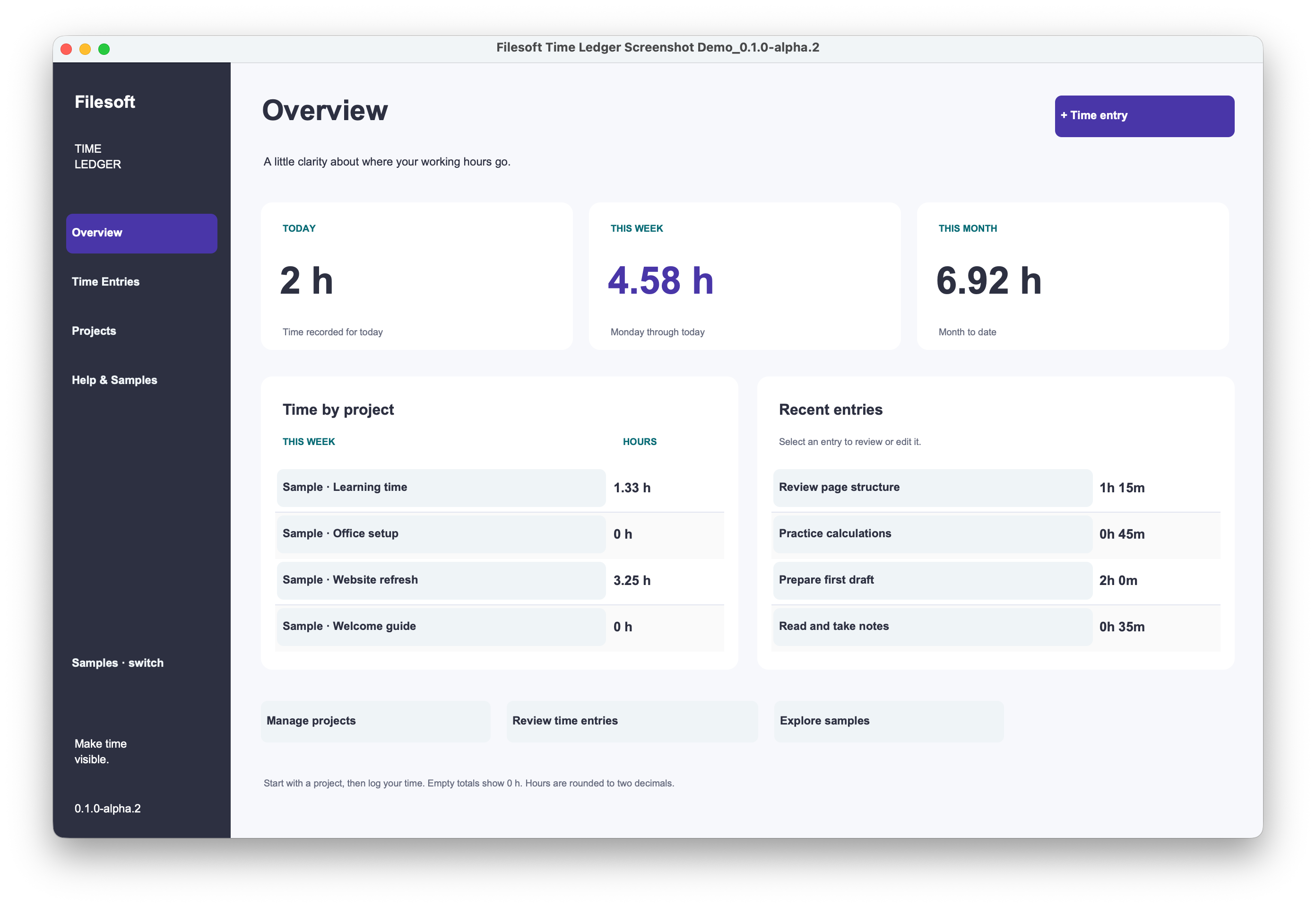
Create a project and Save. Add a time entry, choose the project, enter its work date, duration in whole minutes, activity and optional notes, then Save. Dates must be today or earlier; duration is 1–1440 minutes per entry. Active, Paused and Completed statuses organize projects. Historical entries remain editable. Projects with entries cannot be deleted; entry deletion requires confirmation. Overview shows today, week-to-date and month-to-date hours. Weeks start Monday; decimal hours round to two places.
Save before changing selection, navigating or using Back to host. Back to host commits the module context but does not apply unsaved editor buffers. Host layout triggers still run. Launch refuses Find/Preview mode, unsaved host records or an open host transaction instead of committing host edits. No timer, invoicing, scheduled notifications or record-count limits.
The package ships zero saved records. Normal layout entry initializes preferences. Optional fictional examples remain separate from real data, load once and retain edits. New projects/entries always belong to real work.
Common questions
Use a date of today or earlier and a whole-minute duration from 1 to 1440. Save before navigating. Projects with entries cannot be deleted; mark them Completed to retain their history.
Requirements and scope
Requires Claris FileMaker Pro, sold separately. Intended for FileMaker Pro 19.6.3–26 (reviewed on macOS; Windows unverified), single-user desktop use with one active window. Both products were tested by Filesoft in FileMaker 19 and 26; exact patch versions were not restated. Intermediate versions were not individually tested. Windows, FileMaker Go, WebDirect, hosting, concurrent multi-user and multi-window operation are not validated.
Backups and updates
Save and close the database before making a filesystem backup. Keep earlier versions and a separate practice copy.
A new chooser package does not update an installed module or migrate its records. Never uninstall a populated module merely to upgrade. Plan a data-preserving update separately.
Reference screenshot
Help and support
For download issues, visit Help & downloads. For product questions, email support@filesofttools.com with the product version, FileMaker version and a description of the issue. Use fictional examples if you include screenshots.
Using the other format? Time Ledger guide.
Return to the product page · Release notes · All product guides