Keep your existing work.
Continue from your latest saved Lesson 4 file. The completed example adds six calculation fields and progress displays to Project Workspace. It preserves your existing records, assignments, scripts and task portal. FileMaker Pro 26 desktop on macOS is required and sold separately.
Your outcome
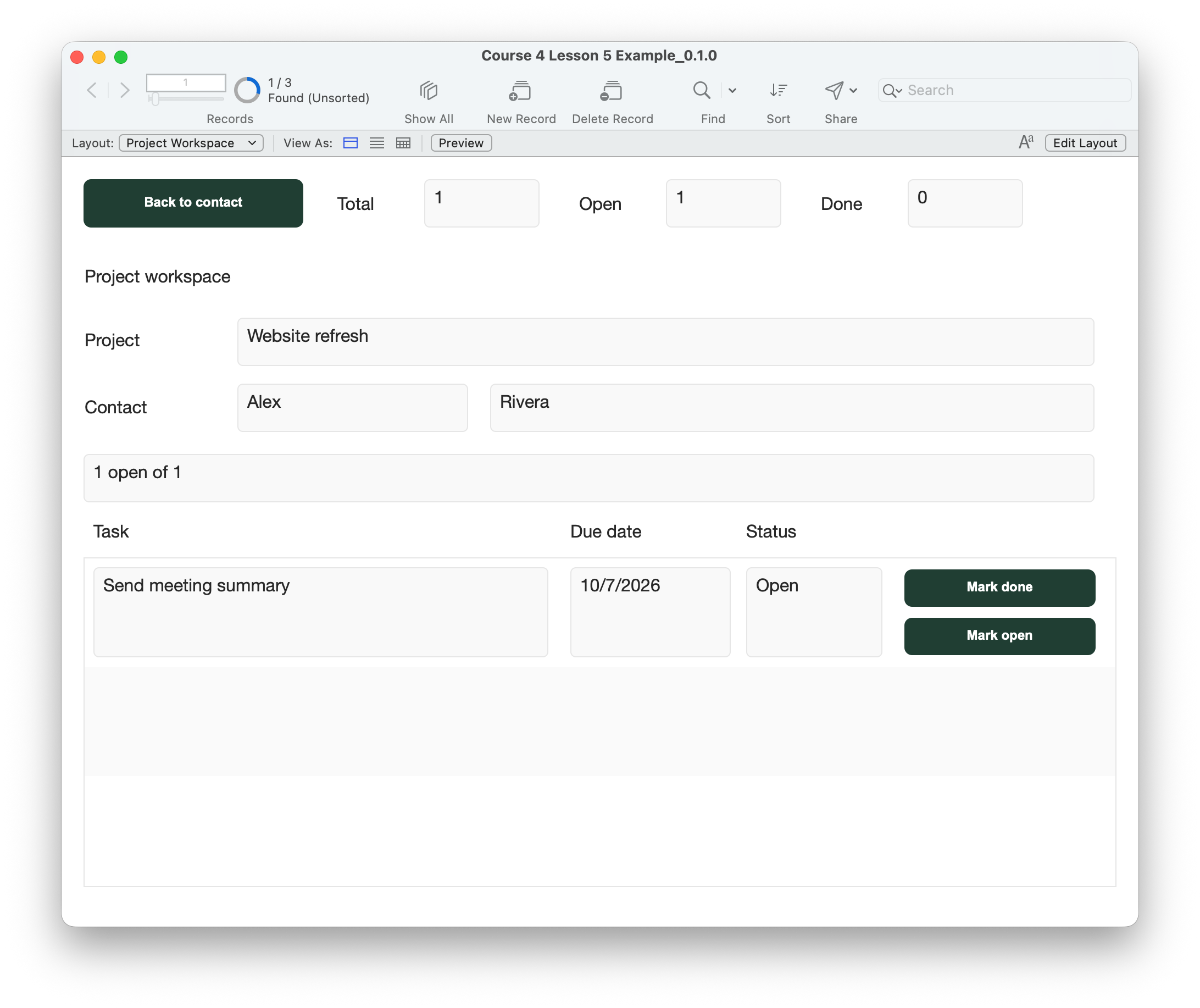
Read one project’s totals, change a task’s status, and see the progress summary change. An empty project shows No tasks.
Count related tasks, not visible rows.
The workspace is based on Projects. Its toolbar counts project records; the new fields count related FollowUps through TasksForProject. Both the project key and contact key must match. Equal project names do not combine their totals.
| Display | Meaning |
|---|---|
| Total | Every matching task with a primary key |
| Open | Matching tasks whose Status equals Open |
| Done | Matching tasks whose Status equals Done |
Portal scrolling does not limit these counts. A portal filter would not redefine these relationship-based totals either. This lesson’s portal has no filter.
Do not calculate Done as Total − Open: a blank or unexpected status would incorrectly become completed work. Separate flags make each category explicit.
Add calculations, keep the actions.
- Continue in a copy of your latest saved Lesson 4 file. Keep the existing TasksForProject relationship: Projects::PrimaryKey = TasksForProject::ProjectID AND Projects::ContactID = TasksForProject::ContactID.
- In Manage Database → Fields, add cIsOpen and cIsDone to FollowUps as Calculation fields returning Number. Use the formulas below. Allow stored results because they depend only on that record’s Status. Clear “Do not evaluate if all referenced fields are empty” so blank Status produces 0.
- Add cTaskTotal, cTaskOpen and cTaskDone to Projects as Calculation fields returning Number. Under Storage Options, select “Do not store calculation results — recalculate when needed.” These depend on related task records. Also evaluate when referenced fields are empty so empty projects display numeric zeros.
- Add Projects::cProgress as an unstored Calculation returning Text. Put the zero-task condition first, then the unexpected-status check, then the all-Done condition.
- On Project Workspace, place read-only cTaskTotal, cTaskOpen and cTaskDone fields beside the existing Back to contact button, labeled Total, Open and Done. Replace the explanatory line above the portal with a wide cProgress display. Keep the portal and existing buttons unchanged. Anchor the new objects to the left and top, with enough width for the full progress message.
- Retain the existing UI/controller scripts, including row/ownership guards and immediate error checks around Set Field and Commit. This lesson adds calculations; it does not need a new counting script or stored counters updated by buttons.
The task flags can store results because they depend only on Status in the same record. Project totals depend on related records and must be unstored. “Unstored” means evaluate when needed; it does not mean a continuously running timer. The existing status buttons commit the change; check the visible summary afterward.
Read one calculation at a time.
Start with the short expressions. Expand the documented version when entering the formula. The + 0 keeps the numeric aggregate result explicit for an empty relationship.
FollowUps::cIsOpen
Result: Number. Stored: depends only on this task’s Status.
FileMaker calculation
Case(
    Status = "Open" ; 1;

    0
)
Complete calculation with documentation header
FileMaker calculation
/*
	Purpose: Flag an Open task.
	Author: Plato
	Created Date: 2026-10-08
*/

Case(
    Status = "Open" ; 1;

    0
)
FollowUps::cIsDone
Result: Number. Stored: depends only on this task’s Status.
FileMaker calculation
Case(
    Status = "Done" ; 1;

    0
)
Complete calculation with documentation header
FileMaker calculation
/*
	Purpose: Flag a Done task.
	Author: Plato
	Created Date: 2026-10-08
*/

Case(
    Status = "Done" ; 1;

    0
)
Projects::cTaskTotal
Result: Number. Unstored: recalculate when needed.
FileMaker calculation
Count ( TasksForProject::PrimaryKey ) + 0Complete calculation with documentation header
FileMaker calculation
/*
	Purpose: Count tasks matching this project and contact.
	Author: Plato
	Created Date: 2026-10-08
*/

Count ( TasksForProject::PrimaryKey ) + 0
Projects::cTaskOpen
Result: Number. Unstored: recalculate when needed.
FileMaker calculation
Sum ( TasksForProject::cIsOpen ) + 0Complete calculation with documentation header
FileMaker calculation
/*
	Purpose: Count matching Open tasks.
	Author: Plato
	Created Date: 2026-10-08
*/

Sum ( TasksForProject::cIsOpen ) + 0
Projects::cTaskDone
Result: Number. Unstored: recalculate when needed.
FileMaker calculation
Sum ( TasksForProject::cIsDone ) + 0Complete calculation with documentation header
FileMaker calculation
/*
	Purpose: Count matching Done tasks.
	Author: Plato
	Created Date: 2026-10-08
*/

Sum ( TasksForProject::cIsDone ) + 0
Projects::cProgress
Result: Text. Unstored: recalculate when needed.
FileMaker calculation
Case(
    cTaskTotal = 0 ; "No tasks";
    cTaskOpen + cTaskDone ≠ cTaskTotal ; "Check task statuses";
    cTaskDone = cTaskTotal ; "All tasks done";

    cTaskOpen & " open of " & cTaskTotal
)
Complete calculation with documentation header
FileMaker calculation
/*
	Purpose: Describe progress, including empty projects and unexpected statuses.
	Author: Plato
	Created Date: 2026-10-08
*/

Case(
    cTaskTotal = 0 ; "No tasks";
    cTaskOpen + cTaskDone ≠ cTaskTotal ; "Check task statuses";
    cTaskDone = cTaskTotal ; "All tasks done";

    cTaskOpen & " open of " & cTaskTotal
)
Case checks conditions in order. Checking zero first prevents an empty project from looking completed. The next check exposes statuses outside Open and Done rather than silently treating them as finished. No division is needed for this lesson.
Check the counts against actual tasks.
- Keep an untouched backup. Open the completed example, or finish the build steps in a copy of your Lesson 4 file. Existing assignments and statuses are preserved, so your starting numbers may differ.
- On Contact Project Hub, open Rivera’s Website refresh. Compare Total, Open and Done with its assigned tasks. The toolbar still counts projects.
- Mark one Open task Done. Total must stay the same, Open decrease by one and Done increase by one. Mark it Open again and expect the reverse. Check the counts after the button finishes and commits. If the display appears stale, use Records → Refresh Window or leave and reopen the project; note that behavior for review.
- When every assigned task is Done, expect All tasks done. Reopen one task and expect the Open count in the progress message.
- Open a project with no assigned tasks, such as Autumn workshop if you left it empty. Expect Total 0, Open 0, Done 0 and No tasks. Do not create a task just to populate the screen.
- Open Morgan’s separate Website refresh. Only Morgan’s matching assignments should count. Unassigned tasks and tasks belonging to a different project must not inflate either project’s totals.
- On a disposable copy, clear the Status of one assigned task using the earlier editable task layout, then commit. Total still includes it, but neither Open nor Done does. Expect Check task statuses. Restore the original status afterward.
- Use the Lesson 3 chooser to assign or clear one task’s project, then reopen the workspace. Counts should follow the new relationship membership. Restore the test assignment. If a project has more than three tasks, Total must include rows beyond the visible portal area.
- Resize the window and check all labels, counts, progress text and task buttons fit. Back to contact must still find the owner. Save, close and reopen; verify assignments, statuses and calculated counts again.
Compare your result
For two matching tasks, one Open and one Done: Total 2, Open 1, Done 1 and “1 open of 2.” After marking the Open task Done: Total 2, Open 0, Done 2 and “All tasks done.” With no matching tasks: all counts 0 and “No tasks.” These are examples, not records inserted into your file.
Check your understanding.
Choose one answer for every question. Answers and scores stay in this page.
Next: report and test the workflow.
Lesson 6 brings the project workflow together in a report and a final review.
Continue to Lesson 6 ↗Keep your latest saved working file.
Return to the course outline ↗