Use the work you already saved.
Continue from your latest Lesson 5 working file. The starting download contains that saved file. The completed example adds one report layout and preserves all existing fields, scripts, relationships, records and layouts. It does not reset assignments or task statuses. Requires FileMaker Pro 26 desktop on macOS, sold separately.
Your outcome
A report with one row for each intended project, the correct owner and accurate Total, Open, Done and progress values. A saved PDF captures that result.
Choose the records before the paper.
| Question | What controls it? |
|---|---|
| Which projects appear? | The found set on Projects |
| In what order? | The chosen sort order |
| Which tasks count for each row? | The existing TasksForProject relationship, matching both project and contact keys |
| What gets exported? | The PDF record option: found set or current record |
Project Workspace and Project Progress Report use the same Projects occurrence. Moving between them can retain a one-project found set from the workspace. Select Show All deliberately for a complete project report; do not assume changing layouts shows every record.
The task totals count matching assigned tasks. They are not totals of all tasks in your app, and a project report does not list unassigned tasks. Empty projects remain report rows because Projects, not FollowUps, is the base context.
A workspace portal is useful for interaction, but printing a scrolling portal does not guarantee every task prints. This summary report uses repeating project bodies and calculated counts instead. A detailed task report would need a separate task-based layout and scope.
Keep the printed layout simple.
- Back up your saved Lesson 5 file. Create a new layout named Project Progress Report based on Projects. Use List View with a Header and repeating Body. Keep the existing workspace and its portal unchanged.
- In the Header, add the report title, a note that one row represents one found project, and column labels Project, First name, Last name, Total, Open and Done.
- In the Body, add Projects::ProjectName, related Contacts::FirstName and Contacts::LastName, and Projects::cTaskTotal, cTaskOpen and cTaskDone. On a second line, add a Progress label and a wide Projects::cProgress field. Set display fields to View Only; use black text on white with readable print sizing.
- Keep each object inside its part, allow room for long names and check paper width in Preview. The supplied layout is 700 points wide, has a 100-point Header and 100-point Body, and uses 11-point text. A4 landscape gives room for the columns; margins still depend on your printer and page setup.
- Do not add a task portal to this report. Each body is one project record, and the existing calculations supply its task counts. No new fields, relationships or counting scripts are needed.
- Keep the toolbar and Layout menu available. Preview ends with Exit Preview; select Contact Project Hub to resume the workflow. An on-screen navigation part would not print or appear in Preview.
Preview checks pagination and the page boundaries; Browse/List View checks the records. Long text only prints when it fits its field. Inspect the exported PDF as well as the native preview.
Follow one project from assignment to PDF.
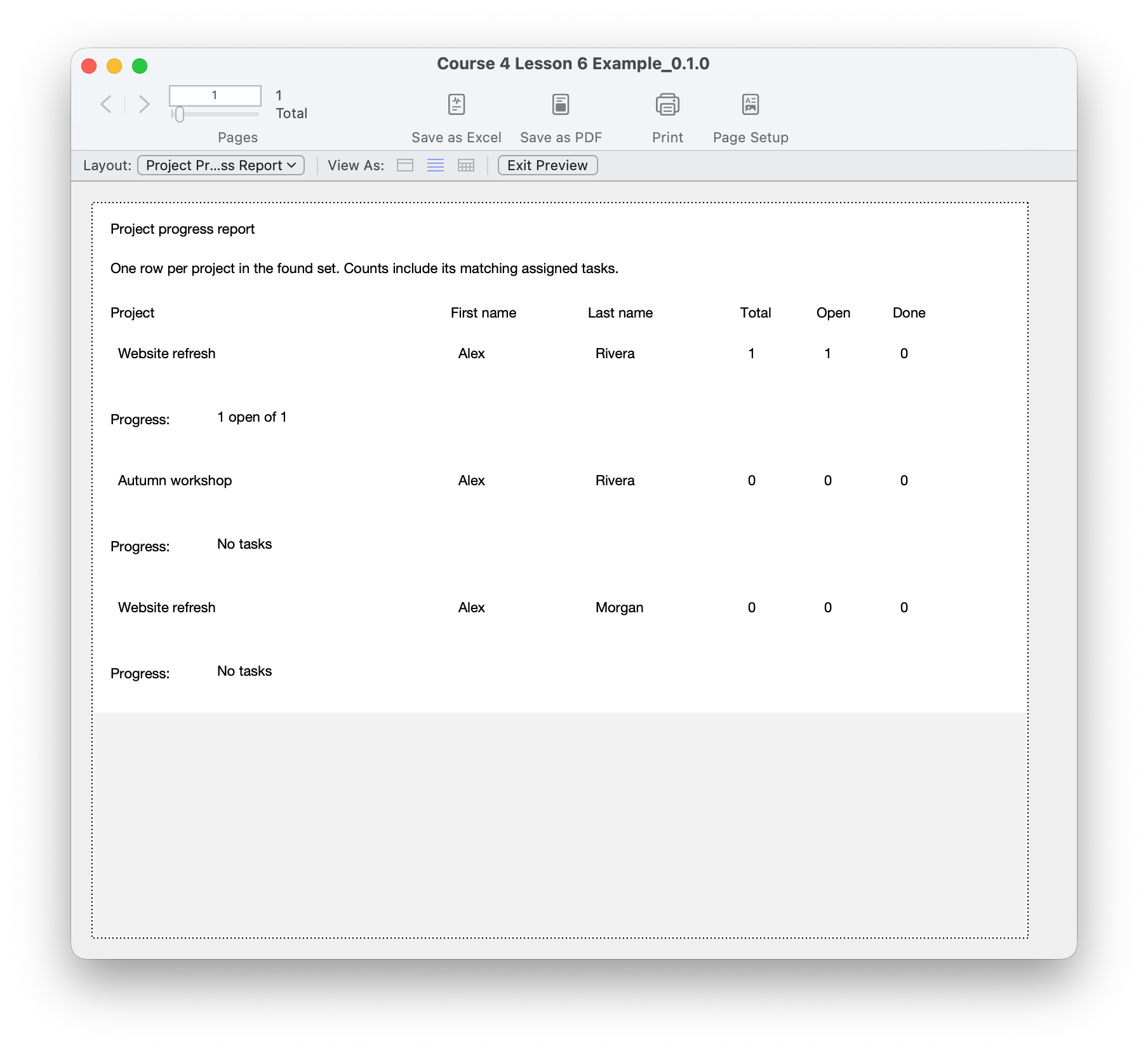
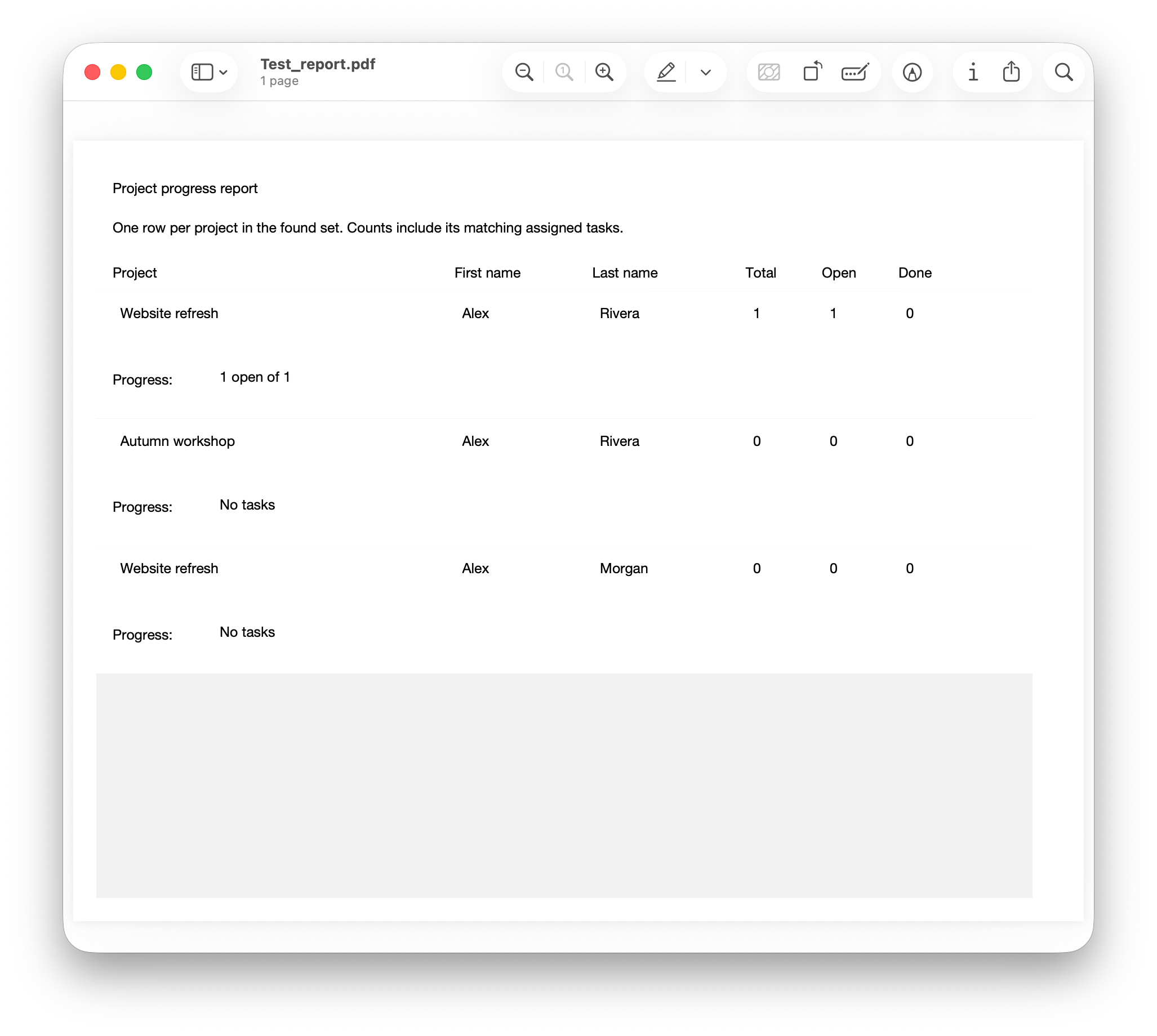
- Work in a copy of your completed Lesson 5 file, or download the completed example below. Preserve your original. The example adds only Project Progress Report; your existing records and edits remain.
- In Browse mode, choose Project Progress Report from the Layout menu, then List View. Click Show All if you want every project. A workspace visit may have left only one project found. Verify the toolbar’s project count before proceeding.
- Choose Records → Sort Records. Add Contacts::LastName, Contacts::FirstName and Projects::ProjectName in ascending order. In the field selector, choose the related Contacts occurrence for the name fields. Equal names are only display order; keys still determine ownership and task membership.
- Compare each row with its workspace: project, owner, Total, Open, Done and progress must agree. An empty project should still have a report row with zeros and No tasks. Two contacts’ Website refresh projects must appear as separate rows.
- For a one-project report, choose Contact Project Hub, open Rivera’s Website refresh through its Open project button, then choose Project Progress Report from the Layout menu. Both project layouts use Projects, so the one-project found set carries across. Verify the owner and project. Use Show All when you want every project again. The report fields are view-only; perform record selection through the existing workflow.
- Choose File → Page Setup, A4 landscape, and check scale and printer margins. Click Preview. Inspect every page for clipped project names, owner names, count columns and progress text. Enlarge fields or adjust page setup in your working copy if real text does not fit.
- Use Save as PDF and choose Records being browsed to include the found set. Choose a new filename and save locally. Open the PDF and verify its rows, counts, order and clipping. Current record would include just one project. Do not assume seeing the first Preview page proves the whole export.
- Click Exit Preview to return to Browse mode. Use the Layout menu to select Contact Project Hub, then Show All if needed. Open a project normally from its row. This report adds no navigation script and does not restore an earlier contact found set.
- In the workspace, mark an assigned Open task Done, then Open again. Check both counts and progress after each saved change. Reopen the report and confirm the same results. On a disposable copy, check a blank task status produces Check task statuses, then restore it.
- Through the earlier chooser, assign a task to a different project owned by the same contact. Confirm it leaves the old project’s count and enters the new one. Clear the assignment and confirm it belongs to neither project. Restore the intended assignment afterward. Do not change primary keys or owners to force a match.
- Check Morgan’s project never offers or counts Rivera’s tasks, an empty project remains valid, and more than three assigned tasks are counted even when the workspace portal requires scrolling. Unassigned tasks remain available on the task layouts but do not appear in project totals.
- Save, close and reopen the file. Verify the final assignments, task statuses and counts, both navigation directions, and a fresh report/PDF. Your earlier PDF is a snapshot and does not update when records change.
Compare your result
If your file still has Rivera’s Website refresh, Rivera’s Autumn workshop and Morgan’s Website refresh, Show All should produce three project rows. Actual task counts depend on your saved assignments and statuses. The two Website refresh rows stay separate, and an empty Autumn workshop shows zeros and No tasks.
Check your understanding.
Choose one answer for every question. Answers and scores stay in this page.
You have a connected project workflow.
You created projects for contacts, linked tasks by keys, built a chooser and workspace, calculated progress and prepared a report. Finish by checking the whole path with your own saved data. A correct screenshot is useful evidence; isolation, empty results and persistence need their own checks.
Keep a clean backup of your completed working file and your final review worksheet. This is a local teaching app; deployment, multi-user concurrency and production access control need separate design and testing.
Review Course 4 ↗