Keep the assignments you made.
Continue from your saved Lesson 3 working file. The starting download is the latest saved Lesson 3 example. The completed example adds two layouts, one table occurrence, one relationship and eight scripts; it preserves existing assignments and does not create or reset records. Your task counts and assignments may differ from another learner’s.
FileMaker Pro 26 desktop on macOS is required and sold separately. Work in a copy, keeping a backup.
Your outcome
Open Rivera’s Website refresh, see only its matching tasks, change one task’s status, and return to Rivera. Morgan’s equally named project remains separate.
A different layout means a different record context.
| Screen | Based on | Related rows |
|---|---|---|
| Contact Project Hub | Contacts | Projects owned by that contact |
| Project Workspace | Projects | TasksForProject: existing FollowUps matching both keys |
The workspace toolbar counts project records. Its portal displays task records. TasksForProject is another occurrence of FollowUps, not a copied task table.
Projects::PrimaryKey = TasksForProject::ProjectID
AND
Projects::ContactID = TasksForProject::ContactID
Unassigned tasks have no matching ProjectID. A wrong-owner link also fails the second comparison. This relationship limits matching records; it does not validate every possible edit elsewhere or replace record-level security.
Keep a route in and a route out.
- Back up your saved, closed Lesson 3 file and continue in a working copy. Keep all existing fields, records, relationships and layouts.
- In Manage Database → Relationships, add TasksForProject as another occurrence of the existing FollowUps table. Do not create another base table.
- Join Projects::PrimaryKey = TasksForProject::ProjectID and Projects::ContactID = TasksForProject::ContactID. Both comparisons use = and must match. Keep related-record creation, cascade deletion and relationship sorting off on both sides.
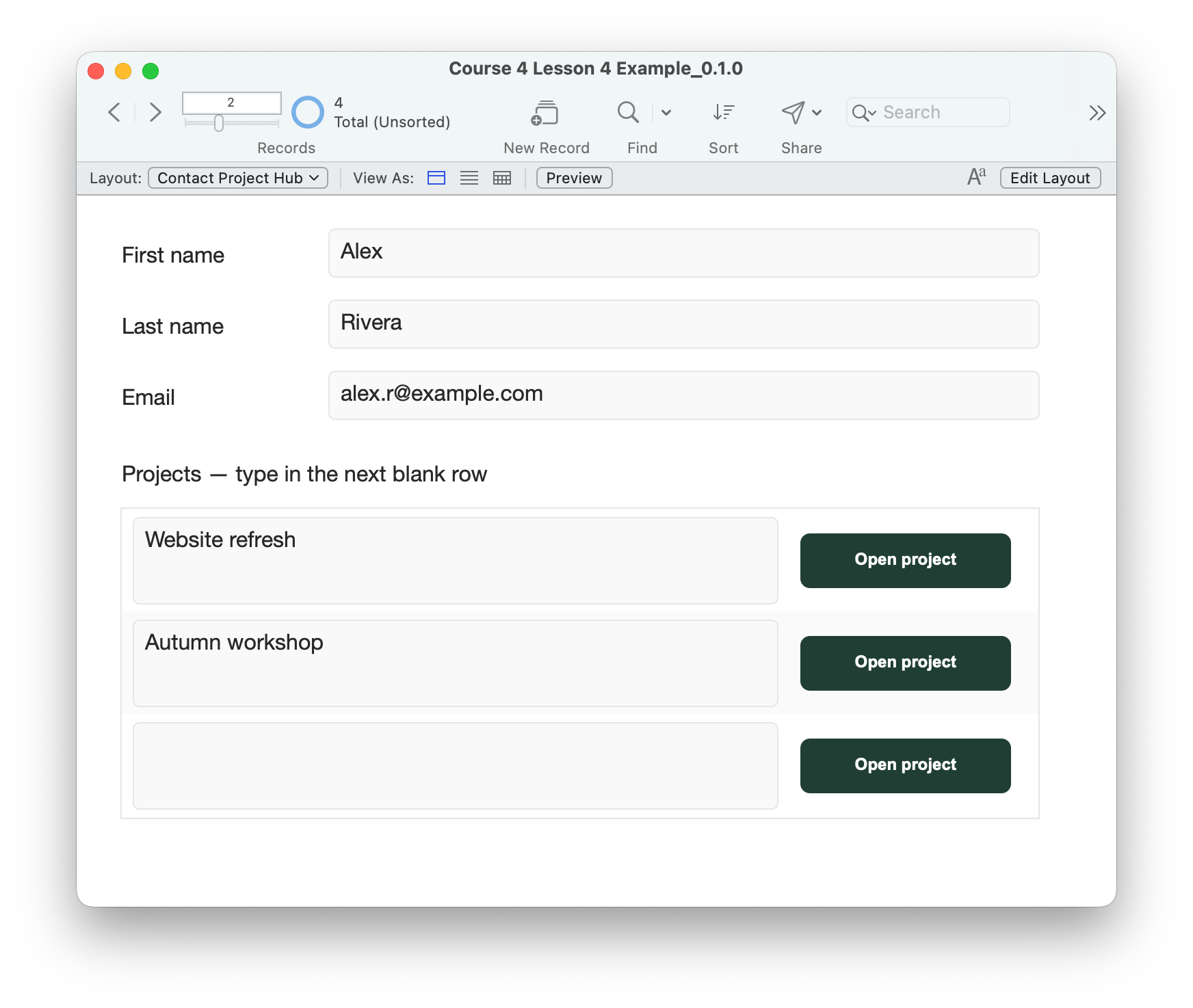
- Duplicate Contact Projects as Contact Project Hub, still based on Contacts. Keep its project-entry portal and existing fields. Narrow the ProjectName field enough to fit an Open project button beside it inside the first portal row. Preserve the row’s height and left/top anchors.
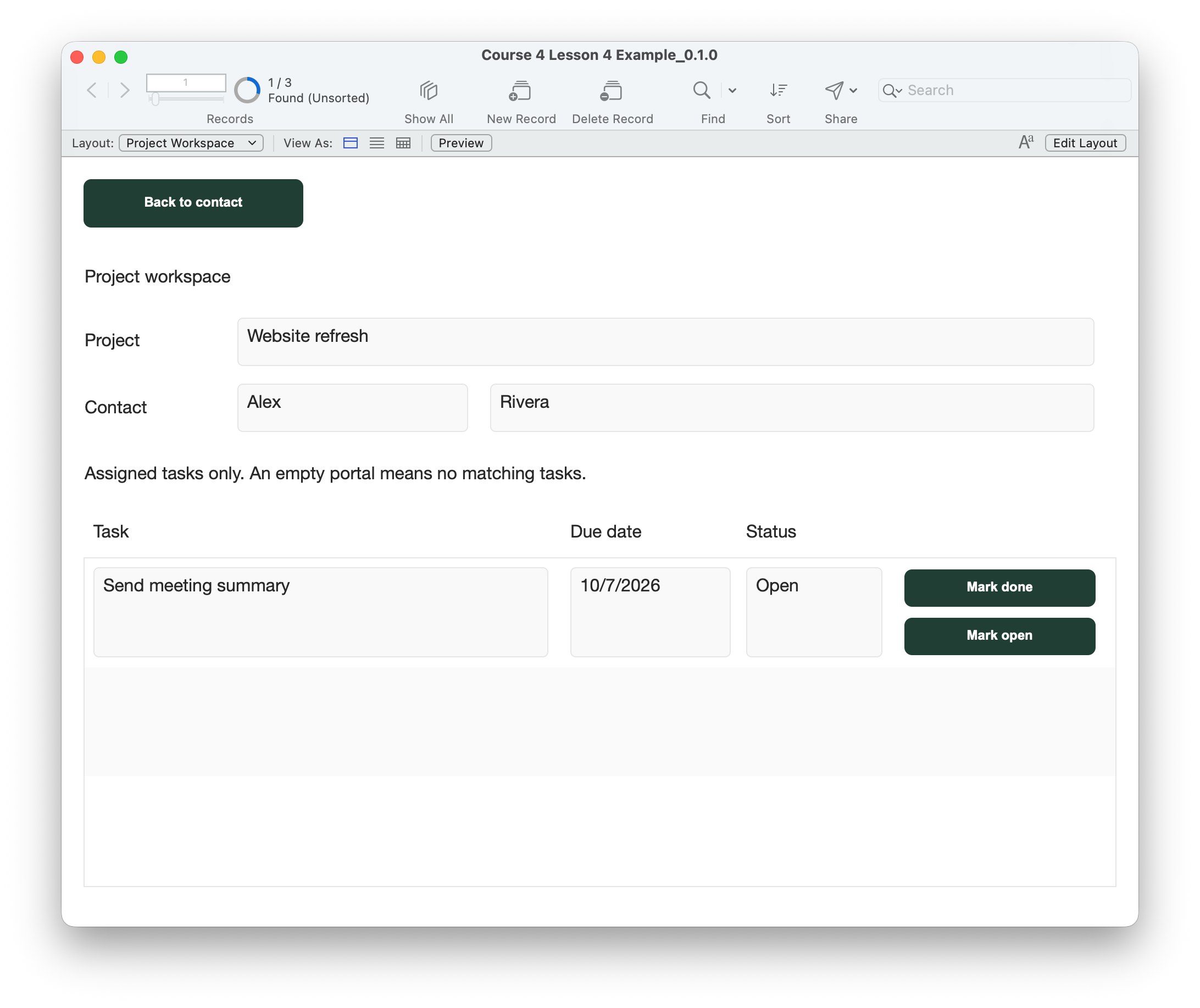
- Create Project Workspace based on Projects, in Form View. Add Projects::ProjectName, Contacts::FirstName and Contacts::LastName. Set these fields to View Only in Browse and Find. The existing Contacts–Projects relationship supplies the owner’s name.
- Add a portal showing TasksForProject, name the object Project tasks, with three visible rows and vertical scrolling. Leave portal filtering, sorting and deletion off. Inside its first row, add Task, DueDate and Status from TasksForProject, all View Only. Preserve Date formatting on DueDate. Put Mark done and Mark open buttons inside that same row.
- Add Back to contact above the portal. Add the full scripts below in Project Workspace UI and Project Workspace Controller folders; hide them from the Scripts menu. Bind each button to its UI handler only after completing the safeguards.
| Button | UI script |
|---|---|
| Open project | Project Workspace | Open Button Pressed |
| Back to contact | Project Workspace | Contact Button Pressed |
| Mark done | Project Workspace | Done Button Pressed |
| Mark open | Project Workspace | Reopen Button Pressed |
Contact Project Hub is a separate layout over the same Contacts records; the original Contact Projects remains available. Create and assign tasks through the earlier task-entry screen and Lesson 3 chooser. This workspace changes status only.
Read the successful path first.
The Open controller captures the clicked project’s key and owner before committing, then finds that exact project on the workspace. These are incomplete reading guides: use the full scripts below for working buttons.
FileMaker script
# Incomplete reading guide — finish the full controller before binding the button.
Set Variable [ $projectID ; Value: Projects::PrimaryKey ]
Set Variable [ $contactID ; Value: Contacts::PrimaryKey ]
Commit Records/Requests [ With dialog: Off ]
Go to Layout [ "Project Workspace" (Projects) ]
Enter Find Mode [ Pause: Off ]
Set Field [ Projects::PrimaryKey ; "==" & $projectID ]
Set Field [ Projects::ContactID ; "==" & $contactID ]
Perform Find [ ]
The status action uses the task occurrence inside the clicked portal row. It changes one field, then saves.
FileMaker script
# Incomplete reading guide — row and ownership checks belong before this step.
Set Field [ TasksForProject::Status ; "Done" ]
Commit Records/Requests [ With dialog: Off ; Skip data entry validation: Off ]
Back to contact captures Projects::ContactID and finds Contacts::PrimaryKey on Contact Project Hub. It deliberately produces a one-contact found set. It does not restore the prior found set; use Show All to browse again.
Protect the selected row and handle failed steps.
- Open requires an existing project row on Contact Project Hub in Browse mode and a matching owner. Capture its keys before Commit, which may leave the portal row.
- Navigation commits first and stops on error. It uses direct layout references, exact-key find criteria and checks the find error immediately. Expect exactly one record.
- Status buttons require Project Workspace, an existing task row and both matching keys. Pending edits must be saved or reverted first. No commit or navigation is inserted between checking the clicked row and setting its Status.
- Check Set Field and Commit errors immediately. A failed save may leave pending edits. Correct and commit them, or explicitly use Records → Revert Record; do not assume an error message rolled them back.
- UI handlers display returned controller errors. A navigation error leaves the Layout menu available: return to Contact Project Hub and use Show All. If a find could not be prepared, cancel Find mode first.
This is a local teaching workflow. It does not claim multi-user transaction protection or preserve every prior found set and scroll position.
Full script with safeguards: Open a project
FileMaker script
# PURPOSE: Open the clicked project by ID and owner, without changing any record.
# HISTORY: 2026-OCT-08    Plato    Create Course 4 Lesson 4 project workspace.
If [ Get ( WindowMode ) ≠ 0 or Get ( LayoutName ) ≠ "Contact Project Hub" ]
    Exit Script [ "Use Open project on Contact Project Hub in Browse mode." ]
End If
If [ Get ( ActivePortalRowNumber ) = 0 or IsEmpty ( Projects::PrimaryKey ) or Projects::ContactID ≠ Contacts::PrimaryKey ]
    Exit Script [ "Choose an existing project belonging to this contact." ]
End If
Set Variable [ $projectID ; Value: Projects::PrimaryKey ]
Set Variable [ $contactID ; Value: Contacts::PrimaryKey ]
Commit Records/Requests [ With dialog: Off ; Skip data entry validation: Off ]
If [ Get ( LastError ) ≠ 0 ]
    Exit Script [ "Correct and save the current entry before opening its project." ]
End If
Go to Layout [ "Project Workspace" ; Animation: None ]
If [ Get ( LastError ) ≠ 0 ]
    Exit Script [ "The destination layout could not be opened. Use the Layout menu." ]
End If
Enter Find Mode [ Pause: Off ]
If [ Get ( LastError ) ≠ 0 ]
    Exit Script [ "Find mode could not be entered. Use the Layout menu to return." ]
End If
Set Field [ Projects::PrimaryKey ; "==" & $projectID ]
If [ Get ( LastError ) ≠ 0 ]
    Exit Script [ "The key search could not be prepared. Cancel the find and use the Layout menu." ]
End If
Set Field [ Projects::ContactID ; "==" & $contactID ]
If [ Get ( LastError ) ≠ 0 ]
    Exit Script [ "The contact search could not be prepared. Cancel the find and use the Layout menu." ]
End If
Perform Find [ ]
Set Variable [ $findError ; Value: Get ( LastError ) ]
If [ $findError ≠ 0 or Get ( FoundCount ) ≠ 1 ]
    Exit Script [ "The requested record was not found uniquely. Use the Layout menu and Show All to recover; no record was changed." ]
End If
Exit Script [ "" ]
Full script with safeguards: Return to its contact
FileMaker script
# PURPOSE: Return to this project’s owning contact; establish a one-contact found set.
# HISTORY: 2026-OCT-08    Plato    Create Course 4 Lesson 4 project workspace.
If [ Get ( WindowMode ) ≠ 0 or Get ( LayoutName ) ≠ "Project Workspace" or Get ( FoundCount ) = 0 or IsEmpty ( Projects::PrimaryKey ) ]
    Exit Script [ "Use an existing project on Project Workspace in Browse mode." ]
End If
If [ IsEmpty ( Projects::ContactID ) ]
    Exit Script [ "This project has no contact key. Use the Layout menu to inspect it." ]
End If
Set Variable [ $contactID ; Value: Projects::ContactID ]
Commit Records/Requests [ With dialog: Off ; Skip data entry validation: Off ]
If [ Get ( LastError ) ≠ 0 ]
    Exit Script [ "Correct and save pending edits before returning." ]
End If
Go to Layout [ "Contact Project Hub" ; Animation: None ]
If [ Get ( LastError ) ≠ 0 ]
    Exit Script [ "The destination layout could not be opened. Use the Layout menu." ]
End If
Enter Find Mode [ Pause: Off ]
If [ Get ( LastError ) ≠ 0 ]
    Exit Script [ "Find mode could not be entered. Use the Layout menu to return." ]
End If
Set Field [ Contacts::PrimaryKey ; "==" & $contactID ]
If [ Get ( LastError ) ≠ 0 ]
    Exit Script [ "The key search could not be prepared. Cancel the find and use the Layout menu." ]
End If
Perform Find [ ]
Set Variable [ $findError ; Value: Get ( LastError ) ]
If [ $findError ≠ 0 or Get ( FoundCount ) ≠ 1 ]
    Exit Script [ "The requested record was not found uniquely. Use the Layout menu and Show All to recover; no record was changed." ]
End If
Exit Script [ "" ]
Full script with safeguards: Mark a task Done
FileMaker script
# PURPOSE: Set only the clicked assigned task status to Done.
# HISTORY: 2026-OCT-08    Plato    Create Course 4 Lesson 4 project workspace.
If [ Get ( WindowMode ) ≠ 0 or Get ( LayoutName ) ≠ "Project Workspace" or Get ( FoundCount ) = 0 or IsEmpty ( Projects::PrimaryKey ) ]
    Exit Script [ "Use an existing project on Project Workspace in Browse mode." ]
End If
If [ Get ( ActivePortalRowNumber ) = 0 or IsEmpty ( TasksForProject::PrimaryKey ) ]
    Exit Script [ "Use a status button on an existing assigned task row." ]
End If
If [ TasksForProject::ProjectID ≠ Projects::PrimaryKey or TasksForProject::ContactID ≠ Projects::ContactID ]
    Exit Script [ "The task does not match this project and contact. No status was changed." ]
End If
If [ Get ( RecordOpenState ) ≠ 0 ]
    Exit Script [ "Save or revert pending edits before changing task status." ]
End If
Set Field [ TasksForProject::Status ; "Done" ]
If [ Get ( LastError ) ≠ 0 ]
    Exit Script [ "Task status could not be changed." ]
End If
Commit Records/Requests [ With dialog: Off ; Skip data entry validation: Off ]
If [ Get ( LastError ) ≠ 0 ]
    Exit Script [ "Status was not saved. Correct and commit pending edits, or explicitly revert them." ]
End If
Exit Script [ "" ]
Full script with safeguards: Mark a task Open
FileMaker script
# PURPOSE: Set only the clicked assigned task status to Open.
# HISTORY: 2026-OCT-08    Plato    Create Course 4 Lesson 4 project workspace.
If [ Get ( WindowMode ) ≠ 0 or Get ( LayoutName ) ≠ "Project Workspace" or Get ( FoundCount ) = 0 or IsEmpty ( Projects::PrimaryKey ) ]
    Exit Script [ "Use an existing project on Project Workspace in Browse mode." ]
End If
If [ Get ( ActivePortalRowNumber ) = 0 or IsEmpty ( TasksForProject::PrimaryKey ) ]
    Exit Script [ "Use a status button on an existing assigned task row." ]
End If
If [ TasksForProject::ProjectID ≠ Projects::PrimaryKey or TasksForProject::ContactID ≠ Projects::ContactID ]
    Exit Script [ "The task does not match this project and contact. No status was changed." ]
End If
If [ Get ( RecordOpenState ) ≠ 0 ]
    Exit Script [ "Save or revert pending edits before changing task status." ]
End If
Set Field [ TasksForProject::Status ; "Open" ]
If [ Get ( LastError ) ≠ 0 ]
    Exit Script [ "Task status could not be changed." ]
End If
Commit Records/Requests [ With dialog: Off ; Skip data entry validation: Off ]
If [ Get ( LastError ) ≠ 0 ]
    Exit Script [ "Status was not saved. Correct and commit pending edits, or explicitly revert them." ]
End If
Exit Script [ "" ]
Full script with safeguards: Open button UI
FileMaker script
# PURPOSE: Run the workspace action and display any returned error.
# HISTORY: 2026-OCT-08    Plato    Create Course 4 Lesson 4 project workspace.
Set Error Capture [ On ]
Allow User Abort [ Off ]
Perform Script [ "Project Workspace | Open" ]
If [ Get ( ScriptResult ) ≠ "" ]
    Show Custom Dialog [ "Project workspace" ; Get ( ScriptResult ) ]
End If
Full script with safeguards: Contact button UI
FileMaker script
# PURPOSE: Run the workspace action and display any returned error.
# HISTORY: 2026-OCT-08    Plato    Create Course 4 Lesson 4 project workspace.
Set Error Capture [ On ]
Allow User Abort [ Off ]
Perform Script [ "Project Workspace | Contact" ]
If [ Get ( ScriptResult ) ≠ "" ]
    Show Custom Dialog [ "Project workspace" ; Get ( ScriptResult ) ]
End If
Full script with safeguards: Done button UI
FileMaker script
# PURPOSE: Run the workspace action and display any returned error.
# HISTORY: 2026-OCT-08    Plato    Create Course 4 Lesson 4 project workspace.
Set Error Capture [ On ]
Allow User Abort [ Off ]
Perform Script [ "Project Workspace | Done" ]
If [ Get ( ScriptResult ) ≠ "" ]
    Show Custom Dialog [ "Project workspace" ; Get ( ScriptResult ) ]
End If
Full script with safeguards: Reopen button UI
FileMaker script
# PURPOSE: Run the workspace action and display any returned error.
# HISTORY: 2026-OCT-08    Plato    Create Course 4 Lesson 4 project workspace.
Set Error Capture [ On ]
Allow User Abort [ Off ]
Perform Script [ "Project Workspace | Reopen" ]
If [ Get ( ScriptResult ) ≠ "" ]
    Show Custom Dialog [ "Project workspace" ; Get ( ScriptResult ) ]
End If
Check isolation, status and return navigation.
- Work in a copy of your completed Lesson 3 file, or download this lesson’s example. Existing assignments are preserved and may differ from screenshots. Note your task and project counts.
- Open Task Project Links in Browse/List View. Through Choose project, assign Rivera’s Send meeting summary to Rivera’s Website refresh. Assign Morgan’s Send project outline to Morgan’s separate Website refresh if it is not already assigned. Leave at least one task unassigned.
- Select Contact Project Hub from the Layout menu, Browse/Form View. Use Show All if necessary, then locate Rivera by last name or email. Click Open project inside Rivera’s Website refresh row. Expect that project’s name, Rivera’s name and only its assigned tasks.
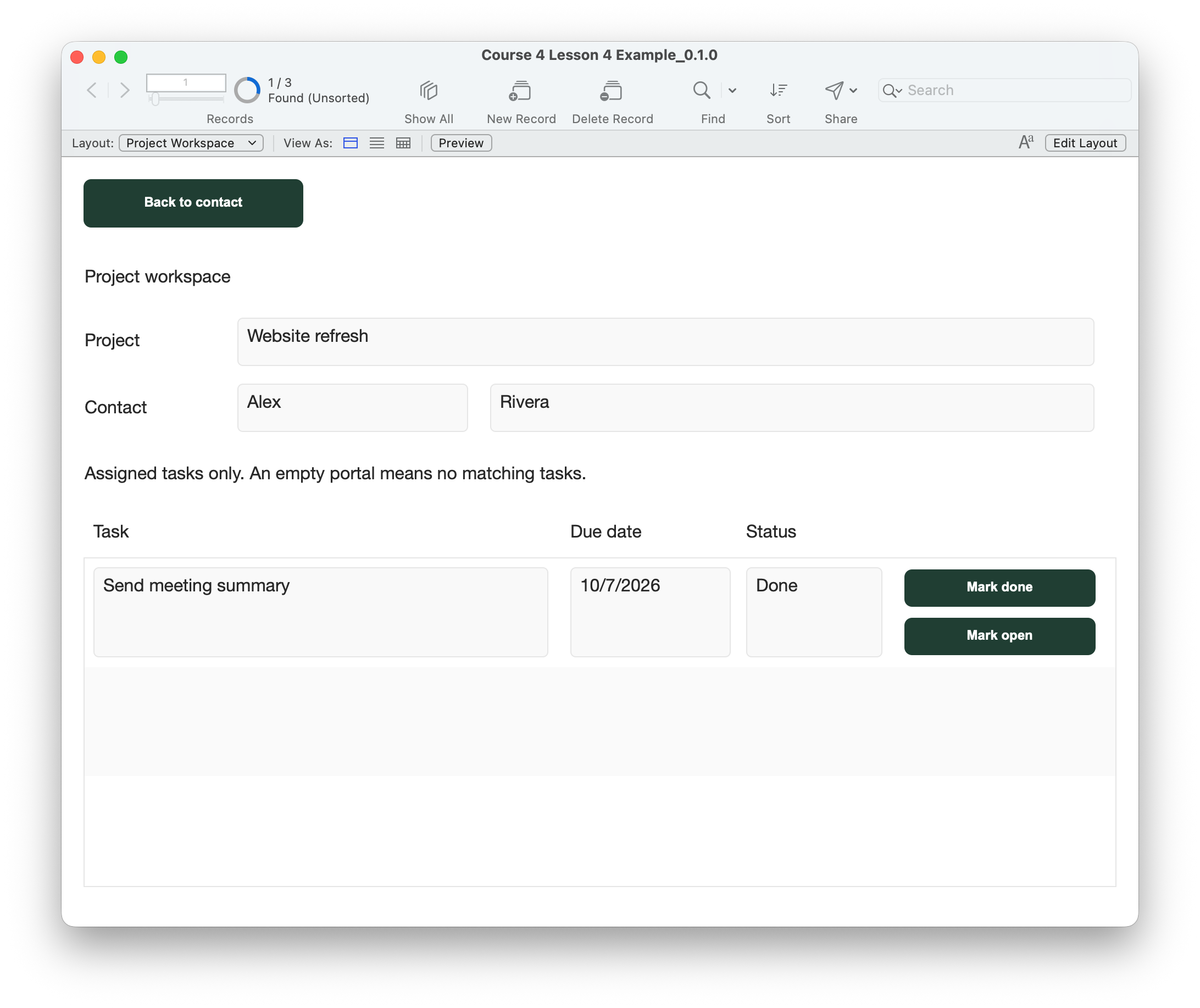
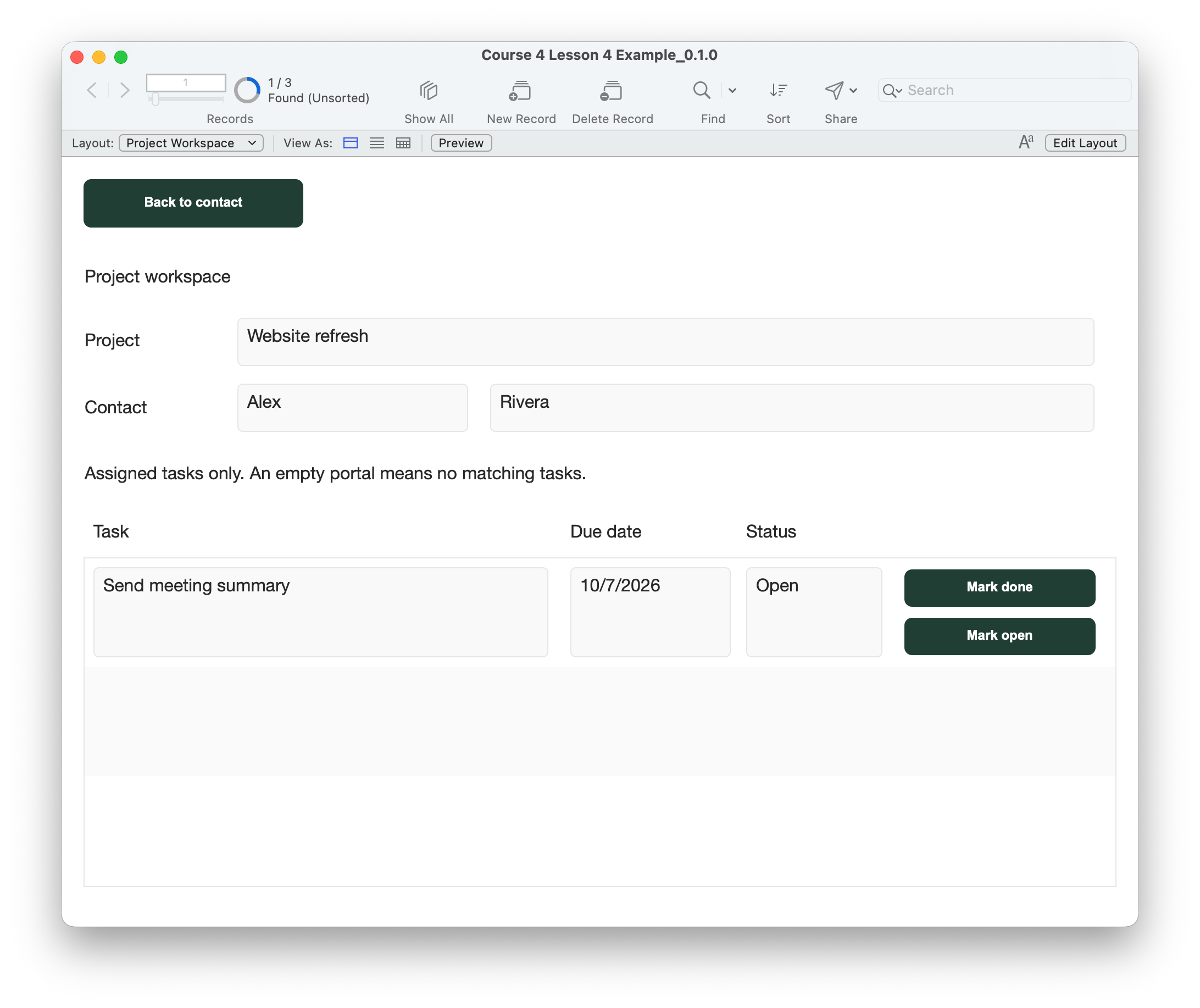
- Click Mark done on a task row, then Mark open. Only that task’s Status should change. The task text, due date, ContactID and ProjectID must stay intact. Check the same status on Task Project Links.
- Click Back to contact. Expect Rivera on Contact Project Hub with one contact found. Use Show All to browse other contacts. The button deliberately finds the owner; it does not restore the previous contact found set.
- Open Rivera’s Autumn workshop when it has no assigned tasks. Expect an empty portal and a working Back to contact button. An empty project is valid. Do not add a task merely to fill the portal.
- Open Morgan’s Website refresh from Morgan’s hub. Expect Morgan’s assigned task only. Rivera’s task must not appear despite the equal project names. Unassigned tasks must stay outside both portals.
- On a disposable copy, try Open project on the blank project-entry row. Expect a message and no new project. Check display fields on Project Workspace are read-only, task actions stay inside the correct row, and the portal scrolls when more than three tasks are assigned.
- Resize the window and check project names, task text, dates and buttons fit. Check the original Contact Projects entry screen, Lesson 3 chooser and earlier navigation still work. The workspace does not create, delete or reassign tasks; use the earlier task-entry and chooser screens for that work.
- Save and close, then reopen. Confirm the assignments and status changes remain, original record counts are unchanged except deliberate test additions, and both navigation directions still work.
Compare your result
Each workspace shows only tasks matching its project and contact. Equal project names stay separate; empty projects stay empty. Status buttons change only the clicked task. Back to contact finds the owner, and saved changes remain after reopening.
Check your understanding.
Choose one answer for every question. Answers and scores stay in this page.
Next: summarize project progress.
Lesson 5 adds total, Open and Done task counts, including a clear result for projects with no tasks.
Continue to Lesson 5 ↗Keep your latest saved working file.
Return to the course outline ↗