Continue with your unassigned tasks.
Back up your saved, closed Lesson 2 working file and continue in a copy. FileMaker Pro 26 desktop on macOS is required and sold separately. The starting download contains the latest saved Lesson 2 example, including its relationship-graph arrangement.
The completed example adds a chooser portal and its buttons/scripts. It does not preassign tasks or change the existing project records. You will make the first assignments in the practice activity. This exercise uses one local FileMaker window; it is not a multi-user security or concurrency design.
Start from Task Project Links → Choose project on the task you intend to change. Opening the chooser directly from the Layout menu does not prepare an assignment.
1. Show the current contact’s projects.
Lesson 2’s ProjectsForTask occurrence resolves the task’s saved ProjectID. The chooser needs a different question answered: which projects belong to this task’s contact, whether or not the task has a project yet?
- Open Manage Database → Relationships. Add another occurrence of the existing Projects table, named ProjectsForContact. Do not create a new base table.
- Join FollowUps::ContactID = ProjectsForContact::ContactID. This relationship has one equality pair.
- Keep related creation, deletion and sorting off on both sides. Keep ProjectsForTask’s two-match relationship unchanged.
| Occurrence | Job |
|---|---|
| Projects | Projects entered for a contact in Lesson 1. |
| ProjectsForTask | The assigned project: ProjectID and ContactID must both match. |
| ProjectsForContact | All candidate projects for the task’s contact: match ContactID. |
All three occurrences use the same Projects records. A portal shows every matching record, even when two names are equal. Display the full PrimaryKey below each name so the learner can distinguish those records without guessing.
2. Build a separate chooser screen.
- Create a Form View layout named Choose Task Project, based on FollowUps, using the same built-in theme as your other layouts. A single Body part is enough.
- At the top, display Contacts::FirstName, Contacts::LastName, FollowUps::Task and ProjectsForTask::ProjectName. Label the last field Current project; it is blank for an unassigned task.
- Add a portal named Project choices showing ProjectsForContact. Use three visible rows with a vertical scroll bar, no filter, no portal sort and no portal-row deletion. Related creation stays off, so this is a chooser, not a project-entry portal.
- Inside the first row, place ProjectsForContact::ProjectName, with ProjectsForContact::PrimaryKey below it. Give the key enough width to display all of it. Put an Apply button beside them, fully inside that row.
- Under the portal, add Clear project and Cancel buttons. Add a short instruction: Only this contact’s projects. Apply a row, clear the link, or cancel.
- Make all displayed fields View Only in Browse and Find modes. Keep labels and buttons anchored left/top, with field widths that fit the window. Do not put an editable ProjectID field on this screen.
The contact and task fields identify what you are changing. The portal identifies the available projects. A blank portal means this contact has no projects to choose; Cancel must still let you leave.
3. Read the small core action first.
The essential operation captures the selected project’s identity, saves that identity on the task and returns to the list.
Reading guide only. This excerpt omits context and save checks. Build the full scripts below before attaching or running a button.
FileMaker script
Set Variable [ $projectID ; Value: ProjectsForContact::PrimaryKey ]
Set Variable [ $ownerID ; Value: ProjectsForContact::ContactID ]
Commit Records/Requests [ With dialog: Off ]
Set Field [ FollowUps::ProjectID ; $projectID ]
Commit Records/Requests [ With dialog: Off ]
Go to Layout [ "Task Project Links" (FollowUps) ]
Keep the checks around the right steps.
- Begin commits the current task, remembers its key/contact/window in session variables, then opens the chooser using a direct layout reference. It does not change ProjectID.
- Apply requires the prepared task and an existing active portal row. It captures that row’s key and ContactID before Commit can leave the row, then checks the owner against the task’s ContactID.
- Saving changes only FollowUps::ProjectID. Check Get ( LastError ) immediately after each Commit and Set Field. Return to the task list only after a successful save.
- Clear stores an empty ProjectID after the same task-context and save checks. It deletes neither the task nor the project.
- Cancel clears the chooser’s session variables and returns. It refuses pending record edits so leaving cannot silently commit a failed assignment. Correct and commit, or use Records → Revert Record if you intend to discard the pending edits, before canceling.
The variables beginning $$ retain the prepared context between button presses until the file closes or the scripts clear them. They are temporary session state, not a saved project assignment. The project link itself is the stored ProjectID.
Do not navigate to another task or window mid-choice. If you do, the context check asks you to Cancel and start again. A failed commit may leave edits pending; an error message is not an automatic undo.
4. Add the full scripts.
In Script Workspace, create Project Choice UI and Project Choice Controller folders. Create the four controllers first, then the four corresponding UI handlers. Exclude all eight scripts from the Scripts menu. Use the native built-in functions shown; no custom functions are needed.
For Go to Layout steps, select the named layout directly from the list. For Commit, turn the dialog off and keep data-entry validation enabled. UI scripts turn Error Capture on, call their controller and display its returned message. Controllers return an empty result for success or an explanatory message for failure.
Full controller with safeguards: Project Choice | Begin
FileMaker script
# PURPOSE: Prepare a chooser for one existing task without assigning a project.
# HISTORY: 2026-OCT-08    Plato    Create Course 4 Lesson 3 project chooser.
If [ Get ( WindowMode ) ≠ 0 or Get ( LayoutName ) ≠ "Task Project Links" ]
    Exit Script [ "Start from Choose project on Task Project Links in Browse mode." ]
End If
If [ Get ( FoundCount ) = 0 or IsEmpty ( FollowUps::PrimaryKey ) or IsEmpty ( Contacts::PrimaryKey ) ]
    Exit Script [ "Choose an existing task with a valid contact first." ]
End If
Commit Records/Requests [ With dialog: Off ; Skip data entry validation: Off ]
If [ Get ( LastError ) ≠ 0 ]
    Exit Script [ "Correct and save the current entry before choosing a project." ]
End If
Set Variable [ $$projectChoiceTaskID ; Value: FollowUps::PrimaryKey ]
Set Variable [ $$projectChoiceContactID ; Value: FollowUps::ContactID ]
Set Variable [ $$projectChoiceWindow ; Value: Get ( WindowName ) ]
Go to Layout [ "Choose Task Project" (FollowUps) ; Animation: None ]
If [ Get ( LastError ) ≠ 0 ]
    Exit Script [ "The project chooser could not be opened." ]
End If
Exit Script [ "" ]
Full controller with safeguards: Project Choice | Apply
FileMaker script
# PURPOSE: Save only the clicked project key on the prepared task, retaining contact ownership.
# HISTORY: 2026-OCT-08    Plato    Create Course 4 Lesson 3 project chooser.
If [ Get ( WindowMode ) ≠ 0 or Get ( LayoutName ) ≠ "Choose Task Project" ]
    Exit Script [ "Use the project chooser in Browse mode." ]
End If
If [ IsEmpty ( $$projectChoiceTaskID ) or FollowUps::PrimaryKey ≠ $$projectChoiceTaskID or FollowUps::ContactID ≠ $$projectChoiceContactID or Get ( WindowName ) ≠ $$projectChoiceWindow ]
    Exit Script [ "The task context changed. Cancel and choose the task again from Task Project Links." ]
End If
If [ Get ( ActivePortalRowNumber ) = 0 or IsEmpty ( ProjectsForContact::PrimaryKey ) ]
    Exit Script [ "Apply must be used on an existing project row." ]
End If
Set Variable [ $projectID ; Value: ProjectsForContact::PrimaryKey ]
Set Variable [ $ownerID ; Value: ProjectsForContact::ContactID ]
If [ $ownerID ≠ FollowUps::ContactID ]
    Exit Script [ "This project belongs to a different contact. No assignment was made." ]
End If
Commit Records/Requests [ With dialog: Off ; Skip data entry validation: Off ]
If [ Get ( LastError ) ≠ 0 ]
    Exit Script [ "Correct and save the current entry before applying a project." ]
End If
Set Field [ FollowUps::ProjectID ; $projectID ]
If [ Get ( LastError ) ≠ 0 ]
    Exit Script [ "The project key could not be changed. No success was reported." ]
End If
Commit Records/Requests [ With dialog: Off ; Skip data entry validation: Off ]
If [ Get ( LastError ) ≠ 0 ]
    Exit Script [ "The assignment was not saved. Edits may be pending; correct and commit them before continuing." ]
End If
Set Variable [ $$projectChoiceTaskID ; Value: "" ]
Set Variable [ $$projectChoiceContactID ; Value: "" ]
Set Variable [ $$projectChoiceWindow ; Value: "" ]
Go to Layout [ "Task Project Links" (FollowUps) ; Animation: None ]
If [ Get ( LastError ) ≠ 0 ]
    Exit Script [ "The action finished, but the task list could not be opened. Use the Layout menu." ]
End If
Exit Script [ "" ]
Full controller with safeguards: Project Choice | Clear
FileMaker script
# PURPOSE: Remove only the prepared task’s optional project link; preserve the task and project.
# HISTORY: 2026-OCT-08    Plato    Create Course 4 Lesson 3 project chooser.
If [ Get ( WindowMode ) ≠ 0 or Get ( LayoutName ) ≠ "Choose Task Project" ]
    Exit Script [ "Use the project chooser in Browse mode." ]
End If
If [ IsEmpty ( $$projectChoiceTaskID ) or FollowUps::PrimaryKey ≠ $$projectChoiceTaskID or FollowUps::ContactID ≠ $$projectChoiceContactID or Get ( WindowName ) ≠ $$projectChoiceWindow ]
    Exit Script [ "The task context changed. Cancel and choose the task again from Task Project Links." ]
End If
Commit Records/Requests [ With dialog: Off ; Skip data entry validation: Off ]
If [ Get ( LastError ) ≠ 0 ]
    Exit Script [ "Correct and save the current entry before clearing its project." ]
End If
Set Field [ FollowUps::ProjectID ; "" ]
If [ Get ( LastError ) ≠ 0 ]
    Exit Script [ "The project key could not be cleared." ]
End If
Commit Records/Requests [ With dialog: Off ; Skip data entry validation: Off ]
If [ Get ( LastError ) ≠ 0 ]
    Exit Script [ "Clearing the link was not saved. Edits may be pending; correct and commit them before continuing." ]
End If
Set Variable [ $$projectChoiceTaskID ; Value: "" ]
Set Variable [ $$projectChoiceContactID ; Value: "" ]
Set Variable [ $$projectChoiceWindow ; Value: "" ]
Go to Layout [ "Task Project Links" (FollowUps) ; Animation: None ]
If [ Get ( LastError ) ≠ 0 ]
    Exit Script [ "The action finished, but the task list could not be opened. Use the Layout menu." ]
End If
Exit Script [ "" ]
Full controller with safeguards: Project Choice | Cancel
FileMaker script
# PURPOSE: Leave the chooser without changing a project assignment.
# HISTORY: 2026-OCT-08    Plato    Create Course 4 Lesson 3 project chooser.
If [ Get ( WindowMode ) ≠ 0 or Get ( LayoutName ) ≠ "Choose Task Project" ]
    Exit Script [ "Use Cancel on the project chooser in Browse mode." ]
End If
If [ Get ( RecordOpenState ) ≠ 0 ]
    Exit Script [ "This record has pending edits. Correct and commit them, or use Records > Revert Record before canceling. Cancel is not an undo of a failed save." ]
End If
Set Variable [ $$projectChoiceTaskID ; Value: "" ]
Set Variable [ $$projectChoiceContactID ; Value: "" ]
Set Variable [ $$projectChoiceWindow ; Value: "" ]
Go to Layout [ "Task Project Links" (FollowUps) ; Animation: None ]
If [ Get ( LastError ) ≠ 0 ]
    Exit Script [ "The action finished, but the task list could not be opened. Use the Layout menu." ]
End If
Exit Script [ "" ]
Full UI handler: Project Choice | Begin Button Pressed
FileMaker script
# PURPOSE: Run the project-choice action and display any returned error.
# HISTORY: 2026-OCT-08    Plato    Create Course 4 Lesson 3 project chooser.
Set Error Capture [ On ]
Allow User Abort [ Off ]
Perform Script [ "Project Choice | Begin" ]
If [ Get ( ScriptResult ) ≠ "" ]
    Show Custom Dialog [ "Choose project" ; Get ( ScriptResult ) ]
End If
Full UI handler: Project Choice | Apply Button Pressed
FileMaker script
# PURPOSE: Run the project-choice action and display any returned error.
# HISTORY: 2026-OCT-08    Plato    Create Course 4 Lesson 3 project chooser.
Set Error Capture [ On ]
Allow User Abort [ Off ]
Perform Script [ "Project Choice | Apply" ]
If [ Get ( ScriptResult ) ≠ "" ]
    Show Custom Dialog [ "Choose project" ; Get ( ScriptResult ) ]
End If
Full UI handler: Project Choice | Clear Button Pressed
FileMaker script
# PURPOSE: Run the project-choice action and display any returned error.
# HISTORY: 2026-OCT-08    Plato    Create Course 4 Lesson 3 project chooser.
Set Error Capture [ On ]
Allow User Abort [ Off ]
Perform Script [ "Project Choice | Clear" ]
If [ Get ( ScriptResult ) ≠ "" ]
    Show Custom Dialog [ "Choose project" ; Get ( ScriptResult ) ]
End If
Full UI handler: Project Choice | Cancel Button Pressed
FileMaker script
# PURPOSE: Run the project-choice action and display any returned error.
# HISTORY: 2026-OCT-08    Plato    Create Course 4 Lesson 3 project chooser.
Set Error Capture [ On ]
Allow User Abort [ Off ]
Perform Script [ "Project Choice | Cancel" ]
If [ Get ( ScriptResult ) ≠ "" ]
    Show Custom Dialog [ "Choose project" ; Get ( ScriptResult ) ]
End IfAssign the two Website refresh projects correctly.
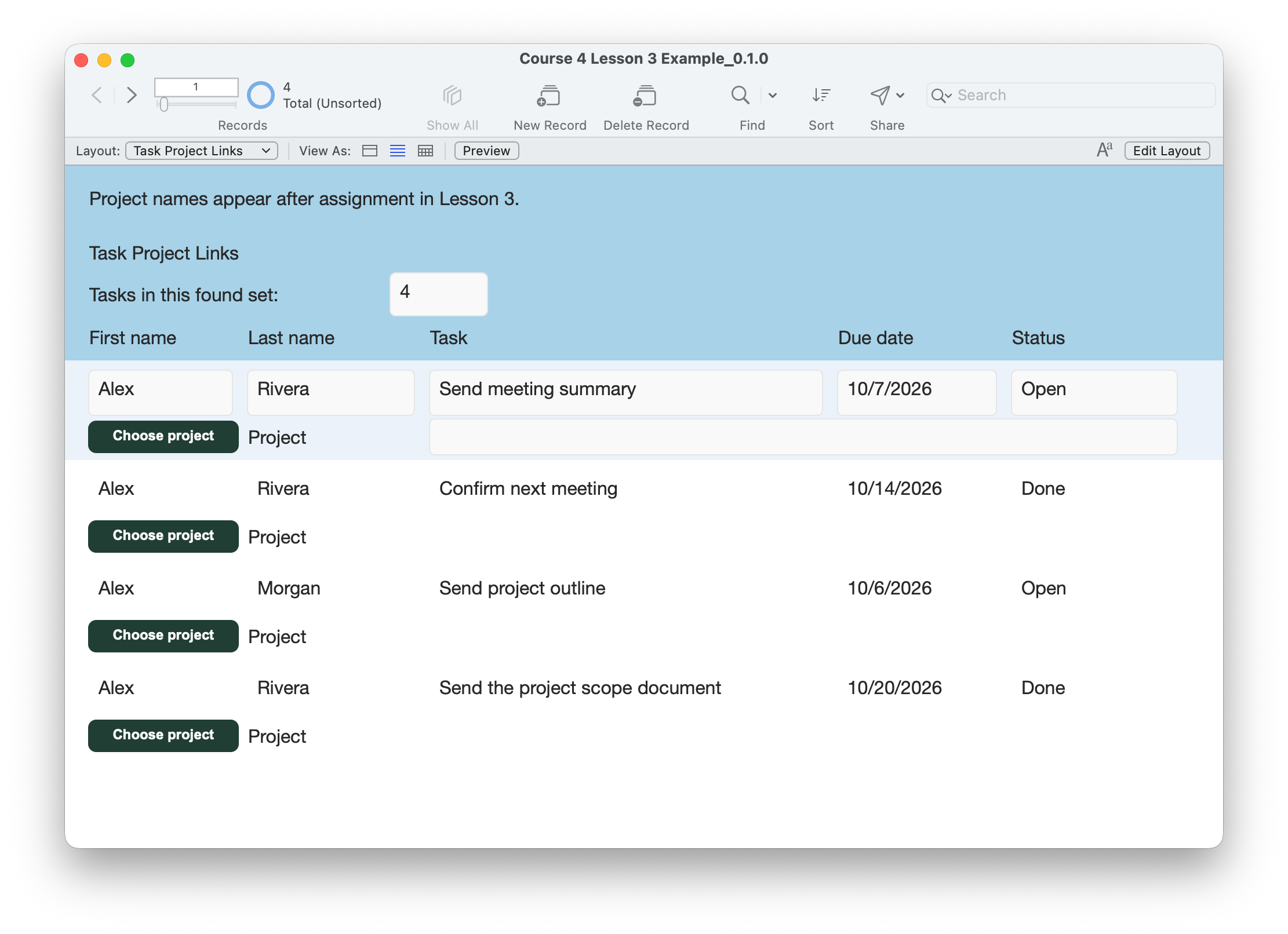
- Work in a disposable copy. Open Task Project Links, Browse mode, List View; Show All. Note the task and contact counts. The supplied file starts with four tasks and no project assignments.
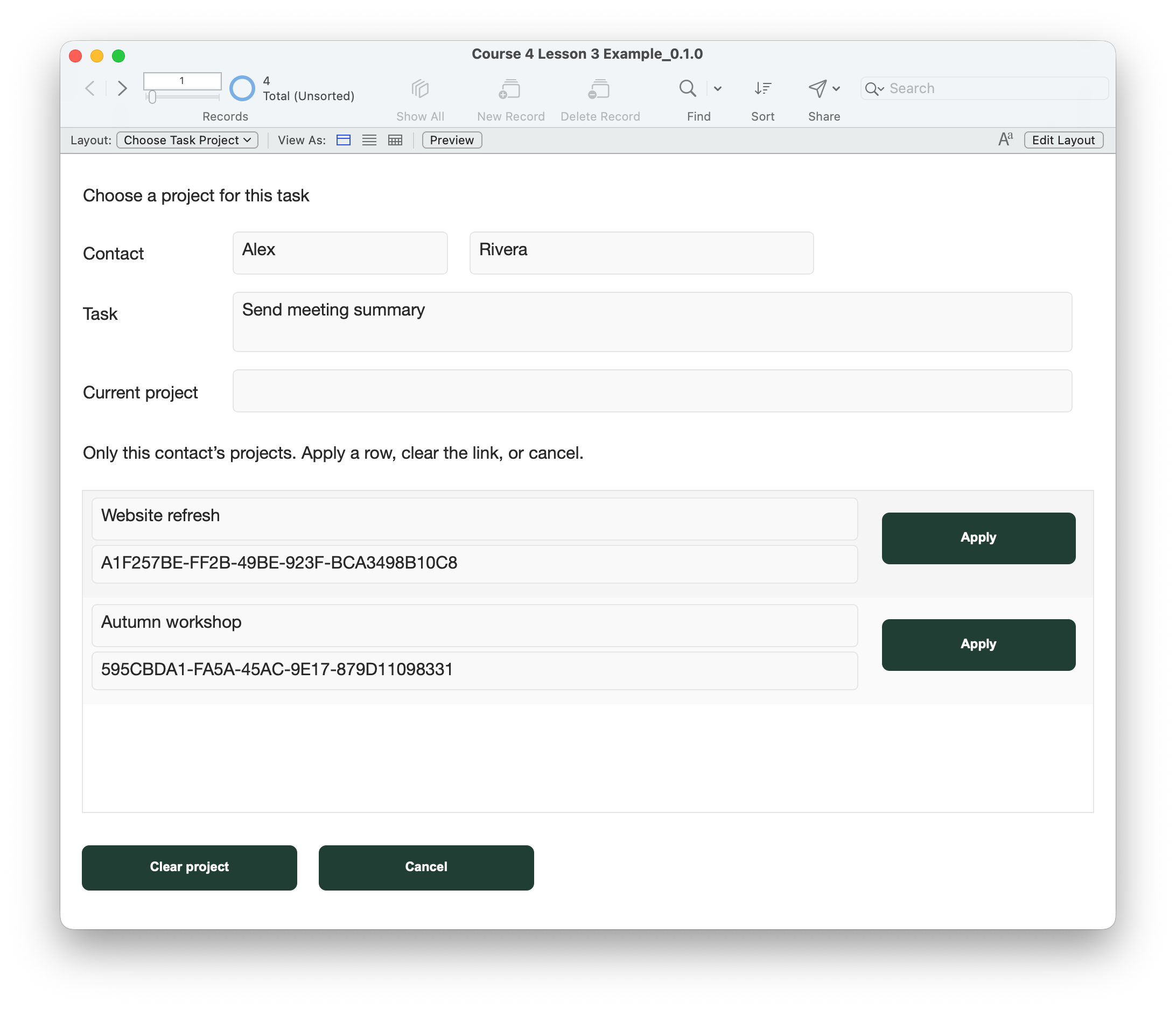
- On Rivera’s Send meeting summary, click Choose project. Confirm Rivera and that task appear at the top. Expect Website refresh and Autumn workshop, each with its own full ID. Morgan’s separate project must not appear.
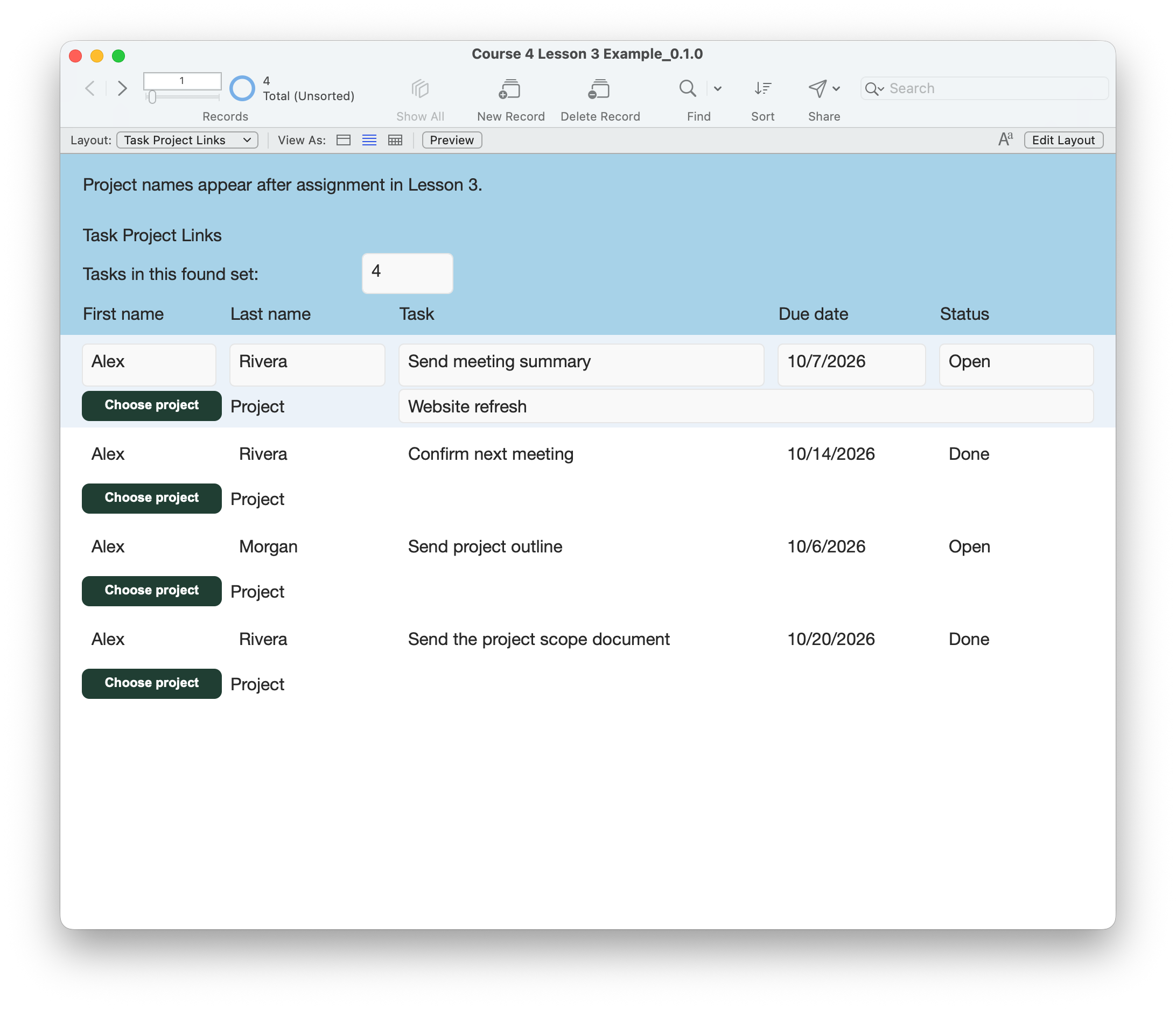
- Click Apply on Rivera’s Website refresh row. The chooser returns to Task Project Links. That task should now display Website refresh. Check its task text, date, status and contact are unchanged; other tasks should remain unassigned.
- On Morgan’s Send project outline, click Choose project. Expect only Morgan’s Website refresh. Apply it. Both tasks now display the same project name but store different project keys.
- Open Rivera’s chooser again and click Cancel without applying. The existing assignment must stay. Open it again and click Clear project. The task’s project display becomes blank; the task and both project records remain. Reassign Website refresh for the next lesson.
- On a disposable copy, create another project with the same name for Rivera using Contact Projects. Reopen Rivera’s chooser: both records should appear with different IDs. Choose deliberately; do not rely on row order. The chooser does not combine equal names.
- For a task whose contact has no projects, expect an empty chooser and a working Cancel button. Create any test task through your existing contact task-entry screen. Do not create or delete records merely to match a screenshot; keep test additions in a disposable copy.
- On a disposable copy, enter Choose Task Project directly from the Layout menu, or move to another task while the chooser is open. Apply/Clear should reject an unprepared or changed task. Use Cancel and start again from the intended task’s Choose project button.
- Check the fields cannot be edited on the chooser, the portal scrolls when needed, and the complete project names, IDs and buttons fit. Check earlier task controls and project entry still work.
- Save and close, then reopen. Confirm Rivera’s and Morgan’s tasks still show their intended projects, with original counts except deliberate test additions. Keep this saved working file.
Compare your result
Rivera’s selected task points to Rivera’s Website refresh; Morgan’s task points to Morgan’s separate Website refresh. The displayed names are equal, but the stored keys differ. Other task fields and records stay intact. Cancel makes no assignment; Clear removes only the optional link. Saved assignments survive reopening.
Check your understanding.
Choose one answer for every question. Answers and scores stay in this page.
Next: build a project workspace.
Open a project, work with its assigned tasks and return to its contact.
Start Lesson 4 ↗