Connect screens you already have.
Save and close your Lesson 4 working file, make a backup, then continue in a copy. Keep the All/Open portal, earlier task actions and corrected Overdue cue.
The starting download contains the latest saved Lesson 4 Example 0.1.0. The completed example adds one repeated button to Follow-up Overview and two scripts in UI/Controller folders. No new fields or relationships are needed.
1. Let the relationship identify the contact.
Follow-up Overview is based on FollowUps. Each task’s ContactID matches its contact’s PrimaryKey through the existing relationship. The related Contacts fields already display that person’s name.
Both example contacts are named Alex. Searching by first name would be ambiguous; searching by a displayed name is unnecessary. Go to Related Record follows the stored link instead.
The button belongs to a task row. Clicking it makes that task current before the script runs. This lesson starts from the overview’s Body, not from a portal row.
2. Specify the destination directly.
The central navigation step is:
FileMaker script
Go to Related Record [ Show only related records ; Match current record only ;
    From table: "Contacts" ; Using layout: "Contact Task Views" (Contacts) ]
This is an incomplete teaching excerpt. Build the complete controller and UI handler below before binding the button.
- In Script Workspace, create Related Contact UI and Related Contact Controller folders.
- Create Related Contact | Open Contact in Controller. Use the complete listing below. The script checks Browse mode, Follow-up Overview and an existing task, then commits with validation.
- After a successful commit, check both the task’s ContactID and the related Contacts::PrimaryKey. If either is empty, return the missing-link message and stop.
- Add Go to Related Record. Set Get related record from: Contacts. Select Contact Task Views directly under Show record using layout. Its table occurrence must be Contacts. Do not use a calculated layout name.
- Select Show only related records → Match current record only. Leave Show in new window and Use external table’s layouts off. This example stays in the same window.
- Check Get ( LastError ) immediately after navigation and stop on failure. Return an empty string on success.
The controller performs navigation; the UI handler displays its returned message. A missing related record can leave FileMaker on the source layout, so later actions must not assume navigation succeeded.
Full controller with safeguards
FileMaker script
# PURPOSE: Open the contact related by ID to the current task; match this record only.
# HISTORY: 2026-OCT-08    Plato    Create Course 3 Lesson 5 related-contact navigation.
If [ Get ( WindowMode ) ≠ 0 or Get ( LayoutName ) ≠ "Follow-up Overview" ]
    Exit Script [ "Use Open contact on Follow-up Overview in Browse mode." ]
End If
If [ Get ( FoundCount ) = 0 or IsEmpty ( FollowUps::PrimaryKey ) ]
    Exit Script [ "Choose an existing task first." ]
End If
Commit Records/Requests [ With dialog: Off ; Skip data entry validation: Off ]
If [ Get ( LastError ) ≠ 0 ]
    Exit Script [ "Finish or correct the current entry before opening its contact." ]
End If
If [ IsEmpty ( FollowUps::ContactID ) or IsEmpty ( Contacts::PrimaryKey ) ]
    Exit Script [ "This task has no linked contact. Return to the original data or ask for help; do not guess from the name." ]
End If
Go to Related Record [ Show only related records ; Match current record only ; From table: "Contacts" ; Using layout: "Contact Task Views" (Contacts) ]
If [ Get ( LastError ) ≠ 0 ]
    Exit Script [ "The linked contact could not be opened. No further action was taken." ]
End If
Exit Script [ "" ]
Create Related Contact | Open Button Pressed in UI. Keep both new scripts excluded from the Scripts menu and leave their full-access execution option off.
Full UI handler with safeguards
FileMaker script
# PURPOSE: Open the clicked task’s related contact and display any returned message.
# HISTORY: 2026-OCT-08    Plato    Create Course 3 Lesson 5 related-contact navigation.
Set Error Capture [ On ]
Allow User Abort [ Off ]
Perform Script [ "Related Contact | Open Contact" ]
If [ Get ( ScriptResult ) ≠ "" ]
    Show Custom Dialog [ "Open contact" ; Get ( ScriptResult ) ]
End If4. Explain what changed—and how to return.
Show only related records gives the destination a found set containing the contact related to the selected task. If four contacts exist, the toolbar may show 1 / 4 Found. No contacts were deleted. Use the toolbar’s Show All on the contact layout when you want all contacts again.
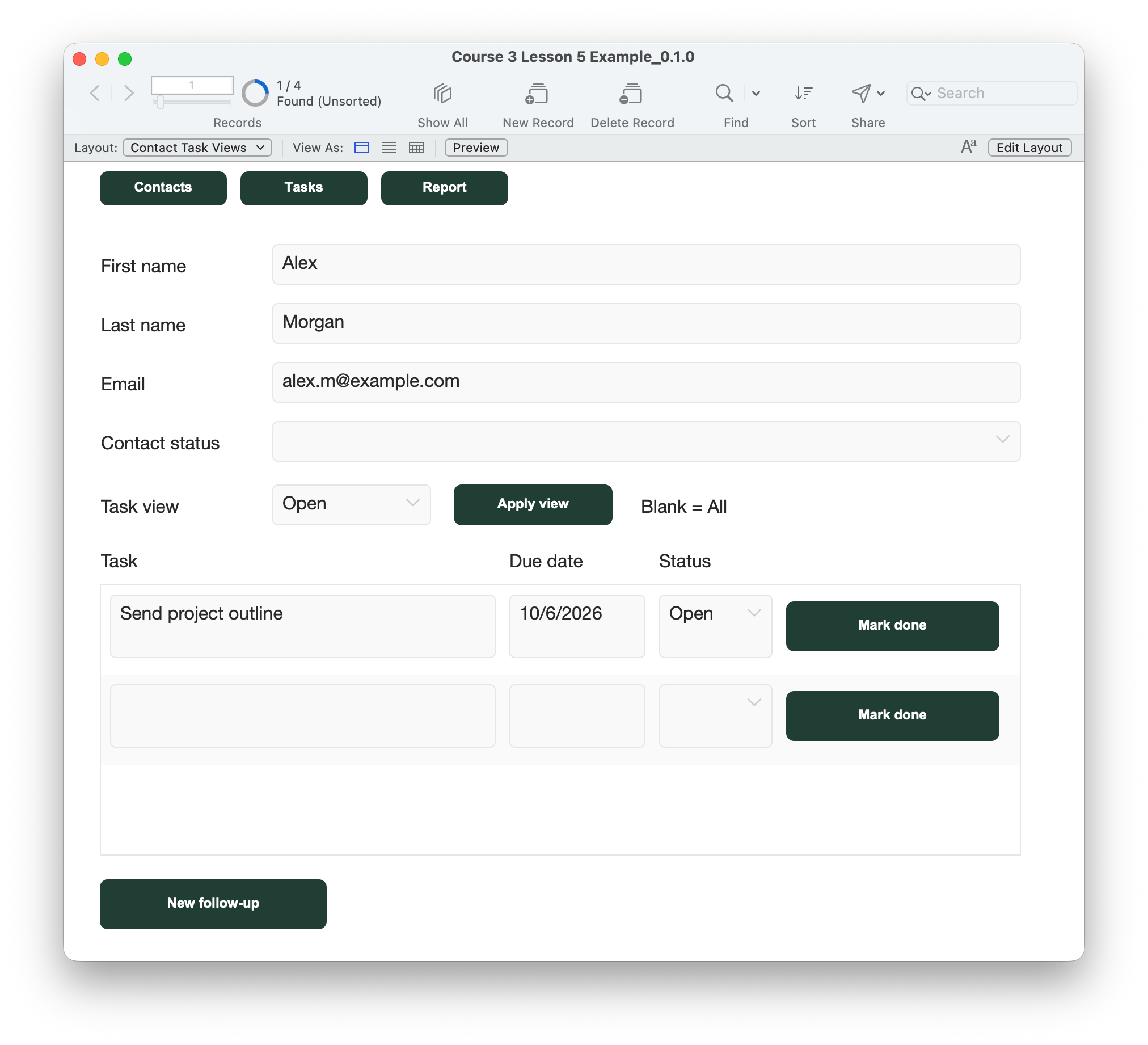
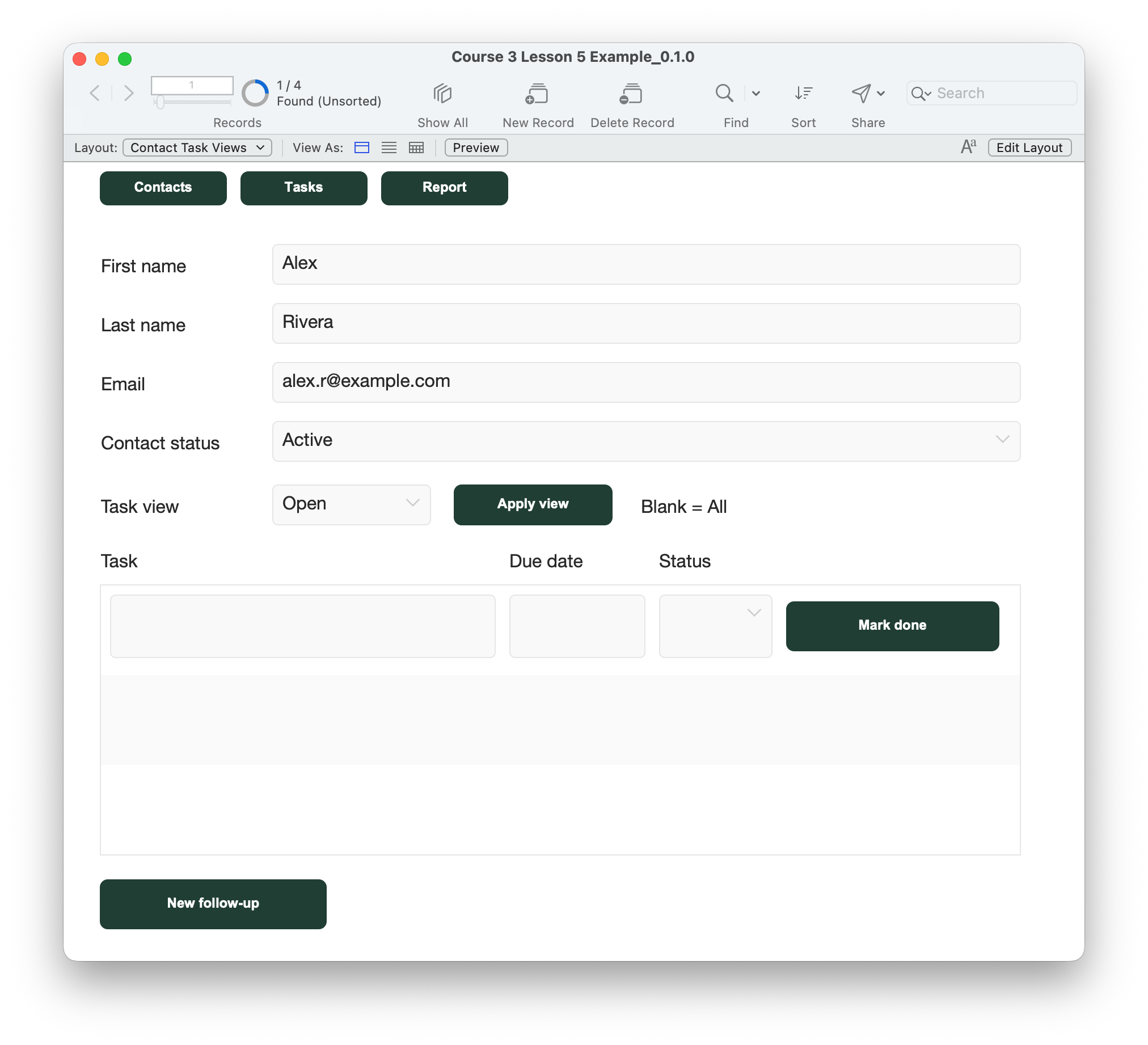
Contact Task Views keeps the global All/Open choice from Lesson 4. An Open view can be empty for Rivera because Rivera’s tasks are Done. Choose All and Apply view to reveal those tasks. Portal rows and the Contacts found set remain different concepts.
The Tasks button returns to Follow-up Overview. It does not run a new task find, so the previous task found set remains available. Use All tasks if you want the complete list. The existing Contacts Header button is general navigation; Open contact is the action that selects the person linked to a particular task.
Use the two Alex contacts to prove it.
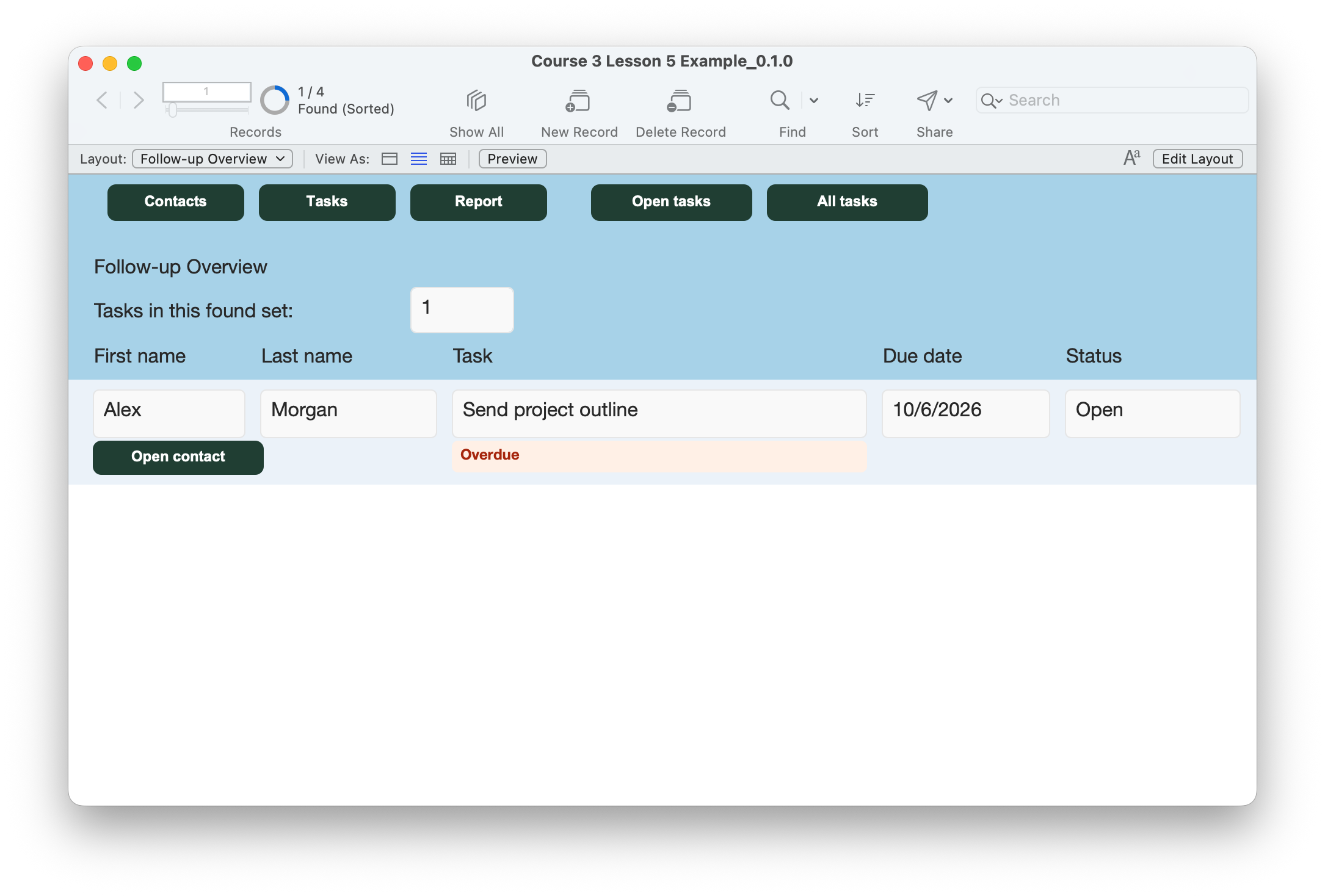
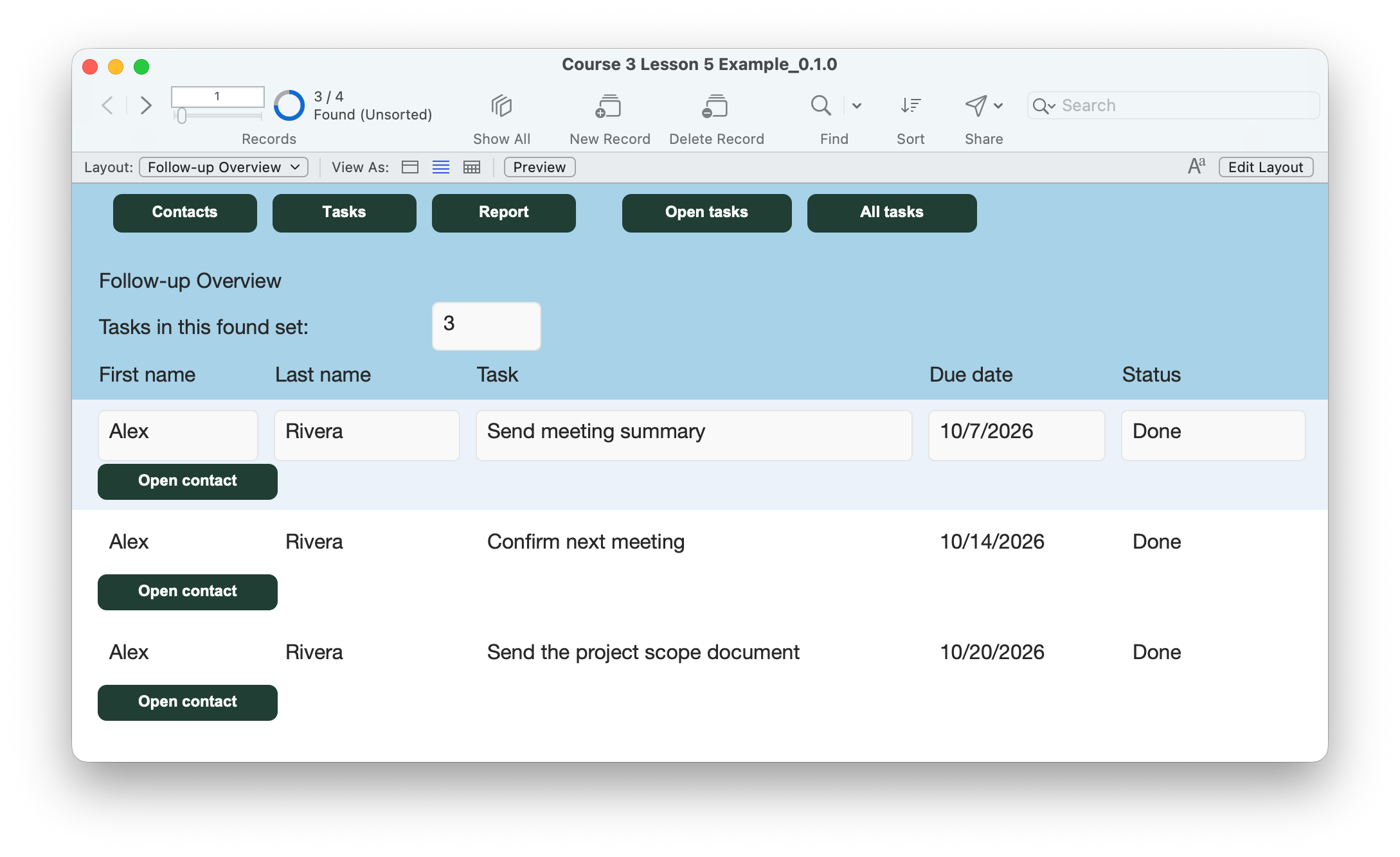
- Use a disposable practice copy. Open Follow-up Overview in Browse mode, List View. Click All tasks and note the task found-set count.
- On Alex Morgan’s “Send project outline” row, click Open contact. Expect Contact Task Views showing Alex Morgan and alex.m@example.com. The destination toolbar counts Contacts and should show one related contact in its found set.
- Click Tasks to return. On an Alex Rivera task row, click Open contact. Expect Rivera and alex.r@example.com. The shared first name Alex must not affect the result.
- On the contact layout, choose All and Apply view to compare that contact’s tasks. Choose Open and Apply view. Rivera may have no matching Open tasks; that does not mean the contact or its Done tasks disappeared.
- On Contact Task Views use the toolbar’s Show All to restore all contacts. Return with Tasks. On the overview click Open tasks, then open Morgan and return again. Confirm the task found set remains the Open result. All tasks restores the full task list.
- In a disposable copy, clear a task’s required Task text and click Open contact. Expect a save/validation message and no navigation. Restore the text and commit.
- Test a missing link only in a disposable copy: on the Follow-up List table, temporarily display FollowUps::ContactID using Modify, copy one task’s original value into a temporary note, and replace it with a unique test value such as missing-contact-test. Commit, return to Follow-up Overview, and click that row’s Open contact. Expect a message and no navigation. Restore the exact original ContactID and verify the link, or discard the entire practice copy. Never edit Contacts::PrimaryKey or do this in your main file.
- In a disposable copy, set all tasks to Done and run Open tasks. Expect the existing no-matches message and no Body row buttons. Recover with All tasks; discard this test copy afterward.
- Check that each Open contact button fits beside the Overdue cue and opens its own row. Check existing portal entry/completion, navigation, searches and report return. Save, close and reopen; repeat the Morgan/Rivera navigation checks.
Compare your result
Morgan’s task opens Morgan; Rivera’s tasks open Rivera. Task and contact IDs are unchanged during normal navigation. Invalid entries stop before navigation, missing links show a message, and Tasks returns to the task overview. The Contacts found set changes deliberately, while the portal choice stays global.
Check your understanding.
Choose one answer for every question. Answers and scores stay in this page.
Next: reopen a task and finish the workflow.
Continue to Lesson 6 to add Mark open and bring the full workflow together. Keep your completed working file.
Return to the course outline ↗