Keep the work you already built.
Save and close your Lesson 5 file, back it up and continue in a copy. The starting download includes the latest layout auto-sizing corrections. The completed example adds two scripts and a Mark open button to Contact Task Views. Existing tables, fields, relationships, scripts and records are preserved.
Open Layout menu → Contact Task Views, Browse mode, Form View. Choose All and click Apply view to reveal Done tasks. The existing Contacts navigation button opens Contact Actions; use the layout menu or the overview’s Open contact action to reach Contact Task Views.
Example download revision 0.1.1 corrects the Mark open blank-row warning. The screenshots show 0.1.0; the layout is unchanged.
1. Make the result explicit.
Mark done always sets Done. Mark open always sets Open. Separate labels tell the learner what each click will do; neither action guesses which direction to toggle.
FileMaker script
Set Field [ FollowUps::Status ; "Open" ]
Commit Records/Requests [ With dialog: Off ; Skip data entry validation: Off ]
Refresh Portal [ Object Name: "FollowUps portal" ]
This is an incomplete reading guide for the successful path. Add the guards and error checks in the full scripts below before binding or running the button. Mark open does not change the task’s date, description or IDs, create a record, or modify Contacts::ContactStatus.
Open hides completed tasks, so start in All to reopen one. Reopening an already Open task leaves it Open. A reopened task due before today can become Overdue again when the overview evaluates its indicator.
2. Reuse the structure you know.
- In Script Workspace, create Task Reopening UI and Task Reopening Controller folders.
- Duplicate Portal Views | Mark Done into the new Controller folder. Name it Task Reopening | Mark Open. Replace the copied purpose/history with a new creation entry for this action.
- Keep the Browse-mode and Contact Task Views layout guard. Keep the active portal row and nonempty FollowUps::PrimaryKey guard before Set Field. Do not commit or navigate away before identifying the clicked row.
- Change the Set Field result from "Done" to "Open", keeping the target FollowUps::Status. Keep the immediate error check.
- Commit with validation enabled and check its error immediately. Only after a successful commit, refresh the named FollowUps portal and check that result. Return an empty string on success or a clear message on failure.
Full controller with safeguards
FileMaker script
# PURPOSE: Set only the clicked existing task Open, commit, then refresh the filtered portal.
# HISTORY: 2026-OCT-08    Plato    Create Course 3 Lesson 6 task reopening.
 HISTORY: 2026-OCT-08    Plato    Correct the blank-row message to name Mark open.
If [ Get ( WindowMode ) ≠ 0 or Get ( LayoutName ) ≠ "Contact Task Views" ]
    Exit Script [ "Use Browse mode on Contact Task Views." ]
End If
If [ Get ( ActivePortalRowNumber ) = 0 or IsEmpty ( FollowUps::PrimaryKey ) ]
    Exit Script [ "Choose Mark open on an existing task, not the blank row." ]
End If
Set Field [ FollowUps::Status ; "Open" ]
If [ Get ( LastError ) ≠ 0 ]
    Exit Script [ "The task could not be changed. It may be locked or unavailable." ]
End If
Commit Records/Requests [ With dialog: Off ; Skip data entry validation: Off ]
If [ Get ( LastError ) ≠ 0 ]
    Exit Script [ "The change could not be saved. Correct the task, due date or other invalid entry, then commit again. Do not assume it is saved yet." ]
End If
Refresh Portal [ Object Name: "FollowUps portal" ]
If [ Get ( LastError ) ≠ 0 ]
    Exit Script [ "The task was saved, but the portal could not be refreshed. Apply the view again." ]
End If
Exit Script [ "" ]
Duplicate Portal Views | Mark Done Button Pressed into the new UI folder and name it Task Reopening | Mark Open Button Pressed. Update its comments, select the new controller directly in Perform Script, and use Reopen task as the dialog title. Keep both scripts out of the Scripts menu and leave full-access execution off.
Full UI handler with safeguards
FileMaker script
# PURPOSE: Run the reopen action and display its returned message.
# HISTORY: 2026-OCT-08    Plato    Create Course 3 Lesson 6 task reopening.
Set Error Capture [ On ]
Allow User Abort [ Off ]
Perform Script [ "Task Reopening | Mark Open" ]
If [ Get ( ScriptResult ) ≠ "" ]
    Show Custom Dialog [ "Reopen task" ; Get ( ScriptResult ) ]
End If
A failed save is not an undo.
Set Field can change the value in the edit buffer before Commit reports a validation error. The controller returns a message and stops; it does not silently revert other edits. Correct the entry and commit again. A refresh failure after a successful commit means the task was saved but its display needs refreshing.
4. Connect the screens deliberately.
| Action | What it controls |
|---|---|
| All / Open + Apply view | Which related tasks this contact’s portal displays |
| Mark done / Mark open | Status of the clicked existing task |
| Tasks → Open tasks / All tasks | The task found set used by the overview and report |
| Open contact on a task row | The one contact linked to that task by ID |
| Report | A printable view of the current task found set |
Changing a task status does not automatically rerun an earlier find. Run Open tasks again when you want the current matching set. A contact’s portal filter also does not choose the report’s records. Before exporting, select the intended task found set and inspect Preview.
Run the complete workflow.
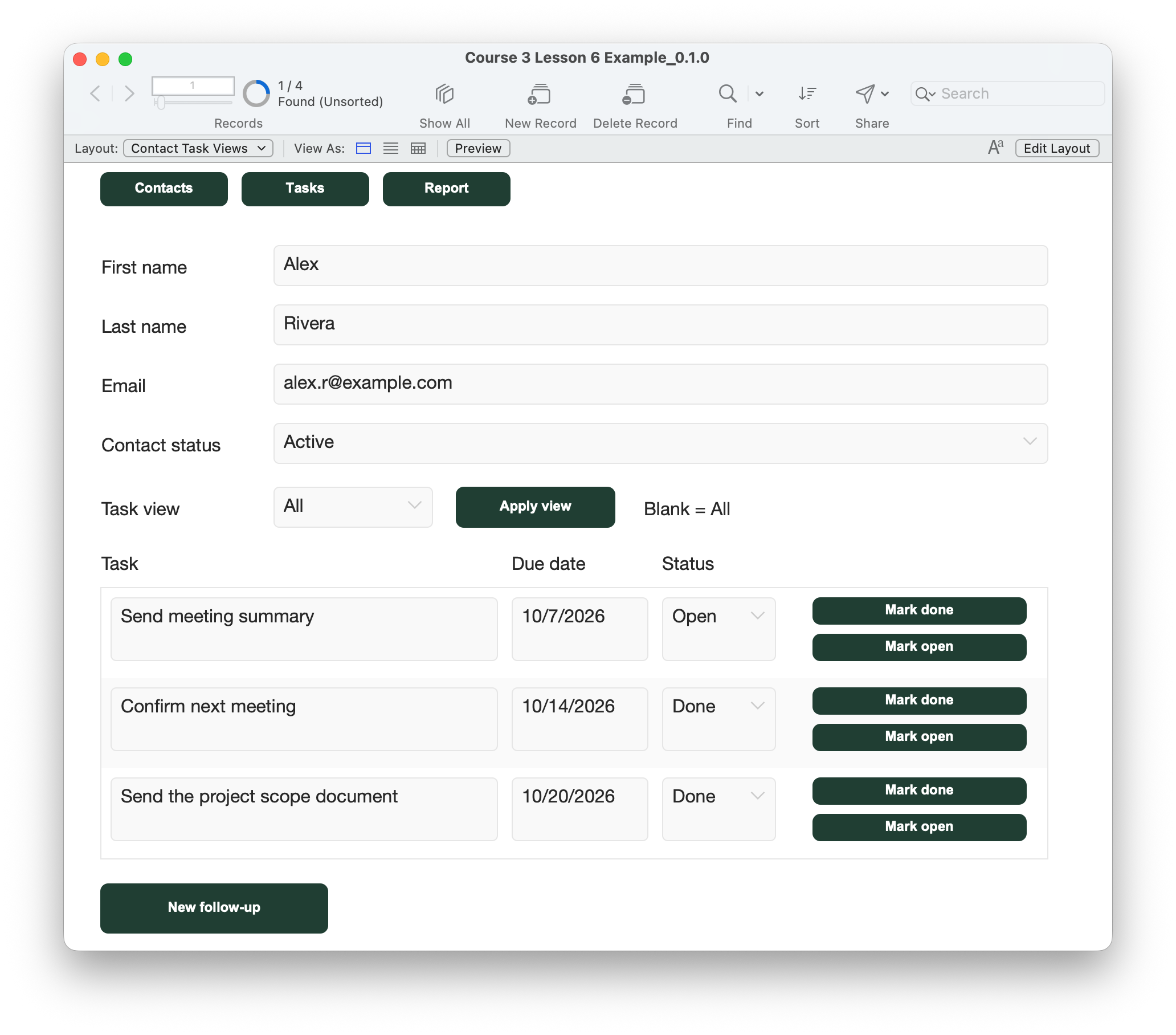
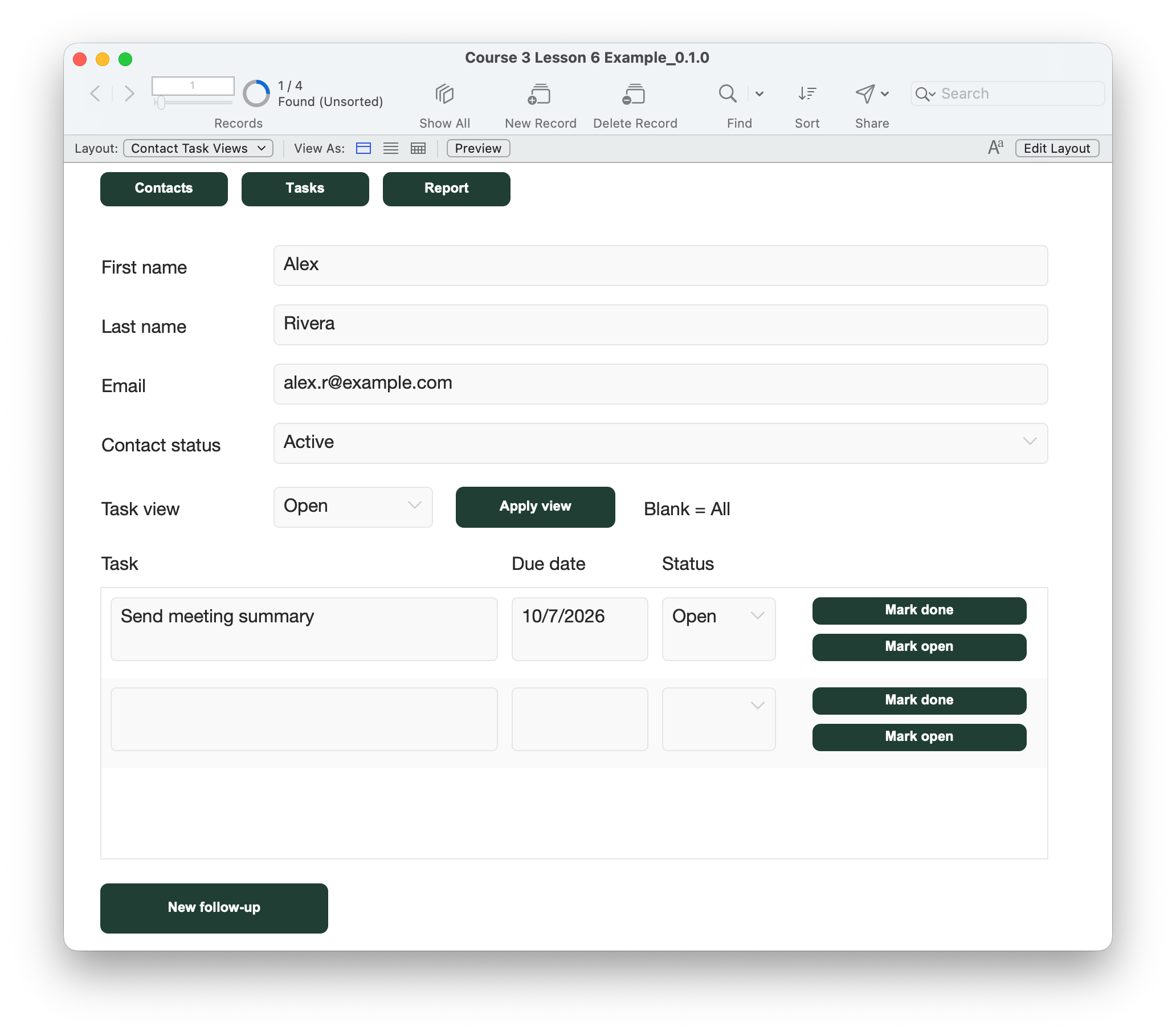
- Work in a disposable copy. On Contact Task Views, choose a contact, select All and click Apply view. Record the contact and task counts before changing anything.
- Use New follow-up to enter Confirm revised delivery date, a valid due date and Status Open. Commit the entry. You should have exactly one additional task and no additional contact.
- Click Mark done on that task. Under Open it disappears; All and Apply view reveals it again. This is filtering, not deletion.
- Click Mark open on the same task. Its Status becomes Open. Its text, due date, ContactID and PrimaryKey must stay the same; other tasks and Contacts::ContactStatus must not change. Click Mark open again: it stays Open without creating a duplicate.
- Select Open and Apply view. Confirm the reopened task appears. Use Tasks, then Open tasks to run a fresh find. Find the reopened task and use its Open contact button. Confirm the correct person opens, especially when both contacts are named Alex.
- On Tasks, deliberately choose Open tasks or All tasks for the report you intend to produce. Note the task count, then open Report. Check the intended rows, count, sort and page width in Preview. Save as PDF for records being browsed, and inspect the PDF. Exit Preview and use Back to Tasks.
- In All, click Mark open on a genuinely empty portal entry row. Expect a message and no new task. If three rows are already filled, use a contact with fewer tasks or scroll to the blank row; do not delete a task just to make space.
- In a separate disposable copy, leave an invalid entry in a validated field and try the action. A validation/save error must not be presented as success. Correct the entry and commit, or discard this test copy. A failed commit can leave edits pending; it is not an automatic undo.
- Recheck New follow-up, Mark done, All/Open portal views, Open tasks/All tasks, related-contact navigation and report return. Resize the window and check both row buttons, full field values and the Overdue cue. An Open task due before today can show Overdue; a Done task must not.
- Save and close the file, reopen it and verify the same task remains Open. Confirm counts, IDs and unrelated records are unchanged except for your one deliberately added task. Keep this completed working file and a closed-file backup.
Compare your result
Your new task can move from Open to Done and back to Open. Reopening changes one task’s status, preserves its link and survives closing the file. The overview’s search finds it again; Open contact reaches the right person; the report contains the task set you deliberately selected. Blank-row actions do not create records.
Check your understanding.
Choose one answer for every question. Answers and scores stay in this page.
Finish with a working app you can explain.
After completing the practice checks, you have connected clear navigation, scripted finds, an Overdue cue, a portal view choice, related-contact navigation and task reopening. Explain which table each screen counts, how IDs connect records and why a successful commit matters.
Keep a saved, closed backup of your completed file. This course covers a local desktop teaching app. Sharing, access control and deployment are separate topics. All six Course 3 lessons are available here.
Review the course outline ↗