Work on a separate contact layout.
Save and close your Lesson 3 file, make a backup, then continue in a copy. The starting download includes the corrected Overdue cue. The completed example adds Contact Task Views, one global Text field, one value list and six scripts. Your contacts, tasks, original layouts and scripts are preserved.
Use the Layout menu → Contact Task Views to open this lesson’s layout in Browse mode, Form View. Its Contacts button returns to the original Contact Actions screen. Tasks and Report retain their previous destinations.
A portal view is not a found set.
The relationship still identifies this contact’s tasks. The portal filter chooses which of those tasks to display. The status toolbar still counts Contacts. The Open tasks button on Follow-up Overview runs a separate find across task records.
1. Give the view a choice.
- In File → Manage → Database, create Contacts::gTaskView as Text. In Storage Options, enable Use global storage (one value for all records), with one repetition. No auto-enter calculation is needed.
- In File → Manage → Value Lists, create Task views with custom values All and Open on separate lines. Do not change the task Status list.
- Duplicate the Contact Actions layout as Contact Task Views. Keep it based on Contacts. Keep the original layout for comparison.
- Make space above the task headings: move the headings, portal and New follow-up button down about 56 points and increase the Body height by the same amount.
- Add a Task view label and Contacts::gTaskView outside the portal. Use a pop-up menu with Task views. Leave “Allow entry of other values” off. Add an Apply view button beside it, with the same green style and left/top anchors as navigation. A short “Blank = All” hint explains the initial empty field.
A global field holds one choice across contact records in this local file. Switching from Rivera to Morgan keeps the view choice; it does not copy tasks or change ContactStatus. This lesson does not configure a hosted or multi-user solution. Select a view explicitly when reopening the exercise.
2. Write one display rule.
In Layout mode, open Portal Setup on the duplicate layout, select Filter portal records, and enter:
FileMaker calculation
Case(
    Contacts::gTaskView = "Open" ; FollowUps::Status = "Open";

    1
)
When the choice is Open, each related row must have Status Open to appear. Otherwise, the default value 1 means True: display all related tasks. Blank therefore behaves like All. Apply view checks that a nonempty choice is All or Open.
Complete portal calculation with documentation
FileMaker calculation
/*
	Purpose: Show all related tasks or only Open tasks for the selected portal view.
	Author: Plato
	Created Date: 2026-10-08
*/

Case(
    Contacts::gTaskView = "Open" ; FollowUps::Status = "Open";

    1
)
Keep the portal object name FollowUps portal in the Inspector’s Position tab. Its fields must still use the FollowUps occurrence. Keep the existing relationship, scrolling and related-record creation settings.
| Choice | Displayed existing rows | Stored data |
|---|---|---|
| All or blank | All tasks related to this contact | Unchanged |
| Open | Only this contact’s Open tasks | Done tasks remain stored |
A portal filter controls display, not security. It does not redefine the relationship. A related total or summary outside the portal does not automatically become a count of only visible rows.
3. Apply the choice explicitly.
The essential action is short:
FileMaker script
Refresh Portal [ Object Name: "FollowUps portal" ]This is a teaching excerpt, not the complete button script. The working controller first checks the layout and choice, then commits the current entry with validation. Only after that succeeds does it refresh the portal. This prevents a view change from concealing an unfinished entry.
- Create Portal Views UI and Portal Views Controller folders in Script Workspace. Exclude the six new scripts from the Scripts menu.
- Create the complete Apply View controller and Apply Button Pressed UI script below. The UI calls the controller and displays any returned message; an empty return means success.
- Bind Apply view to Portal Views | Apply Button Pressed, with no parameter.
Complete Apply View controller
FileMaker script
# PURPOSE: Commit the current entry and refresh this contact portal for the selected view.
# HISTORY: 2026-OCT-08    Plato    Create Course 3 Lesson 4 portal view.
If [ Get ( WindowMode ) ≠ 0 or Get ( LayoutName ) ≠ "Contact Task Views" ]
    Exit Script [ "Use Browse mode on Contact Task Views." ]
End If
If [ not IsEmpty ( Contacts::gTaskView ) and Contacts::gTaskView ≠ "All" and Contacts::gTaskView ≠ "Open" ]
    Exit Script [ "Choose All or Open for the task view." ]
End If
Commit Records/Requests [ With dialog: Off ; Skip data entry validation: Off ]
If [ Get ( LastError ) ≠ 0 ]
    Exit Script [ "Finish or correct the current entry before applying the view." ]
End If
Refresh Portal [ Object Name: "FollowUps portal" ]
If [ Get ( LastError ) ≠ 0 ]
    Exit Script [ "The task portal could not be refreshed." ]
End If
Exit Script [ "" ]
Complete Apply Button Pressed UI script
FileMaker script
# PURPOSE: Run the portal operation and display its returned message.
# HISTORY: 2026-OCT-08    Plato    Create Course 3 Lesson 4 portal view.
Set Error Capture [ On ]
Allow User Abort [ Off ]
Perform Script [ "Portal Views | Apply View" ]
If [ Get ( ScriptResult ) ≠ "" ]
    Show Custom Dialog [ "Task portal" ; Get ( ScriptResult ) ]
End If
Choose All or Open, then click Apply view. Use the button whenever the choice or task data needs an explicit refresh. The filter is not a continuously running timer. A contact with no matching Open tasks can show an empty portal; a blank creation row is not a saved task.
4. Make entry and completion fit the view.
New follow-up: save the current entry, switch the global choice to All, refresh, then select the blank portal row. A new task may not yet have Status Open, so keeping All during entry avoids hiding it before the required fields are complete.
FileMaker script
Set Field [ Contacts::gTaskView ; "All" ]
Refresh Portal [ Object Name: "FollowUps portal" ]
Go to Object [ Object Name: "FollowUps portal" ]
Go to Portal Row [ Select: Off ; Last ]
Go to Field [ FollowUps::Task ]
This excerpt shows the new entry flow. Use the complete script below, including its existing-contact, commit and blank-row checks.
Mark done: keep the clicked portal row’s context, reject a blank row, change that task’s Status, commit it and then refresh. Do not refresh before changing the selected task: the row positions may change. Under Open, a successfully completed task disappears; All reveals it again.
FileMaker script
Set Field [ FollowUps::Status ; "Done" ]
Commit Records/Requests [ With dialog: Off ; Skip data entry validation: Off ]
Refresh Portal [ Object Name: "FollowUps portal" ]
This is also an excerpt. The complete controller checks assignment and commit errors immediately. A refresh failure after a successful save is reported separately, so the user is not told that the save failed.
- Create the four complete action scripts below. They are adapted copies of the earlier task actions, with a Contact Task Views layout guard. Leave the original scripts unchanged.
- On the duplicate layout, bind New follow-up to Portal Views | New Follow-up Button Pressed.
- Bind Mark done, inside the portal’s first row, to Portal Views | Mark Done Button Pressed. Keep it within that row so it operates on the clicked task.
- Save and return to Browse mode. Use New follow-up for entry; it deliberately returns to All. Do not begin typing directly into the blank row while Open is selected. If you manually edit a task’s Status, commit and use Apply view to reevaluate the filter.
Complete Prepare Entry controller
FileMaker script
# PURPOSE: Switch to All, then enter the blank portal row without creating an incomplete task.
# HISTORY: 2026-OCT-08    Plato    Create Course 3 Lesson 4 portal view.
If [ Get ( WindowMode ) ≠ 0 or Get ( LayoutName ) ≠ "Contact Task Views" ]
    Exit Script [ "Use Browse mode on Contact Task Views." ]
End If
If [ IsEmpty ( Contacts::PrimaryKey ) ]
    Exit Script [ "Choose an existing contact first." ]
End If
Commit Records/Requests [ With dialog: Off ; Skip data entry validation: Off ]
If [ Get ( LastError ) ≠ 0 ]
    Exit Script [ "Finish the current entry before adding another follow-up." ]
End If
Set Field [ Contacts::gTaskView ; "All" ]
If [ Get ( LastError ) ≠ 0 ]
    Exit Script [ "The All view could not be selected." ]
End If
Refresh Portal [ Object Name: "FollowUps portal" ]
If [ Get ( LastError ) ≠ 0 ]
    Exit Script [ "The task portal could not be refreshed before entry." ]
End If
Go to Object [ Object Name: "FollowUps portal" ]
If [ Get ( LastError ) ≠ 0 ]
    Exit Script [ "The FollowUps portal could not be selected." ]
End If
Go to Portal Row [ Select: Off ; Last ]
If [ Get ( LastError ) ≠ 0 ]
    Exit Script [ "The last portal row could not be selected." ]
End If
If [ not IsEmpty ( FollowUps::PrimaryKey ) ]
    Exit Script [ "No blank entry row is available. Check related-record creation." ]
End If
Go to Field [ FollowUps::Task ]
If [ Get ( LastError ) ≠ 0 ]
    Exit Script [ "Click Task in the blank portal row to begin." ]
End If
Exit Script [ "" ]
Complete New Follow-up Button Pressed UI script
FileMaker script
# PURPOSE: Run the portal operation and display its returned message.
# HISTORY: 2026-OCT-08    Plato    Create Course 3 Lesson 4 portal view.
Set Error Capture [ On ]
Allow User Abort [ Off ]
Perform Script [ "Portal Views | Prepare Entry" ]
If [ Get ( ScriptResult ) ≠ "" ]
    Show Custom Dialog [ "Task portal" ; Get ( ScriptResult ) ]
End If
Complete Mark Done controller
FileMaker script
# PURPOSE: Mark only the clicked existing task Done, commit, then refresh the filtered portal.
# HISTORY: 2026-OCT-08    Plato    Create Course 3 Lesson 4 portal view.
If [ Get ( WindowMode ) ≠ 0 or Get ( LayoutName ) ≠ "Contact Task Views" ]
    Exit Script [ "Use Browse mode on Contact Task Views." ]
End If
If [ Get ( ActivePortalRowNumber ) = 0 or IsEmpty ( FollowUps::PrimaryKey ) ]
    Exit Script [ "Choose Mark done on an existing task, not the blank row." ]
End If
Set Field [ FollowUps::Status ; "Done" ]
If [ Get ( LastError ) ≠ 0 ]
    Exit Script [ "The task could not be changed. It may be locked or unavailable." ]
End If
Commit Records/Requests [ With dialog: Off ; Skip data entry validation: Off ]
If [ Get ( LastError ) ≠ 0 ]
    Exit Script [ "The change could not be saved. Correct the task, due date or other invalid entry, then commit again. Do not assume it is saved yet." ]
End If
Refresh Portal [ Object Name: "FollowUps portal" ]
If [ Get ( LastError ) ≠ 0 ]
    Exit Script [ "The task was saved, but the portal could not be refreshed. Apply the view again." ]
End If
Exit Script [ "" ]
Complete Mark Done Button Pressed UI script
FileMaker script
# PURPOSE: Run the portal operation and display its returned message.
# HISTORY: 2026-OCT-08    Plato    Create Course 3 Lesson 4 portal view.
Set Error Capture [ On ]
Allow User Abort [ Off ]
Perform Script [ "Portal Views | Mark Done" ]
If [ Get ( ScriptResult ) ≠ "" ]
    Show Custom Dialog [ "Task portal" ; Get ( ScriptResult ) ]
End If
Prove that hidden tasks remain.
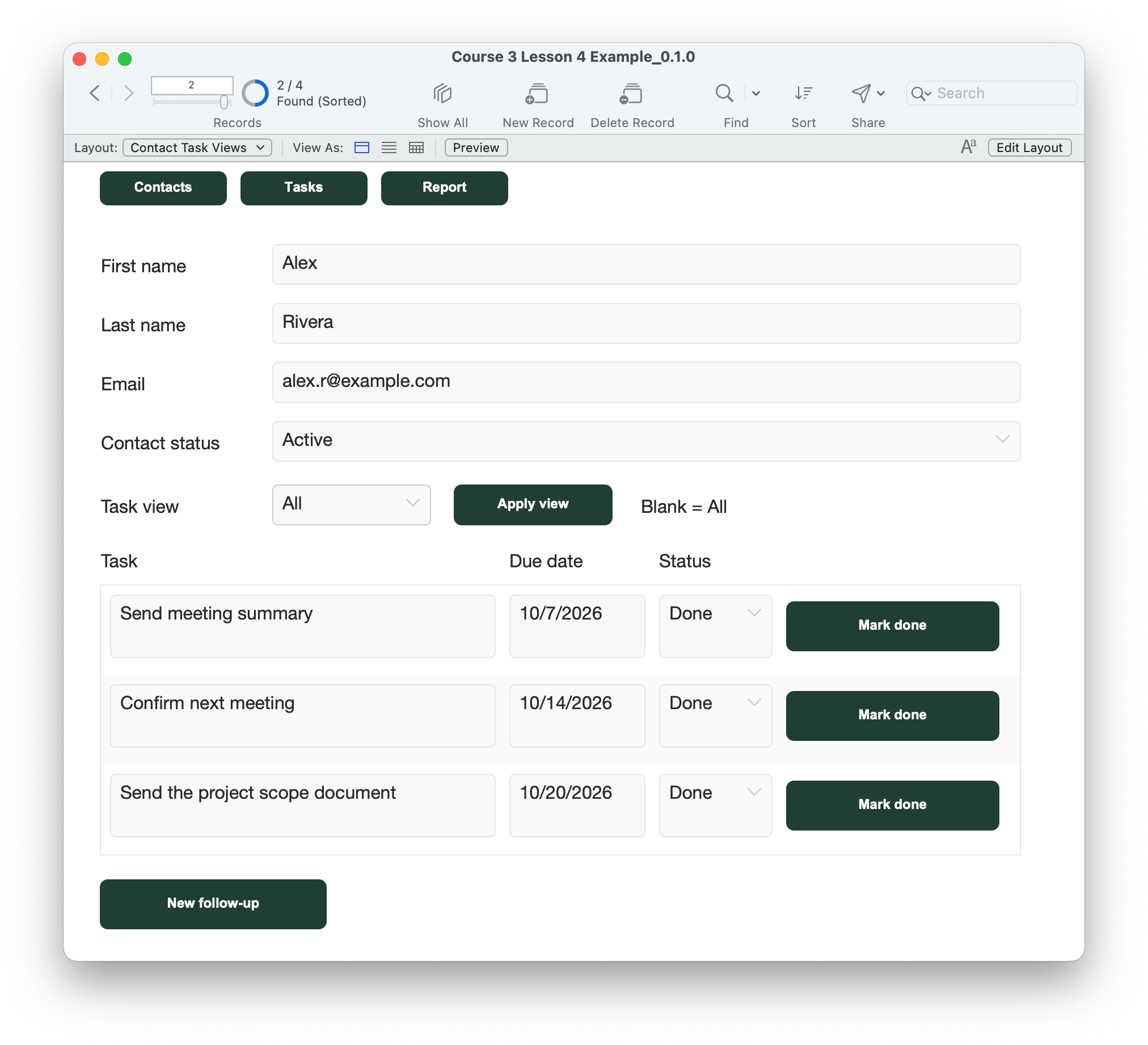
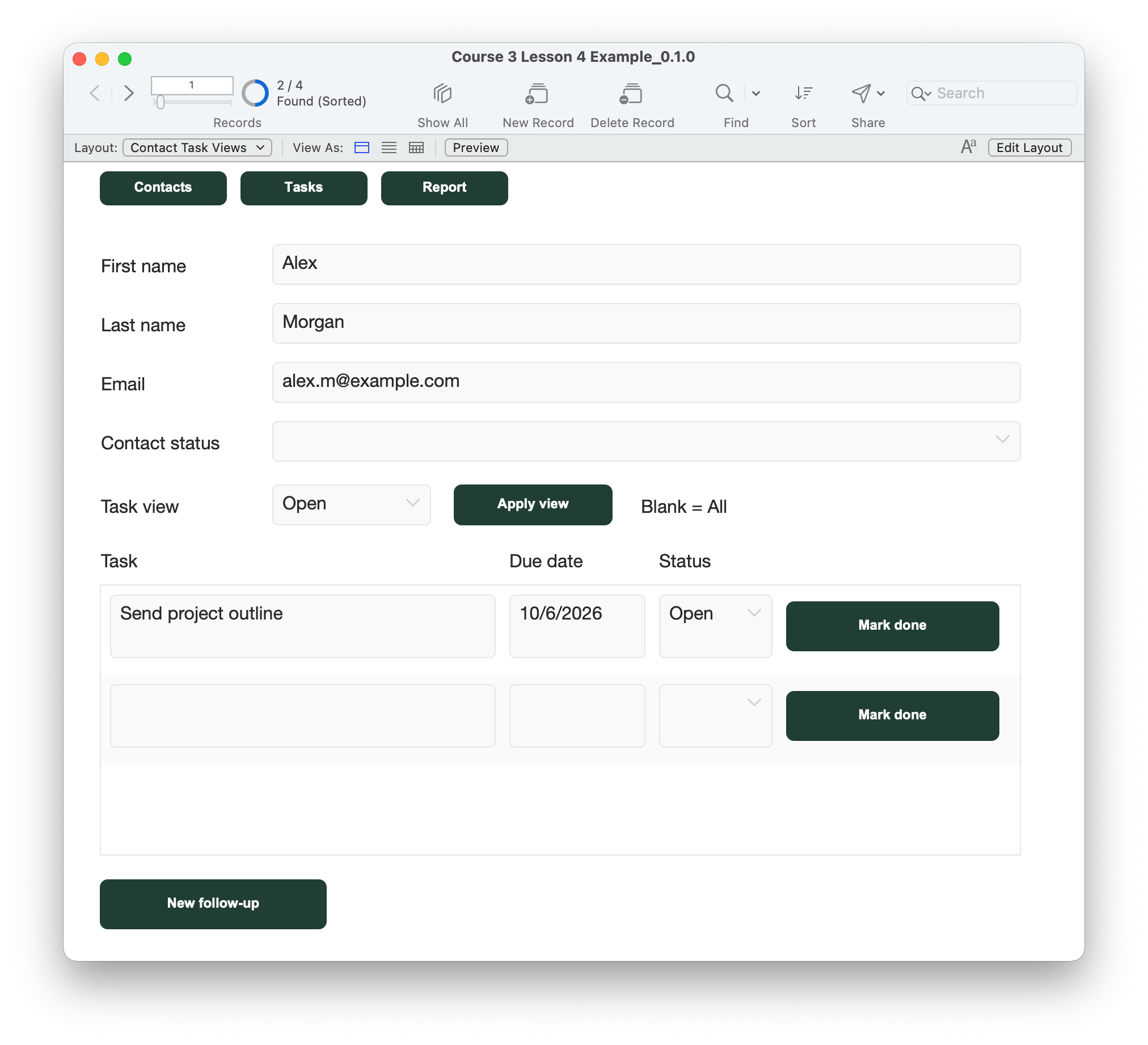
- Use a disposable practice copy. In Browse mode, choose Contact Task Views from the Layout menu and use Form View. Record the Contacts toolbar count.
- Select Alex Rivera. Choose All and click Apply view. The supplied file has three Done tasks for Rivera. Scroll the portal to see every row; visible row slots are not a task count.
- Choose Open and Apply view. Rivera should have no matching existing tasks. A blank entry row may still be present. Return to All and verify all three Done tasks remain.
- With Open selected, switch to Alex Morgan. The global choice stays Open; Morgan’s “Send project outline” appears. Confirm the contact names, email and task agree. The Contacts found-set count stays unchanged.
- On Morgan, click New follow-up while Open is selected. Expect Task view to become All and the blank task row to be selected. Enter “Review the draft,” a valid due date and Status Open. Commit before changing the view. No new contact should be created.
- Choose Open and Apply view. On “Review the draft,” click Mark done. After a successful save and refresh, it should disappear. Choose All and Apply view; confirm that same task remains with Status Done. Other tasks must be unchanged.
- In All, click Mark done on the blank row. Expect a message and no new task. In a practice copy, clear a saved task’s required Task text, then click Apply view: expect a save/validation message. Restore the text and commit before continuing.
- Use Contacts to return to the original Contact Actions layout. Confirm its unfiltered portal and existing New follow-up/Mark done actions still work. Use the Layout menu to return to Contact Task Views. Also check Tasks, Open tasks, All tasks, Report and Back to Tasks; those task found-set operations remain separate.
- Save, close and reopen the practice copy. Verify saved task data, choose the view explicitly and apply it. Check labels, field padding, button anchors and portal scrolling at the intended window size. Discard the practice copy when finished.
Compare your result
Rivera has three Done tasks under All and no existing task under Open in the supplied data. Morgan has one Open task. New follow-up returns to All before entry. Mark done saves only the clicked task and refreshes the portal; All reveals it again. Contacts counts and unrelated tasks remain unchanged.
Check your understanding.
Choose one answer for every question. Answers and scores stay in this page.
Next: open the right contact.
Continue to Lesson 5 to open the contact related to a selected task. Keep your completed working file.
Return to the course outline ↗