Continue your working app.
Save and close your Lesson 2 file, make a backup, and continue in a copy. Keep your existing contacts, tasks, navigation and search buttons.
The starting download preserves Lesson 2 Example 0.1.0. The completed example adds one calculation field, cOverdue, and a conditionally formatted cue beneath the Task field on Follow-up Overview. No new scripts are needed. Existing statuses, dates, validation and report contents are preserved.
1. Start with one clear rule.
A task is overdue when it is Open, has a due date, and that date is before today. A task due today is not overdue. Done tasks are not overdue, even if their dates are in the past.
FileMaker calculation
Case(
    Status = "Open" and not IsEmpty ( DueDate ) and DueDate < Get ( CurrentDate ) ; "Overdue";

    ""
)
and requires all three conditions to be true. Case returns “Overdue” when they are true, or an empty string otherwise. Get ( CurrentDate ) uses the computer’s system date in this local desktop example.
| Status | Due date | Result |
|---|---|---|
| Open | Yesterday | Overdue |
| Open | Today | Blank |
| Open | Tomorrow | Blank |
| Done | Yesterday | Blank |
| Open | Empty | Blank; ordinary entry is blocked by existing required-date validation |
The empty-date guard makes the formula explicit about incomplete data. It does not make a due date optional. Keep the validation from Course 2.
2. Create a Text calculation.
- Choose File → Manage → Database. On Fields, select the FollowUps table.
- Create a field named cOverdue, with type Calculation. Use FollowUps as the evaluation context.
- Enter the documented formula below. Set Calculation result is: Text, with one repetition. Clear “Do not evaluate if all referenced fields are empty” so the formula decides the result.
- Open Storage Options and select Do not store calculation results — recalculate when needed. Leave global storage off. Save the field and database definition.
Complete calculation with documentation
FileMaker calculation
/*
	Purpose: Show Overdue for an Open task with a due date before today.
	Author: Plato
	Created Date: 2026-10-08
*/

Case(
    Status = "Open" and not IsEmpty ( DueDate ) and DueDate < Get ( CurrentDate ) ; "Overdue";

    ""
)
cOverdue is derived information. You do not type into it or add Overdue to the Status value list. Users continue to choose Open or Done, while the formula explains whether an Open task is late.
3. Add text first, then color.
- Open Follow-up Overview in Layout mode. Keep the Header and its five buttons unchanged.
- Increase the Body height from 58 to about 86 points to make room beneath each task. Keep the existing fields at their current positions.
- Duplicate the Task field into the new space beneath it. Rebind the duplicate to FollowUps::cOverdue. Name the object Overdue indicator. Start at left 314, top 218 and width 340 points. Adjust the field height and internal padding so the full word fits, including its bold conditional style. Keep the field inside the Body and increase the Body height if needed.
- Use a compact 12-point font, no visible border and a transparent normal fill. Set vertical alignment to center and top/bottom text padding to zero; the corrected example keeps 6-point left/right text padding. Remove the object from the tab order. It displays a calculation result, not editable task text.
- With the cue selected, choose Format → Conditional. Add a Formula is condition using the expression below.
FileMaker calculation
FollowUps::cOverdue = "Overdue"Set a dark red text color and a light warm fill with strong contrast, and use bold text. Apply this rule only to the cue. The word carries the meaning even when someone cannot distinguish the color.
Documented conditional-formatting formula
FileMaker calculation
/*
	Purpose: Emphasize the overdue text cue.
	Author: Plato
	Created Date: 2026-10-08
*/

FollowUps::cOverdue = "Overdue"
Save the layout and return to Browse mode, List View. Check an overdue task at the intended zoom: the entire word must be visible without clipping. Return to Layout mode to adjust the field height, padding or font size if needed. A blank calculation produces no label for tasks that are not overdue. Use the report for printing; its design is unchanged in this lesson.
4. Understand when “today” is evaluated.
A stored calculation can become stale when the date changes without an edit to the task. Unstored calculation results are reevaluated when the record or field refreshes. They do not continuously run like a clock.
After editing Status or DueDate, commit and check the cue. If the file has remained open across midnight, refresh the record or save, close and reopen the file before checking it. A script can use Refresh Window when an explicit refresh action is needed; this lesson does not add a timer or another button.
Use dates relative to your actual today when testing. The supplied tasks use October 2026 dates, so the labels you see later may differ from a screenshot taken on another day. Open tasks is still the Lesson 2 search for every Open task, including those due today or in the future; it is not an overdue-only search.
Test the boundaries.
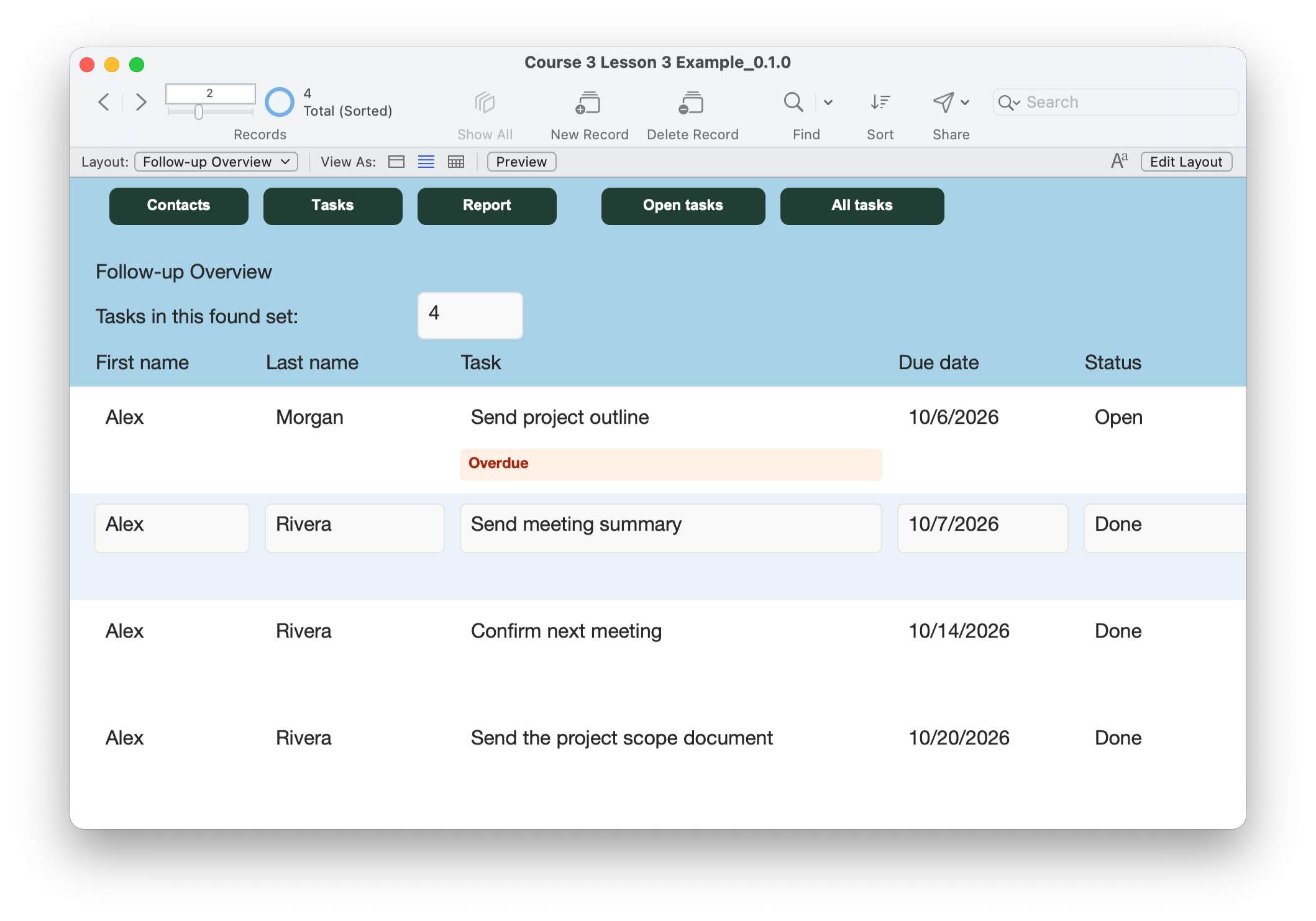
- Make a disposable practice copy. On Follow-up Overview click All tasks. Choose an existing task and note its original Status and DueDate.
- Set that task to Open and its due date to yesterday, using your computer’s current date. Commit by clicking outside the fields. Expect an Overdue label with the conditional color.
- Keep Status Open and change the date to today, then tomorrow, committing each change. Neither should show Overdue.
- Change the date back to yesterday and set Status Done. The label should disappear. Restore Open and commit; the label should return. These are manual practice changes, not new button behavior.
- Clear DueDate and try to commit. The existing required-date validation should prevent the save. Restore a valid date. Do not disable validation to test the formula; its empty-date guard is explained in the rule table.
- Click Open tasks and All tasks. Check that searches still select the correct tasks, dates remain sorted and the summary still counts tasks rather than overdue labels.
- Check Contacts, Tasks, Report and Back to Tasks. The report keeps its previous design; this lesson adds the cue only to the overview.
- Restore the task’s original values, save, close and reopen the practice file. Confirm the label agrees with the current date and saved status. At a later date, reopen or refresh before judging the result; do not assume an idle screen updates at midnight.
Compare your result
Only Open tasks with a nonempty date before today show Overdue. Today, tomorrow and Done cases stay blank. The summary counts the current task found set. Existing navigation, searches and report remain available.
Check your understanding.
Choose one answer for every question. Answers and scores stay in this page.
Next: choose a view of the task portal.
Continue to Lesson 4 to switch a contact’s portal between all tasks and Open tasks. Keep your completed working file.
Return to the course outline ↗