Keep your navigation and records.
Save and close your Lesson 1 working file. Back it up and continue in a copy. Keep the left-anchored navigation buttons and the report’s Back to Tasks button.
The starting download is the saved Lesson 1 Example 0.1.1. The completed example adds four scripts in two folders and two buttons in the overview Header. It preserves the tables, relationships, validation, existing scripts, report and record data. Your own task counts may differ from the examples below.
Your outcome
Open tasks selects exact Open status and orders the result by due date. All tasks restores the complete task list. Neither search changes a task’s status or deletes a record.
1. Separate finding from sorting.
Work on Follow-up Overview, based on FollowUps, in Browse mode and List View. A find selects which task records belong in the found set. A sort orders those records. The toolbar and sTaskCount summary both describe the task found set.
The criterion ==Open matches the entire Status field. It is entered into a Find request, not into an ordinary record. Do not run Set Field with that criterion while browsing a task.
This is a search you run on demand. It is not a live filter. If you change a status afterward, click Open tasks again to rebuild the result. All tasks includes both Open and Done tasks.
2. Understand the four search steps.
Start by reading the successful path. These four steps explain what the search does; the complete button script adds the safeguards explained next.
FileMaker script
Enter Find Mode [ Pause: Off ]
Set Field [ FollowUps::Status ; "==Open" ]
Perform Find
Sort Records [ Restore ; With dialog: Off ]- Enter Find Mode: turn Pause off and leave specified find requests empty.
- Set Field: select FollowUps::Status directly and enter
"==Open"as the calculated result, including the quotes. This fills a search request. - Perform Find: leave specified find requests empty so it uses the request just created.
- Sort Records: specify FollowUps::DueDate ascending, then FollowUps::Task ascending. Keep records in sorted order, leave blank values last off, and turn With dialog off. Restore means the sort order is stored in this step.
This is a reading excerpt, not the complete script to attach to a button. Build the complete version below before running it.
Add the essential safeguards.
Think of error handling at three points in that flow:
- Before searching: confirm Browse mode on Follow-up Overview, then commit with validation. If saving fails, stop so the learner can correct the entry.
- Immediately after Perform Find: capture
Get ( LastError )in$findError. Later steps can replace the error value. - Before sorting: handle 401 with “No Open tasks found” and stop. Handle any other nonzero find error with a failure message. Only sort a successful result.
The controller returns a message to its UI script, which displays it. An empty string means success. The initial commit can save valid pending edits; the search itself does not change task values.
Full script with safeguards: Open tasks
In Script Workspace, create Search UI and Search Controller folders. Create Search | Find Open Tasks in Search Controller and keep it hidden from the Scripts menu. Add the steps below, using the four step settings above. Keep Skip data entry validation off in Commit Records/Requests.
The complete example also checks whether Find mode opened, the criterion was set and sorting succeeded. If setting the criterion fails, it returns to all records and explicitly reports that fallback. You can follow these extra checks after you understand the main search.
FileMaker script
# PURPOSE: Find exact Open status without editing tasks; sort the result by DueDate and Task.
# HISTORY: 2026-OCT-08    Plato    Create Course 3 Lesson 2 search.
If [ Get ( WindowMode ) ≠ 0 or Get ( LayoutName ) ≠ "Follow-up Overview" ]
    Exit Script [ "Use these search buttons on Follow-up Overview in Browse mode." ]
End If
Commit Records/Requests [ With dialog: Off ; Skip data entry validation: Off ]
If [ Get ( LastError ) ≠ 0 ]
    Exit Script [ "Finish or correct the current entry before searching." ]
End If
Enter Find Mode [ Pause: Off ]
If [ Get ( LastError ) ≠ 0 ]
    Exit Script [ "Find mode could not be opened." ]
End If
Set Field [ FollowUps::Status ; "==Open" ]
If [ Get ( LastError ) ≠ 0 ]
    Show All Records
    Exit Script [ "The search criterion could not be set. All tasks are shown; please try again." ]
End If
Perform Find
Set Variable [ $findError ; Value: Get ( LastError ) ]
If [ $findError = 401 ]
    Exit Script [ "No Open tasks found. Use All tasks to see the complete list." ]
End If
If [ $findError ≠ 0 ]
    Exit Script [ "The search could not be completed. Use All tasks, then try again." ]
End If
Sort Records [ Restore ; With dialog: Off ]
If [ Get ( LastError ) ≠ 0 ]
    Exit Script [ "The found set is available, but it could not be sorted by due date." ]
End If
Exit Script [ "" ]
3. Provide a way back to every task.
The successful path for All tasks is shorter: show every record, then use the same sort order.
FileMaker script
Show All Records
Sort Records [ Restore ; With dialog: Off ]
Use the same mode/layout guard and validated commit before this excerpt. If the table has no tasks at all, explain how to add one through Contact Actions. An empty table is different from a search that found no matches.
Full script with safeguards: All tasks
Create Search | Show All Tasks in Search Controller, hidden from the Scripts menu. Copy the configured DueDate/Task sort from the Open controller.
FileMaker script
# PURPOSE: Show every task and sort by DueDate and Task without changing record data.
# HISTORY: 2026-OCT-08    Plato    Create Course 3 Lesson 2 search.
If [ Get ( WindowMode ) ≠ 0 or Get ( LayoutName ) ≠ "Follow-up Overview" ]
    Exit Script [ "Use these search buttons on Follow-up Overview in Browse mode." ]
End If
Commit Records/Requests [ With dialog: Off ; Skip data entry validation: Off ]
If [ Get ( LastError ) ≠ 0 ]
    Exit Script [ "Finish or correct the current entry before searching." ]
End If
Show All Records
If [ Get ( LastError ) ≠ 0 ]
    Exit Script [ "All tasks could not be shown." ]
End If
If [ Get ( FoundCount ) = 0 ]
    Exit Script [ "There are no tasks yet. Add one through Contact Actions." ]
End If
Sort Records [ Restore ; With dialog: Off ]
If [ Get ( LastError ) ≠ 0 ]
    Exit Script [ "The found set is available, but it could not be sorted by due date." ]
End If
Exit Script [ "" ]Try both results—and no result.
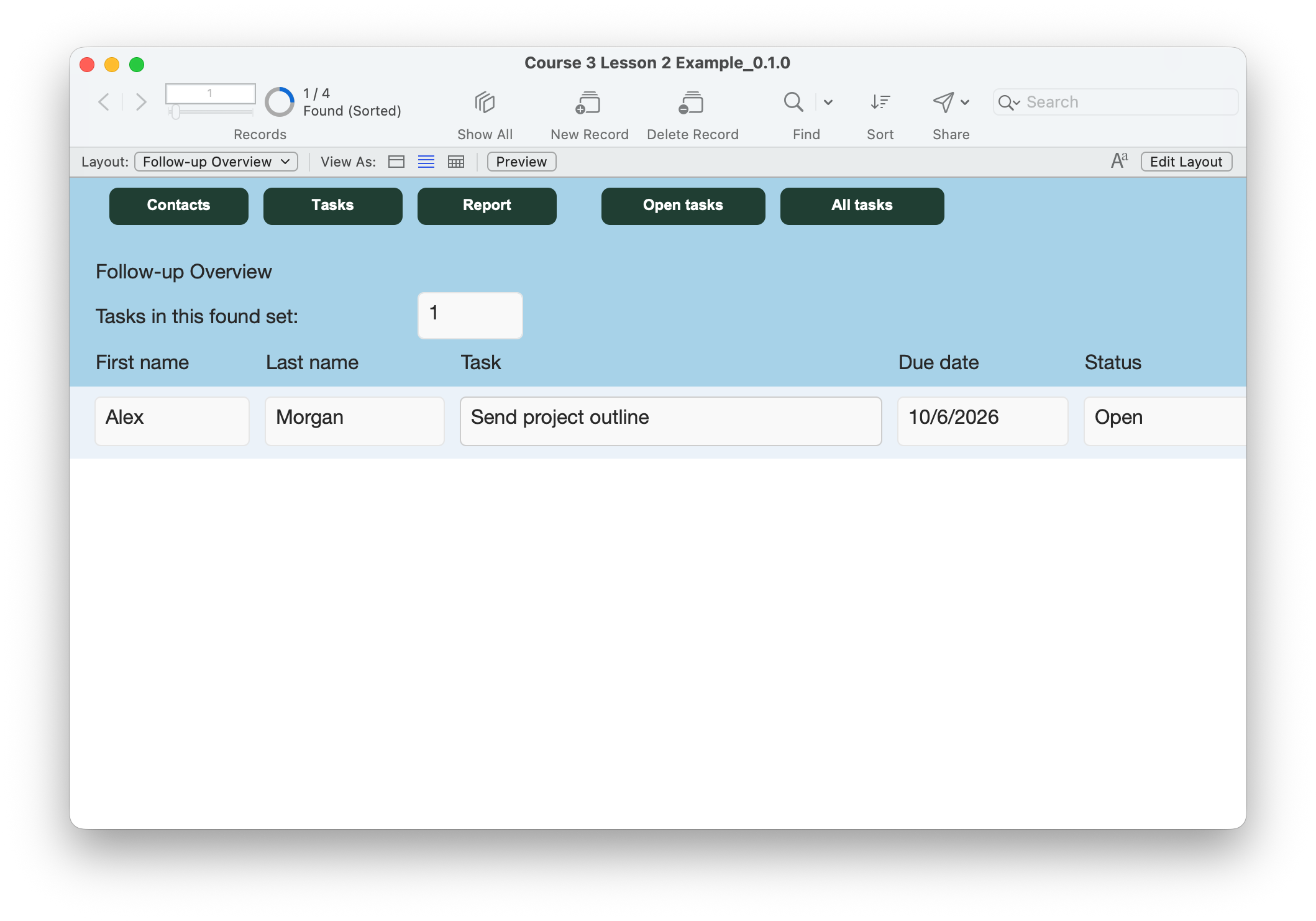
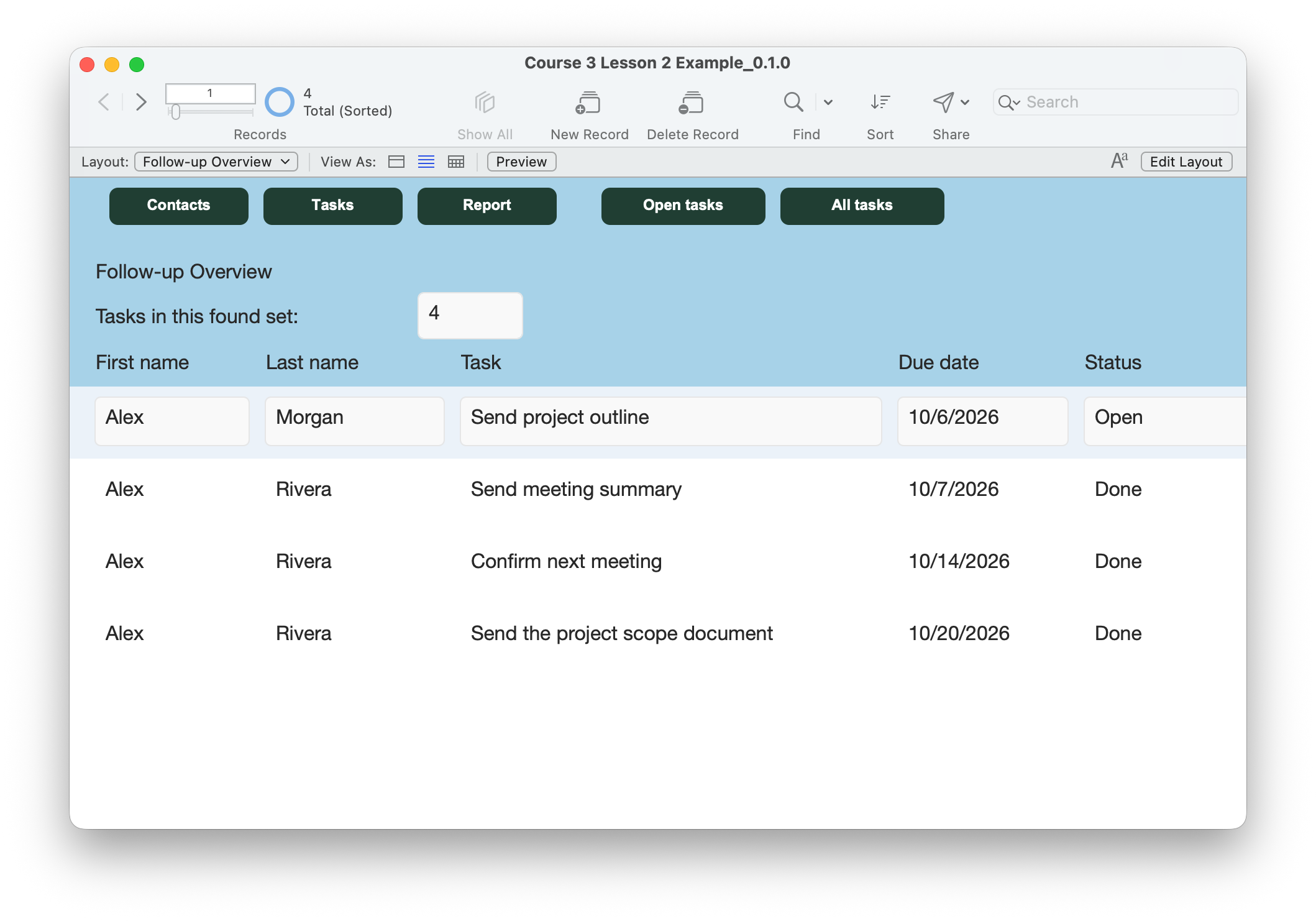
- On Follow-up Overview in List View, click All tasks. Compare the toolbar and summary counts with your actual tasks. Check ascending DueDate order, then Task order for equal dates.
- Click Open tasks. Every displayed task should have Status Open; Done tasks disappear from this found set. In the supplied four-task data, the expected result is Alex Morgan’s “Send project outline,” unless you have changed those records.
- Click All tasks again. Confirm the Done tasks return with their original statuses. Repeat both actions; no new records should appear.
- In a disposable practice copy, set every task to Done and commit. Click Open tasks. Expect the no-matches message and an empty found set. Dismiss it and click All tasks; every task must return. Discard this practice copy afterward.
- In a practice copy, clear an existing task’s required Task text, then click Open tasks. Expect a save/validation message before Find mode. Restore its description and commit. Try the search again.
- Find Open tasks, click Report and check that the report contains that found set. Exit Preview if needed, then Back to Tasks. Click All tasks before making a report of everything.
- Resize the window and check that all five Header buttons remain readable and anchored left. Save, close and reopen; confirm the controls and original records remain. Rerun each search after opening.
Compare your result
Open tasks shows only Open records in due-date order. All tasks restores the full list, including Done records. A zero-match find explains what happened; the next All tasks click recovers the full list. Invalid entry stops the search. Report uses the selected task found set.
Check your understanding.
Choose one answer for every question. Answers and scores stay in this page.
Next: recognize overdue work.
Continue to Lesson 3 to add an overdue indicator that distinguishes Open tasks due before today from Done and future work. Keep your completed working file.
Return to the course outline ↗