Start with a question you can check
“Show active contacts in London or Paris, except people marked DoNotContact.” That sentence contains three different decisions. Putting every field in one request would ask a contact to live in both cities. Putting every field in separate requests would include far too much. We will build the search in small steps and check contact IDs, not just the total.
You need a practice file with a Contacts table and a layout named Contacts API. Use text fields ContactID, LastName, Status and City, plus a number field DoNotContact. Put all five on the layout. The native route requires FileMaker Pro 19 or later; the REST route requires an already configured FileMaker Data API host and authorized session. This exercise does not require enabling hosting on a local file.
1. Give yourself a known answer
Enter or import this small fictional fixture. Keep the IDs as text. Use 0 or 1 explicitly for DoNotContact so blank values do not complicate the first test.
| ContactID | LastName | Status | City | DoNotContact |
|---|---|---|---|---|
| C001 | Baker | Active | London | 0 |
| C002 | Chen | Active | Paris | 0 |
| C003 | Diaz | Inactive | London | 0 |
| C004 | Evans | Active | Paris | 1 |
| C005 | Fox | Active | Rome | 0 |
The final result should contain C001 and C002 only. C003 fails the status condition, C004 is excluded, and C005 is outside the two cities. Save this expectation before using the tool.
2. Build the include requests, then the exclusion
- Open the Find Builder linked below. Choose the output mode for your environment. Enter Contacts API as the layout name. For REST, replace example.com and Contacts Demo with your authorized host origin and database name before using the endpoint.
- In Request 1, use Status with
==Active. Add an AND criterion: City with==London. The double equals requests an exact field match. - Add Request 2. Enter Status
==Activeand City==Paris. Each include request is an alternative. Repeat Status so both alternatives require an active contact. - Add Request 3, check Omit matching records, and enter DoNotContact with
==1. - Add ascending sorts for LastName, then ContactID as a tie-breaker. Set offset to 1 and limit to 25, then build the request.
The tool checks its request structure, but it cannot know whether your fields exist or whether your account can read them. Review those details in the practice file.
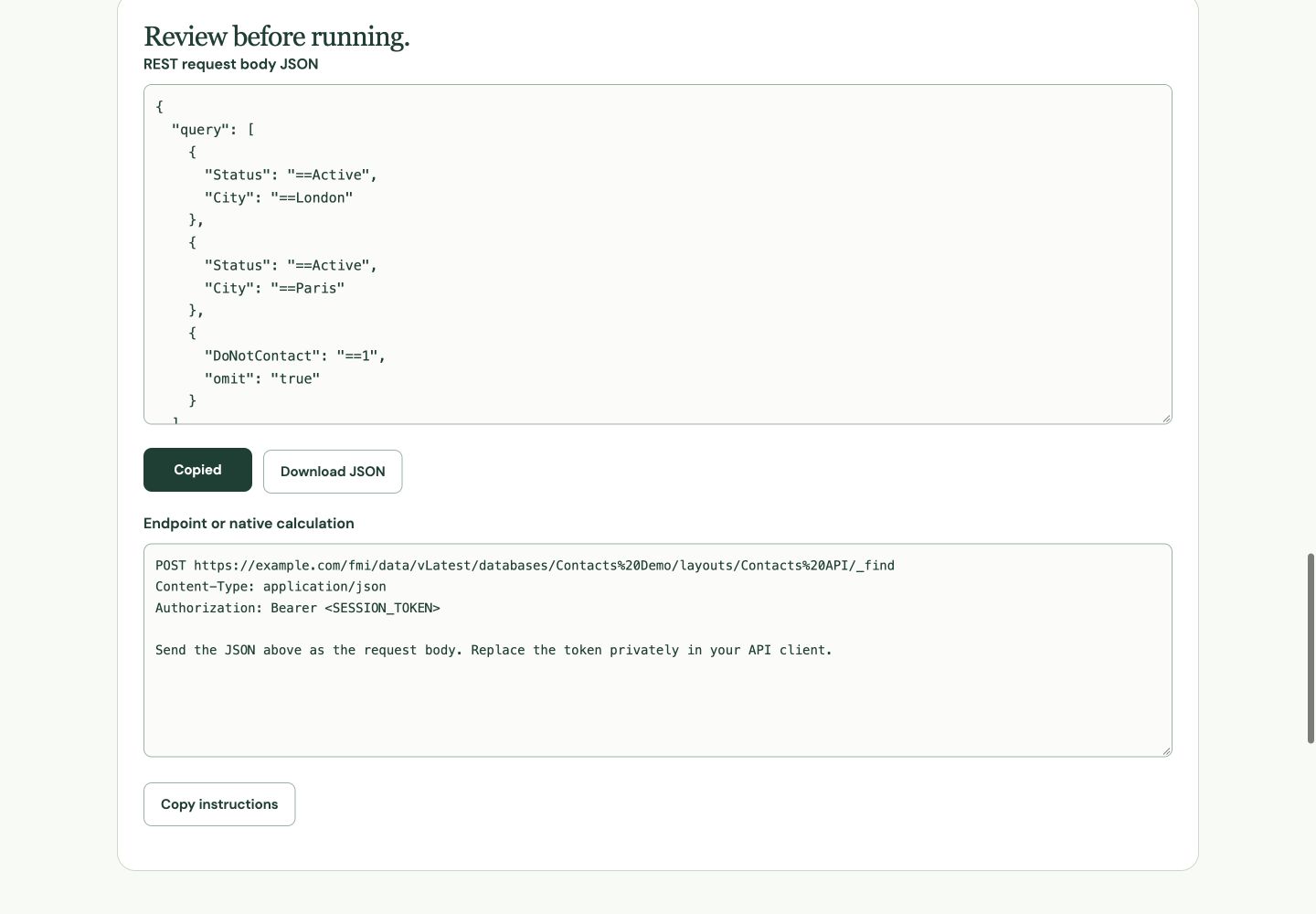
3. Read the REST body before sending it
{
  "query": [
    {"Status":"==Active", "City":"==London"},
    {"Status":"==Active", "City":"==Paris"},
    {"DoNotContact":"==1", "omit":"true"}
  ],
  "offset":"1",
  "limit":"25",
  "sort":[
    {"fieldName":"LastName", "sortOrder":"ascend"},
    {"fieldName":"ContactID", "sortOrder":"ascend"}
  ]
}
For REST, use the generated POST endpoint and body in your API client. Supply the session token there; do not paste it into a browser tool or shared screenshot. The Claris find reference documents the endpoint and options. Global fields cannot be used as these find criteria.
4. Use the native format when working inside a file
Switch the builder to Execute FileMaker Data API · native step and rebuild. This output includes action: "read", layouts: "Contacts API", and numeric offset and limit values. It is a different request format from the REST body.
- Copy the generated native calculation into the Request calculation of an Execute FileMaker Data API step in a practice script.
- Set the target to
$resultand enable Select entire contents so repeated runs replace the previous result. - Run the script in the intended practice file. Inspect the returned JSON, including its messages and record data.
This step uses the current file; it does not contact the REST server entered in the other mode. See the native-step reference. Do not expect it to change the visible window’s found set.
5. Prove the selection before paging through it
A successful response should have a success code in its messages and return C001 and C002 in that order. Inspect response.data and each record’s fieldData.ContactID. A total of two is insufficient: it could be the wrong pair.
- Remove the omit request temporarily: C004 should join the result. Restore it afterward.
- Change C002 to Inactive in the practice fixture: only C001 should remain. Restore the fixture before the next check.
- Set limit to 1. Offset 1 should return C001; offset 2 should return C002. Keep both sorts in place.
Offset paging can shift when records change between requests. The two-page exercise checks this fixed fixture, not a concurrent production import. For larger work, plan how updates and retries will be handled.
When the answer is different
- Too many records: check whether Status became its own OR request instead of remaining inside both city requests.
- No matching records: verify the layout’s table context and exact field values, then reduce the find to one known ContactID.
- Missing fields: check the layout and account access. A field existing somewhere in the file does not establish the right context.
- Duplicate field warning: do not repeat City twice inside one request. Use separate include requests.
- HTTP failure: check the HTTP response and authentication separately from FileMaker messages.
References
Use a practice copy and verify the result in your FileMaker version. Browser screenshots demonstrate the tool; they do not establish native FileMaker testing.