01 / THE STARTING POINT
Importing a row is not the same as accepting a contact.
A spreadsheet can be valid CSV and still contain records that should not become contacts. The columns may line up correctly while a name is missing, two rows use the same source ID, or an email already belongs to someone in the app.
Our CSV pre-import guide addresses the file before it reaches FileMaker. This case study adds a second check inside the app: an Incoming table where a person can inspect the proposed additions before they reach Contacts.
The result is a small, add-only workflow. It never merges people based on a matching name or email, and it does not overwrite an existing contact. This is Filesoft’s own demonstration, not a customer project or a claim of measured time savings.
02 / MAKE THE RULES VISIBLE
A reason is more useful than a warning icon.
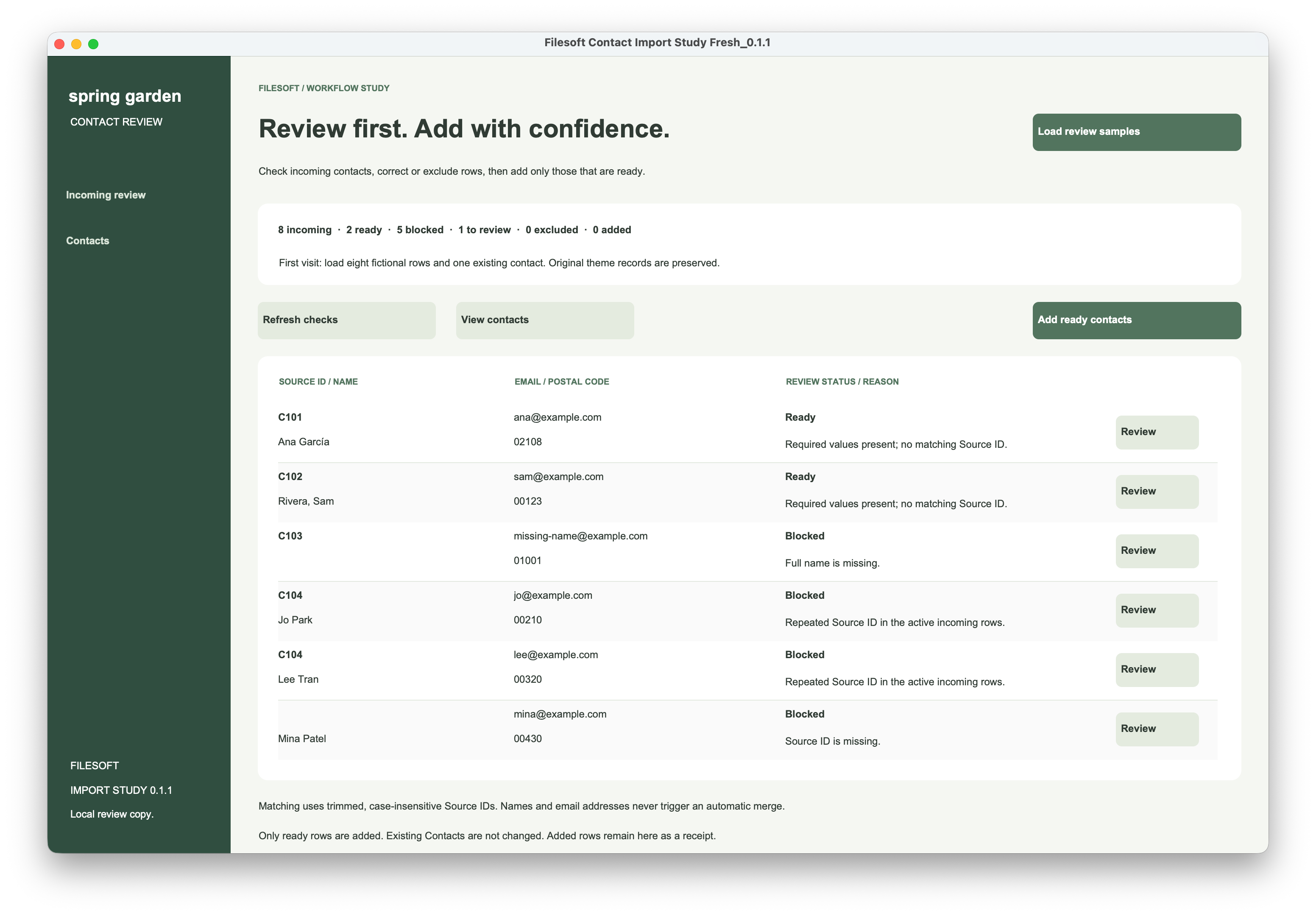
The sample begins with one existing contact, C001 / Maya Chen, and eight incoming rows. Source IDs are compared after trimming outer spaces and converting to lowercase. This assumes one consistent source-ID scheme; IDs from unrelated systems would need a source name as part of the key.
| Incoming row | Decision | Reason / next action |
|---|---|---|
| C101 · Ana García | Ready | Required values are present; the source ID is new. |
| C102 · Rivera, Sam | Ready | Another new ID. The comma in the name is ordinary field content. |
| C103 · No name | Blocked | Supply the missing full name before adding it. |
| C104 · Jo Park | Blocked | The same ID is used by Lee Tran in the incoming rows. |
| C104 · Lee Tran | Blocked | Correct the ID or exclude the unwanted row; do not choose a winner automatically. |
| No ID · Mina Patel | Blocked | A source ID is required for repeat-import checks. |
| C001 · Maya Chen | Blocked | This source ID already exists in Contacts. This study only adds new contacts. |
| C105 · Alex Chen | Review | The email matches Maya’s. Check whether it is a shared address or a duplicate. |
The starting counts are 2 ready, 5 blocked and 1 to review. “Ready” means the row passed these specific checks. It does not prove the person’s identity, confirm that an email is deliverable or establish that the data is otherwise accurate.
Treat an ID conflict differently from a possible person match.
A repeated source ID is blocked. An exact normalized name or email match is a review clue. A shared family or team address can be legitimate, so the example asks for an explicit decision instead of merging records.
The review screen supports correcting the row, excluding it, or confirming a possible match as a different contact. Exclusion retains the row. Confirmation applies to the current source ID, name, email and postal code; changing those values can require review again when a possible match remains. Confirmation cannot override a missing required value or an existing source ID.
03 / FOLLOW THE TESTED PATH
Add two contacts. Keep the other decisions visible.
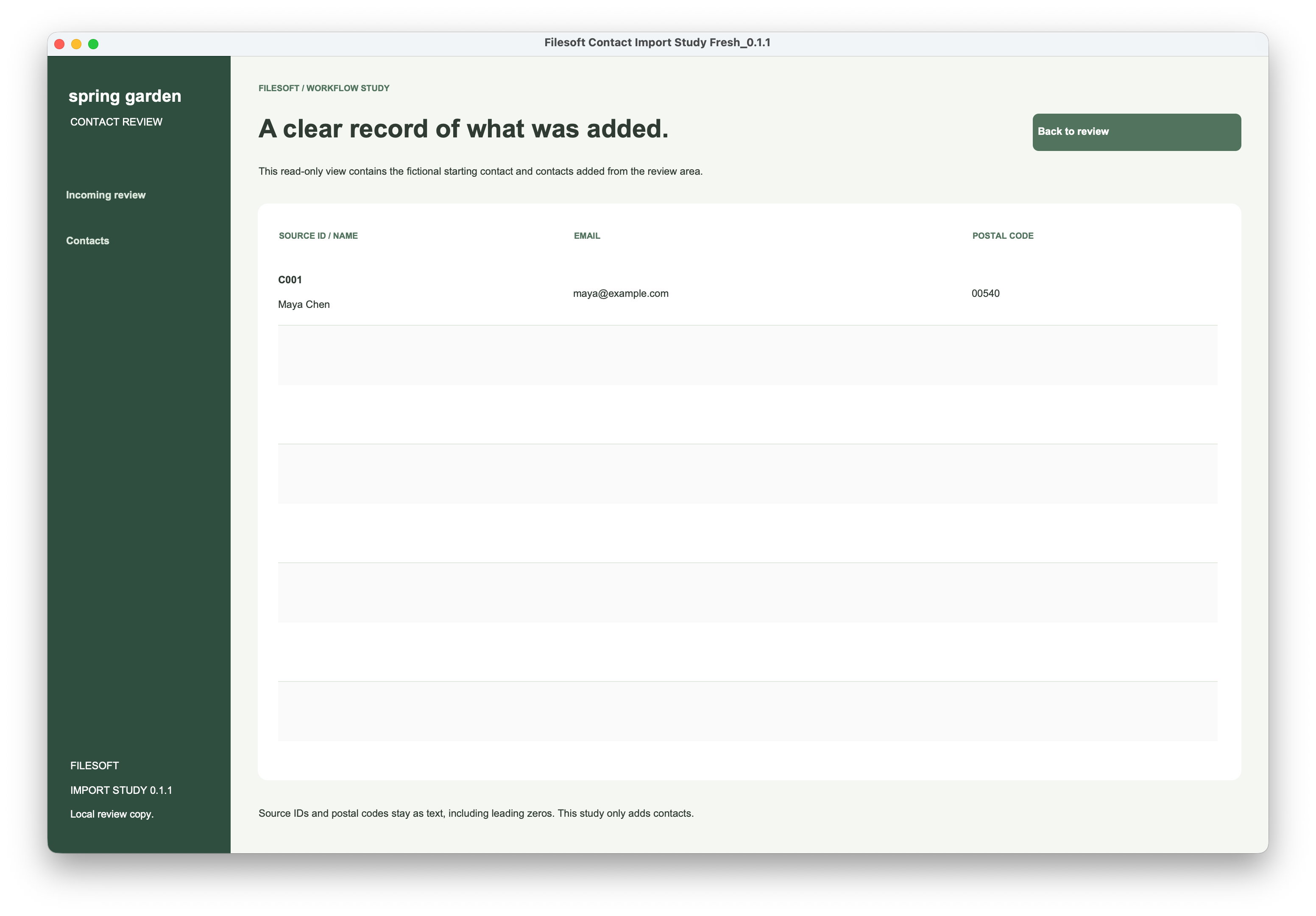
- Load the fictional samples. Incoming shows all eight rows and their reasons. Contacts contains only C001. The first two screenshots capture this state.
- Choose Add ready contacts and confirm. The workflow rechecks eligibility before creating contacts. It does not simply trust a status label left on screen.
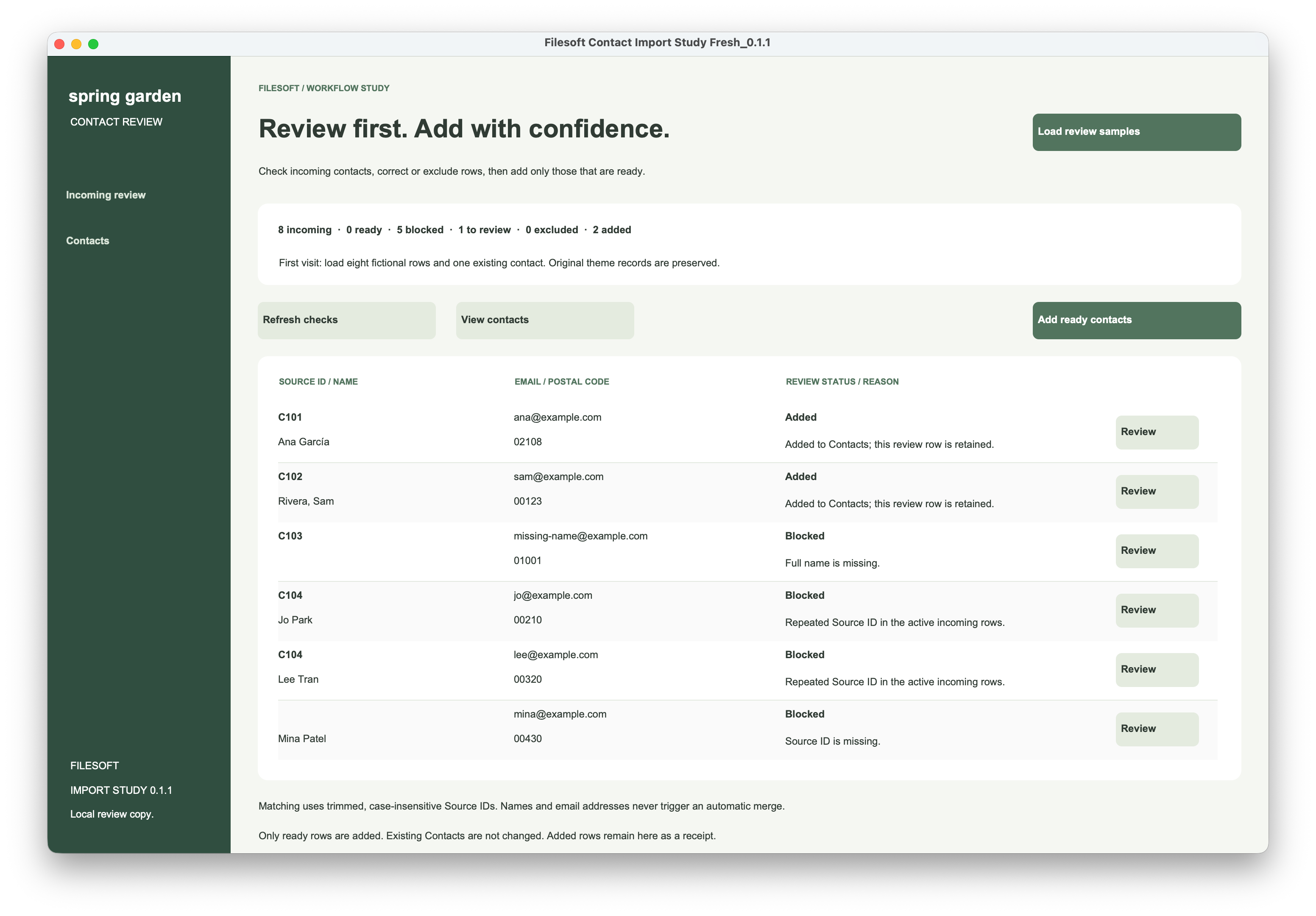
- Return to Incoming. C101 and C102 now show Added. The five blocked rows and the possible match remain for review. Nothing has been silently discarded.
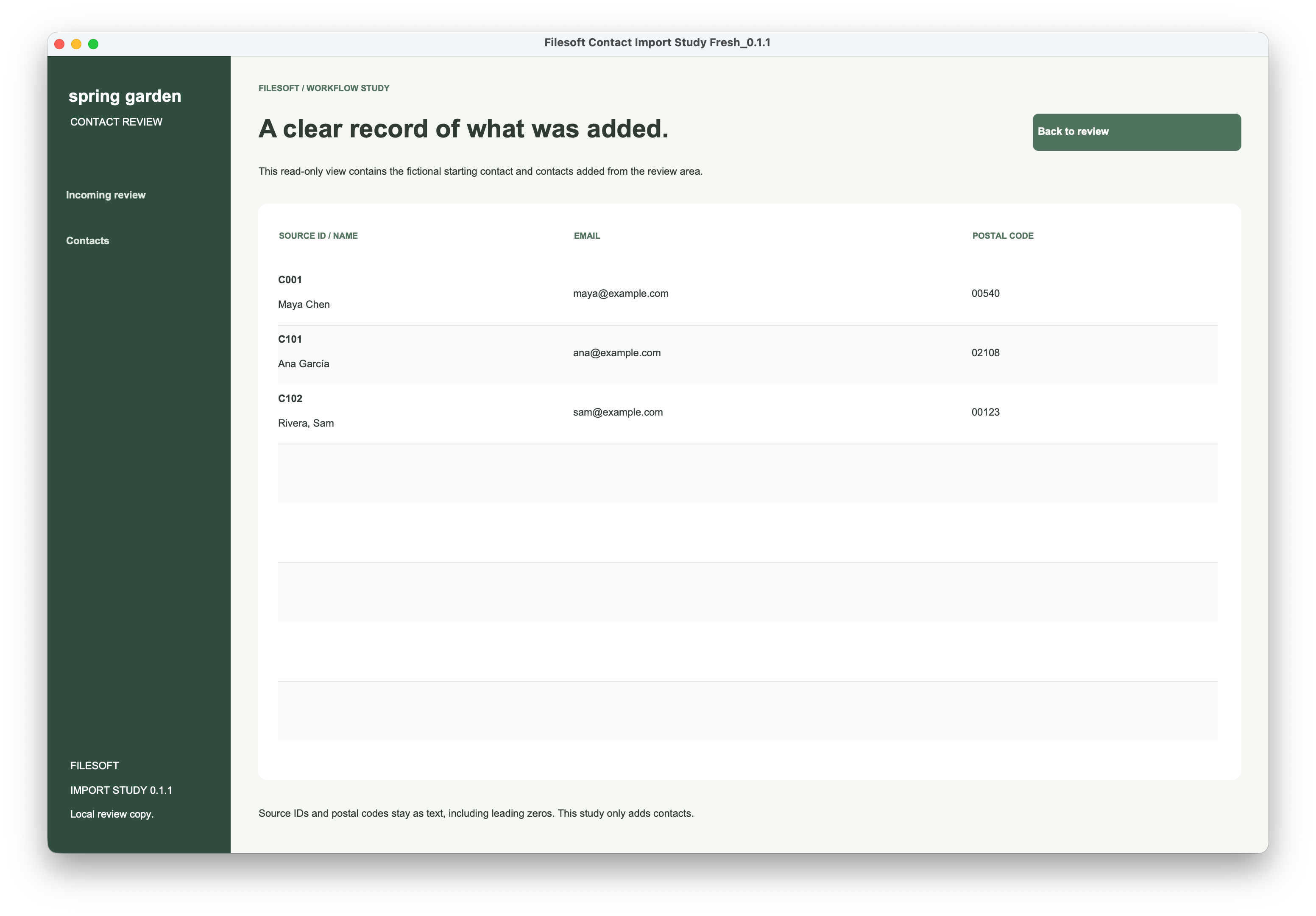
- Open Contacts. C001, C101 and C102 make three records. The original contact remains, and postal codes retain their leading zeros.
- Repeat Add ready contacts. The reviewer confirmed the total stayed at three. The already-added rows were recognized and not added again.
The observed result: two accepted additions, six incoming rows still needing a decision, and no duplicates when the add action was repeated. That is the behavior confirmed by this review; correction, exclusion, match confirmation and failure recovery need their own tests.
04 / INSIDE THE FILE
Separate the review decision from the write.
The example keeps the four source columns—SourceID, FullName, Email and PostalCode—in Incoming. It adds an internal ID, normalized matching keys, a review status and reason, and an AddedContactID marker. Contacts has its own internal ID and a reference back to the incoming row.
Source IDs and postal codes are text fields. Converting 00123 to a number would lose information before the review even began. Do not apply postal-code rules from one country to every row.
Check duplicates among active incoming rows.
The MatchKey helper field contains the lowercase, trimmed source ID. This calculation, used by the evaluator, counts matching incoming rows that are neither excluded nor already added:
FileMaker calculation
ExecuteSQL (
    "SELECT COUNT(*) FROM \"Incoming\" " &
    "WHERE \"MatchKey\" = ? " &
    "AND (\"Excluded\" IS NULL OR \"Excluded\" = 0) " &
    "AND \"AddedContactID\" IS NULL" ;
    "" ; "¶" ; Incoming::MatchKey
)
A count greater than one blocks the row, because the count includes the current row. A separate check looks for the same MatchKey in Contacts. A SQL error must stop the operation; it must not be treated as “no match.” Claris documents the question-mark error result and parameter placeholders for ExecuteSQL. IS NULL tests a missing SQL value; it is used here for an unset added marker.
Return a decision; let the controller save it.
The evaluator returns JSON with status and reason. In the refresh controller, the current Incoming record has already been found by its internal ID before this excerpt runs:
FileMaker script
Perform Script [ "Evaluate current row" ]
Set Variable [ $evaluation ; Value: Get ( ScriptResult ) ]
If [ JSONGetElement ( $evaluation ; "status" ) = "Error" ]
    Exit Script [ Text Result:
        JSONGetElement ( $evaluation ; "reason" ) ]
End If
This is a reading excerpt from the example, not a complete script that can be pasted as plain text into Script Workspace. Evaluate current row and the Incoming fields must exist. The full controller then writes ReviewStatus and ReviewReason, checks each write and commit, and returns to the review layout.
Save the contact and its receipt together.
The add controller writes the new Contact and the Incoming row’s AddedContactID in one native transaction. That keeps “the contact exists” and “this incoming row was added” in the same save operation. It captures errors and reports a failed operation rather than presenting it as success.
The Contacts table also requires unique source keys and unique incoming-row IDs. These checks supplement the visible review rules. FileMaker transactions group record changes for commit or rollback in the originating window. This design still needs explicit failure and concurrent-user testing before production use.
05 / TRY THE EXAMPLE
Start with the saved result, then test one change.
The downloadable review copy below is the latest saved file from this walkthrough. It already contains the three contacts and the two Added markers shown in the final screenshots. Load review samples does not reset the file. Keep a spare copy before experimenting.
- Repeat the add check. Choose Incoming review, Refresh checks, then Add ready contacts. With no other changes, Contacts should still contain three records.
- Correct a missing value. Open C103 with Review, enter a fictional full name and Save and return. Check that it becomes ready while Contacts remains unchanged until you explicitly add it.
- Resolve one repeated ID. Exclude Lee Tran’s C104 row and inspect Jo Park’s status. Include Lee again to check that both are blocked. Alternatively, give one row a genuinely distinct source ID.
- Inspect the possible match. Scroll to C105 and review its shared email. Confirm a different contact only after deciding that the match is legitimate; then change one source value and check that confirmation is requested again if the possible match remains.
The last three steps extend the confirmed walkthrough. Test them on fictional data in a spare copy; do not treat the screenshots as evidence that every branch has passed.
Optional: import the supplied CSV into Incoming
The package contains the same eight source rows as a UTF-8 CSV. Importing them into this saved file intentionally repeats IDs; it does not recreate an empty starting state.
- On a disposable copy, select Contact Import • Edit incoming, whose table is Incoming.
- Choose File > Import Records > File, and select the sample CSV.
- Target Incoming with Add new records. Do not choose an update or replacement action on Contacts.
- Treat the first row as column names. Map only SourceID, FullName, Email and PostalCode.
- Enable auto-enter options for the internal ID, WorkspaceKey and Excluded fields, then return to Incoming review and Refresh checks.
Check the mapping before importing. The quoted comma in “Rivera, Sam” should remain inside the name. See Claris’s import action and field-mapping instructions.
06 / ADAPT THE PATTERN
Make the next decision easy to understand.
For your own app, first agree on the identity rule: which source provides the ID, whether updates are allowed, and who can approve a possible match. Then put a clear reason and the relevant action beside each incoming row. Keep acceptance explicit and preserve enough information to explain what happened.
This study uses exact normalized matches, not fuzzy matching or email verification. It has no automated CSV chooser, batch history, merge/update workflow or production access-control model. Manual full-access edits can bypass the review screen.
The supplied screenshots and repeat-add confirmation cover this desktop review on macOS. The review file targets FileMaker Pro 26; native transactions were introduced in 19.6.1, which is not a claim that this entire example was tested on older versions. Windows, Go and WebDirect have not been validated for this study. Its 1440 × 940 layouts may need scrolling in smaller windows. The native workflow sends no email or network requests and contains no analytics.