Your first session
- Extract this ZIP and keep a backup of the original download.
- Open the included .fmp12 file in your licensed FileMaker Pro desktop application. The file starts without business or sample records; the existing startup script creates the basic settings and preferences.
- Open Settings. Enter your business details, workspace label, system logo and printing logo. Choose your business currency before creating sales documents. Admin and Staff are owner-name suggestions, not security accounts.
- To explore, open Help and choose Create sample records. These are fictional examples, not live invoices.
- When ready, use Help > Remove sample records. Review the confirmation before proceeding. The action removes marked sample records and retains business settings; links between your own records and samples may prevent removal. A record you create yourself is not automatically a sample. Back up your file before cleanup.
- Add a company and contacts, create an opportunity and activity, then prepare a quote with line items. Issue and accept the quote, create its invoice, issue it and record payments from that invoice.
What is included
Companies, contacts, opportunities, activities, products with images, quotes and invoices with PDF export, payment records, business settings, optional sample records and sample removal. Payment records track payments received; the solution does not process card or bank payments. It is a sales starter, not a complete accounting or tax-compliance system. The initial model uses one business currency with two decimal places and a per-line percentage tax rate.
Customization and upgrades
The file is unlocked for customization. Keep backups before modifying scripts, layouts, schema or security. Configure accounts and privileges for your deployment before sharing a business file. Use the application navigation; internal scripts, layouts and layout folders are excluded from menus. Standard and Premium provide the same core workflow. Premium is a separately designed workspace, not a one-click theme installer. Existing data and customizations do not transfer automatically. Contact Filesoft for a migration assessment before switching a live workspace. Do not copy only visible rows into another edition: document links, line items, payments, snapshots and sample identifiers must remain consistent.
Common questions
If sample removal is blocked, review links from your own records to sample records. Do not remove unrelated business records. Payment records track payments received; they do not process a card or bank payment.
Requirements and scope
Requires FileMaker Pro, sold separately. Tested by Filesoft in FileMaker 19 and 26 on macOS; exact patches were not specified. Desktop release; Windows compatibility has not yet been verified. Intermediate versions, other platforms and hosting are not validated.
Standard and Premium
Both editions have the same core sales workflow. Standard is free and uses Apex Blue; Premium Spring Garden is US$99 once. They are separate empty files. Existing records and customizations do not transfer automatically.
Backups and updates
Save and close the database before making a filesystem backup. Keep earlier versions and a separate practice copy.
A fresh download does not transfer your saved records. Keep your populated working file and contact Filesoft before moving to another version.
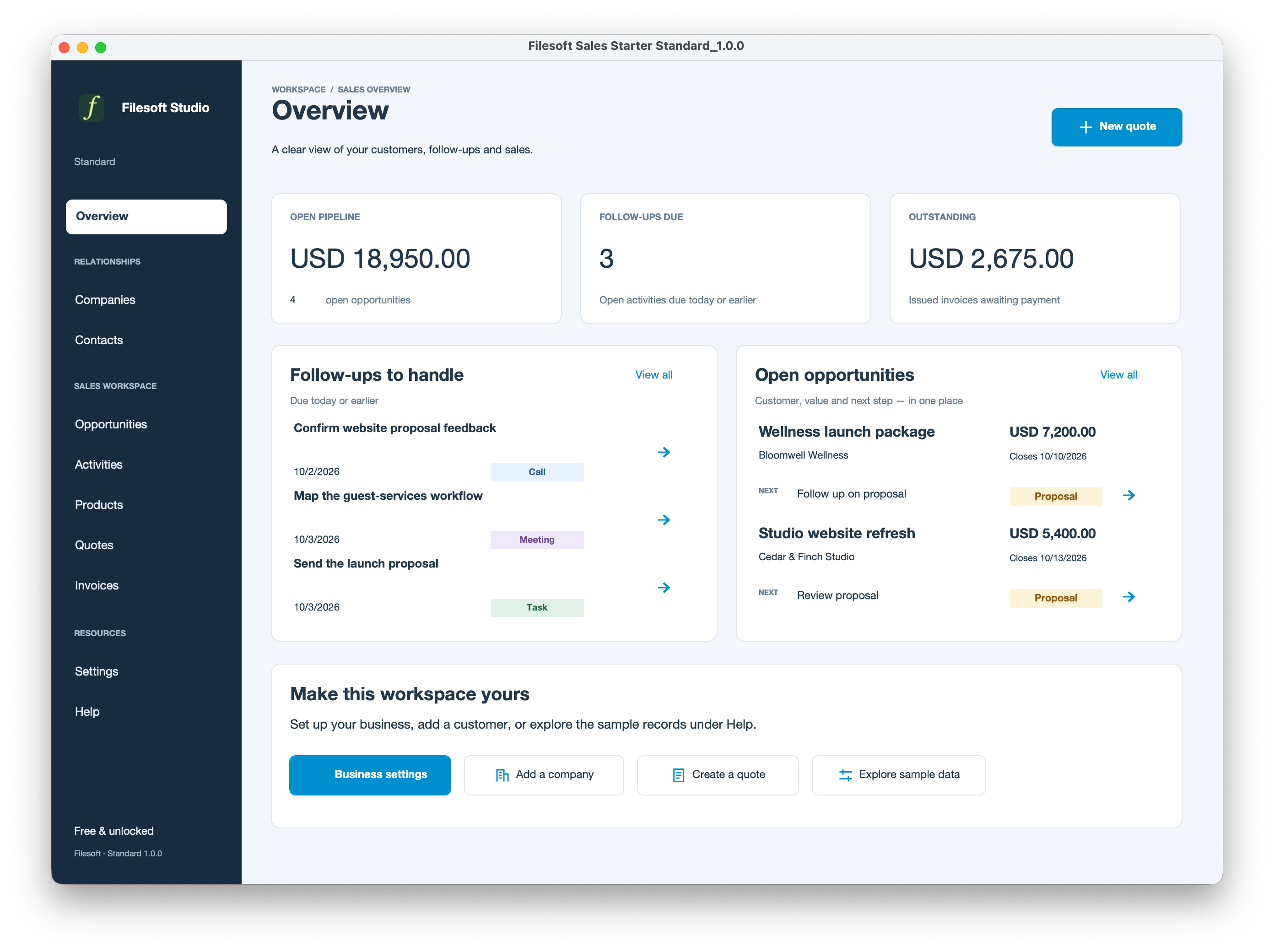
Reference screenshot
Standard
Help and support
For download issues, visit Help & downloads. For product questions, email support@filesofttools.com with the product version, FileMaker version and a description of the issue. Use fictional examples if you include screenshots.
Return to the product page · Release notes · All product guides