Your first session
- Extract this ZIP to a writable folder on your Mac.
- Open Filesoft Loan Desk_1.0.0.fmp12 in FileMaker Pro.
- Add your items and borrowers, then create a loan.
This is a clean file: it contains no personal or screenshot records. The app creates its settings on first opening. Use the sample-records switch to create optional examples, kept separate from your real records. No plug-ins or separate theme installation are required.
Everyday workflow
Items: create one record per physical item. Enter its name, unique asset tag, category and notes, then Save. Retire equipment that leaves service. Borrowers: enter a name and useful contact details, then Save. Archive borrowers when appropriate; issued history retains their checkout name. Loans: create a draft, choose a borrower, add items and set the due date. Click an added item again to remove it from the draft. Check out when the items leave. Return each item as it comes back; the loan becomes Returned once all items are back. Cancel draft removes an unissued draft and its rows.
Use Save before selecting another item/borrower or navigating away. Unsaved editor changes are discarded. Cancel restores saved values. Loan details have Save details and Reset edits; checkout also saves them. Drafts persist until checked out or explicitly cancelled.
Use Search and Clear on record lists. Loans has All, Drafts, On loan, Overdue and Returned filters. Status colors supplement the status text: Draft = slate; On loan = blue; Due today = amber; Overdue = red; Returned = green. Dates determine Due today and Overdue automatically. Only unused items/borrowers can be deleted through the app. Issued loan history is retained. An item cannot be checked out on two open loans.
Optional samples
The first sample switch creates two sample items, one borrower and a draft loan. Later visits preserve edits and intentional deletions of examples. Switch back to real records to continue your work. New records are created in the real collection. Sample and real records cannot be mixed in a loan. Website screenshots use a separate, larger synthetic demo collection. There are no artificial record limits or expiry.
Common questions
If an item cannot be checked out, check for an existing open loan. Save item and borrower edits before changing selection. Return each item individually; the loan becomes Returned when every item is back.
Requirements and scope
Requires Claris FileMaker Pro, sold separately. Designed for FileMaker Pro 19.6.3–26 (reviewed on macOS; Windows unverified) in single-user desktop use. Reviewed by Filesoft on macOS; exact tested FileMaker versions have not been recorded for Loan Desk. Windows, Go, WebDirect and multi-user use are not validated.
Backups and updates
Save and close the database before making a filesystem backup. Keep earlier versions and a separate practice copy.
A fresh download does not transfer your saved records. Keep your populated working file and contact Filesoft before moving to another version.
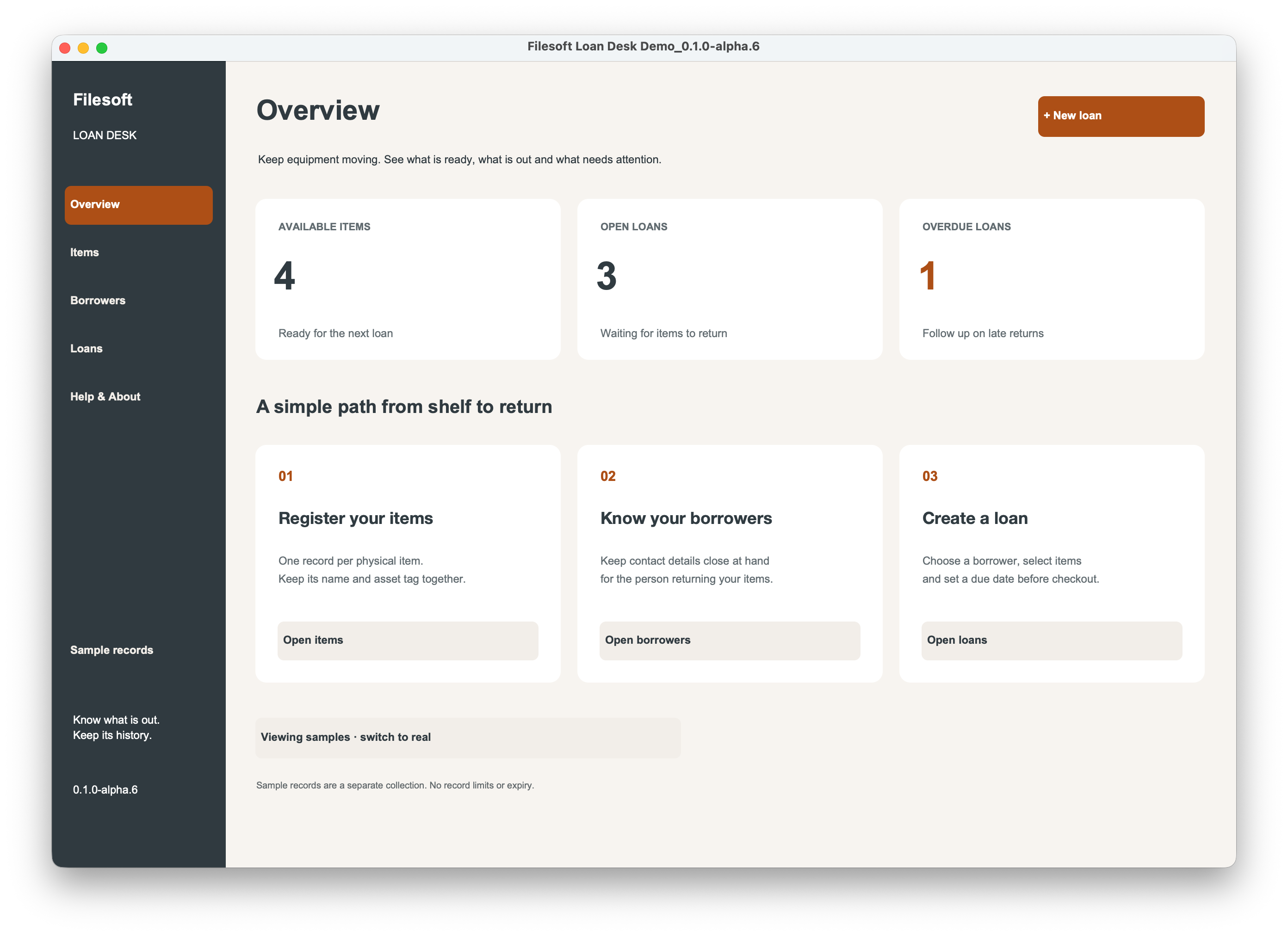
Reference screenshot
Help and support
For download issues, visit Help & downloads. For product questions, email support@filesofttools.com with the product version, FileMaker version and a description of the issue. Use fictional examples if you include screenshots.
Using the other format? Loan Desk Add-on guide.
Return to the product page · Release notes · All product guides