1. Define what “done” will mean
A task can be finished by your team and still be waiting for a client decision. Treating those as the same event makes project reports misleading. This exercise uses Filesoft Project Delivery Standard to keep the work and the decision separate.
Our fictional project is a welcome pack for Cedar Workshop. It has two milestones: Draft review and Final handover. The deliverables are a welcome-pack PDF and a one-page reference sheet. Agree that completion requires the client to accept the current revision of each deliverable, not merely that someone has uploaded a draft.
Use a separate practice copy. Standard and Premium share the workflow. FileMaker Pro is sold separately; Filesoft tested the product in 19 and 26 on macOS, with Windows compatibility unverified.
2. Set up the workspace and project
- Open Settings and enter fictional business details, a workspace label and team names. Add workspace and printing logos separately if you want to test the final document.
- For an existing example, choose Help → Load sample workspace. For this exercise, use your own separate practice records so the Cedar project is easy to identify.
- Add Cedar Workshop as a client, then create the welcome-pack project. Record its scope, responsibility and due date.
- Add Draft review and Final handover as milestones. Place each deliverable under the stage where it belongs.
A milestone is a checkpoint; a deliverable is something you can review. “Design work” is vague as a deliverable. “Welcome-pack PDF, revision 1” gives the reviewer a specific object and revision to discuss.
3. Describe progress without declaring approval
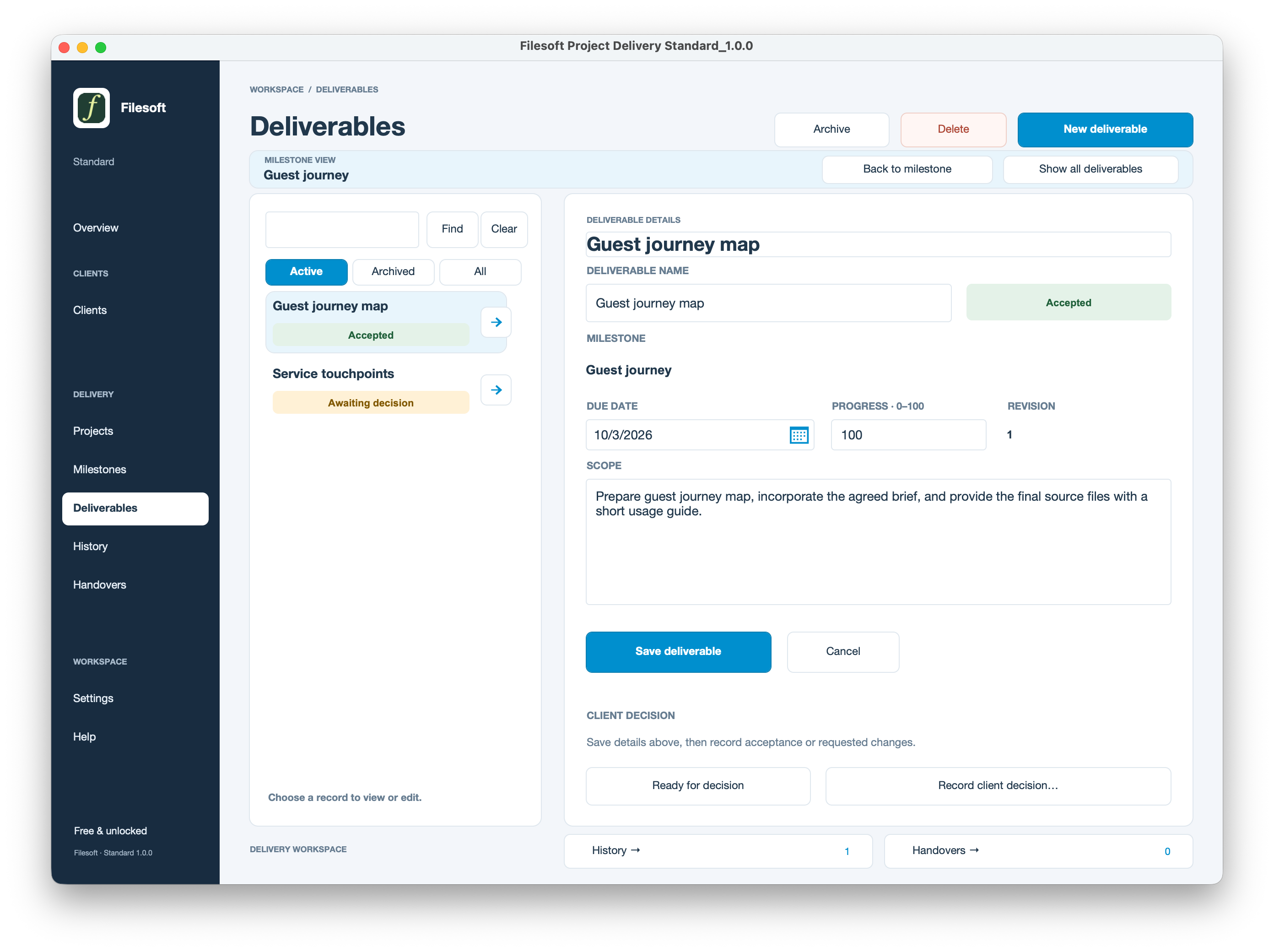
For the welcome pack, enter a draft revision and meaningful progress. Save its details before using Ready for decision. Readiness means you are asking for a decision; it is not evidence that a client has accepted anything.
| Situation | What to record |
|---|---|
| Draft is still being written | Work progress and revision details |
| Draft is ready for review | Save it, then mark it ready for decision |
| Client asks for a correction | Record requested changes against that revision |
| Revised work is accepted | Record acceptance against the current revision |
For practice, have the fictional client request a clearer opening paragraph. Record the decision and reference, then revise the work using the product’s revision workflow. Do not treat acceptance of an older revision as acceptance of the changed deliverable.
4. Record evidence that explains the outcome
Use the client-decision action to capture the outcome, contact, reference, date and evidence. A useful fictional note is: “Maya approved revision 2 in the review meeting; opening paragraph and contact details checked.” A bare “Approved” gives a future reader much less context.
The decision record documents what your team recorded. It is not an electronic-signature service and does not establish that a person authenticated or signed a contract. Keep real evidence in your agreed business process and follow the product’s instructions for referencing it.
Now repeat the review for the reference sheet. The project should not be described as ready for final handover just because the welcome pack is accepted while the reference sheet is still awaiting a decision.
5. Save a handover record
After acceptance, save the project’s handover note and choose Prepare handover. Open Handovers and export the PDF from the saved snapshot. This follows the existing Project Delivery setup guide; it does not require a new report or a new script.
Open the PDF and check the client, project, deliverables and revision information. A saved snapshot should be read as a record of that handover, not a promise that an older export updates whenever later project details change. Prepare and review a new handover when the business process requires one.
6. Check the project as a future reader
- Can someone explain the scope without asking the original project lead?
- Are the two milestones different from the deliverables they organize?
- Does each accepted deliverable identify the relevant revision and decision?
- Can you distinguish completed work from work waiting for a client?
- Does the saved handover describe what was actually accepted?
If you cannot answer one of those questions, improve that record before adding more dashboard indicators. Clear source records make a useful overview possible. Finished result: one fictional project with a traceable review history and a handover PDF you have inspected.
References
Use a practice copy and verify the result in your FileMaker version. Menu wording and platform behavior may differ.
Filesoft counts page loads and selected resource and practice-download clicks in aggregate. These counts contain no practice data or visitor identifiers. Browser privacy signals and the site’s analytics-off preference disable these counts.