1. Define the smallest useful form
A wider window should give a long field more room while keeping its label and action easy to find. Anchors describe that behavior, but neighboring objects do not automatically negotiate space.
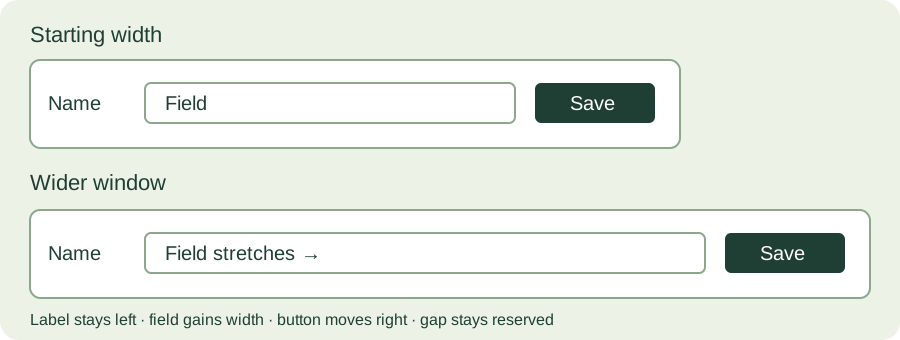
Duplicate a desktop Form View layout in a practice file. Start with a content width of 900 layout points. Place a label on the left, a text field in the middle and a Save button on the right, with a clear gap between field and button. Use a real field to check entry behavior; you do not need to change the button’s script.
Write down what should happen at the original width and with roughly 300 and 540 additional points of content width. Window borders and zoom affect the relationship between screen pixels and layout points. These are exercise sizes, not product requirements.
2. Assign a behavior to each object
In Layout mode, select an object and open the Inspector’s Position tab. Set its Autosizing anchors deliberately. Keep the top anchor for this horizontal exercise.
| Object | Horizontal anchors | Wider-window behavior |
|---|---|---|
| Label | Left | Stays at the left margin |
| Entry field | Left and right | Gains width |
| Save button | Right | Moves right; retains width |
Switch to Browse mode and widen the window. Return to the starting size and check labels, entry space and button spacing.
3. Make and explain one mistake
Place two equal-width fields beside each other in the practice layout. Give both left and right anchors. Widen the window and inspect their shared gap: each field responds to the enclosing boundary, not to its neighbor. They can overlap.
Restore the layout, then let one field stretch while keeping the other right-anchored at a fixed width. Or stack the fields vertically so each can use the available width. Choose based on the information people enter.
Test long values and visible labels. Shrinking every font is not a useful repair. Objects do not shrink below their original size, so anchors alone cannot rescue a form designed wider than its smallest useful window.
4. Check containers and portal rows
Fields inside panels and portals use the container’s boundaries. Set the panel’s resizing behavior as well as the field’s; a fixed-size panel will not follow the outer window merely because its field is anchored on both sides.
For a vertically growing portal, decide between more visible rows and taller rows. Try top-and-bottom anchors on the portal with no vertical autosizing on row contents. Then compare with a row object anchored vertically at both ends.
Check Claris’s auto-resize rules for groups, popovers and views. This Form View experiment does not describe every List View or Table View behavior.
5. Repeat at three widths
Download the resize checklist ↓
- At the original size, enter a long value and move focus with Tab. Inspect the label, field and Save button.
- Add roughly 300 points of content width. Check gaps and panel contents.
- Add roughly 540 points relative to the original size, then return to the start.
- Use more related records than the portal initially shows. Check both scrolling and row height.
- Save and reopen the practice file, then repeat the smallest-size check.
With Spring Garden Lite, use a copied layout and preserve the sample’s original styles. Importing a theme does not decide your layout geometry or anchors.
6. Review each target platform
A Go layout needs its own touch, space and orientation decisions. A WebDirect layout needs browser-specific review. A successful desktop resize does not establish either kind of testing.
Finished result: you can predict which object moves, which stretches and which stays fixed, and you have checked the smallest useful desktop form before expanding the design.
References
Use a practice copy and verify the result in your FileMaker version. Product requirements and platform support remain specific to each product.
Filesoft counts page loads and selected resource and practice-download clicks in aggregate. These aggregate counts contain no practice data or visitor identifiers. Browser privacy signals and the site’s analytics-off preference disable these counts.