A highlighted difference is a question to answer
A text comparison shows what changed. It does not tell you whether the new behavior is right. A single operator, field reference or quoted label can change a workflow even when most lines are identical. Use a comparison to organize a review, then use examples to establish correctness.
We will review a task-status calculation in a practice file. The exercise adds blank-date handling and treats Cancelled as closed. The formulas below are reading and calculation-dialog examples; they are not scripts that can be pasted into Script Workspace.
1. Preserve the original
Copy the existing formula into the Before box of Text Compare. Record where it is used and keep a recoverable practice copy. For this exercise, use:
FileMaker calculation
Case (
    Tasks::Status = "Done" ; "Complete" ;
    Tasks::DueDate < Get ( CurrentDate ) ; "Overdue" ;
    "Open"
)
The result “Complete” may already appear in a report, export or another calculation. Do not assume changing that text is purely cosmetic. Before approving a replacement, find the places that consume the result.
2. Compare the proposed revision
Paste this into After and choose Compare. Keep line-ending normalization off for the first pass so you can see the original text differences.
FileMaker calculation
Case (
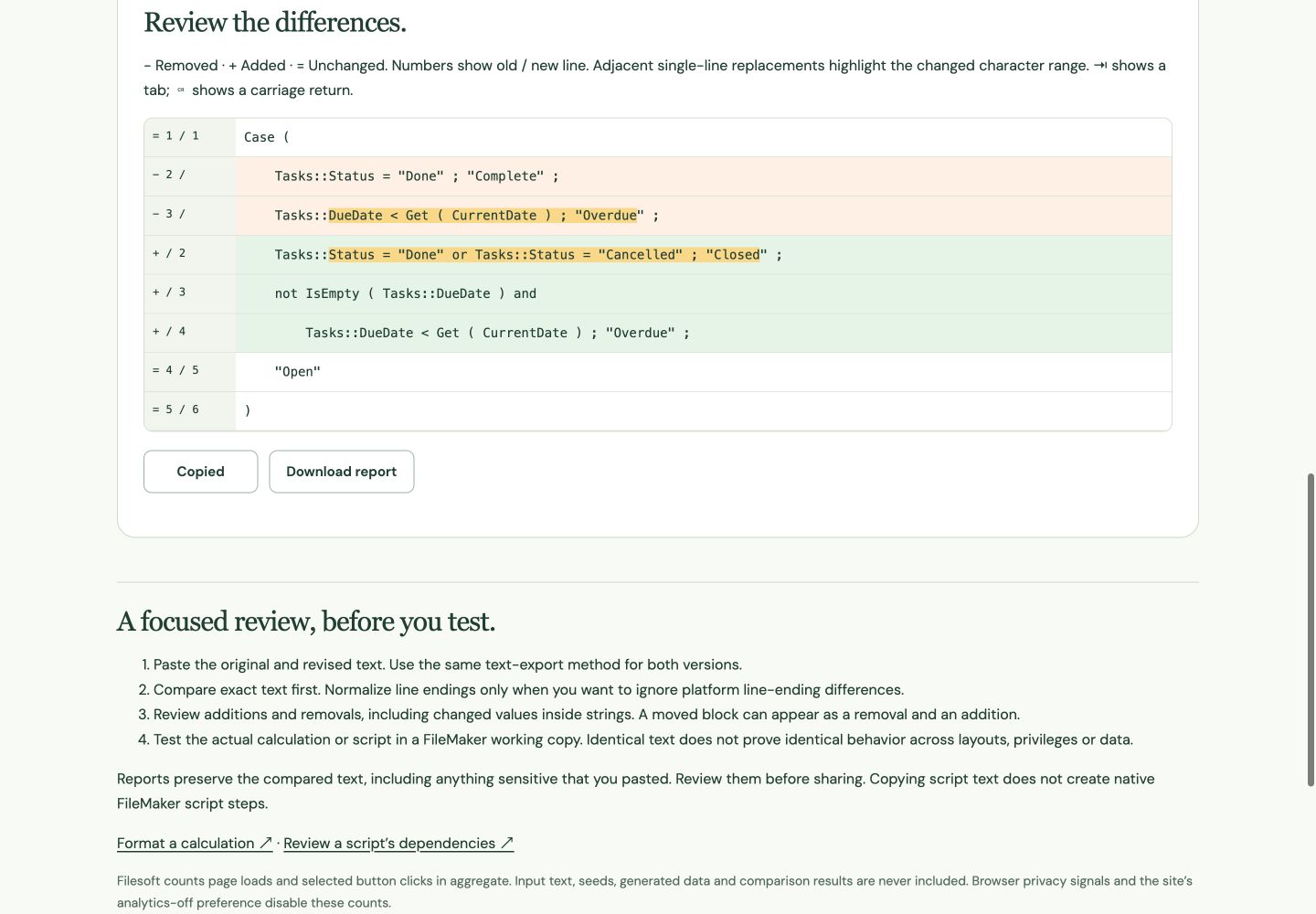
    Tasks::Status = "Done" or Tasks::Status = "Cancelled" ; "Closed" ;
    not IsEmpty ( Tasks::DueDate ) and
        Tasks::DueDate < Get ( CurrentDate ) ; "Overdue" ;
    "Open"
)
The added blank-date check makes the intention explicit: only dated tasks may be overdue. The first condition now handles Cancelled as well as Done. It also changes the output label to Closed, which is an independent behavior change.
3. Explain each meaningful change
| Change | Question for the reviewer |
|---|---|
| Done or Cancelled | Should both statuses stop the overdue check? |
| Complete becomes Closed | Will filters, exports or downstream formulas expecting Complete still work? |
| not IsEmpty before date comparison | What should an undated task display? |
| Less-than remains unchanged | Should a task due today be Open or Overdue? |
For this example, decide that Closed is the accepted label, undated tasks remain Open, and today is not overdue. If your requirements differ, edit the formula before testing. The tool cannot make those decisions.
Use “changes only” after reviewing the surrounding conditions. If copied text differs only because one source uses different newline characters, enable line-ending normalization and compare again. It does not mean “ignore every space”: spacing inside a quoted string can be real data.
4. Test a small decision table
Evaluate the revised formula against these cases in a practice layout or calculation context. “Yesterday” and “tomorrow” mean relative to the date returned by Get ( CurrentDate ) when you test.
| Status | DueDate | Expected revised result |
|---|---|---|
| Open | Yesterday | Overdue |
| Open | Today | Open |
| Open | Tomorrow | Open |
| Open | Empty | Open |
| Done | Yesterday | Closed |
| Cancelled | Yesterday | Closed |
Check both the returned value and where that value is displayed. A label can be correct while a narrow field truncates it. If you retain Complete instead of Closed, change the expected results before running the tests.
Also test a record with an unexpected status. Under this example’s rules, any status other than Done or Cancelled reaches the date test. If unknown statuses should be flagged, add a separate rule rather than assuming this formula covers them.
5. Know what the comparison cannot establish
- It compares pasted text, not live FileMaker object identities or dependencies.
- A renamed field can produce many textual changes without changing intent; an unchanged name can still refer to the wrong table context.
- Copied script text may omit settings you need to inspect in the actual script step.
- It does not execute formulas, check privileges, or prove that a file can be deployed safely.
For long formulas, compare a smaller logical section first. Preserve the original source alongside it so the review does not lose context. Formatting both sides can help readability, but review the raw changes before normalizing anything.
Approve the behavior, then replace the formula
- Save a short note describing why each change is needed.
- Run all six cases and record the actual values.
- Check consumers of the old Complete label.
- Apply the approved formula in the practice file and repeat the relevant user action.
- Save the final comparison and expected-result table with the change record.
The useful result is not a green or red diff. It is a small, explainable change with evidence that both ordinary and awkward inputs behave as intended.
References
Use a practice copy and verify the result in your FileMaker version. Browser screenshots demonstrate the tool; they do not establish native FileMaker testing.