1. Make the unit unambiguous
A useful time log explains where the hours went. Enter five fictional sessions in Time Ledger, then reconcile one week and one project.
Use a separate practice copy and projects called “Practice — Website” and “Practice — Research.” Time Ledger records whole minutes. A 75-minute session is 1 hour 15 minutes, or 1.25 decimal hours, not 1.75 hours.
Time Ledger 1.0.0 is a free manual time log for single-user desktop use and one active window. It requires FileMaker Pro, sold separately. The intended macOS range is 19.6.3–26; owner testing covered FileMaker 19 and 26 without restating patches. Windows, Go, WebDirect, hosting and concurrent use are not validated.
2. Enter five recognizable sessions
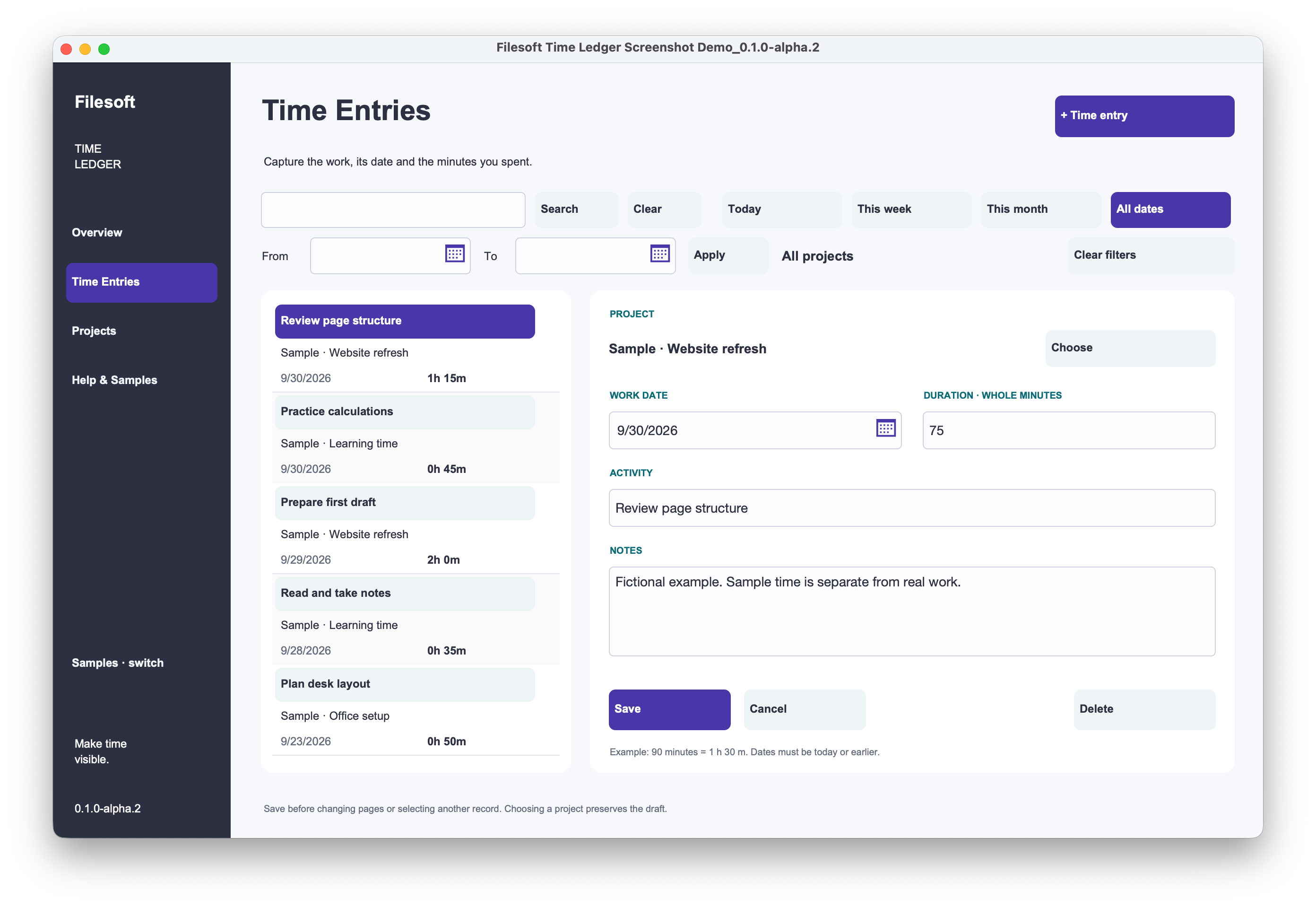
Create and save the two projects. In Time Entries, choose + Time entry, choose the project, enter the work date, whole-minute duration, activity and a short note, then Save. Save before changing pages or selecting another entry.
Use these fixed dates, all on or before 12 October 2026, rather than the current dashboard dates. Use the calendar or confirm the date interpretation in your local format. Manually enter these fictional records; this is not an import into the product.
| Date | Project | Activity | Minutes |
|---|---|---|---|
| 5 Oct 2026 | Website | Outline page | 45 |
| 6 Oct 2026 | Website | Revise copy | 75 |
| 7 Oct 2026 | Research | Read notes | 30 |
| 4 Oct 2026 | Website | Earlier planning | 20 |
| 12 Oct 2026 | Research | Later review | 40 |
Download the five-entry worksheet ↓
3. Select the week explicitly
Clear search and filters. Set From to 5 October 2026 and To to 11 October 2026, then Apply. Keep All projects selected. Three entries belong in this range; the 4 October and 12 October entries do not.
Expect 45 + 75 + 30 = 150 minutes, or 2 hours 30 minutes. Five entries suggest the range was not applied. Only Website entries suggest a project filter remains selected. A search term can narrow the result further.
Overview cards are relative to the current date. “This week” means Monday-to-today, not this permanently fixed exercise week. Compare totals only when the date scope agrees.
4. Reconcile the project totals
Keep the range and select Website: two entries, 120 minutes. Select Research: one entry, 30 minutes. Return to All projects and verify their sum.
| Selection | Entries | Minutes | Decimal hours |
|---|---|---|---|
| 5–11 Oct · Website | 2 | 120 | 2.00 |
| 5–11 Oct · Research | 1 | 30 | 0.50 |
| 5–11 Oct · All projects | 3 | 150 | 2.50 |
| All five entries | 5 | 210 | 3.50 |
Sum minutes before dividing by 60. Rounding each session separately can produce a different answer. Keep the source minutes available to explain a rounded total.
5. Correct one session
Suppose the 6 October Website session was 60 minutes, not 75. Select that entry, change its duration and Save. The week becomes 135 minutes: Website 105 and Research 30. That is 2 hours 15 minutes, or 2.25 decimal hours.
Find the changed entry again and confirm the project, date and note stayed intact. Creating a new entry instead of editing the old one duplicates the session and increases the total. Inspect the record list before making another correction.
Restore 75 minutes to repeat the original exercise; the week returns to 150. This manual correction does not demonstrate a separate audit trail of every edit.
6. Keep the history useful
Use consistent activity descriptions and notes that will still make sense later. Projects can be Active, Paused or Completed while retaining time history. Project status and a report’s date range answer different questions.
Time Ledger does not include a running timer, invoices, billable rates, team approvals or scheduled notifications. These are separate development ideas. The full Indigo Tonic theme library is also a separate paid product.
Finished result: three selected weekly sessions, 150 reconciled minutes and a correction you can explain. Continue to the monthly-summary guide if you want to construct a report in your own app.
References
Use a practice copy and verify the result in your FileMaker version. Product requirements and platform support remain specific to each product.
Filesoft counts page loads and selected resource and practice-download clicks in aggregate. These aggregate counts contain no practice data or visitor identifiers. Browser privacy signals and the site’s analytics-off preference disable these counts.