Your first session
- Unzip the download and move the .fmp12 file to a folder where you keep your work.
- Open Filesoft Checklist Lite_1.0.0.fmp12 in FileMaker Pro.
- Choose + Blank checklist or From template.
On first open, eight starter templates are created. Your own checklist collection starts empty. No records from the development or screenshot files are included.
Daily use
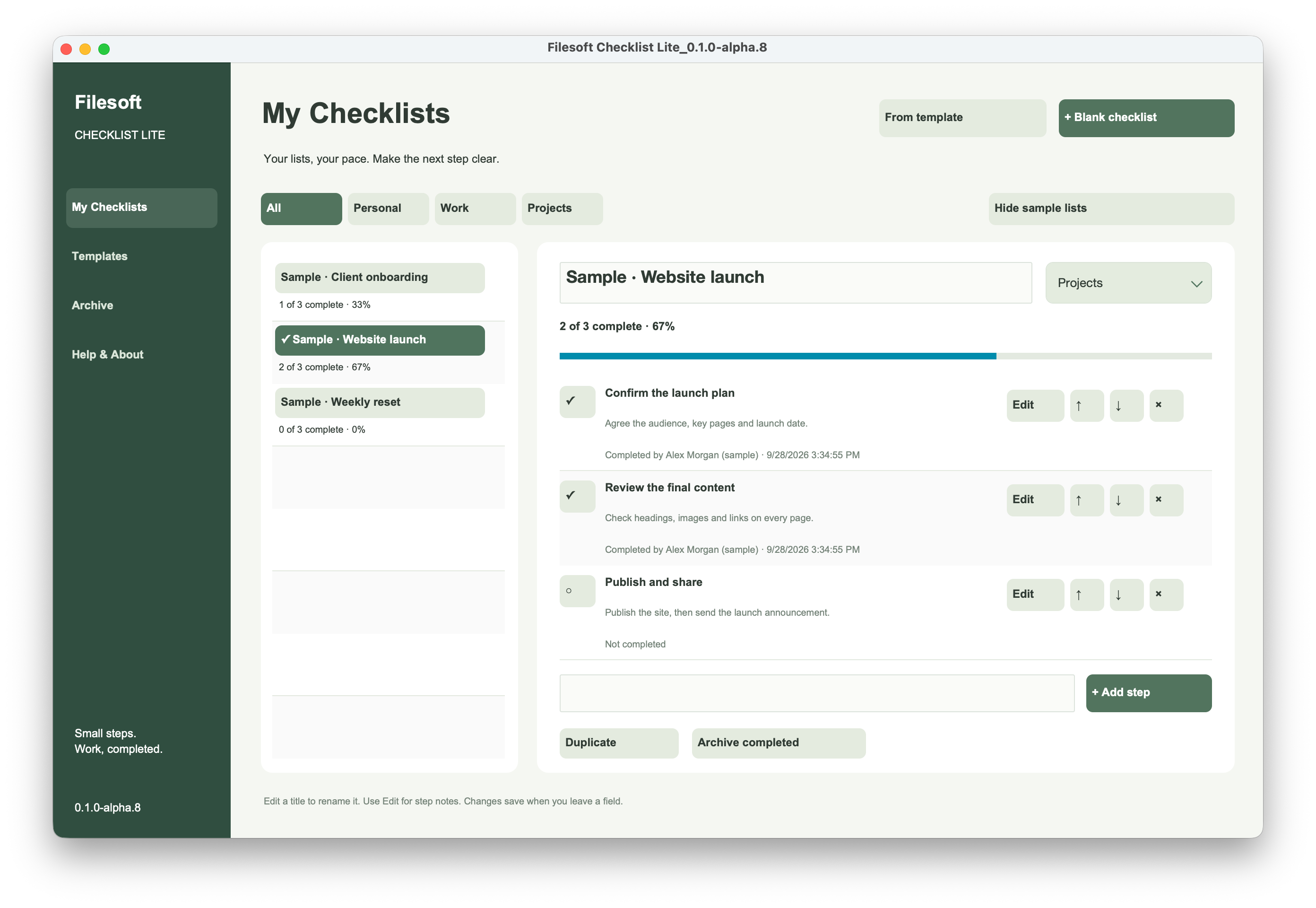
Select a checklist on the left. Edit its title and choose Personal, Work or Projects. Add steps using the box below the step list. Click the circle/check mark to change completion. Edit opens the full step title and notes; use the arrows to reorder steps and × to delete a step after confirmation.
Set your completion display name in Help & About. Completion records this editable name and the date/time. It is a personal label, not an authenticated identity. Unchecking clears that completion information.
Duplicate creates an independent, unchecked copy. Archive completed moves a finished list to Archive; Restore checklist brings it back. Empty lists can be deleted from My Checklists. Archived lists can be deleted from Archive. Deletion asks for confirmation and permanently removes the checklist and its steps.
Templates
Daily Planning, Weekly Review, Client Onboarding, Project Handoff, Meeting Preparation, Travel Packing, Content Publishing and Monthly Admin Review are included. Edit them or create your own. Use template creates an independent checklist; later template edits do not change existing checklists.
Sample content
Show sample lists loads the optional illustrative sample when needed. Hide sample lists hides it without deleting its records. Sample content is labeled separately from your work.
Common questions
A template creates an independent checklist. Changes to a template do not update lists you already created. Unchecking a step clears its completion name and time. The completion name is an editable label, not an authenticated identity.
Requirements and scope
Requires FileMaker Pro, sold separately. For FileMaker Pro 19.6.3–26 on macOS; tested in 19.6.3 and 26, not every intermediate version. Windows, Go, WebDirect, hosting and multi-user use are outside this release’s supported scope.
Backups and updates
Save and close the database before making a filesystem backup. Keep earlier versions and a separate practice copy.
A fresh download does not transfer your saved records. Keep your populated working file and contact Filesoft before moving to another version.
Reference screenshot
Help and support
For download issues, visit Help & downloads. For product questions, email support@filesofttools.com with the product version, FileMaker version and a description of the issue. Use fictional examples if you include screenshots.
Using the other format? Checklist Lite Add-on guide.
Return to the product page · Release notes · All product guides